



Niall Crowe
Participating Frequently
December 30, 2020
Question

Text not moving to next row in column

  • December 30, 2020
  • 2 replies
  • 786 views

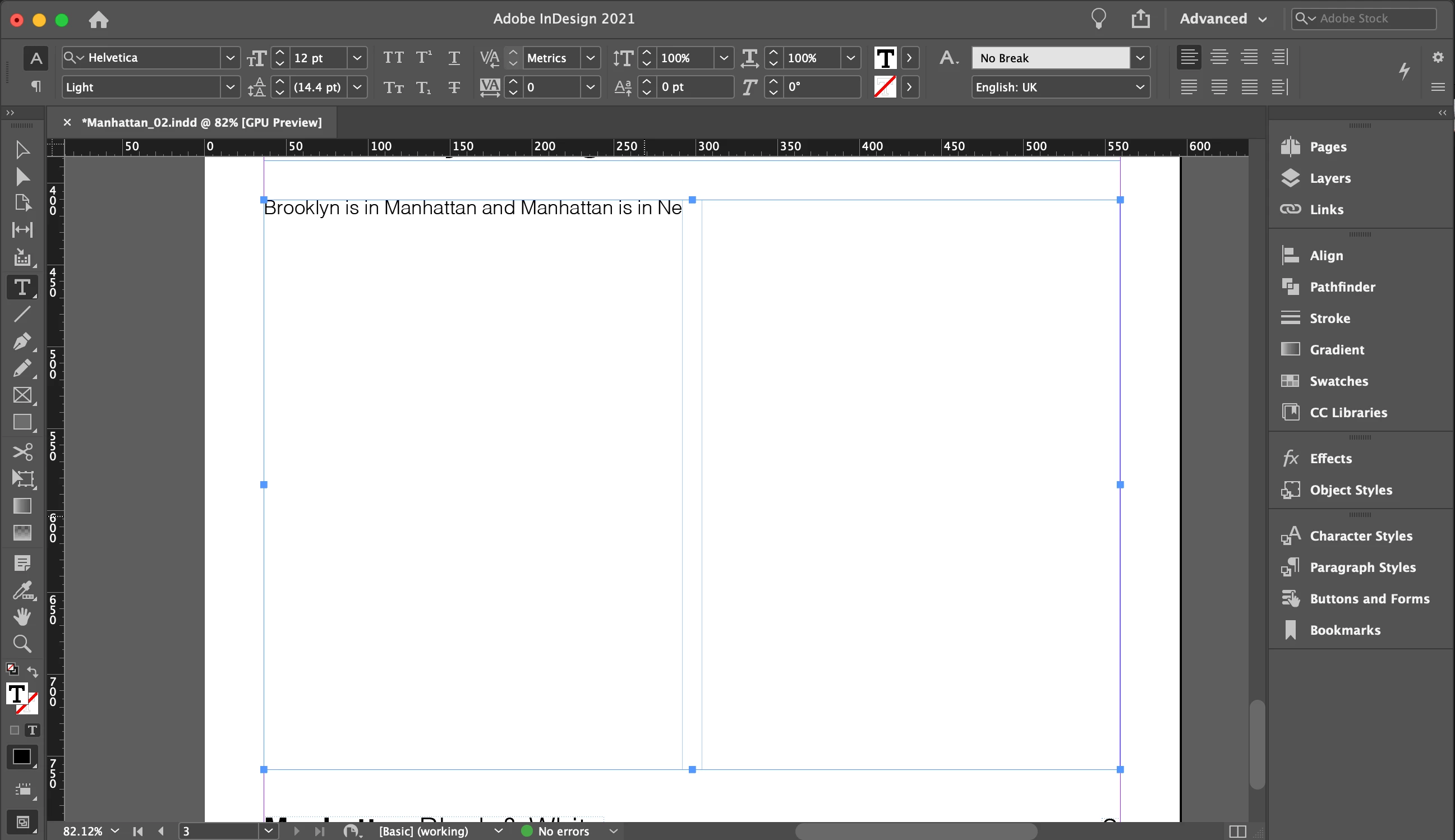
In the image attached, when I type an extra character in the text frame, the sentence disappears off screen rather than the word returning to the next line. I created a frame, went to Object > text frame options and added two columns. How do I get the text to return to the next line within the column?


[inline image added by moderator, to make it easier for us to help you.]
This topic has been closed for replies.

2 replies

Barb Binder
Community Expert
Community Expert
December 30, 2020

@Niall Crowe:


Would you like to share your file so that we can take a look? You can put it on dropbox and post a link in a reply here (public) or click my name above and message me directly (private).


~Barb 

~Barb at Rocky Mountain Training
Legend
December 30, 2020

My guess would be that you have a character style called No-Break. If it's set to not break, and is applied to all of the text, it won't break.

By the way, you can embed your screenshots into the forum. If you do, we don't have to download them. They will be visible within the text. Use this button when you're ready:

Jeff Witchel, ACI
Community Expert
Community Expert
December 30, 2020

I would agree with Migintosh.  It looks like the Character Style "No Break" has been applied to the whole frame. Choose "None" instead. 

Character Styles are meant to be applied to the selected text within a paragraph  never a whole paragraph and especially not a whole frame.

I'm sure this is something that happened by accident, but luckily there's an easy fix. Apply "None" as the Character Style.

If you find this happening when you create a new frame, your defaults have been changed. To fix, deselect everything and choose "None" as the Character Style. When you draw a new frame, the issue will go away.