



BartonGarrett256
Inspiring
May 15, 2017
Answered

Wrap Text is not working

  • May 15, 2017
  • 3 replies
  • 12640 views

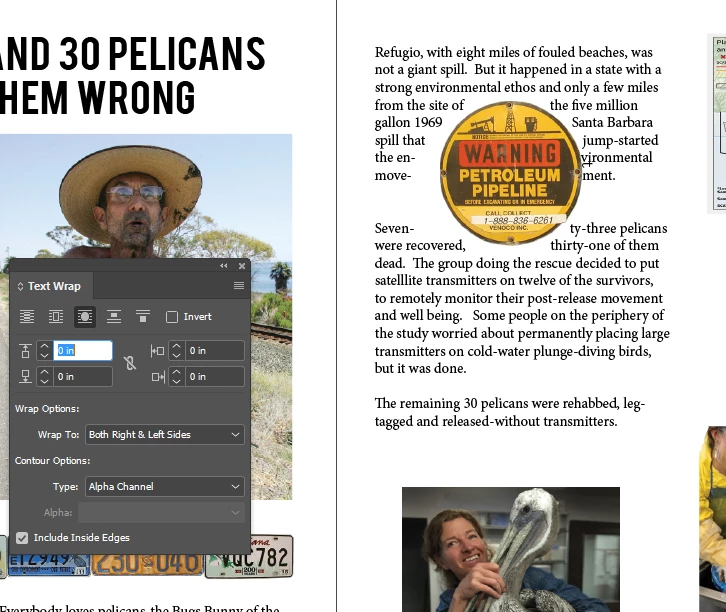
I've tried everything I can think of.  I am competent in Ae and Ps, and can get by in Illustrator, but I am stuck on this one.  I am trying to wrap text around a PNG image I built in Ps.  It is round, the transparency starts just where it would be expected to start, at the ring of the sign.  No matter what I try, including linking and de-linking I can't get it close on the left and farther on the right a the same time.  I can get one or the other but not both.  I went so far as to add letters and change their color to none, but that will not work on split words. if I link and add space in the numeric field the asymmetry remains.  Check/unchecking the inside edges box does not help.
This topic has been closed for replies.
Correct answer

The object is relatively small and the text is left aligned.

It would be a better flow with a bigger object and justified text.

Adobe has the same issue, as you can see in the official helpfile - no.4 on this page: Learn how to wrap text around objects in InDesign

Compare with the example of no. 3 !

I think I'd rather use "bounding box".

Fenja

3 replies

Correct answer
May 15, 2017

The object is relatively small and the text is left aligned.

It would be a better flow with a bigger object and justified text.

Adobe has the same issue, as you can see in the official helpfile - no.4 on this page: Learn how to wrap text around objects in InDesign

Compare with the example of no. 3 !

I think I'd rather use "bounding box".

Fenja

BartonGarrett256
Inspiring
May 15, 2017

Bingo! Thanks, changing the way the paragraph text was aligned fixed it.  I used a setting that tried to sort of justify the text on the right side, not by changing the spacing, but by splitting words, to make it a little less ragged. I assume that gave the Wrap Text command a built in bias.     Changing to Align Top seems to have cleared that. I am still trying to find all the menus... 

And you point out the object is kinda small, that I am asking it to wrap around too small an object, a very good point. 

I like the program, it lets me do great things, I just have an awful lot to learn, thanks to all who were willing to offer suggestions.  

Brainiac
May 15, 2017

I see that you don't have an offset:

Before:

After:

And since you have AI skills, do you know you can modify the path to make it exactly what you want?

BartonGarrett256
Inspiring
May 15, 2017

Thanks.  I am still figuring out the ins and outs of all  the command options, I was able to overlay a path, but I am not there yet.   I don't understand why it starts with a bias to one side given it is a round object. That seems just wrong to me.   I now see there are more things I can do.  I am guessing it was not meant to be used with small objects.  I will play with the menus and look for tutorials.  I think I should be able to figure out something, thanks again!

Mike Witherell
Brainiac
May 15, 2017

Did you try selecting the graphic in the frame, perhaps with the white Direct Selection tool, and nudging the graphic to one side a bit?

Mike Witherell
BartonGarrett256
Inspiring
May 15, 2017

Thanks, I tried this and I still have the offset.