johnrellis
Legend
February 14, 2017
Question

P: Map > Tracklog > Auto-Tag Photos incorrectly greyed out

  • February 14, 2017
  • 14 replies
  • 6440 views

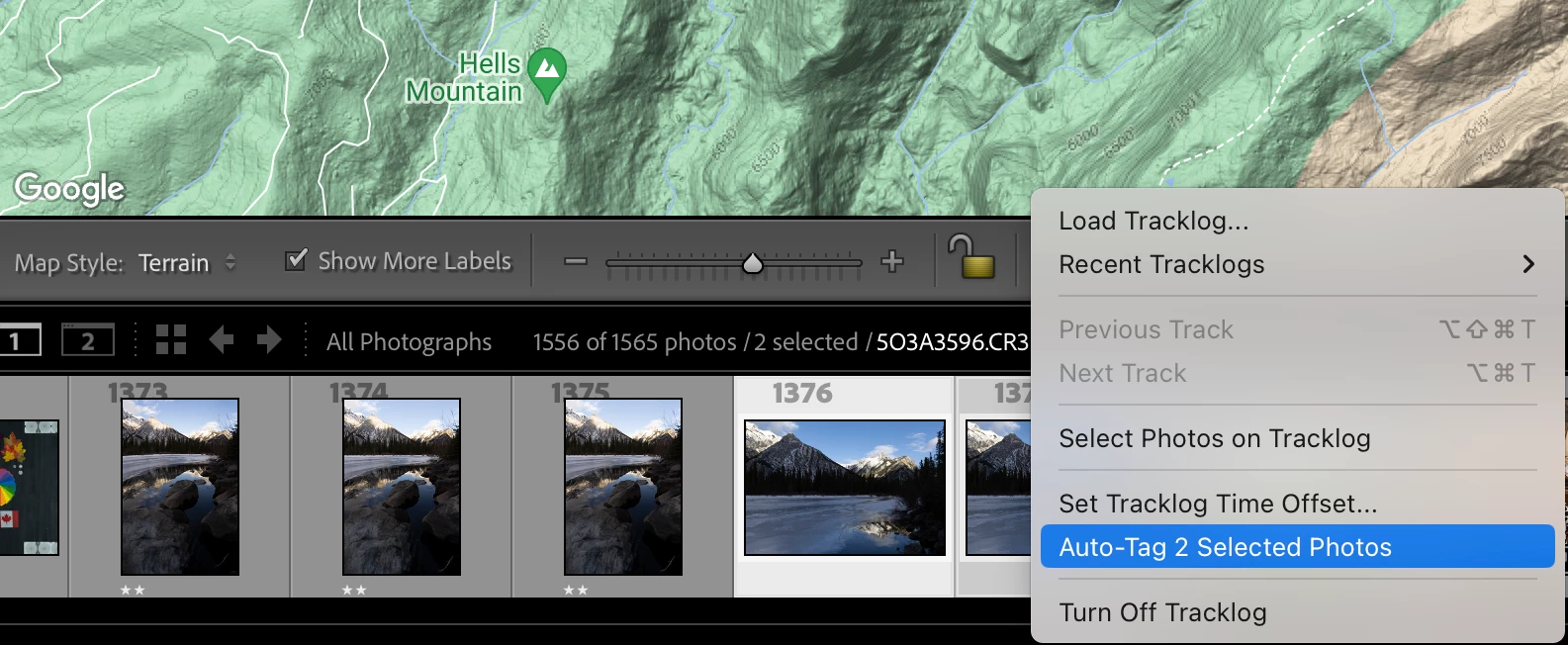
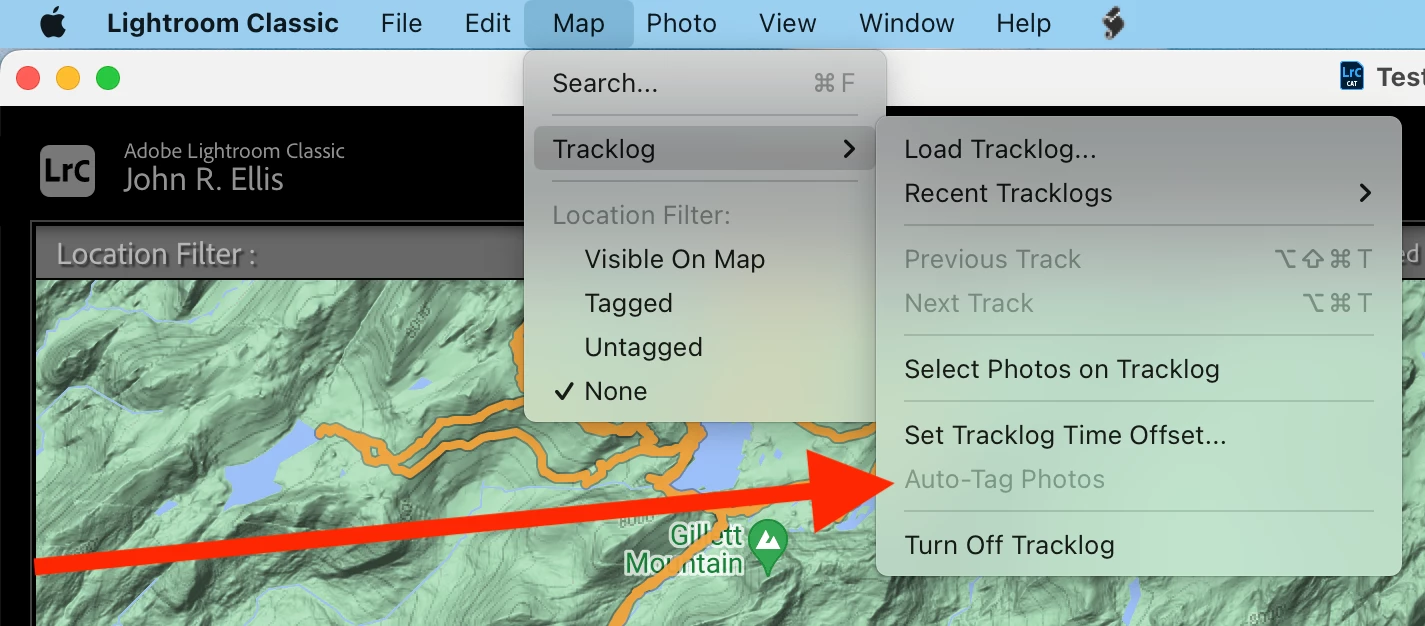
The menu item  Map > Tracklog > Auto-Tag Photos is always greyed out, even though the toolbar's Lightning Bolt > Auto-Tag n Selected Photos is not.  This bug has been present since at least LR 9.1.


To reproduce:


1. In the Map module, load this tracklog:

https://www.dropbox.com/scl/fi/c4mtos3k945v3z8kcamgi/Big-Lake-2023-Tracks.GPX?rlkey=18dxvhr56v0i45ib1amitgylx&dl=0


2. Select one or more photos in the filmstrip.


3. Observe that Map > Tracklog > Auto-Tag Photos is greyed out.


4. Observe that the toolbar's Lightning Bolt > Auto-Tag n Selected Photos is not greyed out.


Tested on LR 12.5 Mac OS 13.5.1 and Windows 11; LR 9.1 Mac OS 13.5.1.


14 replies

Participant
July 13, 2025

The bug still exists. Subscriptions are getting more expensive, and the bug will soon be 2 years old 🤦‍♂

johnrellis
Legend
July 13, 2025

The bug has been present since at least LR 9, though no bug report was filed until two years ago.

Legend
May 7, 2025

I opened LrC today and tried this Map module issue again: removed my photos from the testing catalog, then Imported them again, loaded the tracklog and set the time offset for the different timezone.


Auto-tag Photos in the menu was enabled, even with no photos selected, as this screen shot shows:


I selected some photos and used Auto-tag Photos to tag them successfully. The menu item remained enabled, even after closing LrC and restarting. I was able to use it again to tag more photos. Yesterday, doing exactly the same process, the Auto-tag Photos was always disabled.


What a frustrating bug!


Legend
May 6, 2025

This thread is a total mess.


The issue reported by @johnrellis on Oct 10 2023 is still an issue in LrC 14.3.


I created a new catalog and imported some photos for which I have a have a tracklog file.


After setting the time offset to correct for the timezone in which the photos were taken, I can select one or more photos and the menu Map > Tracklog > Auto-tag Photos is greyed out (disabled). However, in my testing today, I have actually seen the Auto-tag  Photos menu item enabled just after importing the photos, even with no photos selected! If I use it once or close LrC and relaunch, it then shows as disabled.


This should not be so difficult to fix in a timely manner. More than 18 months is not timely. Does anyone at Adobe care about their users?

Rikk Flohr_Photography
Community Manager
Community Manager
January 25, 2024

Is anyone on this thread still seeing this issue with 13.1?


Rikk Flohr: Adobe Photography Org
misxif
Participant
July 26, 2024

I still have the problem with Lightroom Classic v13.4

GoldingD
Legend
July 26, 2024
quote

I still have the problem with Lightroom Classic v13.4


By @misxif

With Auto tag? or something else?


Community Expert
November 20, 2023

Didn't even realize this was still a bug as I always click the squiggly line. Thanks for info @johnrellis 

Participant
November 20, 2023

Thanks to all of you. The workaround (explained by Jao vdL and Johnrellis) did what it should do: It worked.

Participant
November 19, 2023

Vielleicht hat jemand einen Tipp für mein aktuelles Problem. Ich möchte die GPS-Koordinaten aus einem Tracklog automatisch in meine Bilder eintragen. Durch eine passende Zeitverschiebung habe ich es auch geschafft, dass alle ausgewählten Bilder sich in dem Zeitfenster befinden, das durch den GPX-Log abgedeckt ist. Allerdings ist leider die Funktion "Fotos automatisch taggen" ausgegraut.

Ich stehe auf dem Schlauch, woran das liegen kann, denn immerhin habe ich diese Funktion erst gestern erfolgreich genutzt. Hat jemand eine Idee, woran es liegen könnte, dass sie nun nicht verfügbar ist?

(Lightroom Classic Version 13.0.1)

Community Expert
November 19, 2023

In my experience this happens when there are no images in your selection that are in the time period of the tracklog. Usually this is because the time offset is wrong. There are lots of subtle bugs with time recording in DSLR cameras and their timezone setting, so check whether the time tag metadata on the images actually appear to be within the tracklog's time period.

Participant
November 19, 2023

@Jao vdL: Thanks a lot for your hint, but to me it really looks like the time stamps of all selected pictures are within the time range that is covered by the tracklog (see screenshot).

Rikk Flohr_Photography
Community Manager
Community Manager
October 9, 2023

Updating status

Rikk Flohr: Adobe Photography Org
Participant
October 25, 2024

@Rikk Flohr: Photography issue of "Auto-tag Photos" is still grayed out after loading GPX.  The lightning bolt method works.  When is Adobe going to fix this bug?  LrC 14.0.1

Known Participant
October 9, 2023

auto-tag images in the Map module does not work after uploading the GPX.  The selection is greyed out, unable to use.

Window 10.  Lightroom has last update 12.5.

johnrellis
Legend
October 9, 2023
Known Participant
October 9, 2023

Thank you Johnrellis,

#3 with the lightning bolt worked!!!

Thanks for the help!

Ralph Hatt

Participating Frequently
November 24, 2020

I use GEOTAG PHOTOS PRO to record my locations as I take photos. After returning home. I download the tracklog and within GPP I connect the GPS coordinates to the photos. When I  open LrC, the GPS data are not visible. But if I open the image in Ps and then save it, the GPS data are visible in the Metadata panel in LR. That’s Problem 1 – why are they not initially visible in LrC?

To address that problem, I’ve been following up by using the Map panel in LrC. I select the images, open the Map panel, select the Map command in the upper left, select/open the tracklog, and then auto-tag the photos. The GPS data are then visible in the Metadata panel. That has worked fine the past few days, but when I tried it today the “auto-tag” command was greyed out, so I couldn’t do it. There’s no problem with the time match. That’s Problem 2. I’d be grateful for insights or solutions for either problem.

GoldingD
Legend
November 25, 2020

Please post your System Information as Lightroom Classic (LrC) reports it. In LrC click on Help, then System Info, then Copy. Paste that information into a reply. Please present all information from first line down to and including Plug-in Info. Info after Plug-in info can be cut as that is just so much dead space to us non-Techs.


Participating Frequently
November 25, 2020

Thanks.


Lightroom Classic version: 10.0 [ 202010011851-ef6045e0 ]
License: Creative Cloud
Language setting: en
Operating system: Windows 10 - Business Edition
Version: 10.0.19041
Application architecture: x64
System architecture: x64
Logical processor count: 12
Processor speed: 3.6 GHz
SqLite Version: 3.30.1
Built-in memory: 32578.6 MB
Real memory available to Lightroom: 32578.6 MB
Real memory used by Lightroom: 965.9 MB (2.9%)
Virtual memory used by Lightroom: 917.4 MB
GDI objects count: 650
USER objects count: 2239
Process handles count: 2401
Memory cache size: 5.8MB
Internal Camera Raw version: 13.0 [ 610 ]
Maximum thread count used by Camera Raw: 5
Camera Raw SIMD optimization: SSE2,AVX,AVX2
Camera Raw virtual memory: 4MB / 16289MB (0%)
Camera Raw real memory: 7MB / 32578MB (0%)
System DPI setting: 144 DPI (high DPI mode)
Desktop composition enabled: Yes
Displays: 1) 3840x2160
Input types: Multitouch: No, Integrated touch: No, Integrated pen: No, External touch: No, External pen: No, Keyboard: No

Graphics Processor Info:
DirectX: NVIDIA GeForce GTX 1080 (27.21.14.5167)


Application folder: C:\Program Files\Adobe\Adobe Lightroom Classic
Library Path: D:\Data\Pictures\LR Catalog\LR Catalog-2-v10.lrcat
Settings Folder: C:\Users\David\AppData\Roaming\Adobe\Lightroom

Installed Plugins:
1) AdobeStock
2) ColorChecker CameraCalibration
3) Facebook
4) Flickr
5) Nikon Tether Plugin
6) Syncomatic