


Participating Frequently
March 3, 2023
Answered

An internal error has occurred. Invalid Path error while finding raw folders on a NAS

  • March 3, 2023
  • 11 replies
  • 17762 views

Hi guys, oldtime Lr User here, but new to the forums.

(My native language is spanish, so excuse me if my english is bad.)


System Specs: LR Classic 12.2 release, Camera Raw 15.2 (Build 202302032259-eb84d255) on a 2013 Mac Pro 6-Core 3.5Ghz Xeon with 16 gigs of ram Running MacOS Monterey 12.6.3 (21G419) and with a Synology NAS DS420+ Running the latest  version of DSM 7.1.1-42962 Update 3


In my studio we have 3 workstations; the first is my "trashcan" mac pro 6,1, and 2 assembled windows PC. We use several catalogs that are stored locally on each machine and synchronized with synology drive, so we always have the updated catalogs on every workstation, and all the raw files are stored on the NAS. Each client has his own catalog and directory with the name "-Name of the client- Medios" being "medios" the word we use to know that is the correct folder, and then it contains the usual LR structure that is year and then date folders. 


Each time one of my assistants opens a catalog on his windows workstation, they find all the photographs offline because the file adress is different on windows and mac and viceversa, so the only thing we have to do is clic on the "medios" folder cna clic on "find missing folder" and then we select the respective "Medios" folder. We've been working like this at least 3 years and it has been very easy and productive for us. 


Everyting worked fine until this week, when I tried to locate the missing folder i've found an error message that appears immediatly after clicking on the folder: "An Internal Error Has Occurred. Invalid Path"
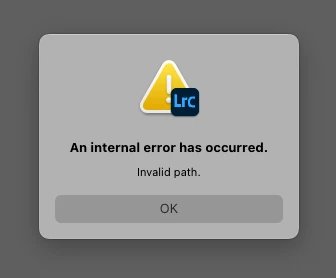


I've tried restarting my system, the NAS, recconecting the network volumes, resseting the preferences while launching LRC, reinstalling LRC, and even the support team tried to remotely fix the problem granting full acces to the Library folders... but all without succeess. 


Funny thing is that I can import new photos to the very same directory that LRC says it's an invalid path, and i can locate individual photos succesfully, but not the Top Parent folder "medios", nor the year folder or even the day folder. 


My assistants can work normally on their windows workstations, but it's me who cant find peace of mind having all my photographs online. Hope you can help me with this! Thanks in advance for your time. 


Correct answer hudsonhenry

(WORK-AROUND SOLVED MY ISSUE) Mapping the NAS shared folder with my images to a drive letter in Windows 11's File Explorer, then directing Lightroom 12.3's catalog in Windows to the images via the mapped and drive lettered location solved the issue for me. When I jumped back to my Mac Studio Ultra with the same catalog on the same 10Gbe network I had no problem locating the images in the NAS shared folder on the Mac too. Adobe should address this, but at least there is a relatively easy fix that lets you upgrade past 12.1

11 replies

GrantP85
New Participant
April 27, 2025

It's 2025 and we're now on 14.3, but the problem still exists.


Seems to be something to do with SMB shares and the difference between Windows and Mac handling the drive naming convention.


Can confirm the work-around still works, just annoying. I only found this because I was moving my main work off of my "fun" computer on to my photography computer. I fixed all the relationships manually (per folder) before finding this topic.


I'm guessing this is an edge case really, which is why Adobe hasn't prioritized the fix, or else this isn't the right way to get their attention to get it fixed?

Participating Frequently
March 6, 2025

I've solved the problem (existing for several uyears) by canceling my subscription at renewal time. Less stressing. and after nearly two mobths, I've discovered, that I don't miss any Adobe products (I've had replacements for years so....)


Maybe subscriptions have made Adobe lazy, leading to not even solving simple, but highly irritating problems like this.


I removed the cause of the problem and saved money to boot - what's not to like?


As always: YMMV.

New Participant
March 6, 2025

You might be on to something there... 

Do you mind sharing your replacements? I'm brand new to Mac and have no idea of the lay of the land. 


Thanks.

Participating Frequently
March 28, 2025

No, but there are many alternatives, a few far better for MY use cases.


If you need inspiration, you can always use:


https://alternativeto.net


If you can't find inspiration here.... ehhh.... smile,


Anyway, you have to look for and actually try/test what's best for you.


Regards


New Participant
February 14, 2025

When will Adobe finally fix this bug that has been around for years? 


I find the error rate of Adobe software beyond my tolerance level and am considering switching to Capture One.

drums351
New Participant
November 29, 2023

This is still an issue.  Luckily HudsonHenry has a viable work around that acknowledges "why" this is happening on the windows side, not writing the catalog file in a manner that the MacOS can handle and allow the folder path to be re-established easily.  Adobe, I hope you see this and work on a fix for it.

mksap2000
New Participant
February 29, 2024

Switching from Windows and Mac still not work in 2024 either. You can link the folder again and again, but then Lightroom can't find the folder on the other system.

JimPorterPhoto
New Participant
June 7, 2024

And still not working in June 2024.  I was already using a mapped drive to connect to my NAS on Windows, so that didn't work for me.  Nor did trying to point the catalog to a non-NAS location before saving and moving the catalog from Win to Mac (one of the other suggestions).  I'm in the process of manually rebuilding selected folders, specifically those for which I had created a collection (i.e., paid or otherwise important shoots, vs just fun photos).  Finding a single photo refreshes the entire folder (and, of course, the collection).  I have a lot of photos that I can live without being in folders in LrC (despite the fact they actually are in folders).  I'll reconnect them as I need them.  But fwiw, I've been using LR on Mac, iPad, and mobile quite a bit recently.  It's fine for less intensive projects, and it's nice to just navigate the folder structure on the NAS.  Good search tools as well.  So my solution here is to manually repopulate selected folders upfront, repopulate others as needed or simply edit in LR instead of LrC, and yell at Adobe for not fixing this.

New Participant
November 8, 2023

I was able to solve this tediously by going to the individual photo in the catalog. Finding one would find for the whole folder (which would be by day in my NAS). I see there is a faster answer but not going to lie I couldn't understand it so just putting this out there as backup for anyone that needs it!

Gennady Meergus
Participating Frequently
November 12, 2023

Yes this works, but in my case this is a network volume with 5000 folders and 600K photographs. I could not navigate each folder, that would take years.

hudsonhenry
Participating Frequently
November 12, 2023

I never had an issue again after simply mapping the NAS drive as a lettered drive for Windows purposes. I share back and forth between a Windows 11 Laptop and Mac Studio daily with nearly 400,000 images in my NAS collection going back to film scans from the 90s. I can't imagine using an image by image solution either!!! No way. Just map the drive in windows as a networked drive with an assigned letter. It solves it.

Gennady Meergus
Participating Frequently
October 14, 2023

Same problem with Lightroom Classic 13.0.1 on MacOS 14.0.

Gennady Meergus
Participating Frequently
October 9, 2023

Same problem. Lightroom 12.5, MacBook Pro M1, MacOS Sonoma 14.0.

Copied a catalog from Windows and cannot re-attach folders using "Find Missing Folder", it always says "An internal error has occured. Invalid path".

Indeed, it did not work for network paths (\\server\share) and did work for letter paths (P:\folders).

Downgrading to 12.1 helped, although it issued a warning "The catalog was previously opened by a newer version of Lightroom Classic. If you continue, some unsupported edits may be lost".

Too bad.

This is clearly a bug that needs to be fixed.

Participating Frequently
July 29, 2023

Same issue here, but with a variant: in my wife's MacBook Air (13", M2 with 24 GB RAM) everything works fine, in my MacBook Pro (14", M2 Pro with 16 GB RAM) I got the "invalid paht" error. So, I reverted to 12.1 and the error dissapeared, but I couldn't use the AI Noise Reduction feature.
I "reverted forward" to 12.4 and the "invalid path" is now solved, but the AI Noise Reduction is gone!
I'm stuck...
Best regards to you all,

Max Alvelais

DdeGannes
Adobe Expert
July 29, 2023

@maxlalvelais , Are you sure you have a supported file type selected. See the screen capture for the file type needed for Denoise AI?


Regards, Denis: iMac 27” mid-2015, macOS 11.7.10 Big Sur; 2TB SSD, 24 GB Ram, GPU 2 GB; LrC 12.5,; Lr 6.5, PS 24.7,; ACR 15.5,; (also Laptop Win 11, ver 24H2, LrC 15.0.1, PS 27.0; ) Camera Oly OM-D E-M1.
Participating Frequently
August 21, 2023

Thank you very much!
Yes my files are Canon RAW, the issue is the Lightroom Classic version, bue I found a solution after having suffered the same failure in my wife's MacBook Air (13", M2 with 24 GB RAM):
Select any image, right click and select "Found missing picture", select the correct file and voila! the issue is resolved.
Greetings to you!

New Participant
July 17, 2023

Hi, I have been using Lightroom CC for many years now. Until recently I used a PC with my RAW files stored either on my local SSD (actual year only) or on Synology. The Synology drive used to be E:\ in PC.

I have finally moved on a Macbook Pro a couple of weeks ago. Lightroom works much better in general. All the links from my pictures within Lightroom to the source on Synology are broken though. When I try to remap pictures (e.g. click on exclamation sign an search the file in Synology) I get an error thar this file is already mapped to another picture in the catalog.


What can I do to correct this problem?

Thanks in advance, Chris

Gennady Meergus
Participating Frequently
November 21, 2023

first, check whether they really exist in lightroom under the same path. you can search by file name and find them.

if yes (they do exist), then you have to decide which copy to keep, either delete the new one or the old one, depending which one is more "precious", e.g. particiaptes in collections, etc. sometimes if both of them participate in collections, then you have add the photo you're going to keep to all the collections where the photo you're going to delete participates. this is a hassle, but there is no other way to sort this out.


if the files are NOT actually duplicated (this happens sometimes as well), then exiting and restarting Lightroom sometimes helps.

New Participant
May 9, 2023

Greetings, I have the same problem, I have several catalogs created with windows 10 and the original ones on a synology DS910 NAS... I recently use a Mac Studio and when trying to import the catalog I get the error you mentioned


hudsonhenry
hudsonhenryCorrect answer
Participating Frequently
May 9, 2023

(WORK-AROUND SOLVED MY ISSUE) Mapping the NAS shared folder with my images to a drive letter in Windows 11's File Explorer, then directing Lightroom 12.3's catalog in Windows to the images via the mapped and drive lettered location solved the issue for me. When I jumped back to my Mac Studio Ultra with the same catalog on the same 10Gbe network I had no problem locating the images in the NAS shared folder on the Mac too. Adobe should address this, but at least there is a relatively easy fix that lets you upgrade past 12.1

Participating Frequently
May 24, 2023

Hi Henry


This work-around also solved the issue on my system. Hopefully with the help of @Rikk Flohr: Photography this can get solved with a future update. Thanks a lot.