Participant
April 14, 2025
Answered

can’t get the AI noise reduction option to show up on

  • April 14, 2025
  • 1 reply
  • 878 views

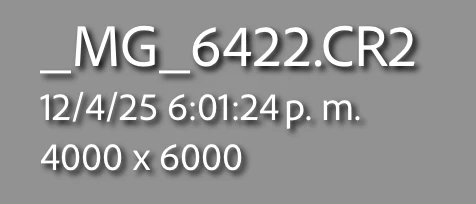
Hey, I’ve been using the AI noise reduction feature for weeks without any problems, but starting today it’s no longer available. I only get a message saying: “Noise Reduction is currently not supported for this format.”


I haven’t changed my computer or camera, and there’s no option to update to a newer version of Lightroom either.


I’m using a MacBook Pro with Lightroom Classic version 14.2, and I’ve made sure the photos are in RAW format (.CR2 — I shoot with a Canon).


Correct answer johnrellis

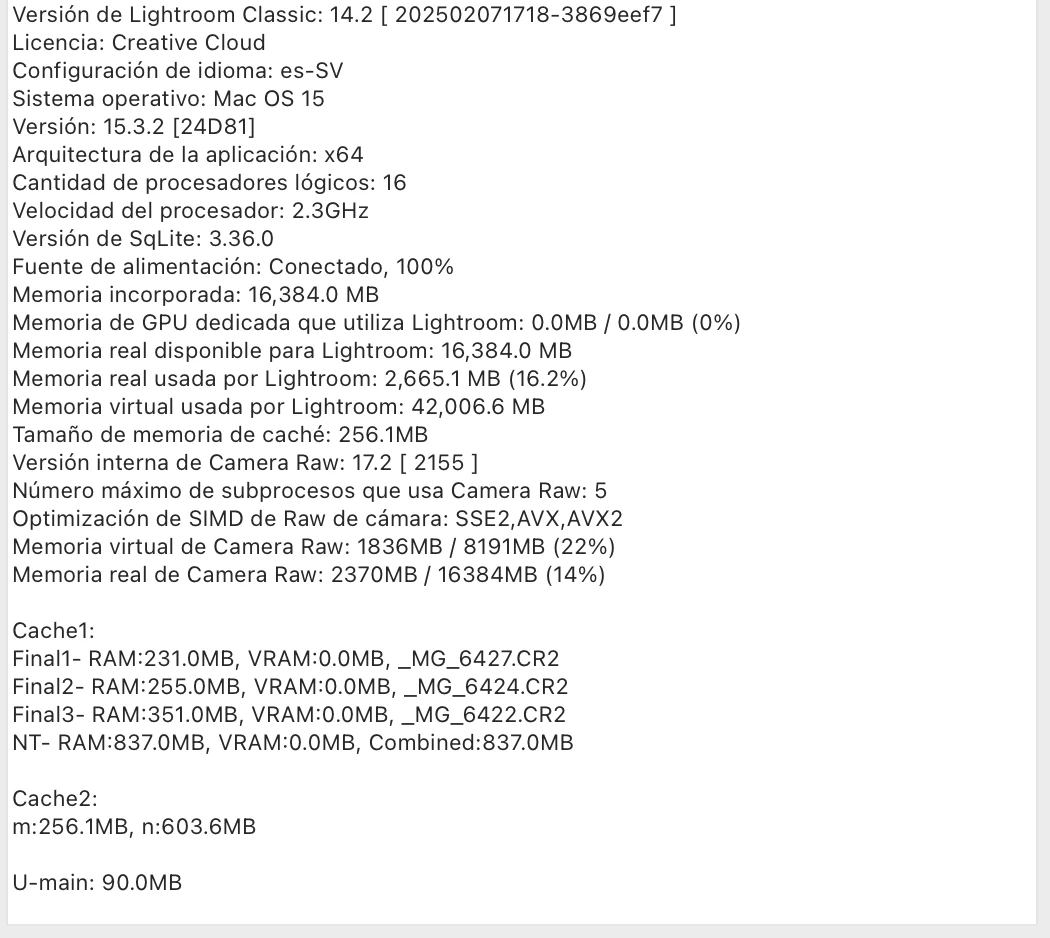
It’s the same as what’s shown in the image I posted in the question.

_________

Lightroom Classic Version: 14.2 [ 202502071718-3869eef7 ]
License: Creative Cloud
Language Setting: es-SV
Operating System: Mac OS 15
Version: 15.3.2 [24D81]
Application Architecture: x64
Number of Logical Processors: 16
Processor Speed: 2.3GHz
SqLite Version: 3.36.0
Power Source: Plugged in, 87%, Charging
Built-in Memory: 16,384.0 MB
Dedicated GPU Memory Used by Lightroom: 0.0MB / 0.0MB (0%)
Actual Memory Available to Lightroom: 16,384.0 MB
Actual Memory Used by Lightroom: 1,508.7 MB (9.2%)
Virtual Memory Used by Lightroom: 38,641.5 MB
Cache Memory Size: 265.6MB
Camera Raw Internal Version: 17.2 [ 2155 ]
Maximum Threads Used by Camera Raw: 5
Camera Raw SIMD Optimization: SSE2,AVX,AVX2
Camera Raw Virtual Memory: 1379MB / 8191MB (16%)
Camera Raw Actual Memory: 1639MB / 16384MB (10%)

Cache1:
Final1- RAM:1,111.0MB, VRAM:0.0MB, _MG_6289.CR2
Final2- RAM:189.0MB, VRAM:0.0MB, _MG_6654.CR2
NT- RAM:1,300.0MB, VRAM:0.0MB, Combined:1,300.0MB

Cache2:
m:265.6MB, n:658.6MB

U-main: 134.0MB

Standard Preview Size: 3584 pixels
Displays: 1) 3584x2240

Graphics Processor Info:
Initial Status: GPU not supported
User Preference: Auto
Enable HDR in Library: OFF

Application Folder: /Applications/Adobe Lightroom Classic
Catalog Path: /Users/andresbeltran/Pictures/Lightroom/Lightroom Catalog.lrcat
Settings Folder: /Users/andresbeltran/Library/Application Support/Adobe/Lightroom

Installed Plugins:

Adobe Stock

Flickr

Aperture/iPhoto Importer Plugin

config.lua Indicators:


"Graphics Processor Info:
Initial Status: GPU not supported"


LR isn't recognizing the GPU of your Mac. Try deleting the file "Camera Raw GPU Config.txt" as detailed here:
https://helpx.adobe.com/lightroom-classic/kb/troubleshoot-gpu.html#solution-3


That will cause LR to reevaluate the capabilities of your GPU.

 

1 reply

JohanElzenga
Community Expert
Community Expert
April 14, 2025
-- Johan W. Elzenga
Participant
April 15, 2025

It’s still not working — I even tried converting the file to DNG and it didn’t help.

I’ve read in some other posts about deleting a couple of files called “TempDisableGPU3” or “TempDisableGPU2,” but I don’t know how to find them.


johnrellis
johnrellisCorrect answer
Legend
April 15, 2025

It’s the same as what’s shown in the image I posted in the question.

_________

Lightroom Classic Version: 14.2 [ 202502071718-3869eef7 ]
License: Creative Cloud
Language Setting: es-SV
Operating System: Mac OS 15
Version: 15.3.2 [24D81]
Application Architecture: x64
Number of Logical Processors: 16
Processor Speed: 2.3GHz
SqLite Version: 3.36.0
Power Source: Plugged in, 87%, Charging
Built-in Memory: 16,384.0 MB
Dedicated GPU Memory Used by Lightroom: 0.0MB / 0.0MB (0%)
Actual Memory Available to Lightroom: 16,384.0 MB
Actual Memory Used by Lightroom: 1,508.7 MB (9.2%)
Virtual Memory Used by Lightroom: 38,641.5 MB
Cache Memory Size: 265.6MB
Camera Raw Internal Version: 17.2 [ 2155 ]
Maximum Threads Used by Camera Raw: 5
Camera Raw SIMD Optimization: SSE2,AVX,AVX2
Camera Raw Virtual Memory: 1379MB / 8191MB (16%)
Camera Raw Actual Memory: 1639MB / 16384MB (10%)

Cache1:
Final1- RAM:1,111.0MB, VRAM:0.0MB, _MG_6289.CR2
Final2- RAM:189.0MB, VRAM:0.0MB, _MG_6654.CR2
NT- RAM:1,300.0MB, VRAM:0.0MB, Combined:1,300.0MB

Cache2:
m:265.6MB, n:658.6MB

U-main: 134.0MB

Standard Preview Size: 3584 pixels
Displays: 1) 3584x2240

Graphics Processor Info:
Initial Status: GPU not supported
User Preference: Auto
Enable HDR in Library: OFF

Application Folder: /Applications/Adobe Lightroom Classic
Catalog Path: /Users/andresbeltran/Pictures/Lightroom/Lightroom Catalog.lrcat
Settings Folder: /Users/andresbeltran/Library/Application Support/Adobe/Lightroom

Installed Plugins:

Adobe Stock

Flickr

Aperture/iPhoto Importer Plugin

config.lua Indicators:


"Graphics Processor Info:
Initial Status: GPU not supported"


LR isn't recognizing the GPU of your Mac. Try deleting the file "Camera Raw GPU Config.txt" as detailed here:
https://helpx.adobe.com/lightroom-classic/kb/troubleshoot-gpu.html#solution-3


That will cause LR to reevaluate the capabilities of your GPU.