


Participating Frequently
March 9, 2018
Answered

Color change when rendering into Photoshop

  • March 9, 2018
  • 1 reply
  • 6773 views

I have a CR2 raw file in Lightroom and when I open it in photoshop via lightroom, the colors change.

I have made no color adjustments to the colors at all. The only thing is, I get a pop up that says "This version of Lightroom may require Photoshop Camer Raw plug-in version 9.4 for full compatibility.

I've tried "Renter using Lightroom" as well as "Open Anyway". In both cases, when comparing the color from the CR2 raw file and the PSD file, it's different.

Any clues?

THANK YOU!!
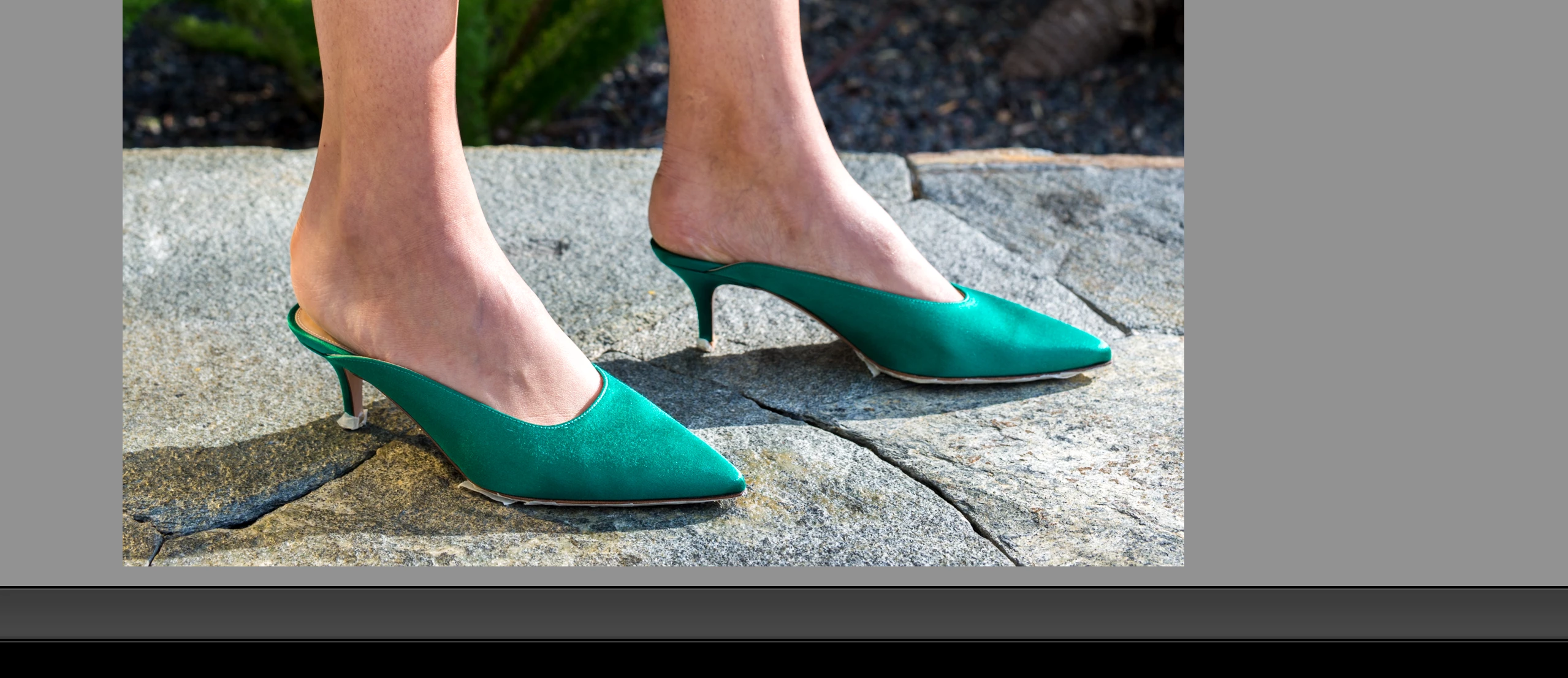
In the above image, you can see the brighter, original color from the shoes. But when comparing it to the rendered PSD...
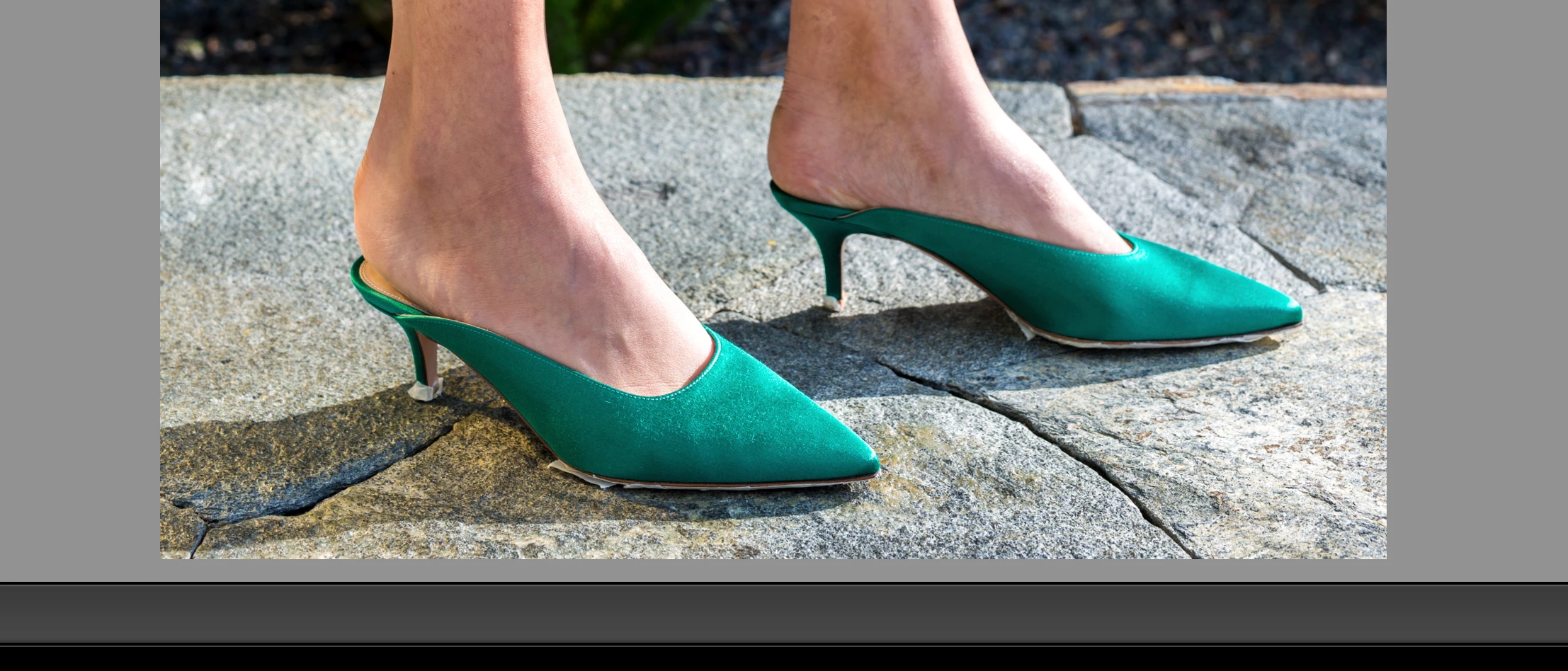
Again, no modifications were done to color at all. The color shift happened entirely when rendering the image as a PSD through Lightroom.

This topic has been closed for replies.
Correct answer Todd Shaner

I can see the difference in the screenshots on my iPhone too, sure they're not as drastic, but it's apparent that they are not 100% the same colors.

If I am viewing both files in the same program (Lightroom), and one has a different color than the other, how could it be a display color profile issue? I just tap < and > on my keyboard to switch between the files and see an instant difference in color in Lightroom.


Mariokroes  wrote

I can see the difference in the screenshots on my iPhone too, sure they're not as drastic, but it's apparent that they are not 100% the same colors.

The newer iPhones use displays with P3 gamut, which is wider than sRGB. You will see similar loss of color saturation due to gamut clipping.

The Wide Gamut World of Color — iMac Edition

Mariokroes  wrote

If I am viewing both files in the same program (Lightroom), and one has a different color than the other, how could it be a display color profile issue? I just tap < and > on my keyboard to switch between the files and see an instant difference in color in Lightroom.

Once you save the PSD file in PS the image has permanent sRGB gamut clipping and will look different next to the original file inside LR.

Please try changing your LR and PS color settings as suggested above to ProPhoto RGB, restart both PS and LR, and then check the 'Edit in PS' PSD file rendering to the original file inside LR. I think you will find them to be identical.

1 reply

JohanElzenga
Community Expert
Community Expert
March 9, 2018

Check your color management policies in Photoshop. If the working color space in Photoshop is set to sRGB for example, and your color management policies say that images should be converted to the working space without asking first, then this could happen if the color of the shoes falls outside the sRGB gamut.

Also check the external editor settings in Lightroom for the same thing. Maybe you send the image to Photoshop in sRGB.

-- Johan W. Elzenga
Participating Frequently
March 9, 2018

Thank you for your reply.

I checked the settings in Lightroom and the export file is PSD in sRGB.

When opening the file, there is no prompt for color space changes / discrepancies.

Unfortunately this does not explain the shift in color.

Here the same file opened in Photoshop via Camera Raw, so it never went into LR. Notice the color.

Here the same file, PASTED into my earlier PSD. So I created a new layer with from the CR2 file via photoshop. Instant color shift.

Both images have the same color space.

Participating Frequently
March 9, 2018

I think the suggestion had reference to your color settings in Photoshop.


Thank you for your reply.

These are my settings Photoshop CS6:

It seems that this issue must be happening in how Lightroom is rendering the RAW file?