Known Participant
June 23, 2025
Answered

Create HDR

  • June 23, 2025
  • 6 replies
  • 821 views

I just started creating HDR's, so I'm no expert. After the resulting HDR and the other 3 images are displayed, I do not see any text on the HDR image. I do go to the top and click on "Text", change to "File Name", and then "HDR"  like I see in the Julianne Kost tutorial on creating HDR's. Any help would be appreciated, thank you.


Dick Davis
Correct answer drtonyb

@Dick_Davis 


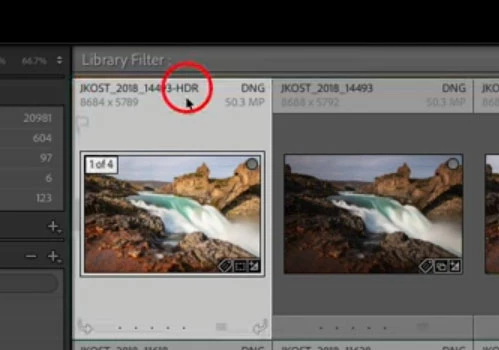
If you are following Julieanne's video tutorial and you don't see the filename of the HDR DNG like this:


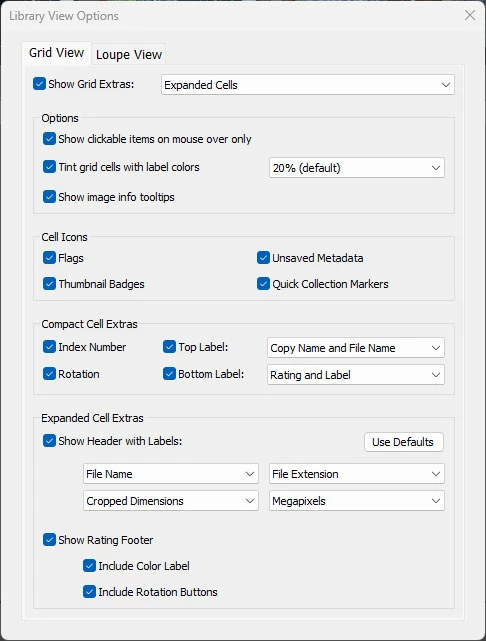
then you have not set the Grid View options to the same settings as Julieanne has set. In the video, the Grid View options are set to show Expanded Cells and the settings are:


You can find this under View > View Options... or press Ctrl+J. Note the settings for the Expanded Cell Extras, and that the Show Grid Extras is checked and set to Expanded Cells.


Your issue could have been resolved so much more quickly if you provided a screen shot. On Windows, press the "print screen" key to copy the screen to the clipboard.

6 replies

Rob_Cullen
Community Expert
July 4, 2025

@Dick_Davis  The recent answer from @drtonyb is possibly the correct answer that you have been seeking.


Regards. My System: Windows-11, Lightroom-Classic 15.0, Photoshop 27.0, ACR 18.0, Lightroom 9.0, Lr-iOS 10.4.0, Bridge 16.0 .
drtonybCorrect answer
Brainiac
July 4, 2025

@Dick_Davis 


If you are following Julieanne's video tutorial and you don't see the filename of the HDR DNG like this:


then you have not set the Grid View options to the same settings as Julieanne has set. In the video, the Grid View options are set to show Expanded Cells and the settings are:


You can find this under View > View Options... or press Ctrl+J. Note the settings for the Expanded Cell Extras, and that the Show Grid Extras is checked and set to Expanded Cells.


Your issue could have been resolved so much more quickly if you provided a screen shot. On Windows, press the "print screen" key to copy the screen to the clipboard.

Known Participant
July 4, 2025
drtonyb ... TY very much
Rob_Cullen
Community Expert
June 24, 2025

Maybe question is about topic at position 3m40sec in this Kost tutorial-

https://www.youtube.com/watch?v=a1Rn1lw-h1w&list=PLAlfP1JM134dLSpiHpkGX0u4HGF28iCtk&index=57


Regards. My System: Windows-11, Lightroom-Classic 15.0, Photoshop 27.0, ACR 18.0, Lightroom 9.0, Lr-iOS 10.4.0, Bridge 16.0 .
Known Participant
June 25, 2025

Hi Rob. Yes that's the tutorial I was following along, and pausing a lot! ....... in creating my HDR.  Crerating my HDR went pretty smoothly, no real issues there. I just don't recall seeing "HDR" at the top of the created HDR, but like I mentioned it's possible I missed it. Ill look better the next time I create my HDR's 

Rob_Cullen
Community Expert
June 25, 2025

"I just don't recall seeing "HDR" at the top of the created HDR"

It doesn't appear. "HDR" is only added to the new image filename.  See the filenames on the images in the screen-clip I included in a previous post.

The tutorial is suggesting a way to find all images with "HDR" in the filename. Perhaps you are not seeing the Filter bar on your screen. If you don't see the Filter/Search bar press the backslash key [ \ ] 


Regards. My System: Windows-11, Lightroom-Classic 15.0, Photoshop 27.0, ACR 18.0, Lightroom 9.0, Lr-iOS 10.4.0, Bridge 16.0 .
JohanElzenga
Community Expert
June 24, 2025

When you say to see no text on the image, do you mean the Info Overlay? Press the 'i' key to get the first info, press it again to get the second info. A third press disables the overlay again. 


-- Johan W. Elzenga
Known Participant
June 25, 2025

Hi Johan ... thanks for your reply. I'm too new here and not familiar with Info Overlay. I'll try your suggestion.


Windows 11 24 H2   LrC 14.3.1

Rob_Cullen
Community Expert
June 24, 2025

@Dick_Davis   Are you trying to achieve a Filter Search for images that have HDR in the filename?

"I do not see any text on the HDR image."-  By default the merge process can create the DNG file with a filename that has "HDR" appended to the filename.

As @Aleke says- More details would be helpful.


Regards. My System: Windows-11, Lightroom-Classic 15.0, Photoshop 27.0, ACR 18.0, Lightroom 9.0, Lr-iOS 10.4.0, Bridge 16.0 .
Known Participant
June 25, 2025

Hi Rob ... no, I am not looking to achive a Filter Search. Just looking to add "HDR" to the image data. Since I've only created 2 HDR's it's very likely I missed it.      (see 3:30 of Julieanne Kost tutorial "USING PHOTOMERGE TO CREATE HDR & PANORAMAS" > "CREATING HIGH DYNAMIC RANGE IMAGES IN LrC".  TY Rob

Windows 11 24H2  LrC 14.3.1

Community Manager
June 23, 2025

Hi @Dick_Davis! Thanks so much for reaching out.

Could you share a few more details about what’s going on? What version of Lightroom Classic are you using? And when you mention that text isn’t appearing on the HDR image, could you clarify a bit more about what you’re expecting to see? If you’re able to share a screenshot of the issue, that would be super helpful too.

Thanks again!
Alek

*(If you mention me with an @, like @Aleke, I’ll get a notification and can respond faster.)*
Known Participant
June 25, 2025

Hi like@Aleke ... Julianne Kost has a turotrial... "USING PHOTOMERGE TO CREATE HDR AND PANORAMAS" > "Creating HDR Images In LrC".  Ten seconds into her tutorial you will see her images with data at top like ... her name, year, image size, image number and DNG. Once the HDR has been created "HDR" appears after the image number along with the other data.  I'd like to do the same, but....   I have version 14.3.1.  Screenshots and I don't get along. Sorry