


SaschaKilmer
Participating Frequently
October 19, 2017
Answered

display problem in library/grid view

  • October 19, 2017
  • 8 replies
  • 8569 views

Since updating to LR Classic CC I experience a very strange library/ Grid view display behaviour/ Error.

I seems like the grid is somehow "stuck" while scrolling, there is an issue with the update of the thumbnails/ background.

Also when switching to "loupe view" the background is not a solid color, but shows fragments of the grid or previous images.

This image should make clear what I mean:
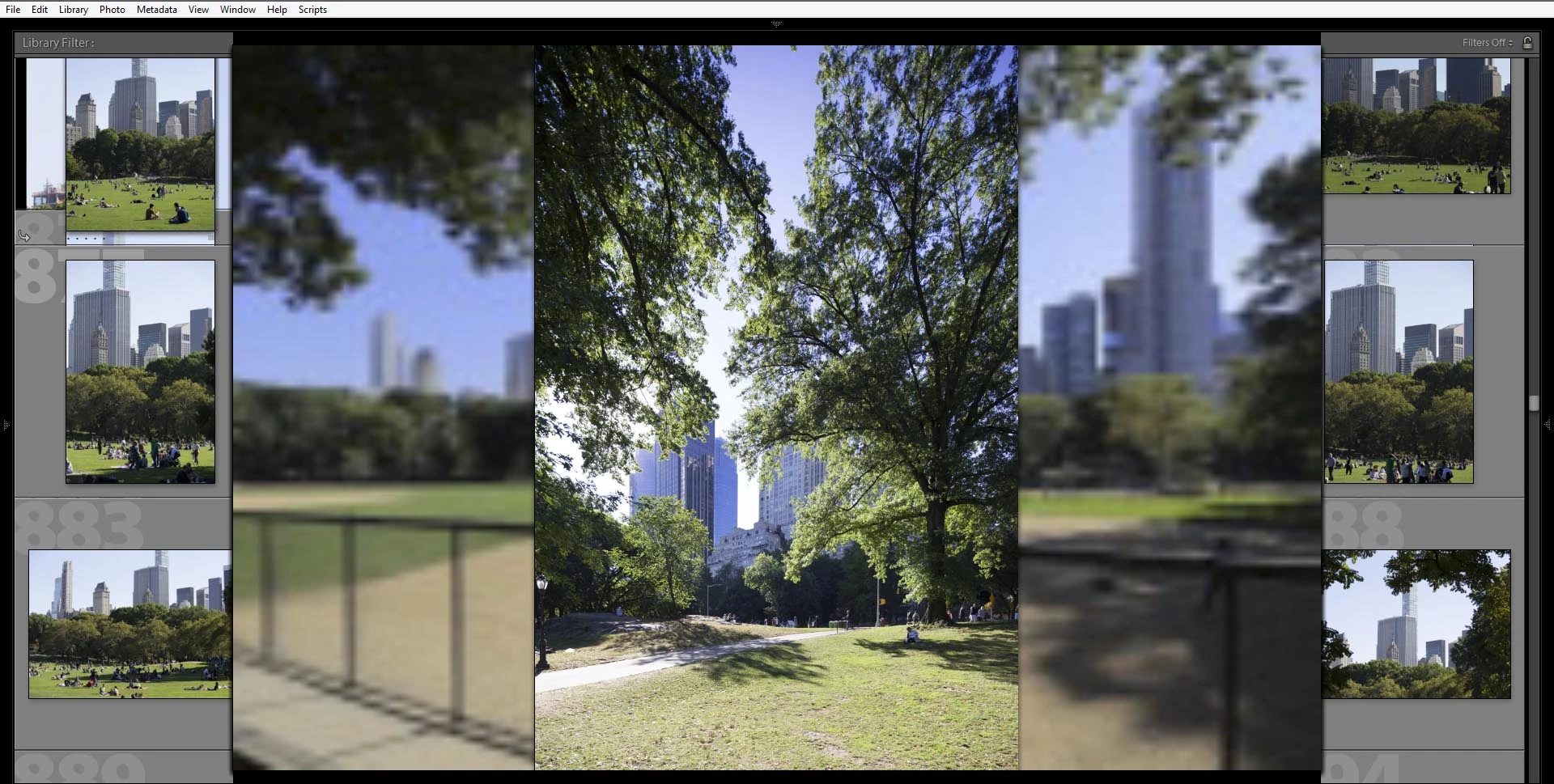
I'm using Windows 8.1 all updates installed, NVidia Quadro 2000M.

No other issues with LR or Photoshop.

would be nice if this would be fixable...

This topic has been closed for replies.
Correct answer lucg3962859

This problem has been resolved by a workaround provided by Adobe.

I followed these instructions:

Could you please try the following and report back if it solves the issue.

==

Try this workaround to see if it works for you. If not, delete the config.lua file afterwards.

  1. Choose Edit > Preferences.
  2. In the Preferences dialog, go the Presets tab.
  3. In the Presets tab, click the Show Lightroom Presets Folder button. The root preset folder opens in the File Explorer.
  4. In the File Explorer, navigate into the Lightroom folder.
  5. Go to the link https://adobe.ly/2hUHGYa and download the config.lua file. Copy the downloaded config.lua file into the Lightroom folder mentioned in the previous step.
  6. Relaunch Lightroom Classic CC.

The System Info dialog (Help > System Info) should display the config.lua flags entry as shown below:

Config.lua-Flags:

AgView.disableDirect2D = true

==

Thanks,

Sunil

8 replies

New Participant
January 14, 2018

I have the same problem after the last update. The old workaround does not work this time.

Any suggestion you can provide?

Thanks,

Lory

johnrellis
Brainiac
January 14, 2018

According to Adobe employee Simon Chen, the "config.lua" workaround doesn't apply to the latest release (LR 7.1).  The option Preferences > Performance > Use Graphics Process is now a "master switch" for all of LR's use of the graphics processor (GPU). If your LR doesn't display properly with that option enabled, make sure you have the most recent graphics driver by going directly to the manufacturer's Web site (Windows) or updating to the latest MacOS (10.13.2) -- many older drivers have bugs that are triggered by LR.  See here for details: Adobe Lightroom GPU Troubleshooting and FAQ .

Note that most users only see significant benefit to enabling the GPU on 4K or 5K displays -- it can sometimes slow down LR on lower-resolution displays. Of course, some users on lower-resolution displays do benefit.

New Participant
January 15, 2018

I have updated the graphics driver but the problem persists, regardless of enabling or disabling the GPU.

I have NVIDIA GeForce GT 540M (10.0.16299.192).

PaulSumberg
Participating Frequently
December 15, 2017

This patched worked on the previous update. However, it does not work on this latest (7.1) After upgrading, the problem is back.

Participating Frequently
December 18, 2017

Same here. Just updated my laptop to 7.1. The config.lua fix does not work for me in 7.1. Disabling the GPU does work, but I would rather not have to do that.

New Participant
December 22, 2017

And for me - the problem was solved by this new config file, but has returned in the latest update. I have now worked around it by turning off using the graphics processor but would rather a proper fix that allows me to turn it back on

pablete
New Participant
November 15, 2017

I had the same problem in library/grid view. I have downloaded the file mentioned by

tinaz4605
New Participant
October 25, 2017

Thank you so much!  I was having the same issue and it worked!

New Participant
October 25, 2017

Thanks!

lucg3962859Correct answer
Participating Frequently
October 21, 2017

This problem has been resolved by a workaround provided by Adobe.

I followed these instructions:

Could you please try the following and report back if it solves the issue.

==

Try this workaround to see if it works for you. If not, delete the config.lua file afterwards.

  1. Choose Edit > Preferences.
  2. In the Preferences dialog, go the Presets tab.
  3. In the Presets tab, click the Show Lightroom Presets Folder button. The root preset folder opens in the File Explorer.
  4. In the File Explorer, navigate into the Lightroom folder.
  5. Go to the link https://adobe.ly/2hUHGYa and download the config.lua file. Copy the downloaded config.lua file into the Lightroom folder mentioned in the previous step.
  6. Relaunch Lightroom Classic CC.

The System Info dialog (Help > System Info) should display the config.lua flags entry as shown below:

Config.lua-Flags:

AgView.disableDirect2D = true

==

Thanks,

Sunil

SaschaKilmer
Participating Frequently
October 21, 2017

THIS worked for me!

Participating Frequently
October 21, 2017

I switched back to  LR6.

If this subscription expired I look for alternative

alcenom47500132
New Participant
October 20, 2017

Sahil.Chawla
Community Manager
Community Manager
October 19, 2017

Hi SaschaKilmer,

Would suggest you to uncheck "Use Graphics Processor" from Lightroom's Preferences > Performance & then relaunch Lightroom and share the results with us.

Regards,

Sahil

SaschaKilmer
Participating Frequently
October 19, 2017

Hi, I tried that before, and again just now. Deactivating the use of Graphics Processor, then restarting the program and also switching to different catalogs. Always the same problem...

As soon as I switch to loupe view, the background keeps showing me a "frozen" grid view or a past image.

Everything is fine in development mode though...

Sahil.Chawla
Community Manager
Community Manager
October 19, 2017

Appreciate the efforts, could you please let us know which GPU is installed in your system?