Known Participant
June 15, 2019
해결됨

Exporting to subfolder, getting exports in both parent and sub?

  • June 15, 2019
  • 5 답변들
  • 6058 조회

My standard procedure with LR - I really know no other way - is to get the files I want to work on onto my hard drive, either using LR or otherwise. Lately I am using LR alone for this.

I import from the card, disc, whatever, and of course it is a "Copy" import. From there I process the files in LR and then Export them to a subfolder of the same name with "LR" added.  Sometimes I "choose" the folder to export to and sometimes when my "place" seems to be lost, rather than wander through my file structure to find the folder I use the "Export to same/original folder" option. Always with "place in subfolder" option checked.

I am not aware of having changed how I do this, but I have just noticed that a lot of the folders I've been processing now have, in the "parent" folder, both the originals and the processed files. The subfolder looks OK, but the parent folder has two of everything, one with the symbols in the thumbnail indicating the editing changes were made.

If I look at the folders in the Import screen half of them are grayed out, and the editing teltales are gone. I presume the grayed out files are the originals.

At least one parent folder since this started has only one set of files but it is the edited files. No originals! The subfolder is nominal.

Note: When I started this recent work I was resuming the job begun a month or so ago. My work was lost, no exported files were present. Things were a general mess. Almost always since the restart when I go to Develop I can see that the file - as I remember - has been edited in LR before. Yet only the parent folders were there. I dress up the edit, and Export to the subfolder.

It seems the exposts are going to the original folder and to the subfolder, or the export is triggering something and the lost work is reappearing.

Any idea what is going on? Anyone?

    이 주제는 답변이 닫혔습니다.
    최고의 답변: Rob_Cullen

    WobertC  wrote

    The "Rabbit Hole" gets deeper

    Can I demonstrate my thoughts on workflow to you with screen-clips? Try following this procedure as a test.

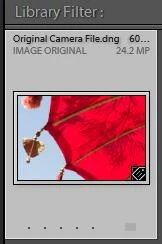
    1) I have an image from the camera that I have imported into Lightroom. It is called {Original Camera File.DNG}

    This file is located in a folder called {IMAGE ORIGINALS}

    2) I do some Develop edits in the Lightroom Develop module. I invert the Tone Curve (easy to see)
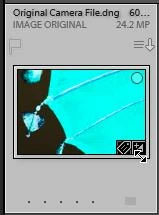
    Note that now this thumbnail shows the 'Developed' BADGE. It is still the same {Original Camera File.dng} It just 'looks' visibly different in the Library, Loupe and Develop views of Lightroom.

    Here we differ, but it's "only" a matter of semantics. To me, it's developed, it looks different, it is different, it's not the original. What's the same is the original, and that's kept outside of LR. We're changing it in LR, that's what we're about. Original=unchanged.

    So, we're not in Kansas any more. I'll leave it, just remembering that semantics issues can cause understanding issues.

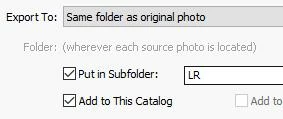
    3)  I EXPORT this image to a sub-folder called "LR" (as you are trying to do) with these settings-

    I have NOT created a {LR} folder prior to opening the Export dialog- I will let Lightroom create it for me.

    I might be missing something. About letting LR create the folder, there's already an original folder, you're exporting to it. All LR is creating is the "LR" subfolder, and you're telling it to, and naming it. That's my routine.

    The [Add to This Catalog] option must be checked if you want the folder and exported image to appear in the catalog!
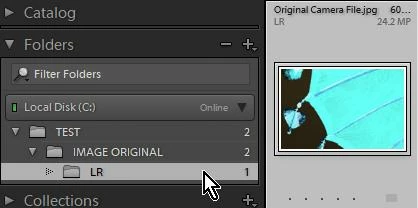
    4) The result is this-  The sub-folder {LR} has been created automatically and it contains the EXPORTED JPG image.

    Note: This thumbnail does NOT SHOW the Developed BADGE! It is a brand-spanking-new JPG image file!

    5) Now- If i have the Preference set 'ON' to "Show photos in sub-folders" -I see this when I select the parent [IMAGE ORIGINAL] folder-
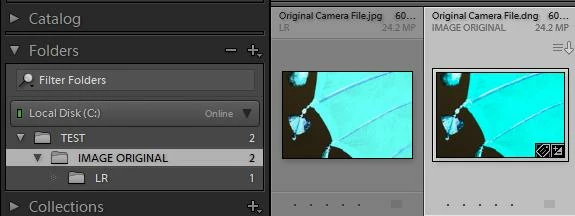
    The .DNG with the 'edited' badge is the "Original".

    The .JPG without an 'edited' badge is the Exported file.

    That's a great explanation, and I know it didn't come easy.

    Off topic alert: I went to LR to try and replicate what I recall, and it is in "Navigator," where I was doing a search per instructions from djpaige. It won't open my D drive, where all the folders are. I'll close and reopen, but .  .  .. OK now.

    With "add" checked, that's what I get, too. I've never paid any attention to it since it's about "catalog" which I prefer not to deal with. Looks like a real rabbit hole to me. My catalog is the file tree. I'm a no catalog guy and one catalog = no catalog, fine with me. I don't add descriptions, etc., to my photos. A catalog must be a sub-library. I have zillion folders and subfolders instead.

    I've imported, I've processed, and I'm exporting processed files.

    The export with "add" checked, and the misnamed (to me) "show subfolders" checked (LR confuses files and folders there. I want to see subfolders. I don't want to see the files in the subfolders displayed in the parent folder!), produces two folders and three of everything. Can't see the use of that! At least now I know why I kept getting two of everything in the original folder. As i spend my time using the files outside of LR there are no badges, just confusing multiplicity of pics.

    Evidently I checked that "add" box long ago, probably per Kelby or something I was reading. It got unchecked recently, somehow.

    When I export with "add to cat." unchecked I get what I showed elsewhere, with my "test." One folder with edited content and badges. Here it is again. That crescent moon was mostly sky before the edit.That's the edited version in the export. With badges.

    If we're calling that the original, I'll have to "go ask Alice."
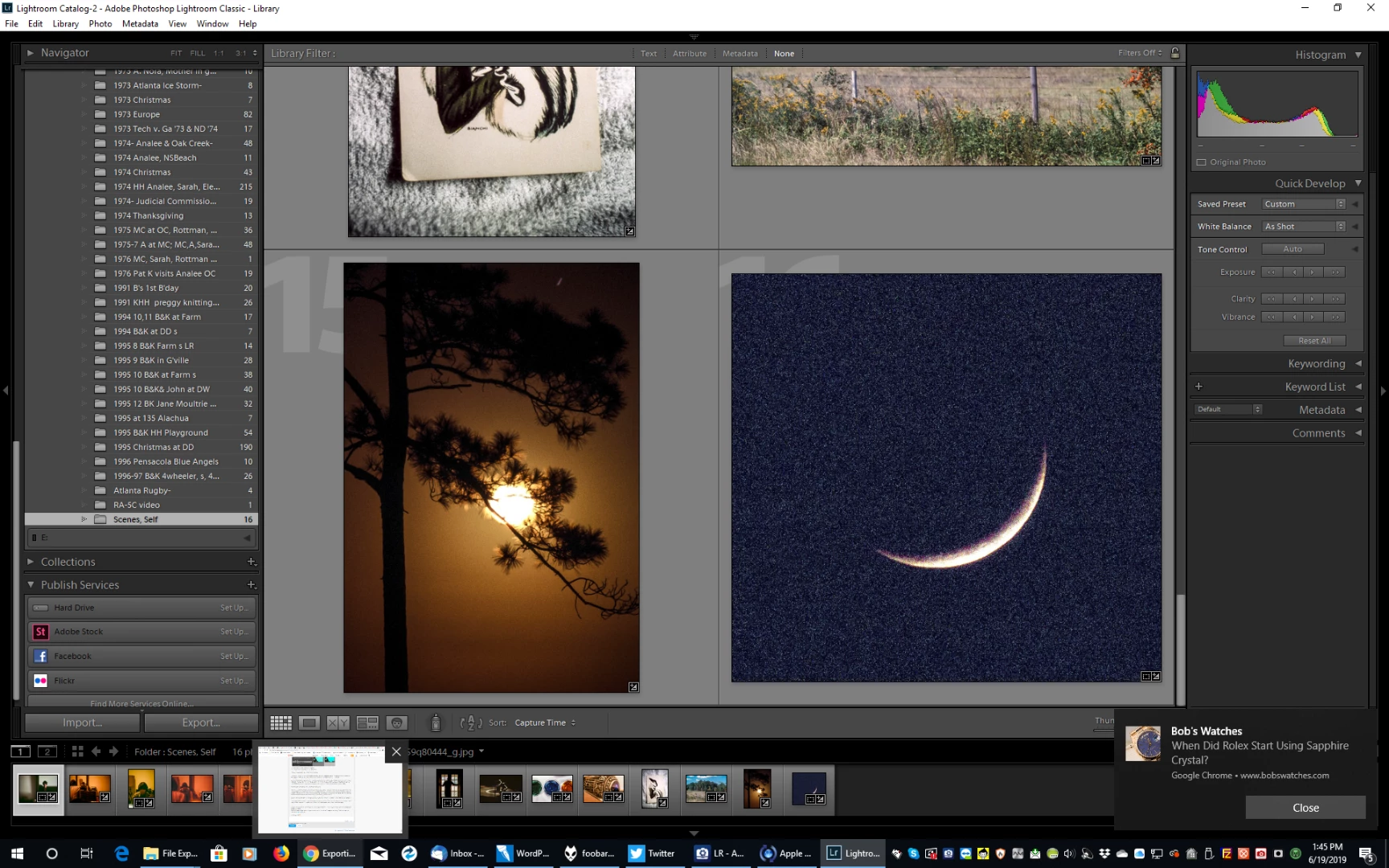
    I cannot seem to explain any better the process, but I can see the problems you are having and the possible errors causing these problems, including-

    Multiple catalogs,

    All your problem identifications are correct, but: About the multiple catalogs - Not my doing! Not consciously. I leave that catalog stuff alone! (The dang things are mostly empty now, anyway!)

    Multiple versions of Lightroom

    Adobe sold 'em. I recall no warnings about anything. I probably thought I "owned" 2015 and might not want to rent Classic forever. Certainly since everything is CC, all about the cloud now, two LR programs would share the same data. Now I'm told the two catalogs are so different they won't speak to one another. I really don't know about that, because I'm sure the newer program didn't start with an empty catalog, it took the existing catalog somehow.

    Not adding or importing ALL images to one catalog,

    I've never created a single catalog, much less a second one. Wanted no truck with that. It all happened automatically in LR..

    'Copying' at Import (as discussed by dj_paige , etc.

    Possible occasionally. Doesn't explain the recently missing files. I did dj's search and the files are on the computer but not in LR. LR can't find'em.

    Time for a coffee

    You have done a herculean job explaining. And (or but) if I understand you correctly, you are saying that in this no-add case the export of the real NEW file goes back in the file with the original, the parent file (what would show as the parent file if "add" were checked), and OUT of LR, such that what was IN the catalog before the export (the file imported from and developed) is now OUT of the catalog because we did not "ADD" it to the catalog.

    That terminology is highly problematic. What was IN is not OUT because we did not ADD. Also, if a normal "export," "add" or not, includes anything other that the edited files, LR has further serious issues with terminology.

    With the process of import, develop, and export, the only normal understanding anyone could have of that process is that it is their work that is exported. That means edited files. You already have the original. You worked, you exported .  .  ..

    Alice?

    Time for a martini. In six hours. After responding to a few more posts, and doing something else, anything else. Maybe shovelling out a table feeder (for deer, corn and protein) that's been flooded since last October.


    With total respect for your difficult situation I believe that Lightroom is not for you. It is software that is different to any other and must be understood to work at its best.

    If you are not willing to re-learn how Lightroom 'really' works then perhaps  'ACDSee Photo Studio' is more appropriate for you to edit your shots. Good luck in your future photo exploits.

    I repeat my suggestions for learning:

    Free eBook from Victoria Bampton for Lightroom-CLASSIC: https://www.lightroomqueen.com/blog/

    Also the "Adobe Lightroom Classic The Missing FAQ"  https://www.lightroomqueen.com/shop/

    5 답변

    Rob_Cullen
    Community Expert
    Community Expert
    June 17, 2019
    I don't follow "It is the 'Original' file in the 'Parent' folder that you edited that WILL show the 'Edited' badge." When the subfolder is displayed, there's a set of files without icons in the parent folder. Those are the originals, and the set with icons are the edited version. My thinking.

    Wrong!

    When you Edit any 'Original' photo file in the Catalog- it is this thumbnail that shows you have made edits or made Develop adjustments to this image. The preview will show your edits but the 'Original' file on your hard-drive is NOT altered.

    When you Export from the 'Original' you are creating a totally NEW file with the edits 'baked in' that will be visible in the new file, but it will NOT show the 'Edited" badge. (That is unless you then also edit the new exported file. )

    Regards. My System: Windows-11, Lightroom-Classic 15.1.1, Photoshop 27.3.1, ACR 18.1.1, Lightroom 9.0, Lr-iOS 10.4.0, Bridge 16.0.2 .
    Rob_Cullen
    Community Expert
    Community Expert
    June 17, 2019

    Your BIG mistake, is exporting files that are not really necessary.

    Many Lightroom users only ever export to derivative files when they want one to - Give to a friend, Send in an email, Give to a print house, etc, and then they DELETE those derivative exported files from the computer. They are not needed again (with a few exceptions) and just occupy space in the computer.

    Why? Because you can ALWAYS export a new derivative file from the original at any time. Remember the Catalog stores ALL your editing allowing you to Export derivatives from from the 'Original' file using any stage of edit History (or 'Snapshots' or 'Virtual Copies').

    since I don't "do" catalogs, and certainly don't want to create one or head down that road at all.

    This is where your "Thinking" is totally the wrong idea about Lightroom. You DO "do catalogs"

    Lightroom does not work without a catalog! It will not even start without a catalog.

    Lightroom is "DATABASE" software that records all information about your photos, including all the editing.

    AND it will only show you the DATA that you 'Import' into the catalog, and that includes files exported.

    It is NOT a File browser (like File Explorer) that shows ALL your folders.

    I suggest you start your learning 'curve' again and read cover-to-cover: the free eBook from Victoria Bampton for Lightroom-CLASSIC: https://www.lightroomqueen.com/blog/

    Also worth buying is her "Adobe Lightroom Classic The Missing FAQ"  https://www.lightroomqueen.com/shop/

    If I were to be in your situation, I would have EVERY photo imported into Lightroom to be shown in the catalog.

    You can achieve this by selecting the topmost {Pictures} folder and doing a 'Folder Synchronization'. This will import every photo in sub-folders. (A Hint in Folder Synchronization: Do not remove 'Missing' photos until investigated). Only then will Lightroom have a full "picture" of ALL your photos (and sub-folders) that exist in your {Pictures} parent folder.

    Regards. My System: Windows-11, Lightroom-Classic 15.1.1, Photoshop 27.3.1, ACR 18.1.1, Lightroom 9.0, Lr-iOS 10.4.0, Bridge 16.0.2 .
    Just Shoot Me
    Legend
    June 17, 2019

    I also suggest you select and stick with ONE RAW image editing, cataloging, whatever program.

    Please note that the edits made on RAW images in all editing programs that I know of do not show up in some other RAW processor.

    Rob_Cullen
    Community Expert
    Community Expert
    June 16, 2019

    I am still trying to make sense of your descriptions, but here are some comments to your quoted words-

    I see lots of subfolders. But lots are not there.

    where the subfolders are not showing up and the files in the position of the parent folder appear to be those exported to the subfolder - is unaddressed by that. Any idea why they won't display?

    Your last screen-clip shows that you are exporting one selected photo from the Folder {Granny's after death} and you have the destination folder set to {1971 Granny's after death}  but you do NOT have the option checked to  [Add to the catalog] - So you will NOT see this 'new' sub-folder in the Lightroom library UNTIL you Import these exported files in the {1971.....} sub-folder.


    On this topic-

    WobertC asked if show subfolders is checked, it is. And I see lots of subfolders. But lots are not there.

    I think you do not understand fully the difference when the preference "Show Files in sub-folders" is checked/unchecked.

    It does not refer to sub-folders being visible, or not, but to the FILES you see in the Grid view and the folders shown in the Folder panel.

    Examples-

    I have an empty folder called {NUMBERS}. It contains two sub-folders {12345 Black} and {12345 White} each with 5 files-

    a) With my preference set to "Show FILES in sub-folders" I see this in the Folder panel- NOTE:There are NO files in the {NUMBERS} 'parent' folder- it is empty of files! Yet with {NUMBERS} selected I can view 10 photos in the grid.

    b) With the preference to NOT show files in sub-folders I see this- with {NUMBERS} folder selected I see NO photos in the grid.


    When the subfolder is displayed in LR, the thumbnails in the subfolder, all edited, are without the editing icons

    If I understand you correctly here- The 'Exported' JPG photos in the sub-folder are NEW photos- you just exported them! They have NOT been edited in Lightroom so they will NOT show the 'Edited' badge on the preview thumbnail border. It is the 'Original' file in the 'Parent' folder that you edited that WILL show the 'Edited' badge.

    And if you have "Show FILES in sub-folders" checked 'ON' you will see both the Original photo with 'Edited' badge and the Exported photo, without an 'edited' badge, side-by-side if you have the 'parent' folder selected.

    Sorry for the long explanations- I hope they make sense!

    Regards. My System: Windows-11, Lightroom-Classic 15.1.1, Photoshop 27.3.1, ACR 18.1.1, Lightroom 9.0, Lr-iOS 10.4.0, Bridge 16.0.2 .
    RLCadence작성자
    Known Participant
    June 16, 2019

    Thanks, I feel progress.

    1) I have been under the distinct impression that if I move something - import, export, move, whatever - LR would know about it and it would appear in Folders. Problems arise when things are moved outside of LR. Otherwise, you're good. But not so. Thanks.

    The default must have "Add to Catalog" checked (if not, on original setup I was reading a how-to on LR and followed steps - that would have been a good decade back), and I must have inadvertently unchecked it a few days ago. I've never paid that box any attention, since I don't "do" catalogs, and certainly don't want to create one or head down that road at all.

    It's neither here nor there (clearly I just can't help myself!), but I fail to see the point in using LR to create a folder that won't appear in LR.

    The notion of a catalog - catalogs mean nothing to me. One catalog (= no catalog = no catalog issues) would be fine by me. I do nothihg with them, yet I now have several somehow, in different versions of LR, and no clue how to navigate between them. I'd be a lot happier with one catalog.

    Anyway, all that matters is I understand it's harmless to check the "Add to catalog" button and since that will yield my expected result and clear this up, I'll try to keep it checked.

    2) I certainly did not "understand fully the difference when the preference "Show Files in sub-folders" is checked/unchecked." [maybe you know how to reassert control of font size?]

    Your explanation is clear. It means "Show subfolder files in parent folder." Which is a very "funny" thing to do. Without clearer wording it comes across as "show subfolders." Because that's not strange at all. It's expected.

    In your illustration under your b) the LR language "Subfolders not shown" is incorrect, no? This is more of the same bad terminology. The subfolders certainly are shown. LR is confusing files and folders, subfolders and subfolder files. I know (thanks to you) what LR means, but holy cow. 

    3) You make perfect sense about the icons. I'm only thinking "original" and "edited," and since the exported file is identical to the edited file .  .  ..

    I don't follow "It is the 'Original' file in the 'Parent' folder that you edited that WILL show the 'Edited' badge." When the subfolder is displayed, there's a set of files without icons in the parent folder. Those are the originals, and the set with icons are the edited version. My thinking.

    When no subfolder is shown, there's no parent folder. Just a folder. And just edited files with icons. I don't think I could call them originals? You do? I look at those folders and think, those are the edited photos. Where are the originals? They're not displaying! Has LR has lost the originals!

    4) When ranting about catalogs above I mentioned having several. That's an issue but the real issue is that neither of  the catalogs I can see (when I open the two different versions of LR on my computer) has anything like the total of pics I have processed. I'm pretty darn sure they used to be there. Ican see them in other programs, they are there on my hard drive, complete with LR subfolders, proof that LR has seen them, but they are not in the Folders panel.

    You've been very helpful.

    Rob_Cullen
    Community Expert
    Community Expert
    June 15, 2019

    What is your status of the Menu option- LIBRARY > Show Photos in Subfolders  ?

    Regards. My System: Windows-11, Lightroom-Classic 15.1.1, Photoshop 27.3.1, ACR 18.1.1, Lightroom 9.0, Lr-iOS 10.4.0, Bridge 16.0.2 .
    RLCadence작성자
    Known Participant
    June 15, 2019

    dj_paige- When remarking on strange looks I'm looking at the files and folders in LR.

    It's remotely possible I exported twice sometime. I just reviewed 12 folders that exhibit the same doubling.

    I'll get some screen shots of the export dialog but it's really pretty simple, and just as I described.

    I'm seeing two kinds of odd export results. I always - in the files we're considerng - have folder and subfolder LR. Folder XYZ will have subfolder XYZ LR. Originals in the parent folder and exported LR developed versions in the "LR" folder.

    For some folders LR will show the folder and the subfolder. Others it just will not show the subfolder. Or, actually, it seems to be showing the subfolder contents (edited, exported versions, the "LR" folder) in the parent folder position. If I export another file, to the subfolder per the export dialog, it will show up in that parent folder position.

    WobertC asked if show subfolders is checked, it is. And I see lots of subfolders. But lots are not there.

    When LR displays the LR subfolder, the parent folder appears to have originals and processed versions. If there were 15 original files in the folder, now the count is 30. Half will display LR editing icons in the thumbnail. In the subfolder all is normal, and there are no editing icons.

    Does the icon behavior tell us anything? They only show up in the parent folder.

    I just restarted LR to see if it would redraw the file structure and show all the subfolders. No change.

    When LR does not show the LR subfolder, the parent folder has one version of each file, but it is the processed version showing the editing icons. The subfolder is there, I can see it in other programs, and it is normal.

    (Now, not to confuse things, but in looking around at both my versions of LR (a separate problem I am leaving alone here, I didn't realize LR 2015 and LR Classic were - never mind) I noticed most of my older folders, the vast majority of my pics, are simply not there. Not in either LR program. Then using a more transparent photo program (ACDSee) I can not only see them all but I can see the LR subfolders, proof positive that LR has seen the folders, folders it will not display in folders. Disturbing. But I do have the exports.)

    Here's (way below) a shot of my folders in Scanned Slides, where I'm working. You can see a lot of folders with subfolders, and a lot without. They ALL have subfolders. I opened 1968 Pensacola as an example, showing the subfolder. In the open file thumbnails you can see the doubling. I'd have rearranged the files them to make it more obvious, but LR won't let me since there's a subfolder. (What's up with that?)

    I don't know how to get below these screenshots so they're out of order. Immediately below should be two shots of the Export dialog. Somewhere along the way the original file location got lost so rather than hunt it down in my file structure - about 13 clicks - I started using the "same folder as original photo" choice. Before that I used "specific folder," as in the first shot below.

    It's tempting, since this was a change in procedure, to think it explains something. But I don't see it as any difference and nothihg explains the doubling or the non-display of so many subfolders that LR DID create.

    Adding one more screenshot from ACDSee to show the folders that don't show subfolders in LR do have LR subfolders. Created using LR. I've opened a couple as examples. Look at all the arrows (to open subfolders) LR doesn't show.

    I am dumbfounded by all this.

    Just Shoot Me
    Legend
    June 16, 2019

    What you are seeing in LR is normal. LR is NOT a File Manager. When selecting a higher folder you see both what is in that folder and what is in any subfolders under it.

    dj_paige
    Legend
    June 15, 2019

    When you say that you see this improper (to you) set of files and folders after export, are you looking in Lightroom, or are you looking in your operating system (Windows Explorer or Mac Finder)?

    Is it any way remotely possible that you have exported the photos twice?

    Can you show us screen captures of your Export dialog box (it will probably take several screen captures to show us all of it)