


Participating Frequently
June 9, 2022
Answered

How can I export nested keywords without them also being added to the Keyword List?

  • June 9, 2022
  • 1 reply
  • 1969 views

I have an ongoing problem related to keywords when I am exporting photos. I have my Keyword List organized where many are nested under other keywords. For example, under "Objects" I have "bag" and under "Architecture" I have "boathouse." When I export a RAW photo to JPEG in a different folder, I want those keywords and any synonyms I've created to continue to be associated with the JPEG, but what keeps happening is that if Objects isn't checked (which is intentional) Lighroom adds the nested keywords to the top level list. In other words, in the screenshot attached, I exported photographs at different times, one of which was of a boathouse and one was of a bag. At another time I exported a photo of a plant where the Latin name Taxodium distichum is a synonym within the keyword tag for "bald cypress".  After the exports, those three terms suddenly appeared in the top level of the Keyword List, too. They're still under Objects, Architecture, and bald cypress, so now I have these duplicates that I don't want. Now I have the tedious job of deleting all those duplicate keywords and purging the list. I cannot find any information anywhere about how to prevent those duplicate keywords from being created.


This is an issue that has been annoying me for at least a couple of years. I am currently using Mac OS 12.3.1 Monterey, and Lightroom Classic 11.3.1. But it does not have anything to do with the OS, as it's been going on in prior versions of the Mac OS and of Lightroom. If you can tell me how to fix this I will be grateful!
This topic has been closed for replies.
Correct answer johnrellis

[This post contains formatting and embedded images that don't appear in email. View the post in your Web browser.]


As you've observed, when you uncheck Include On Export for a parent keyword and reimport an exported photo into the catalog, child keywords are treated as top-level keywords.


Worse, synonyms are always exported as top-level keywords and reimported as such.


A lot of people have complained about this over the years:

https://community.adobe.com/t5/lightroom-classic-ideas/lightroom-better-handling-of-exporting-and-reimporting-keyword-synonyms/idi-p/12249145 


but Adobe has shown no interest.  For synonyms, there is no workaround other than to uncheck Export Synonyms. For parent keywords like Objects, you'll have to keep Include On Export checked.

1 reply

johnrellis
Legend
June 10, 2022

I take it that you are setting the Export option Add To This Catalog, so the export photos get reimported?


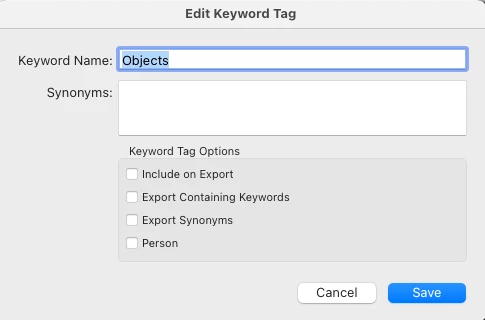
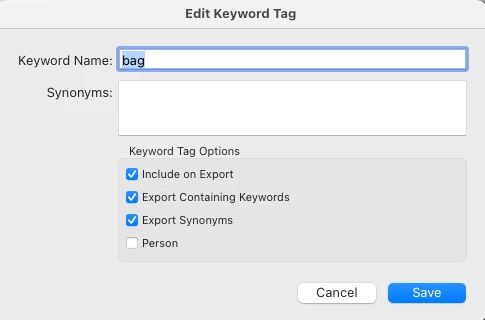
LR doesn't handle keywords  and synonyms in this situation in a way that people want. But before discussing it further, let's get the precise options you've set for your keywords. In the Keyword List, please right-click Object, do Edit Keyword Tag, and post a screenshot of the Edit Keyword Tag window. Do the same thing with the "bag" keyword.

Participating Frequently
June 10, 2022

Here are the two screenshots. Look forward to hearing what you conclude.

Participating Frequently
June 14, 2022

"So that means I have to go back and add "Object" or "Plant" or whatever other generic word to thousands of photos or spend my time deleting unwanted additions to the Keyword List."


Continuing the example with Objects > bag, in my testing, it wasn't necessary to add "Objects" to a photo that already had keyword Objects > bag. Here are the details of what I did:


1. Created keywords Objects and Objects > bag, setting Include On Export for both and Export Containing Keywords for "bag".


2. Added Objects > bag to photo. 


3. Exported the photo with the option Add To This Catalog.


The reimported photo came in with the keyword Objects > bag, and no top-level keyword "bag" was created.


Continuing the example with Objects > bag, in my testing, it wasn't necessary to add "Objects" to a photo that already had keyword Objects > bag.


Yes, I see that. And I tried out the steps you outlined above and they do work. The problem for me is that I prefer not to attach some of these very generic containing keywords like Object and Color (which is a container for red, blue, pink, etc.) to specific photos because they are useless for search purposes. However, what I'm seeing is that if I have a photo of a bag and assign the keyword "bag" — which is contained in my keyword list under Objects — but I don't have Objects checked, LR will create a second "bag" keyword in the top level of the keyword list. But if both bag and Objects are checked, it doesn't. Therefore, if I don't want LR to keep adding unwanted top level keywords, it seems I'll have to go through all the second and third level keywords (in this example, not just "bag" but the many other objects contained within Objects), select all the images in that category in Grid View, and check the box for Objects so that Objects is now applied to all the photos. If there's a better way to accomplish this, let me know.