Ed.Macke
Inspiring
January 23, 2024
Answered

How to display location information in loupe view?

  • January 23, 2024
  • 3 replies
  • 1434 views

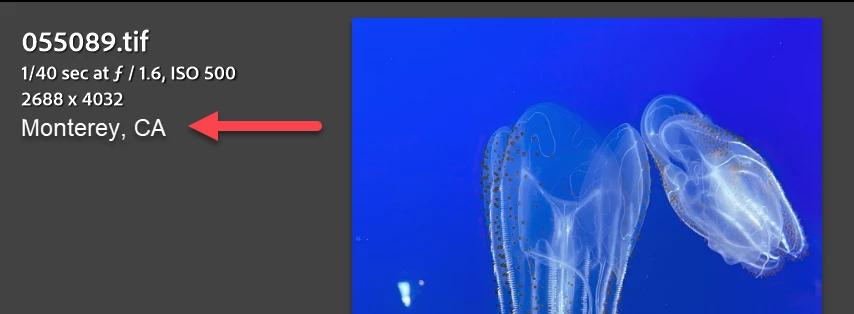
Is there any way to display some type of location information in my loupe view, something like this mocked-up sample?

I don't want GPS coordinates, but just something that gives some general human-readable info about where this was shot.

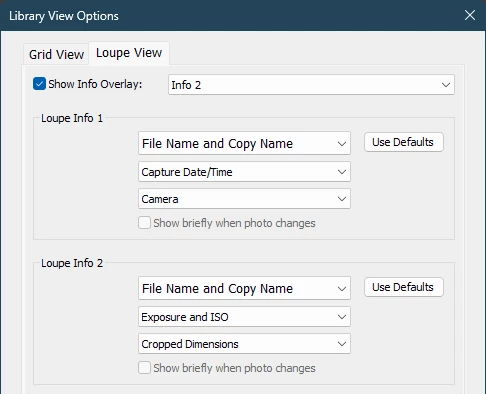
I don't see anything in the Loupe Info dropdown choices, but I'm hoping I'm just missing something.

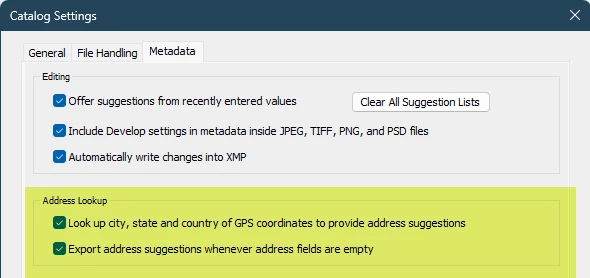
In my Catalog Settings, I have both options checked under Address Lookup. That seems promising, but I have no idea what "address suggestions" are, where they're used, where they appear, or if they're available as a Loupe View option.

Thanks!


This topic has been closed for replies.
Correct answer johnrellis

For Step 1, if I click the Location Metadata set, I do see the location information filled in. That's helpful, in and of itself, actually!
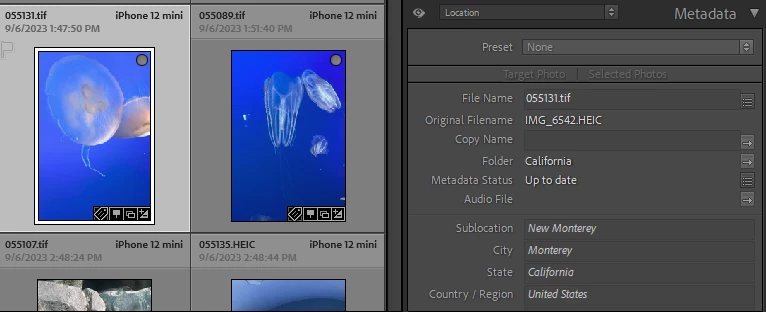
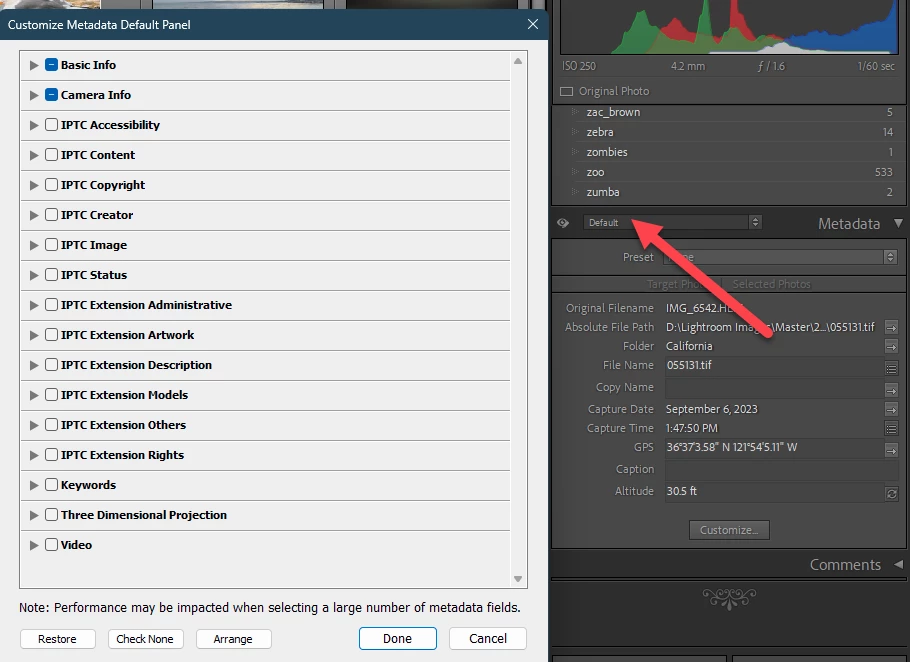
But for Step 2, when I switch back to the Default metadata set and click Customize, I don't see any location fields to add. I have the Basic Info and Camera Info collapsed, but I don't see anything under either of those dealing with location. Not sure if Step 2 is a pre-req for Step 3, but...
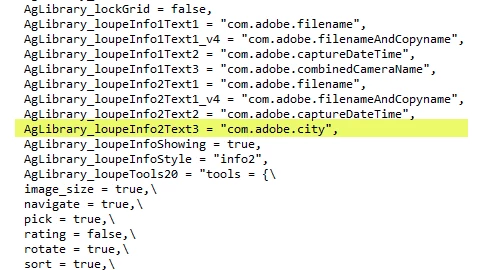
For Step 3, that sounds like what I want! But I edited the prefs file and it doesn't seem to stick. I made sure LRC was closed, modified the prefs file, and started LRC. Info line #3 just displays blank. The "City" metadata seems to be populated, FWIW.
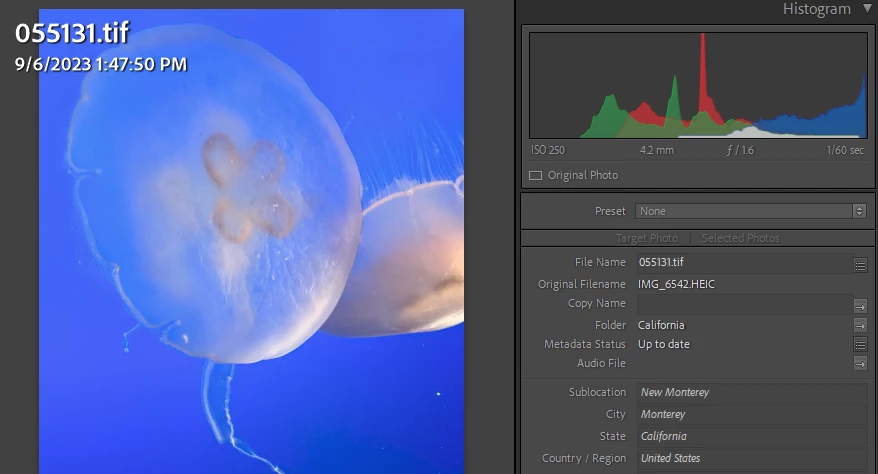


"But I edited the prefs file and it doesn't seem to stick. I made sure LRC was closed, modified the prefs file, and started LRC. Info line #3 just displays blank. The "City" metadata seems to be populated, FWIW."


Your screenshot shows the problem: in the City field, "Monterey" is italicized, which means it was provided by LR's automatic address suggestions. When address suggestions were introduced, the implementation was botched, with some parts of LR treating suggestions the same as if they were typed by the user and other parts treating them as blank:

https://community.adobe.com/t5/lightroom-classic-discussions/lightroom-inconsistent-handling-of-suggested-addresses/m-p/12663467


The workaround is to "commit" the suggestions (see that bug report for how to do that efficiently).  I do that as a matter of course, so I didn't notice the issue with Loupe Info. 


I'll update the bug report.

3 replies

GoldingD
Legend
January 23, 2024


But for Step 2, when I switch back to the Default metadata set and click Customize, I don't see any location fields to add. I have the Basic Info and Camera Info collapsed, but I don't see anything under either of those dealing with location. Not sure if Step 2 is a pre-req for Step 3, but...


I am fairly sure that johnrellis presented those not as three steps, but as three options.


As for option 2. Notice those disclosure triangles pointing to the right, click them to expand.


For exxample, clcik on IPTC Image.


As for option 3, that just makes me think a plugin could be created? Hmm

Ed.Macke
Ed.MackeAuthor
Inspiring
January 24, 2024
quote

I am fairly sure that johnrellis presented those not as three steps, but as three options.


D'oh! That makes more sense. I did find the location info under the IPTC > Image. I now have the location info as part of my Default metadata!


GoldingD
Legend
January 23, 2024

Not exactly


You get as much as three line, no more, and GPS Info is not one of them. You could use a very limited number of metadata fields, that you would have to populate. The ones that come to mind are Title, Caption, and oddly Sub Location.


And some reference material:


Now that being said, does someone provide a plugin to get around this????

johnrellis
Legend
January 23, 2024

Some more options:


[This post contains formatting and embedded images that don't appear in email. View the post in your Web browser.]


1. In the Metadata panel in the right column, select the Location tagset to display all the location fields for the current photo. They won't appear in the Loupe Info overlay, but they'll be visible. See the screenshot below.


2. In the Metadata panel's Default tagset, click Customize at the bottom and add the location fields you want to display in the Default tagset of the panel.


3. Edit LR's preferences file in a text editor and change these lines to show city and country in the Loupe Info overlay:


	AgLibrary_loupeInfo1Text2 = "com.adobe.city",
	AgLibrary_loupeInfo1Text3 = "com.adobe.state",


To edit the preferences file, copy and paste this line into File Explorer's address bar:


%APPDATA%\Adobe\Lightroom\Preferences


and then edit "Lightroom Classic CC 7 Preferences.agprefs" in Notepad.


(For other readers, editing the preferences file on Mac is a little more involved.)


Conrad_C
Community Expert
Community Expert
January 23, 2024
quote

(For other readers, editing the preferences file on Mac is a little more involved.)

By @johnrellis


It didn’t take long to figure this out on a Mac. For Mac users, the path is:


/Users/[username]/Library/Application Support/Adobe/Lightroom/Preferences/Lightroom Classic CC 7 Startup Preferences.agprefs


Because that preferences file is in text format, you can edit it in any text editor, such as TextEdit (which is kind of like Windows Wordpad) that’s included with macOS. If you want a more code-friendly display, open it in BBEdit (separate free download) and set Document Language to Lua. You can do this in the free mode of BBEdit; the full paid version has advanced code editing features that you don’t need for this.


One problem: On exit, Lightroom Classic rewrites the preferences file without the added lines, so it works only the first time. I don’t know why this is. The only way I found to keep the new entries was to set the file to Read Only in Finder > Get Info. Maybe I used the wrong syntax somewhere; I don’t have a lot of coding experience.

Sameer K
Community Manager
Community Manager
January 23, 2024

Hey, @Ed.Macke. Thanks for sharing the mockup. Here is one way you can set this up.


Address Suggestions are used in the Map Module. In the Map module, you can select a group of images with a similar GPS tag & add a custom location in the 'Sublocation' field, for ex. - 'Monterey, CA'. 


Now, back in Library Module > go to View > View Options (CTRL/CMD+J) > You can configure one of the two Info views to include the 'Sublocation' parameter.


You can press the 'i' key on the keyboard to shuffle through the Loupe Info View options.


Let me know if this helps. Thanks!

Sameer K

Ed.Macke
Ed.MackeAuthor
Inspiring
January 23, 2024

Yeah, I knew about the GPS / Map Module integration. While the sublocation field would work, it requires me manually filling in the field based on GPS location. I was hoping for something more automated.