


Known Participant
November 16, 2022
Question

How to duplicate a folder containing presets ?

  • November 16, 2022
  • 1 reply
  • 1529 views

Hello,

I noticed that lightroom does not use anymore the "folder system" for presets.

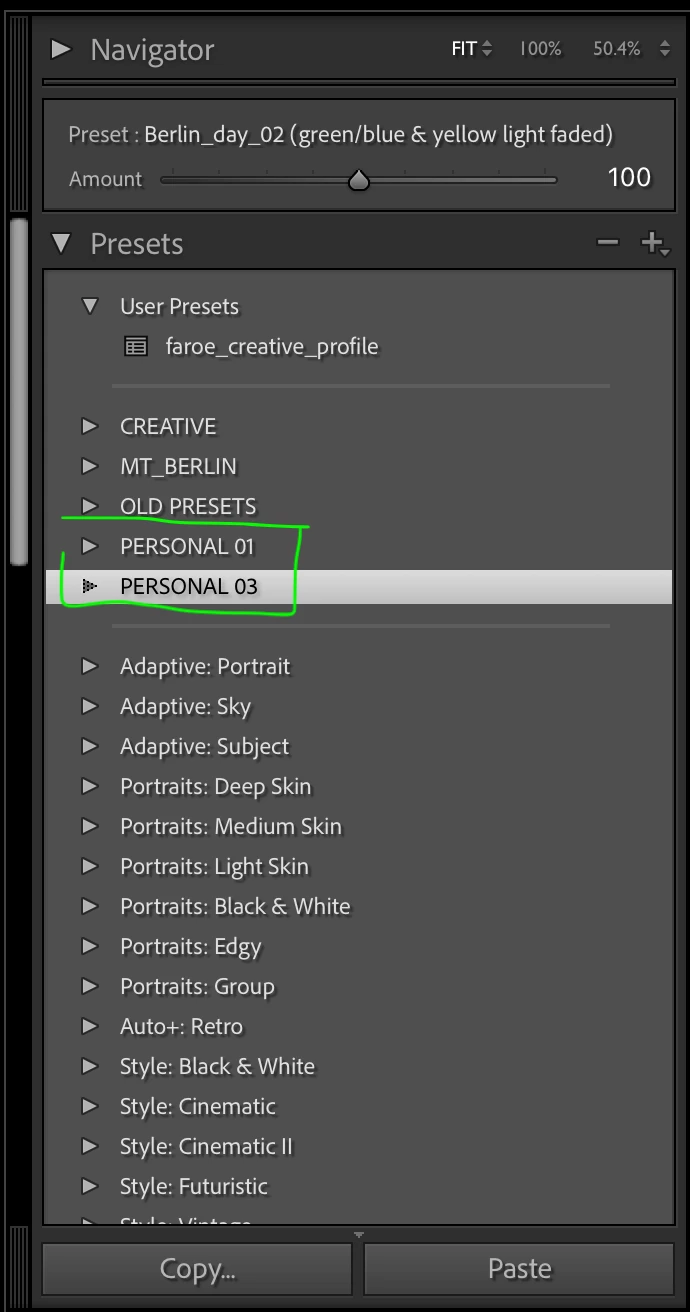
What I would like to do is to duplicate one of my presets folder (name ex. PRESETS 01) and rename it PRESETS 02 in this way I will have a copy of all the presets inside but the forst folder remain there and intact. In this way I can delete some of them, add some new ones but in case I wanna go back to PRESETS 01 I can just unhide it and be at the starting point without having to import them again. In other words I find this a really practical and non destructive way of working.

I tried to duplicate the folder and rename it (ex. PRESETS 04) but I am not able to import them since I got the notifications that they are already imported.


If someone can suggest a solution or a proper way to have the same result it will be awesome.

For now the only option I found is to duplicate the folder and call it (ex. PRESETS 03 backup) and in case I wanna go back to it, I will delete the current one and re-import the backup folder, but I like the possibility to be able to move them around or move them to the folder "old presets" if I see that I am not using them anymore.


In the image you can see how I am organizing my presets.
This topic has been closed for replies.

1 reply

johnrellis
Legend
November 16, 2022

The free Fix Presets plugin lets you organize your presets with Finder or File Explorer.  So you could copy a disk folder of presets, run Fix Presets, and it will make the group structure in the Presets panel match what's on disk.  (A "group" is what LR calls a folder of presets in the Presets panel.)

lika98A1Author
Known Participant
November 17, 2022

Tnx for the suggestion 🙂  I downloaded the plugin and followed the instructions, despite is cool to be able to re-organize in finder I end up with lots of duplicates files which I am not really sure what they are (orange on the attachements) I am I doing something wrong ? Another "strange" thing is that after clicking "organizing into subfolders" some preset where relocated into folders which I deleted, not sure why this happens. 

Inspiring
November 18, 2022

"Another "strange" thing is that after clicking "organizing into subfolders" some preset where relocated into folders which I deleted, not sure why this happens."


I'm not quite following -- can you give details for a concrete example?


If the contents of a folder in your catalog don’t match the contents of the same folder on the volume, you can synchronize the two folders. When you synchronize folders, you have the option of adding files that have been added to the folder but not imported into the catalog, removing files that have been deleted, and scanning for metadata updates. The photos in the folder and all subfolders can be synchronized. You can determine which folders, subfolders, and files are imported.

In the Folders panel, select the folder you want to synchronize.
Choose Library > Synchronize Folder.
In the Synchronize Folder dialog box, do any of the following:

To import photos that appear in the folders but have not been imported in the catalog, select Import New Photos. If you select Show Import Dialog Before Importing, you can specify which folders and photos are imported.

To remove photos that have been deleted from the folder but not from the catalog, select Remove Missing Photos From Catalog. If this option is dimmed, no files are missing. (You can choose Show Missing Photos to display the photos in Grid view.)

To scan for any metadata changes made to the files in another application, choose Scan For Metadata Updates.


Note:
The Synchronize Folder command does not detect duplicate photos in a catalog. When you select Show Import Dialog Before Importing in the Synchronize Folder dialog, you can instruct Lightroom Classic to disregard duplicate files by selecting Don't Import Suspected Duplicates option in the Import dialog. For details, see Ignore duplicates when importing.

Click Synchronize.
If the Import Photos dialog box opens, confirm the folders and files you want to import, and then click Import.


Regards,

Rachel Gomez