


Inspiring
October 28, 2017
Answered

How to enlarge the Navigator window?
  • October 28, 2017
  • 2 replies
  • 2291 views

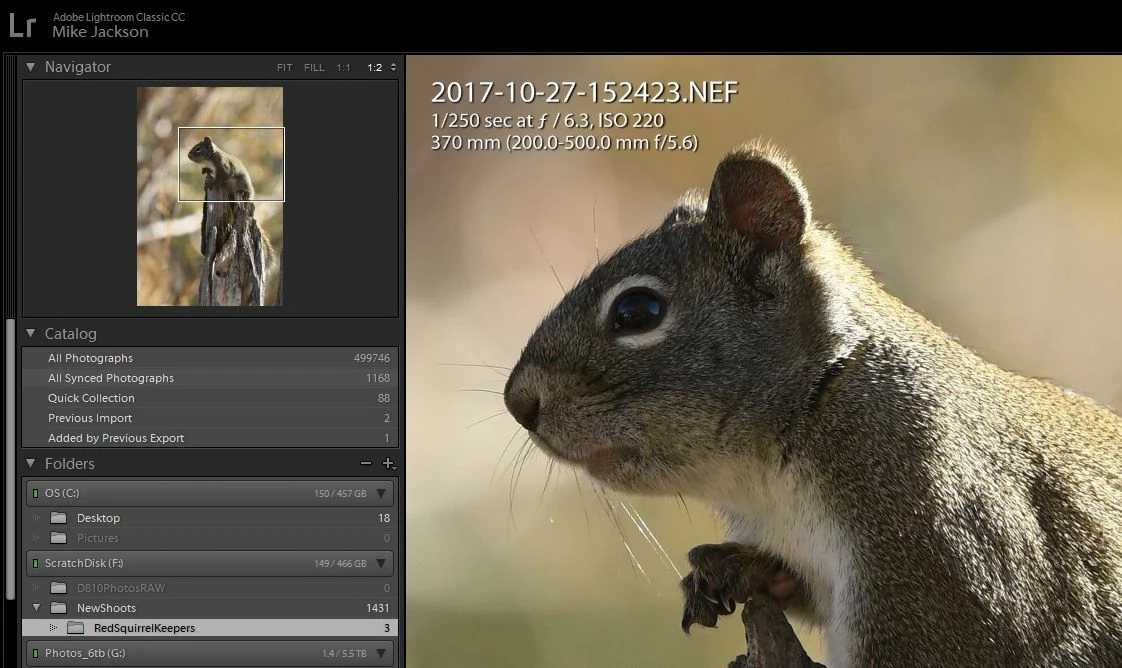
Maybe this image will illustrate what I am wanting to do.

I shot 30-40 images of this squirrel at the top of a stump. In some, his tail was behind the stump and visible in others. I zoomed in to 1:2 for this example, but it might be 1:1 at times. This lets me see if the eye and whiskers are sharp, but when zoomed in, it can't tell if the tail is visible except in the small navigator window. I don't see any way of enlarging the navigator window?
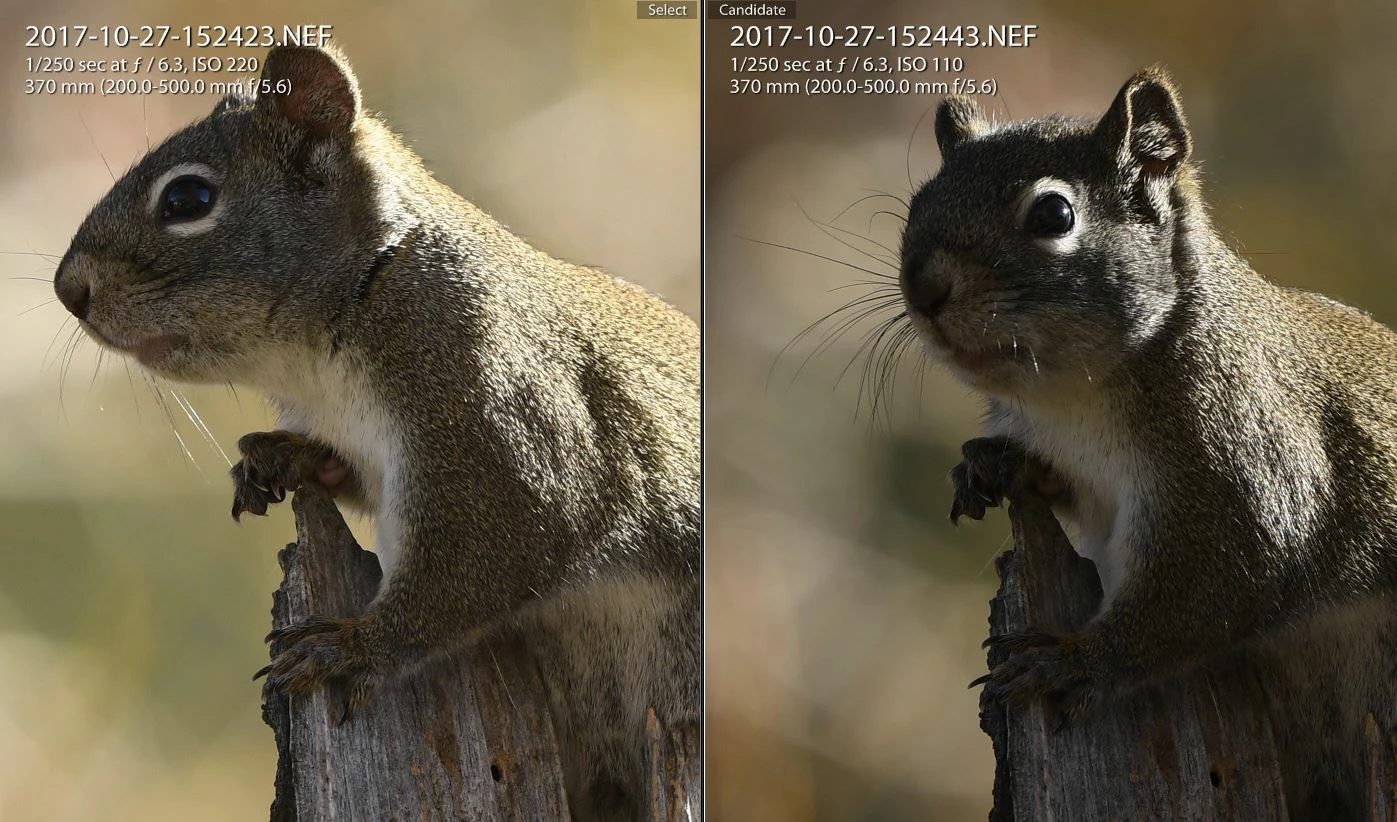
I am possibly going about this wrong, too? Is it possible to do a split screen on the same image? Instead of two different images (as above), can I view one side at 1:1 and the other "fit" on the same image? If so, I would need to advance to the next image after assigning an X, P, or U, and see it in both zoom views of the next image.

Any advice would be appreciated. MJ
This topic has been closed for replies.
Correct answer Rob_Cullen

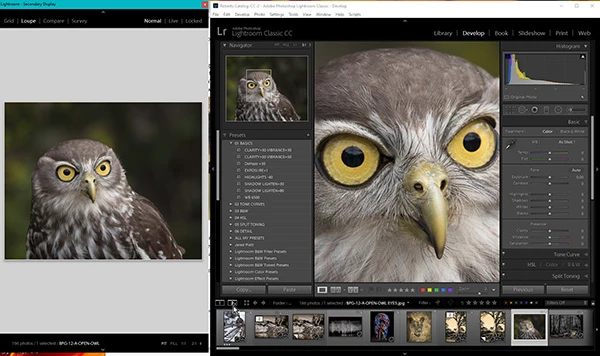
One option you could try is the "Second Window" button.

If you have one (large?) monitor screen you could window both 'Windows' together.

This is my full screen on a Dell 27in monitor-

2 replies

Inspiring
October 28, 2017

Interesting question and a great answer from wobertc. Thanks to both of you for posting. I live and I learn!

Rob_Cullen
Community Expert
Rob_CullenCommunity ExpertCorrect answer
Community Expert
October 28, 2017

One option you could try is the "Second Window" button.

If you have one (large?) monitor screen you could window both 'Windows' together.

This is my full screen on a Dell 27in monitor-

Regards. My System: Windows-11, Lightroom-Classic 15.0, Photoshop 27.0, ACR 18.0, Lightroom 9.0, Lr-iOS 10.4.0, Bridge 16.0 .
mrjacksonAuthor
Inspiring
October 28, 2017

Yepl...that works perfectly! It advances both windows using the arrows. Thanks! Mike Jackson