


Participant
December 14, 2024
Answered

How to fill in white gaps with generative AI after transform?

  • December 14, 2024
  • 1 reply
  • 1910 views

How to use generative AI in Photoshop to feel in the white gaps?
Step-by-step instruction, please.

I work in Lightroom and am badly familiar with Photoshop. I have noticed that white ares are not part of the image after I open image for editing in photoshop from lightroom, so i cannot edit them neither can select them. I can, for example, use crop tool in Photoshop to expand image and use generative AI but these gaps left from Lightroom still not filled in. How to fill them?

1. I edit RAW photo ln lightroom.
2. I use transform without cropping - it makes photo with white gaps
3. I hit "edit in Photoshop" - it opens image in PS and white gaps became chessboard
4. What next?

Thanx a lot
Correct answer Ian Lyons

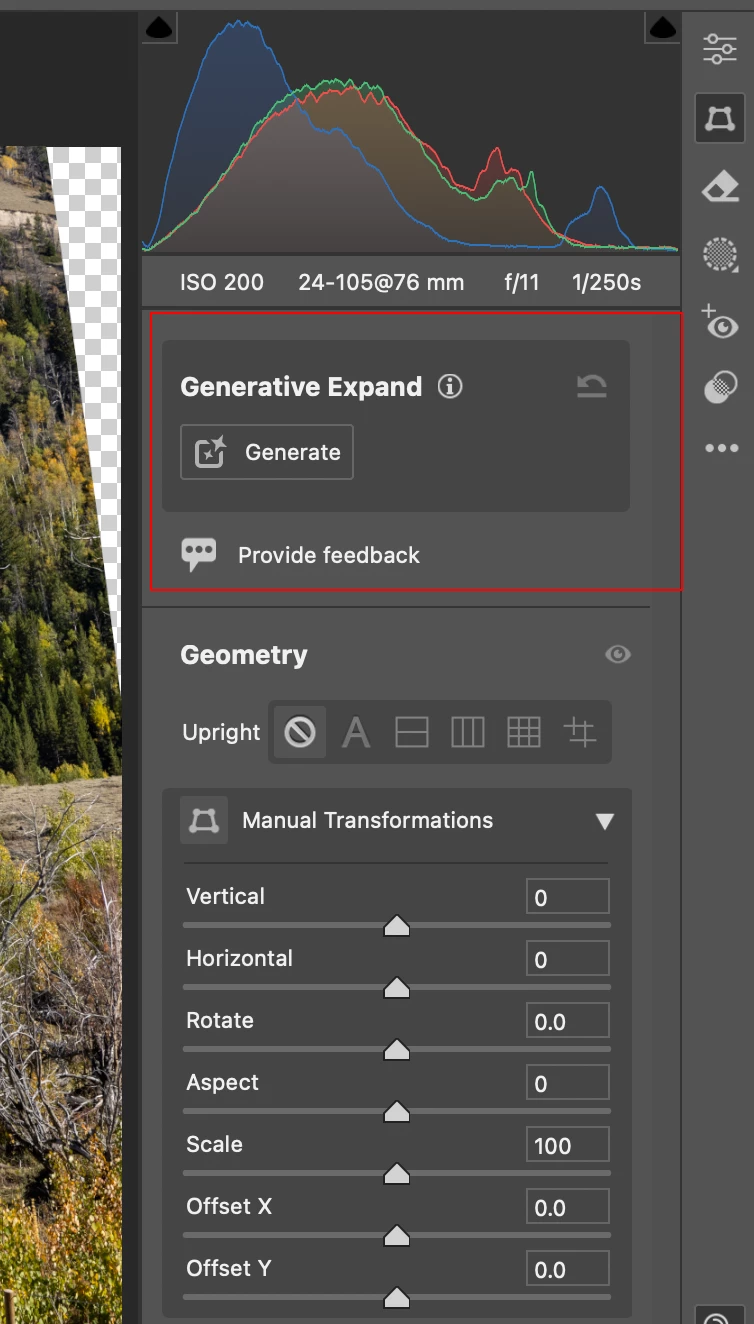
It's not possible in Lightroom Classic at present. However, you can now do it in Camera Raw 17.1.  The Camera Raw filter also supports generative expand.


1 reply

Ian Lyons
Community Expert
Ian LyonsCommunity ExpertCorrect answer
Community Expert
December 14, 2024

It's not possible in Lightroom Classic at present. However, you can now do it in Camera Raw 17.1.  The Camera Raw filter also supports generative expand.


fotonikoAuthor
Participant
December 14, 2024

Where the generative expand is in Camera RAW?

17.1 I have, I do not see it.


And second question - hot to fill in these cheeboard areas in Photoshop? Shold be easy enough, it says in manual I can use Generative Fill and I need to select it but I cannot figire out how to select them. If one is professional in PS, it could be easy for one to explain, isn't?

fotonikoAuthor
Participant
December 14, 2024

I have found an answer on my second question:

1. Once image is open in PS, Ctrl-Click on a thumbnail in the layer palette and hit "Select Pixels" - it will select all non trasparent pixels in the image

2. Inverse selection in Menu

3. Use Generative Fill.

))