


Participant
October 13, 2012
Question

Images getting corrupted in Lightroom 4.2

  • October 13, 2012
  • 6 replies
  • 20808 views

I have experienced this aswell. As mentioned in:

http://forums.adobe.com/message/4138626

and http://forums.adobe.com/thread/948417?tstart=0

My lightroom has after two weeks of playing with a fully working raw file corrupted it.

This is what the photo looked like originally http://500px.com/photo/14737987

As of today, I tried to reexport it with a diffrent watermark, the raw file corrupted. It exports a corrupted jpg and when I delete the .xmp metadatafile and try to import it again (same happens with it now when trying to import it to photoshop) the raw file now renders as corrupted in all software.
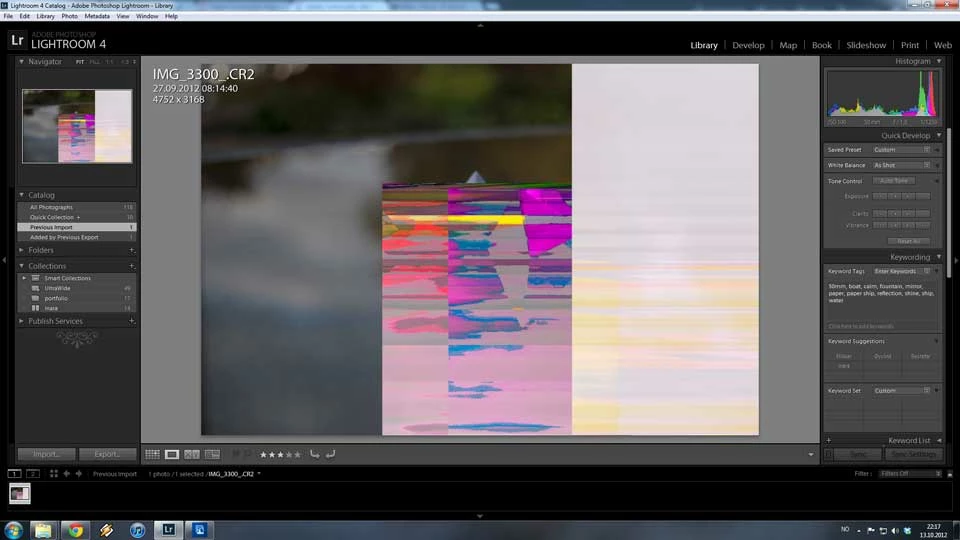
I have tried every possible way to reimport it, its just plain broken. If this should happen to my whole portfolio I would cry.

This topic has been closed for replies.

6 replies

areohbee
Legend
February 19, 2013

I have a friend who worked at Apple when it was just a startup, then continued on for several years after as a consultant. He is semi-retired now, but has *tons* of Apple stock - promotes and defends them zealously, right or wrong - often using words cleverly to twist the facts... - he'd make a good lawyer (but he's not much fun to talk to if you're a PC (or Droid...) user - even if you also think Apple is (and their products are) great ;-}).

Anyway, if this happened to you:

* Image was fine (raw fine I mean, not just jpeg prevew fine), and hasn't been copied to a new location (note: moving doesn't count, since no image data gets re-written when moving), and went south (confirmed using more than one raw-reading app) when using Lightroom, then:

- if proprietary raw, problem is probably hard disk (probably not ram).

- if DNG or rgb, consider turning auto-write xmp off, and not saving manually either (neither xmp nor updating DNG previews), as a temporary gesture - problem could be either hard disk or ram..., so get it resolved. Afterward, consider reenabling auto-write xmp and/or resume saving manually again.

Of course, always make backups (preferrably when hardware is *NOT* failing, and when failing (or failure suspected), if you do attempt a backup, make sure *NOT* to overwrite previous backups) in case hardware failure (or any other snafu) causes your working copies to become corrupt.

Lastly: once upon a time, ram test upon startup was mandatory. why? - to avoid having corrupted files (and/or other misbehavior). Why did that change?:

* Ram became more reliable.

* Ram amounts have become so big that ram tests take a lot longer.

The moral of that story? - consider enabling the option to always do ram test upon boot. If you're in front of your computer, just abort the test when things have been going smoothly, otherwise: let it run - odds are better this way that you'll catch ram problems before they'll catch you .

Rob

February 20, 2013

Hi Guys

I'm just arriving on the end of this discussion, I have to admit most of it is way over my head although I follow the principles.

I too have just started having corruption problems with RAW images in Lightroom - I use a 27" iMac with 16GB of RAM and my system is about 12 months old.

It started a few days ago - images were imported from my memory card via a Lexar card reader (which I have used for 2 years without problems), after going through my Library of downloaded images everything appeared OK. I opened a few images into the Develop module, processed them, exported to Photoshop - again everything was fine. Yesterday when I opened up the Library containing the same RAW (CR2) images the thumbnails appeared to be redrawn as the thumbnails came up and then moments later the images changed slightly, I assumed Lightroom was applying the tone mapping corrections I had made but one of the images became corrupt as the changes were being made. I was initially worried but then as I had a back-up and it wasn't a particularly important file I thought - 1 problem in 3 years of using Lightroom isn't too bad.

Today I have been processing some star trail images I took 2 nights ago.

These images have been imported into Lightroom and basic corrections carried out to the RAW files without problems.

I tried opening all 180 images into Photoshop for merging but Photoshop ground to a halt under the strain so I decided to open them in batches of 20. I selected 20 images in Lightroom, used 'Open As Layers in Photoshop', processed them and then on my 6th visit back to Lightroom one of the next batch of 20 images suddenly became corrupted as I selected it. All the thumbnails appeared to be updated/redrawn again as they all changed slightly everytime I returned to Lightroom. Lightroom also seems to have created a .tif file of this corrupted RAW file.

After reading through this discussion I opened Canon's DPP software and the same RAW file appears OK in DPP.

I have tried saving it with a different name and importing it into Lightroom, it appears OK as a thumbnail but when I try to open it, it is corrupted.

As I understand it, this could be due to faulty RAM, a failing HDD, a faulty card reader or cable.

1) Faulty card reader - fairly inexpensive, so I will try replacing it.

Logically wouldn't I be seeing more corrupt files if the Card Reader was responsible and not just 1 out of the 200 - 300 I have downloaded on each of the last few days?

2) Faulty RAM - someone suggested trying Memtest86, I looked at the web site and it looks far too complicated, I'm a photographer not an IT consultant.

Is there any easier way to check RAM or an idiots guide to using something like Memtest86 on a Mac?

3) Replacing the HDD - I know HDD's can fail at any time but wouldn't I be getting all sorts of other problems if the HDD was begining to fail?

This will be a pain to change as I believe I have to take my iMac to an Apple store, a friend had his HDD replaced and it took over a week but I want to be sure that this is where the problem lies before I go down this route.

I would like to discount the other 2 possible problem areas first.

I do think having a Forum like this is excellent to help us all find ways of solving the problems we all encounter from time to time, even if they do get too technical for the average person now and again.

Participant
February 20, 2013

You must put Memtest86+ on a CD or USB stick and boot your computer from this CD or USB stick. Here is how:

USB stick:

1) Download http://www.memtest.org/download/4.20/memtest86+-4.20.usb.installer.zip

2) unzip file and run 'Memtest86+ USB Installer.exe' (You need windows).

3) Put USB stick in a computer for test.

4) Reboot, select USB stick as boot device (Press F8 during boot on windows, do not know for Mac).

5) Memtest program will start with first test. One Pass, 8 different tests, will take about 45 min. (On my computer with 8GB).

CD:

1) Download http://www.memtest.org/download/4.20/memtest86+-4.20.iso.zip

2) unzip file and burn mt420.iso as image to CD.

3) Put CD in DVD/CD drive of computer for test.

4) Reboot, select DVD/CD drive as boot device.

5) See above.

BernardDigital
Inspiring
January 31, 2013

Yea this problem is still present and were using Lightroom 4.3 and Camera Raw 7.3

Unfortunantly I don't think its a hardware issue as you would be having other graphics related issues... but to me it looks like a data basing error... If the images are fine on the disk then the problem is with the way the lightroom database is linking to the photo and loading the raw xmp look up value for that photo...

Unfortunatly I think this problem will alway be present because of upgrade incompatiblity... ie... if you upgrade lightroom but not the camera raw plugin or the other way around... What would be a cool fix is a way to re-connect all your photos and essentially clean up your database after you upgrade... Our problem was fixed when we re-imported the photo... But that can be a tetius processes, so some way of batching it would be really cool

ssprengel
Inspiring
January 31, 2013

What are you talking about, a “data basing error” related to an upgrade? Image data is not stored in a LR catalog database, only the settings for an image and nothing in the settings would produce the artifacts seen in the first post, which appears to have resulted from corrupted or probably missing raw data on the hard-drive, perhaps due to a failing hard-drive or iffy USB connection if it’s external.

Sure, the previews can get corrupted and things can be fixed by removing the previews folder and having them rebuild, which your removing and re-importing would be an unnecessarily drastic version of. Manually deleting the previews and doing a rebuild-all on them would be the batch way to fix them.

BernardDigital
Inspiring
February 13, 2013

Whoa! Chill out... I am talking about an error with the way Lightroom is linking to the file on the disk to load the image and then to load the look up values for that image... If you have a lightroom library that is fine then one day it goes bad the next but the file on the disk is good then yes its the previews that were corrupted... Which are connected to through the data base which is what probably corrupted them possibly when you updating your build or camera raw compatibility... Sure there are lots of ways data can be corrupted and people can be experiacing the same problem that are caused by different factors... Which is what seems to have happened here...

My photo was fine on the disk and the disk is an internal drive but it was corrupted in lightroom and looks exactly like the picture shown above... So do you really think my problem is hardware related? And if it was hardware related do you think the only place you would be experiancing problem would be in lightroom? Im sorry to say I disagree. I think the problem is what I said ealier which is with the way lightroom is connecting to everything. So thank you for the advice of removing the preview folders and having them rebuilt. But what is the best way to do that?

jinordnesAuthor
Participant
October 14, 2012

I have however bought another HD for my otherwise fairly new i7-comp. I will not take any more chances that this will happen again, luckily it happened to this photo which is nonimportat really and I have like 10 others still working from the same shoot.

I also do back up failry vigrously, but there is always a window of when my newest imported files are not backed up yet.

Participant
October 14, 2012

Check your memory with memtest86+ ( http://www.memtest.org ). I had corrupted raw files due to a memory error.

areohbee
Legend
February 16, 2013

janh1948 wrote:

Check your memory with memtest86+ ( http://www.memtest.org ). I had corrupted raw files due to a memory error.

That's what I use too, however it's worth noting that system bios has ram test built in (right: they are not as thorough as memtest86+). Such tests used to always be run at every boot, now they are optional, but definitely recommended if you are having inexplicable problems, especially if:

* Known good images are going bad, when the only access you've had to them is through Lightroom, and disk-check did not indicate any disk errors.

Rob

areohbee
Legend
October 14, 2012

File was probably wonked when it got to Lightroom. Other softwares may have just displayed a jpeg preview. Lightroom "never" corrupts raw files - look for a hardware problem: card, reader, cable, ...

I'm not saying it's impossible, just *very* unlikely - so far zero of many such cases (that I know of, and I know of a lot) have been traced to Lightroom.

jinordnesAuthor
Participant
October 14, 2012

No the file was working perfectly well in Lightroom for about two weeks. When I was to reexport the file for like the 10th time, it corrupted, two weeks after import.

areohbee
Legend
October 15, 2012

jinordnes wrote:

No the file was working perfectly well in Lightroom for about two weeks. When I was to reexport the file for like the 10th time, it corrupted, two weeks after import.

That is unusual. Still, I concur with the others here - if not corrupt going in, it was probably a disk problem or something... - Lightroom doesn't write to the raw files, so it corrupting them seems highly unlikely. consider a thorough disk check. Note: the look of the corruption is "signature" - like a bit was stuck or something...

Keith Reeder
Participating Frequently
October 13, 2012

I'm in one of those threads, having had something similar happen to me in the past: my problem was unequivocally traced back to a failing hard drive, and every other such thread that has been followed up by someone suffering from this kind of corruption has confirmed hard drive, RAM or other hardware problems.

It's well-known that Lr stresses the kit pretty hard, which is probably why this corruption manifests itself when Lr is in use.

Geoff the kiwi
Community Expert
Community Expert
October 13, 2012

I suspect a hardware or preview issue. The other threads you quote have no answers from the OP's what their problem ended up being - deafening silence after other options than Lightroom were mentioned.

I suggest that you remove the file from Lightroom and if you have another copy, make a copy of the copy, rename it using the OS, place the copy in a test folder and import to Lightroom. What happens?