


New Participant
April 1, 2018
Answered

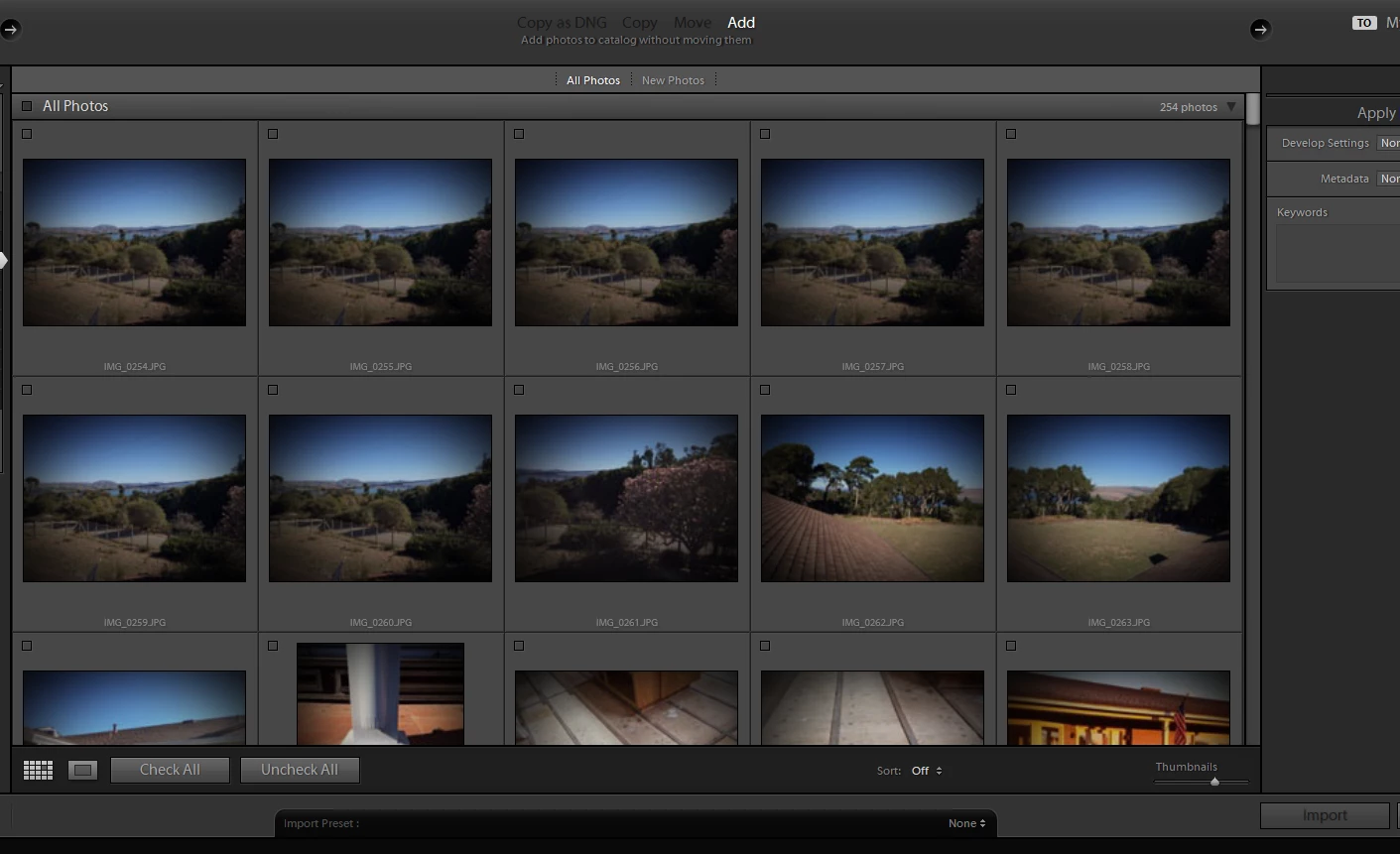
Import from Folder - Unchecked Thumbnails have a vignette effect

  • April 1, 2018
  • 4 replies
  • 2851 views

How do I get rid of the vignette effect on unchecked images? I'm trying to import images into a collection from a file location and when I uncheck all I get this vignette effect which makes it very difficult to see the images and distinguish between shots.
    Correct answer Just Shoot Me

    caitiekay  wrote

    Too bad.

    Thank you.

    Why is it to bad? Unchecked images in the import dialog means they will NOT be imported. Why would you care how images that won't be imported are displayed in the import dialog window?

    4 replies

    New Participant
    February 21, 2024

    If this could be fixed it would be very appreciated. My workflow is:    put the sd card in > open lightroom> start filtering photos at the import stage > then start rating > after a few pass throughs of rating, I start editing the ones I'm keeping. I don't want to import all of the photos, then have to go through all of them, and delete the ones I want. I don't have unlimited storage on my computer and on some projects I have up to 10,000 photos, which makes it impossible to upload all of them, I need to weed out replicates, blurry and otherwise junk photos at this import stage. This is why the vignette is incredibly annoying, as I have to squint, get closer to the screen or adjust the thumbnail size. How hard would it be to add a Vignette toggle? 


    Adobe Expert
    September 22, 2024

    I can see the vignette gets in the way if you proceed by un-checking all images, then checking just the ones you want to import. But that's a little like how (if these were real items) reaching into the traschcan to retrieve each item you didn't want to throw away, after dumping the whole lot in there, would be a more laborious approach than simply not throwing away those you do want to keep. The vignette denotes rejection or put another way, indicates that one is not interested in that image. Not seeing the detail of a rejected image is in that sense no loss.


    So, if one instead proceeds by accepting all and then rejecting the duds, the vignette does a positive and useful job. 


    That said, the desire has been expressed for a Compare or Survey view or similar. So, one may have a group of (say) twenty photos with a similar subject of which only a very few are to be imported (perhaps for further culling and rating once inside the Catalog). So one can highlight that group of photos in thumbnail view. This option presents them without vignette regardless whether they started out checked or unchecked. Then you can un-highlight those you do not want. Click on the border of the most desired image from this group, optionally add one or two others with Ctrl+click (Cmd+click) and press P. Or you can de-select particular images you do not want in the same way.


    The point being, selected images do not show any vignette so you CAN see all images in a selected group clearly. And get the selection as you want it before pressing P to lock that in, and move on to the next group of candidates.


    Just a thought. I always find it better to find, and generally follow, the 'flow' of however the software is most conducive to working.

    New Participant
    September 23, 2025

    In your scenario, if you had 100 images and you only wanted to import 5, you would have to click 95 other images instead of just selecting the 5 in the beginning that you actually want. It makes zero sense to make people work this way and its absolutely astounding that Adobe firstly implemented this in the beginning and secondly have not fixed this incredibly bad UX. At the very least there should be a preference setting. 

    jackdaw
    Participating Frequently
    December 2, 2019

    I was just looking for the same thing, how to change that irritating dark vignetting. I know I can scroll through the images one by one and then select each one while they pass my eye, but selecting multiple images in the overview window with the thumbs is very hard. Weird choice for UI. Why not just give the images a green and/or red border. That way the thumbs can be judged for selection.

    Just Shoot Me
    Brainiac
    December 2, 2019

    The same reason as stated above. The import dialog is for Importing image into the LR catalog.

    For weeding out the ones you don't want you use the Library module and ther tools available in that module.


    Sure you can De-Select images in the import window and even use the Loupe View system to do that (Similar to the Library module).


    If that really doesn't fit your needs I suggest you look for some other program that does do what you want.

    New Participant
    October 29, 2022
    quote

    If that really doesn't fit your needs I suggest you look for some other program that does do what you want.


    By @Just Shoot Me


    That's not actually how continuous integration/continuous development works. End users are expected to provide feedback to product development teams to suggest improvements to the user interface and user experience.


    So I'd suggest you brush up on the basic principles of software development, UX/UI engineering, and the feature lifecycle, particularly from the entry point of the system (end-user feedback) before making those types of suggestions to people.


    Source: Bachelors Degree in Information Systems and Professional Software Engineer

    caitiekayAuthor
    New Participant
    April 1, 2018

    Too bad.

    Thank you.

    Just Shoot Me
    Just Shoot MeCorrect answer
    Brainiac
    April 1, 2018

    caitiekay  wrote

    Too bad.

    Thank you.

    Why is it to bad? Unchecked images in the import dialog means they will NOT be imported. Why would you care how images that won't be imported are displayed in the import dialog window?

    caitiekayAuthor
    New Participant
    April 1, 2018

    Because I don't want to import everything in a folder and some of the images are very similar. If I can't see the difference in the folder import dialog window then I need to import more than I want or import the wrong ones. Then I need to remove. All extra steps. If I can compare the images BEFORE I import them to a collection that helps.

    Brainiac
    April 1, 2018

    Unchecked images will show this effect. There is no way to turn it off.