


December 22, 2019
Question

Importing to a separate folder

  • December 22, 2019
  • 4 replies
  • 547 views

Hi. Does another else have an issue when importing to a selected folder, under Folders section in Lightroom, it will be marked as a separate folder.


For example, in my scenario, the folder 'Test' should be under '20191222 Sunday', the same folder as 'Justin'. However, Lightroom just automatically create a new folder as seen in the picture below.
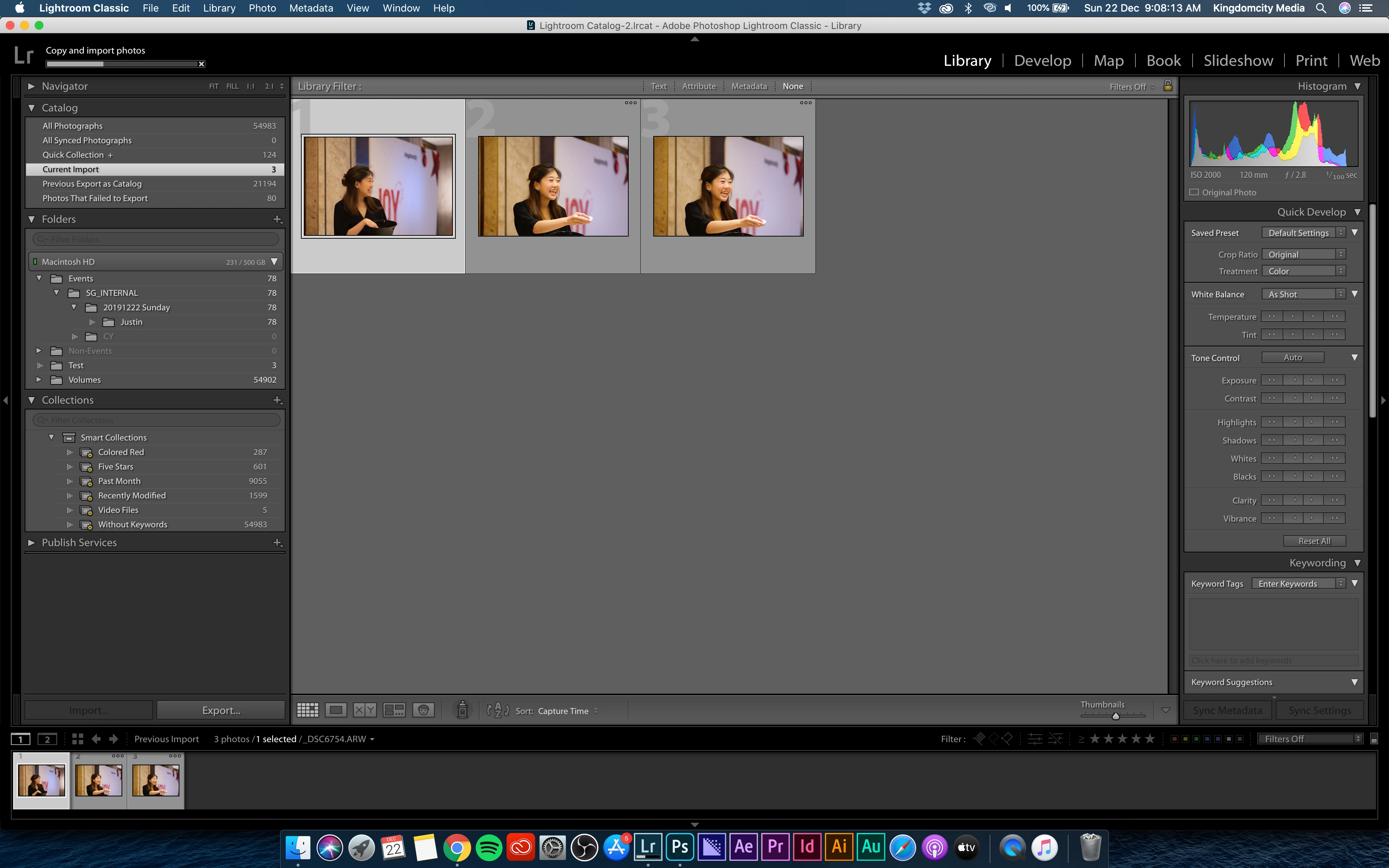
For me, this only affects organisation. It does not affect any other functionality.


Is this a mistake on my end, or is it also a bug for some of you guys?


Edit: When Importing, I did select the folder destination correctly. 

Even after importing, Finder will show the pictures where they should be, but Lightroom does not reflect this.

This topic has been closed for replies.

4 replies

Brainiac
December 22, 2019

I believe you may have encountered the "capitalization" bug for one of the folders in your  folder path

One of the folders in the path above "Events" has a different capitaization now vs your previous imports to Lightroom.

Most likely "kingdomcitymedia" has changed.


See this thread for the fix:

Catalog - same photos, same location but shown twice 

Just Shoot Me
Brainiac
December 22, 2019

Whatever the problem is that you think you have it is being caused by the settings and or options you are using in the Import dialog.


LR simply does not place images into random folders without your specific instructions, IE settings and options you have chosen in the import dialog.

In the screen shot you posted you are selecting to import into a folder called Test.


In your other screen shot you have the current import selected in the Catalog section and not the actual folder the images are in. To me everything is as it should be.


I also suggest you change your View Options so the folder and possibly the file name of the images be displayed on the Thumbnails in the Grid view. That may help you in seeing where the images are stored.


GoldingD
Brainiac
December 22, 2019

First up, in your first screenshot, it appears your catalog does not know thatDid the proper folder named Test exist prior to the import?


The folder named Test, under the folder named 20191222?


Not the seperate Test folder 


December 22, 2019

Not that relevant. Whether the folder exist before the import, this problem would occur, where the catalogue does not correctly show file location.

GoldingD
Brainiac
December 22, 2019

If the folder did exist prior to import, then the first screenshot shows a possible catalog problem, as it does not appear to exist. This could be because the folder exists on the computer but not imported/sync to the catalog.


Second screenshot shows the folder exists. Is this only after import? Or before? If before, why does it not show up in the Folders panel, in the correct place.


Brainiac
December 22, 2019

Show us the Import dialog box you use when you have this problem.

December 22, 2019

This is where it's supposed to go

Brainiac
December 22, 2019

Have you selected COPY or MOVE or ADD? Can we see the entire Import dialog box?