



johnrellis
Legend
October 28, 2023
Question

Keyboard shortcut for Previous Keyword Set doesn't work on US numeric keypad

  • October 28, 2023
  • 1 reply
  • 1094 views

The Previous Keyword Set command is assigned to Opt/Alt Shift 0, which works if you type 0 on the main keyboard but not on the numeric keypad.


Tested on LR 13.0.1 / Mac OS 13.5.1 and Windows 11 / LR in English / Physical US English Keyboard and on-screen keyboards in Mac and Windows.


1. In Library, select a photo.


2. In the Keywording panel, make sure at least three keyword sets are defined.


3. Type Opt/Alt 0 on the main keyboard and then on the numeric keypad, and observe the next keyword set is correctly selected in both cases.


4. Type Opt/Alt Shift 0 on the main keyboard and observe the previous keyword set is correctly selected.


5. Type Opt/Alt Shift 0 on the numeric keypad and observe that on Mac, the next keyword set is selected and on Windows the keyword set doesn't change, both incorrect behaviors.


------------------------------------------------------------------------------

To open the Mac keyboard viewer:


a. In System Settings, search for "Show input menu in menu bar" and then set that option.


b. In the menu bar, click US and then Show Keyboard Viewer:
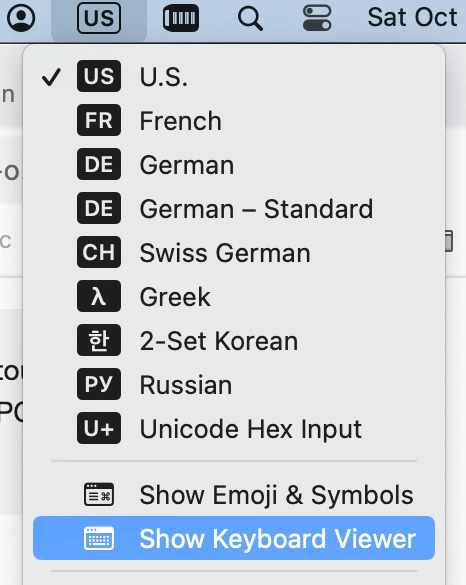
 

c. If you don't see the numeric keypad, do ... > Custom Panels > Keyboard - ANSI (Large):
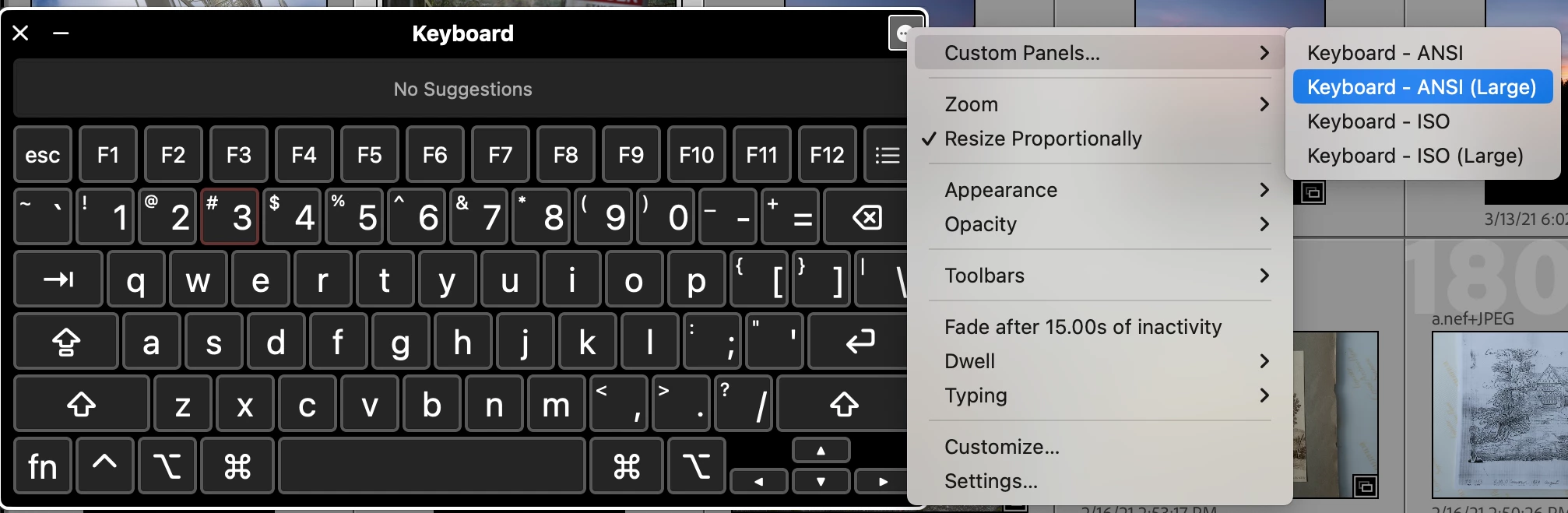
 

------------------------------------------------------------------------------

To open the Windows keyboard viewer:


a. In the Windows search box, search for "on screen keyboard" and run the On-Screen Keyboard app.


b. If you don't see numeric keypad, click the options key:
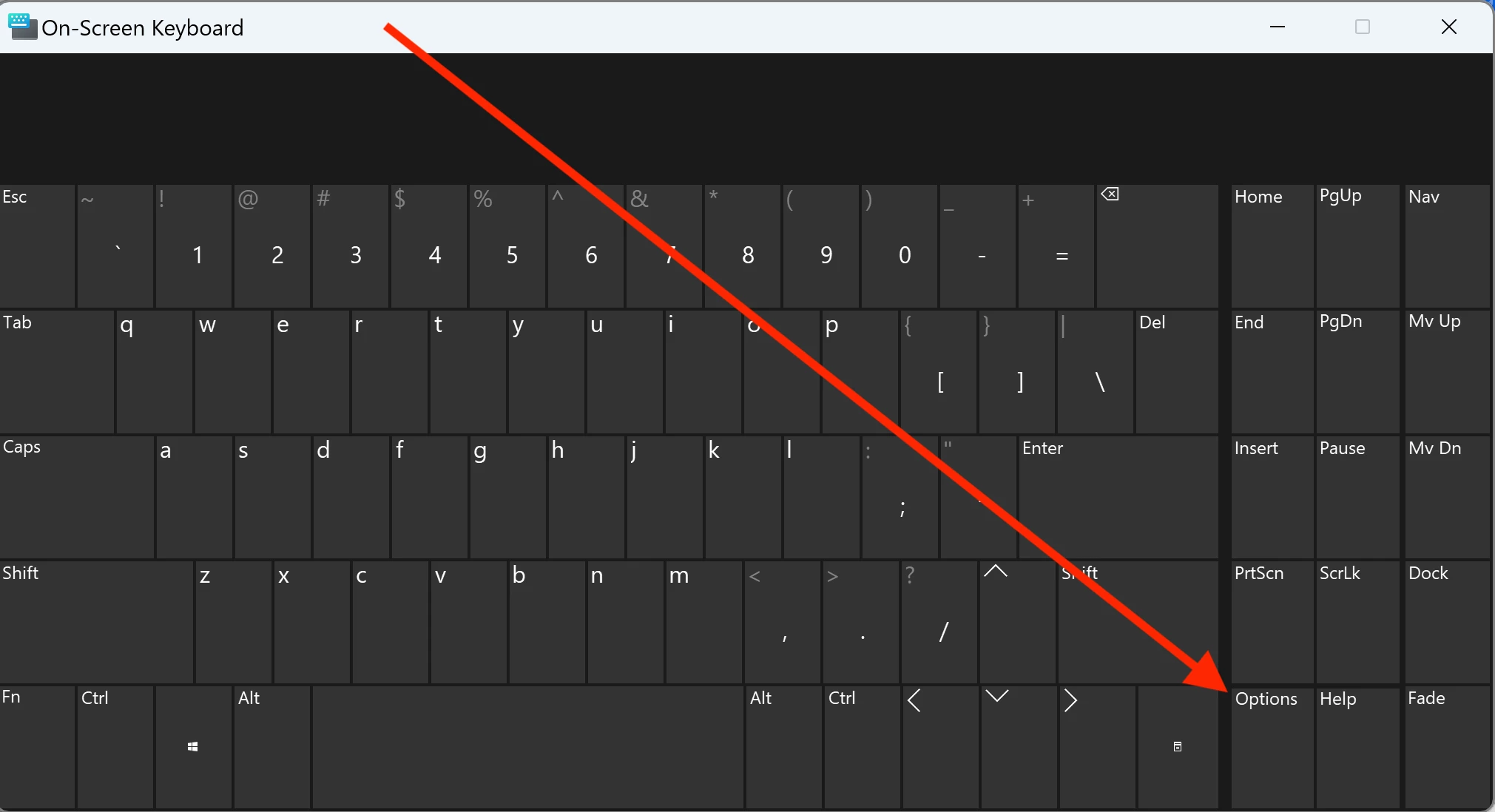
 

and check Turn On Numeric Key Pad.


1 reply

Participant
October 28, 2023

Hello,

Recently I noticed that Option + Shift + 0 keyboard shortcut for Cycling backward through keyword sets is not working properly. Instead of going to the previous set, it goes to the nex, just like  Option + 0. I tried to add a keyboard shortcut using the App Shortcuts menu, but it's still not working. I can't find this option in the LR menu, so maybe that's why I can't change it.


Anyone have any ideas on how I could solve this?


Thanks
Gabi R.

johnrellis
Legend
October 28, 2023

Hmm, Opt Shift 0 is working in my LR 13.0.1 / Mac OS 13.5.1.  To narrow down what might be going wrong:


1. Click the Keyword Set dropdown menu in the Keywording panel. How many keyword sets are displayed?


2. Do the LR menu command Help > System Info and copy/paste the entire contents here so we can see exactly which versions of hardware and software LR thinks you're running and important LR options that are set.

Participant
October 28, 2023
quote

Hmm, Opt Shift 0 is working in my LR 13.0.1 / Mac OS 13.5.1.  To narrow down what might be going wrong:


1. Click the Keyword Set dropdown menu in the Keywording panel. How many keyword sets are displayed?


2. Do the LR menu command Help > System Info and copy/paste the entire contents here so we can see exactly which versions of hardware and software LR thinks you're running and important LR options that are set.


By @johnrellis


Hi, John.
Thanks for your reply!


System info:

Lightroom Classic version: 13.0.1 [ 202310121438-d2af310c ]
License: Creative Cloud
Language setting: en-RO
Operating system: Mac OS 14
Version: 14.0.0 [23A344]
Application architecture: arm64
Logical processor count: 8
Processor speed: NA
SqLite Version: 3.36.0
Built-in memory: 16.384,0 MB
Real memory available to Lightroom: 16.384,0 MB
Real memory used by Lightroom: 1.309,1 MB (7,9%)
Virtual memory used by Lightroom: 416.903,6 MB
Memory cache size: 1.121,2MB
Internal Camera Raw version: 16.0 [ 1677 ]
Maximum thread count used by Camera Raw: 5
Camera Raw SIMD optimization: SSE2
Camera Raw virtual memory: 843MB / 8191MB (10%)
Camera Raw real memory: 842MB / 16384MB (5%)
Standard Preview Size: 2880 pixels
Displays: 1) 2560x1440

Graphics Processor Info:
Metal: Apple M1
Init State: GPU for Export supported by default
User Preference: Auto

Application folder: /Applications/Adobe Lightroom Classic
Library Path: /Volumes/Data/Lightroom/RGV-Photography/RGV-Photography-v13.lrcat
Settings Folder: /Users/myuser/Library/Application Support/Adobe/Lightroom

Installed Plugins:
1) AdobeStock
2) Aperture/iPhoto Importer Plug-in
3) DxO PureRAW 2
4) DxO PureRAW 2 Importer
5) DxO PureRAW 3
6) DxO PureRAW 3 Importer
7) Flickr
😎 HDR Efex Pro 2
9) Nikon Tether Plugin
10) ON1 NoNoise AI 2022
11) Plugin Parameters
12) Topaz Photo AI

Config.lua flags: None


In the attached image you can see some of the keyword sets (sorry but the names are in Romanian).

When I press Opt Shift 0, it should select the "Barză neagră" keyword set, instead "Becațină comună" set is selected.