
Known Participant
May 20, 2025
Répondu

Lightroom Auto Import Destination: existing folder not accepted

I am running Lightroom Classic 14.3.1 on macOS Sequoia 15.4.1. I want to be able to copy photos from the Photos App into Lightroom using the Auto-Import feature. In the Auto-Import settings, I define the Watched Folder with no problem. Photos does export images to this folder just fine.


I then move to define the Destination Folder, stored as a Lightroom-indexed folder.
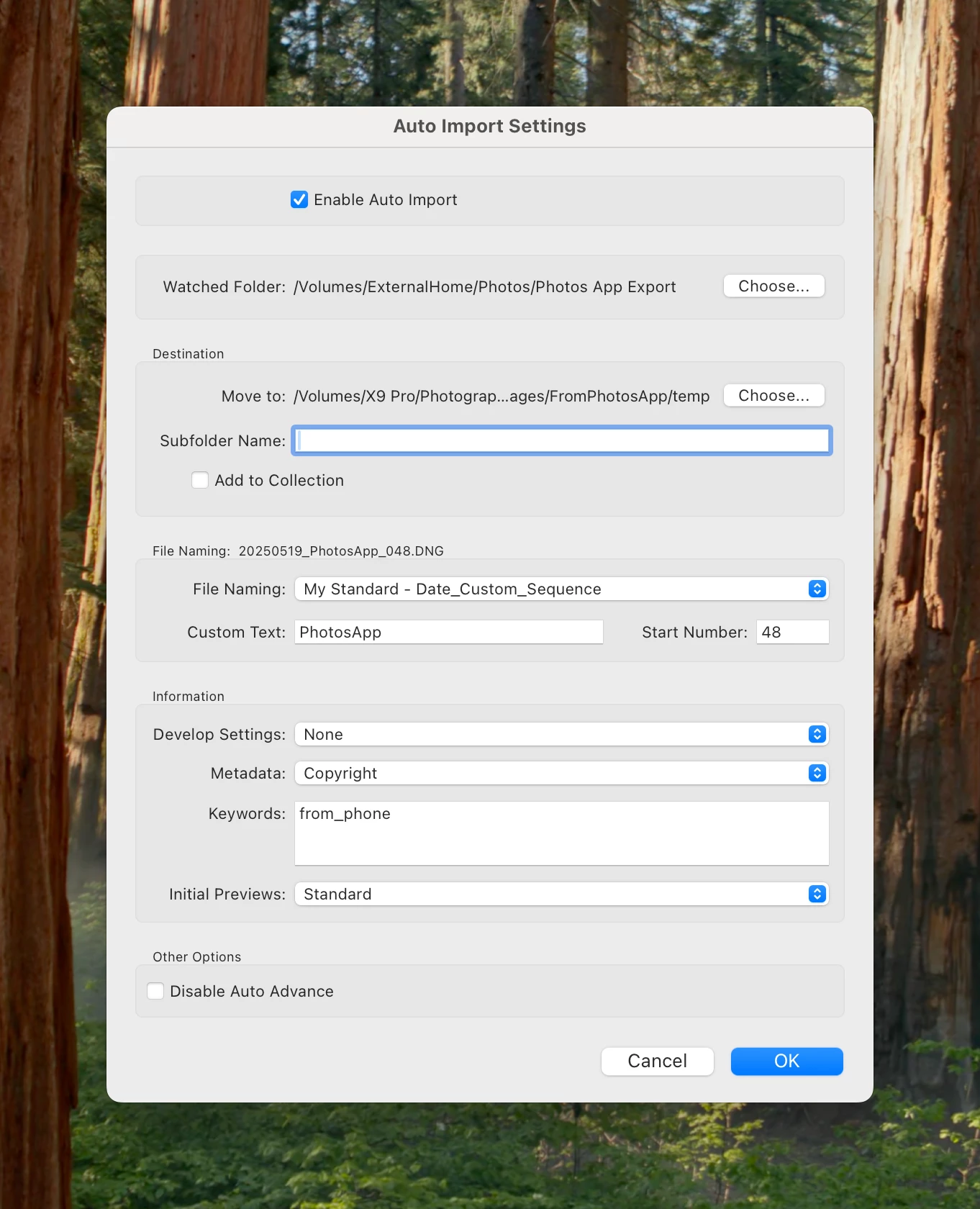
 

When I select OK, I get this error
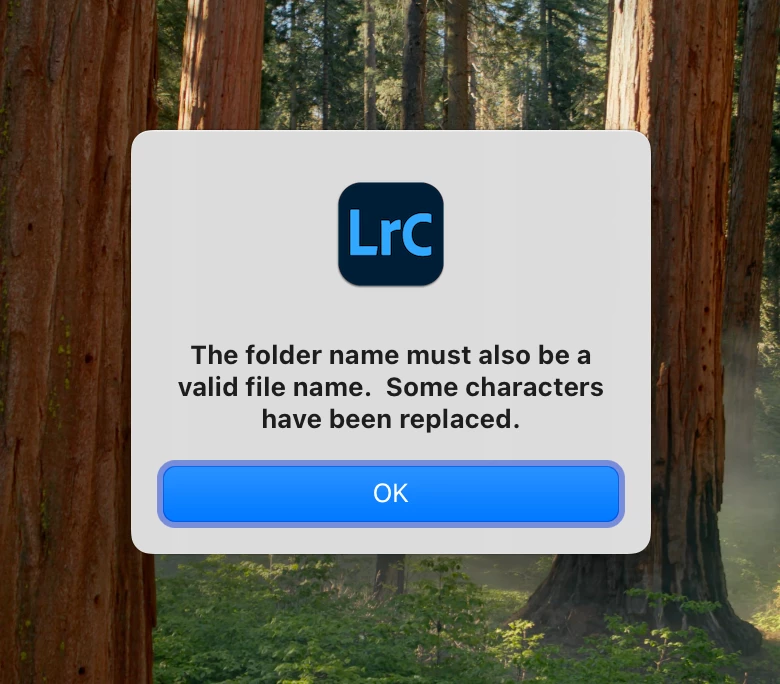
 

I have checked the Adobe docs at https://helpx.adobe.com/lightroom-classic/help/import-photos-automatically.html and in the "Select a destination folder for auto-imported photos" section it says "To select an existing destination folder, select the folder."  I have tried all manner of destination folders, but always get the same error:

* within LR indexed folder tree

* outside tree

* on external drive

* on internal drive


What am I doing wrong?


Meilleure réponse par JohanElzenga

Seems like this dialog forces you to use a subfolder. You don't have the choice not to use one by leaving that field empty, because that would mean you try to add a subfolder with no name. That's probably why you got the error.


2 commentaires

JohanElzenga
Community Expert
May 20, 2025

Check this out: Lightroom Classic has a preference setting that spaces are not allowed in file names. If you have turned this on, then this applies to the whole path, not just the file name, so also to the containing folders. If you are then trying to add a folder that does have a space in its name, this could be why you keep getting this error.


-- Johan W. Elzenga
PaulWaldoAuteur
Known Participant
May 20, 2025

Thanks for the suggestion Johan.  I do not have that feature turned on.  

I did find a workaround (cited in a reply to Bob), but I have no idea why it works

JohanElzenga
JohanElzengaRéponse
Community Expert
May 20, 2025

Seems like this dialog forces you to use a subfolder. You don't have the choice not to use one by leaving that field empty, because that would mean you try to add a subfolder with no name. That's probably why you got the error.


-- Johan W. Elzenga
Bob Somrak
Brainiac
May 20, 2025

What is the WHOLE destination folder name?  The three dots indicate the whole name is not displayed.  

M4 Pro Mac Mini. 48GB
PaulWaldoAuteur
Known Participant
May 20, 2025

I have tried numerous locations, such as `/Volumes/X9 Pro/Photography/Images/FromPhotosApp` and `/Users/paul/deleteme`, all to no avail.  Lightroom solves the problem by adding a Subfolder Name of "_" (underscore).  As you can imagine, this is quite an unpalatable solution.


So this is interesting:  I used `/Volumes/X9 Pro/Photography/Images` as the Destination Folder and `FromPhotosApp` as the SubFolder Name.  This seems to work and I have successfully made the round-trip from Apple Photos to Lightroom.  Why in the world would we have to go through that torture though?