


jojosch93
Participant
October 19, 2017
Answered

Lightroom Classic CC won't render photos in library view

  • October 19, 2017
  • 22 replies
  • 41078 views

After updating to Lightroom Classic CC, my photos won't show up in the interface of the library tab. But if I hover over where the photos should be, the preview image in the top left corner changes accordingly. So, my photos "are there" but they simply won't show up. I face the same problem in the import view. If I switch over to "Develop", I can see the single photo as well. Does anybody else faces a similar problem or has a solution?

Here is a screenshot: https://imgur.com/a/pHLDy
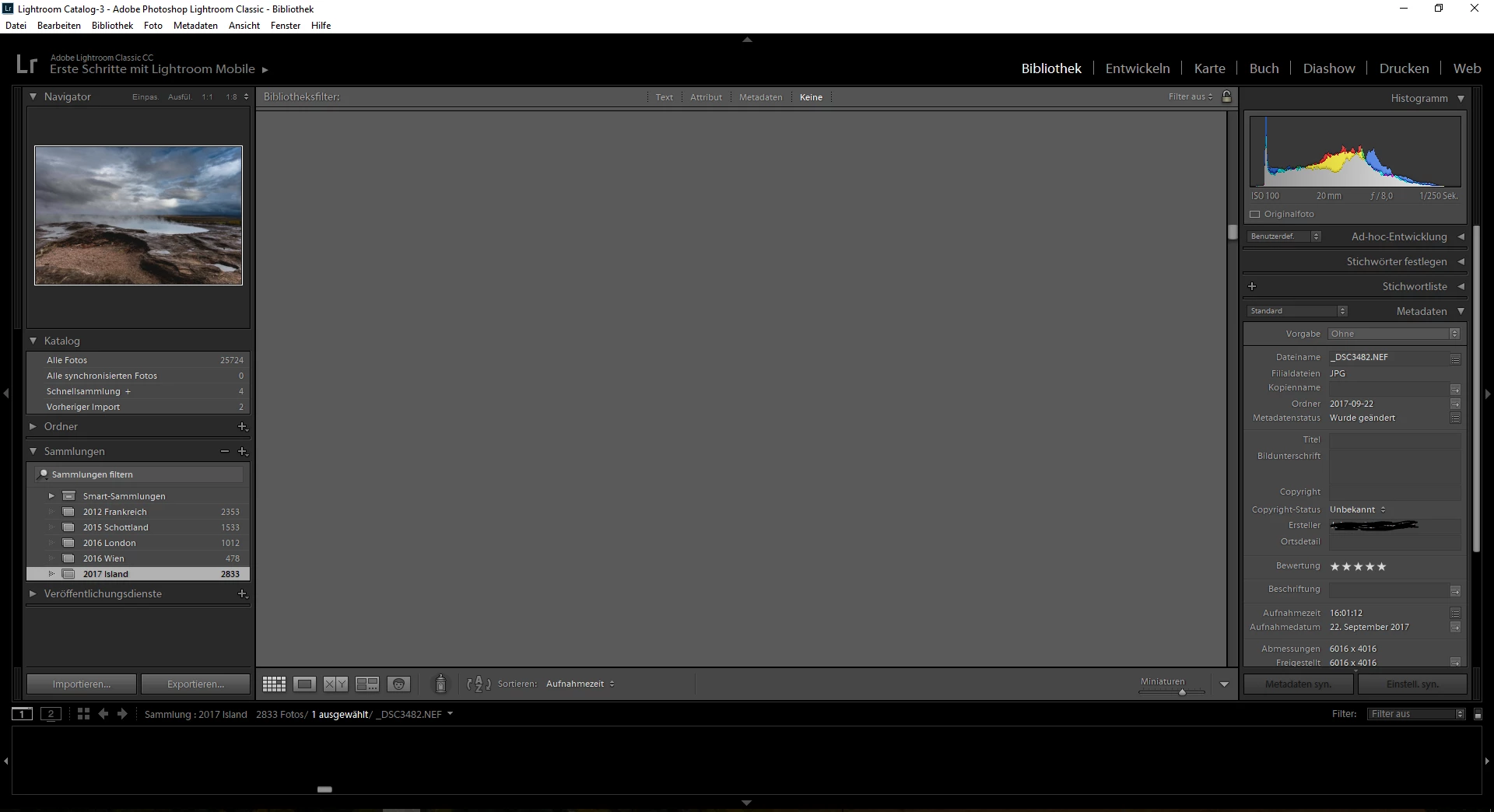
I run Lightroom on a HP Probook 4540s with a AMD 7650M graphic card. I've already installed the newest driver available.

This topic has been closed for replies.
Correct answer lucg3962859

This problem has been resolved by a workaround provided by Adobe.

I followed these instructions:

Could you please try the following and report back if it solves the issue.

==

Try this workaround to see if it works for you. If not, delete the config.lua file afterwards.

  1. Choose Edit > Preferences.
  2. In the Preferences dialog, go the Presets tab.
  3. In the Presets tab, click the Show Lightroom Presets Folder button. The root preset folder opens in the File Explorer.
  4. In the File Explorer, navigate into the Lightroom folder.
  5. Go to the link https://adobe.ly/2hUHGYa and download the config.lua file. Copy the downloaded config.lua file into the Lightroom folder mentioned in the previous step.
  6. Relaunch Lightroom Classic CC.

The System Info dialog (Help > System Info) should display the config.lua flags entry as shown below:

Config.lua-Flags:

AgView.disableDirect2D = true

==

Thanks,

Sunil

22 replies

myra aucoinr2876321
Participant
November 3, 2017

Thank you so much, Jao - I did go to Classic and looked for a Preferences under the Edit menu; I just went there again, I don't see a preferences - I tried in Develop and Library modes. I  must still be looking in the wrong place. No worries, thanks for your reply and trying. Have a great weekend.

Participant
November 3, 2017

Check/uncheck "use GPU" in preferences doesn't help im my case.

Any other ideas?

Participant
November 1, 2017

I have another problem displaying in the Library module.

The background behind the image does not refresh, so after seeing a few images all are mixed (See a preview below.).

The previous version of Lightroom correctly displayed everything.

All drivers are up to date.

In my opinion this is a bug in Lightroom, not in operating system or drivers.

None of the presented solutions do not help.

- Copy config.lua file with "AgView.disableDirect2D = true"

- Check/uncheck "use GPU"

My system info.

Laptop Dell Inspiron N7110.

Lightroom Classic version: 7.0.1 [ 1142117 ]

License: Creative Cloud

Operating system: Windows 10

Version: 10.0

Application architecture: x64

System architecture: x64

Logical processor count: 8

Processor speed: 2,1 GHz

Built-in memory: 8086,1 MB

Real memory available to Lightroom: 8086,1 MB

Real memory used by Lightroom: 1963,3 MB (24,2%)

Virtual memory used by Lightroom: 1809,0 MB

GDI objects count: 584

USER objects count: 2169

Process handles count: 1366

Memory cache size: 489,6MB

Maximum thread count used by Camera Raw: 5

Camera Raw SIMD optimization: SSE2,AVX

Camera Raw virtual memory: 806MB / 4043MB (19%)

Camera Raw real memory: 807MB / 8086MB (9%)

System DPI setting: 96 DPI

Desktop composition enabled: Yes

Displays: 1) 1600x900

Input types: Multitouch: No, Integrated touch: No, Integrated pen: No, External touch: No, External pen: No, Keyboard: No

Graphics Processor Info:

OpenGL: GeForce GT 525M/PCIe/SSE2

Check OpenGL support: Passed

Vendor: NVIDIA Corporation

Version: 3.3.0 NVIDIA 388.13

Renderer: GeForce GT 525M/PCIe/SSE2

LanguageVersion: 3.30 NVIDIA via Cg compiler

Total Video Memory: 2048 MB

Known Participant
December 4, 2017

That looks like my problem. Dont know what to do about it.

I have installed the 2015 edition again.

johnrellis
Legend
December 4, 2017

That looks like my problem. Dont know what to do about it. I have installed the 2015 edition again.

See this bug report in the official Adobe feedback forum: Lightroom: Overlapping display of images in Library | Photoshop Family Customer Community .  It contains a workaround that has worked for others.

Inspiring
October 28, 2017

I am having the same problem as RobertZ.  This just started with the latest update to Lightroom classic.  HELP!

Participant
October 25, 2017

Brand new MSI Stealth laptop. I7, gtx 1060, ssd, etc..

The work around did not fix this issue for me.

Need help. This is really frustrating.

Participant
October 24, 2017

I have an HP Pavilion dv6 running Windows 10 with an AMD Radeon HD 6700m graphics processor.  I have the latest graphics drivers and latest version of Windows 10.  Since updating to Lightroom Classic CC, I have had the same problem with no photos displayed in either the grid view or the loupe view in the Library module.  Photos are displayed in the other modules but in none of the modules are the photos displayed in the film strip.  I have tried all of the suggested work arounds and none have fixed the problem.  All of this worked in the old Lightroom CC before I upgraded.  Is Adobe aware of this problem and are they working on it?

Participant
October 24, 2017

This problem has been resolved by a workaround provided by Adobe.

I followed these instructions:

Could you please try the following and report back if it solves the issue.

==

Try this workaround to see if it works for you. If not, delete the config.lua file afterwards.

  1. Choose Edit > Preferences.
  2. In the Preferences dialog, go the Presets tab.
  3. In the Presets tab, click the Show Lightroom Presets Folder button. The root preset folder opens in the File Explorer.
  4. In the File Explorer, navigate into the Lightroom folder.
  5. Go to the link https://adobe.ly/2hUHGYa and download the config.lua file. Copy the downloaded config.lua file into the Lightroom folder mentioned in the previous step.
  6. Relaunch Lightroom Classic CC.

The System Info dialog (Help > System Info) should display the config.lua flags entry as shown below:

Config.lua-Flags:

AgView.disableDirect2D = true

==

Thanks,

Sunil

Participant
October 25, 2017

Worked perfectly thank you!!!! I was struggling with the same issue.  Thanks for being on top of it so quickly

Nico_
Participating Frequently
October 22, 2017

Awesome, adding the config.lua file to the Lightroom folder worked for me.

Thank you so much!

Known Participant
October 23, 2017

Did config.lua fix the problem for anybody using Windows 7?  It has not fixed my problem.

Participating Frequently
October 23, 2017

Yes it fixed my problem on a Windows 7 computer.

Participant
October 21, 2017

I had the same problem and the work around fixed it thanks.

Known Participant
October 22, 2017

Can someone from Adobe tell me if I have the correct contents in the config.lua file.

If so, what does my system info suggest.  I don't have an entry for AgView

Participating Frequently
October 21, 2017

I had the same problem, and the workaround worked.

Thanks a lot

Known Participant
October 21, 2017

I just looked at my system info and I don't see the entry you specified.  Did I put the file in the wrong folder - see my earlier comment on the folder structure.

my system info reports   Config.lua flags: None

lucg3962859Correct answer
Participating Frequently
October 21, 2017

This problem has been resolved by a workaround provided by Adobe.

I followed these instructions:

Could you please try the following and report back if it solves the issue.

==

Try this workaround to see if it works for you. If not, delete the config.lua file afterwards.

  1. Choose Edit > Preferences.
  2. In the Preferences dialog, go the Presets tab.
  3. In the Presets tab, click the Show Lightroom Presets Folder button. The root preset folder opens in the File Explorer.
  4. In the File Explorer, navigate into the Lightroom folder.
  5. Go to the link https://adobe.ly/2hUHGYa and download the config.lua file. Copy the downloaded config.lua file into the Lightroom folder mentioned in the previous step.
  6. Relaunch Lightroom Classic CC.

The System Info dialog (Help > System Info) should display the config.lua flags entry as shown below:

Config.lua-Flags:

AgView.disableDirect2D = true

==

Thanks,

Sunil

Participant
November 3, 2023

Hello! the link is not avaiable anymore, do you know where can I find the config.lua file? thank you

Rikk Flohr_Photography
Community Manager
Community Manager
November 3, 2023

You’ve posted to an ancient thread. It is highly unlikely that the issue described in this thread, though not impossible, is the same one you are currently experiencing. Rather than resurrect an old thread that is seemingly similar, you are better off posting to a new thread with fresh, complete information, including system information, a complete description of the problem, and step-by-step instructions for reproduction. 


If the issue is the same, we will merge you back into the appropriate location. 


Thank you!


Rikk Flohr: Adobe Photography Org
Participant
October 20, 2017

I'm having the same issue and have been following along, hoping someone posted a solution, but thought I should add my info in case it helped someone track down tthe problem. Everything works as it should in the develop module, but in the library module and in the import dialog, I never see any photos in the main window. In grid view the preview loads in the thumbnail window in the upper left and I can scroll through the photos, but nothing appears in the main panel. So the photos are there, they just aren't displaying properly.

I've tried deleting the preview cache to no avail. I've checked for driver updates and am currently up-to-date. I've tried changing my display profile to standard sRGB in case my profile was corrupted, but nothing changed. I've checked and unchecked the "use GPU" option in Lightroom and neither seems to have any effect.

I am running a machine with Intel Core i7 2630QM, with switchable graphics. Lightroom wouldn't launch using the integrated graphics, so it is set to use the dedicated graphics card, which is an AMD Radeon 6600M/6700M processor. Lightroom correctly identifies all of this. Here's the system info it displays:

Lightroom Classic version: 7.0 [ 1140024 ]

License: Creative Cloud

Operating system: Windows 10

Version: 10.0

Application architecture: x64

System architecture: x64

Logical processor count: 8

Processor speed: 1.9 GHz

Built-in memory: 16235.8 MB

Real memory available to Lightroom: 16235.8 MB

Real memory used by Lightroom: 1412.2 MB (8.6%)

Virtual memory used by Lightroom: 1502.5 MB

GDI objects count: 919

USER objects count: 2879

Process handles count: 3630

Memory cache size: 165.6MB

Maximum thread count used by Camera Raw: 5

Camera Raw SIMD optimization: SSE2,AVX

Camera Raw virtual memory: 603MB / 8117MB (7%)

Camera Raw real memory: 668MB / 16235MB (4%)

System DPI setting: 96 DPI

Desktop composition enabled: Yes

Displays: 1) 1920x1080

Input types: Multitouch: No, Integrated touch: No, Integrated pen: No, External touch: No, External pen: No, Keyboard: No

Graphics Processor Info:

OpenGL: AMD Radeon 6600M and 6700M Series

Check OpenGL support: Passed

Vendor: ATI Technologies Inc.

Version: 3.3.13417 Core Profile Context 16.301.1901.0

Renderer: AMD Radeon 6600M and 6700M Series

LanguageVersion: 4.40

Total Video Memory: 2033 MB

Installed Plugins:

1) AdobeStock

2) Canon Tether Plugin

3) ColorChecker Passport

4) Export To Helicon Focus

5) Export to Photomatix Pro

6) Facebook

7) Flickr

8) HDR Efex Pro 2

9) Imagenomic Portraiture

10) Merge to 32-bit HDR

11) Nikon Tether Plugin

12) Perfect Effects

13) Perfect Layers

14) Perfect Resize

Known Participant
October 20, 2017

I'm having the same problems in Library and none of the suggestions have solved my problem.  I'm in a Windows 7 world.

This problem is making it impossible for me to work!  I really regret updating to Classic!

Here is my system info.

Lightroom Classic version: 7.0 [ 1140024 ]

License: Creative Cloud

Operating system: Windows 7

Version: 6.1

Application architecture: x64

System architecture: x64

Logical processor count: 8

Processor speed: 2.1 GHz

Built-in memory: 8139.6 MB

Real memory available to Lightroom: 8139.6 MB

Real memory used by Lightroom: 1280.4 MB (15.7%)

Virtual memory used by Lightroom: 1250.0 MB

GDI objects count: 792

USER objects count: 2450

Process handles count: 1436

Memory cache size: 39.6MB

Maximum thread count used by Camera Raw: 5

Camera Raw SIMD optimization: SSE2,AVX

Camera Raw virtual memory: 567MB / 4069MB (13%)

Camera Raw real memory: 624MB / 8139MB (7%)

System DPI setting: 96 DPI

Desktop composition enabled: Yes

Displays: 1) 1366x768

Input types: Multitouch: No, Integrated touch: No, Integrated pen: No, External touch: No, External pen: No, Keyboard: No

Graphics Processor Info:

Check OpenGL support: Failed

Vendor:

Version:

Renderer:

LanguageVersion:

Application folder: C:\Program Files\Adobe\Adobe Lightroom Classic CC

Library Path: C:\Users\Sharon\Pictures\Lightroom\Backups\2016-09-17 1433\Lightroom 4 Catalog-2-2-2-2.lrcat

Settings Folder: C:\Users\Sharon\AppData\Roaming\Adobe\Lightroom

Installed Plugins:

1) AdobeStock

2) Canon Tether Plugin

3) Facebook

4) Flickr

5) HDR Efex Pro 2

6) Nikon Tether Plugin

7) ON1 Effects Standalone 10

8) Show Focus Points

Config.lua flags: None

Adapter #1: Vendor : 8086

Device : 116

Subsystem : 185d103c

Revision : 9

Video Memory : 1068

AudioDeviceIOBlockSize: 1024

AudioDeviceName: Speakers / HP (IDT High Definition Audio CODEC)

AudioDeviceNumberOfChannels: 2

AudioDeviceSampleRate: 48000

Build: 10.0x7

Direct2DEnabled: false

GL_ACCUM_ALPHA_BITS: 16

GL_ACCUM_BLUE_BITS: 16

GL_ACCUM_GREEN_BITS: 16

GL_ACCUM_RED_BITS: 16

GL_ALPHA_BITS: 8

GL_BLUE_BITS: 8

GL_DEPTH_BITS: 24

GL_GREEN_BITS: 8

GL_MAX_3D_TEXTURE_SIZE: 2048

GL_MAX_TEXTURE_SIZE: 8192

GL_MAX_TEXTURE_UNITS: 8

GL_MAX_VIEWPORT_DIMS: 8192,8192

GL_RED_BITS: 8

GL_RENDERER: Intel(R) HD Graphics Family

GL_SHADING_LANGUAGE_VERSION: 1.40  - Intel Build 8.15.10.2476

GL_STENCIL_BITS: 8

GL_VENDOR: Intel

GL_VERSION: 3.1.0 - Build 8.15.10.2476

GPUDeviceEnabled: false

OGLEnabled: true

GL_EXTENSIONS: GL_EXT_blend_minmax GL_EXT_blend_subtract GL_EXT_blend_color GL_EXT_abgr GL_EXT_texture3D GL_EXT_clip_volume_hint GL_EXT_compiled_vertex_array GL_SGIS_texture_edge_clamp GL_SGIS_generate_mipmap GL_EXT_draw_range_elements GL_SGIS_texture_lod GL_EXT_rescale_normal GL_EXT_packed_pixels GL_EXT_texture_edge_clamp GL_EXT_separate_specular_color GL_ARB_multitexture GL_EXT_texture_env_combine GL_EXT_bgra GL_EXT_blend_func_separate GL_EXT_secondary_color GL_EXT_fog_coord GL_EXT_texture_env_add GL_ARB_texture_cube_map GL_ARB_transpose_matrix GL_ARB_texture_env_add GL_IBM_texture_mirrored_repeat GL_EXT_multi_draw_arrays GL_NV_blend_square GL_ARB_texture_compression GL_3DFX_texture_compression_FXT1 GL_EXT_texture_filter_anisotropic GL_ARB_texture_border_clamp GL_ARB_point_parameters GL_ARB_texture_env_combine GL_ARB_texture_env_dot3 GL_ARB_texture_env_crossbar GL_EXT_texture_compression_s3tc GL_ARB_shadow GL_ARB_window_pos GL_EXT_shadow_funcs GL_EXT_stencil_wrap GL_ARB_vertex_program GL_EXT_texture_rectangle GL_ARB_fragment_program GL_EXT_stencil_two_side GL_ATI_separate_stencil GL_ARB_vertex_buffer_object GL_EXT_texture_lod_bias GL_ARB_occlusion_query GL_ARB_fragment_shader GL_ARB_shader_objects GL_ARB_shading_language_100 GL_ARB_texture_non_power_of_two GL_ARB_vertex_shader GL_NV_texgen_reflection GL_ARB_point_sprite GL_ARB_fragment_program_shadow GL_EXT_blend_equation_separate GL_ARB_depth_texture GL_ARB_texture_rectangle GL_ARB_draw_buffers GL_ARB_color_buffer_float GL_ARB_half_float_pixel GL_ARB_texture_float GL_ARB_pixel_buffer_object GL_EXT_framebuffer_object GL_ARB_draw_instanced GL_ARB_half_float_vertex GL_EXT_draw_buffers2 GL_WIN_swap_hint GL_EXT_texture_sRGB GL_ARB_multisample GL_EXT_packed_float GL_EXT_texture_shared_exponent GL_ARB_texture_rg GL_ARB_texture_compression_rgtc GL_NV_conditional_render GL_EXT_texture_swizzle GL_ARB_sync GL_ARB_framebuffer_sRGB GL_EXT_packed_depth_stencil GL_ARB_depth_buffer_float GL_EXT_transform_feedback GL_EXT_framebuffer_blit GL_EXT_framebuffer_multisample GL_ARB_framebuffer_object GL_EXT_texture_array GL_EXT_texture_integer GL_ARB_map_buffer_range GL_EXT_texture_snorm GL_INTEL_performance_queries GL_ARB_copy_buffer GL_ARB_sampler_objects GL_NV_primitive_restart GL_ARB_seamless_cube_map GL_ARB_uniform_buffer_object GL_ARB_depth_clamp GL_ARB_vertex_array_bgra GL_ARB_draw_elements_base_vertex GL_ARB_fragment_coord_conventions GL_EXT_gpu_program_parameters GL_ARB_compatibility GL_ARB_vertex_array_object

Known Participant
October 21, 2017

More symptoms of my problem.

I created a new test catalog and tried to import images.  No images were displayed in the main window.  I blindly "selected all"  to import and entries were created in the new catalog, but the problems displaying them in the library modules were still the same.  An Image in the navigation pane but nothing in the filmstrip or main window.  The develop module can display the image.  The image exists but the screen does not render properly. 

How can I reinstall the previous version?  I have no hard copy of the previous version.  I CANNOT work with this problem.  Adobe Please help.