


jojosch93
Participant
October 19, 2017
Answered

Lightroom Classic CC won't render photos in library view

  • October 19, 2017
  • 22 replies
  • 41071 views

After updating to Lightroom Classic CC, my photos won't show up in the interface of the library tab. But if I hover over where the photos should be, the preview image in the top left corner changes accordingly. So, my photos "are there" but they simply won't show up. I face the same problem in the import view. If I switch over to "Develop", I can see the single photo as well. Does anybody else faces a similar problem or has a solution?

Here is a screenshot: https://imgur.com/a/pHLDy
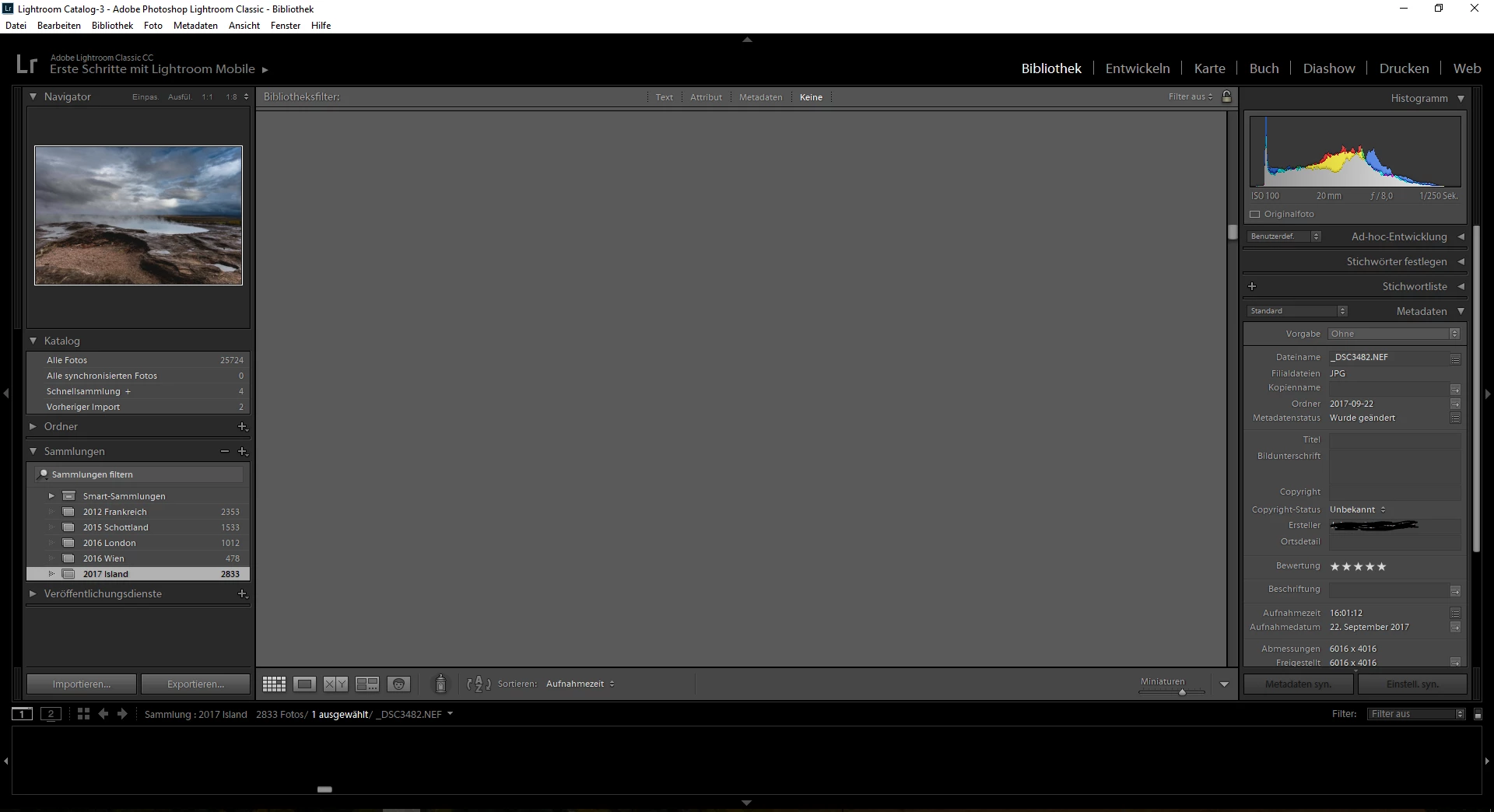
I run Lightroom on a HP Probook 4540s with a AMD 7650M graphic card. I've already installed the newest driver available.

This topic has been closed for replies.
Correct answer lucg3962859

This problem has been resolved by a workaround provided by Adobe.

I followed these instructions:

Could you please try the following and report back if it solves the issue.

==

Try this workaround to see if it works for you. If not, delete the config.lua file afterwards.

  1. Choose Edit > Preferences.
  2. In the Preferences dialog, go the Presets tab.
  3. In the Presets tab, click the Show Lightroom Presets Folder button. The root preset folder opens in the File Explorer.
  4. In the File Explorer, navigate into the Lightroom folder.
  5. Go to the link https://adobe.ly/2hUHGYa and download the config.lua file. Copy the downloaded config.lua file into the Lightroom folder mentioned in the previous step.
  6. Relaunch Lightroom Classic CC.

The System Info dialog (Help > System Info) should display the config.lua flags entry as shown below:

Config.lua-Flags:

AgView.disableDirect2D = true

==

Thanks,

Sunil

22 replies

Participant
September 23, 2019

Window_10

- already try put config.lua

it shows in system infor:

Config.lua flags:
AgView.disableDirect2D = true


- already uncheck 'use grapgucs processor' box in preferences_perfomance tab


the develop tab still doesnt anything


need some new advice. thanks 

Participant
February 7, 2019

I had the same problem.  My issue was that during the update the catalog in which my photos were store did not get selected.  My fix - go to Edit/Preferences/General.  Under default catalog click the dropdown arrow and select the catalog.  This fixed the issue.  Hope this helps someone.

flyinhawaiian
Participant
January 23, 2019

I disabled my graphics card and restarted Lightroom and that worked for me.  I tried downloading the lua file and there was no difference whether it was there in the Lightroom folder or not. 

Participating Frequently
January 24, 2019

I hope Adobe isn't ignoring this problem because the original post was marked "Answered" in green.  Perhaps jojosch93's problem was fixed but there are still a lot of us out there for whom the lua fix didn't work. Disabling you graphics adapter or going back to Lightroom 2015 isn't an answer.  How about some attention to this problem Adobe?  Even acknowledging that you've heard us would seem a minimum.

Participating Frequently
December 24, 2018

I run Lightroom on an HP Pavilion dv7 laptop with an AMD Radeon HD 6700M Series graphics card. OS is Windows 10.  I have tried the suggested Adobe workaround as originally proposed (adding config.lua to the Lightroom folder (User\[Name]\AppData\Roaming\Adobe\Lightroom)), and, when that didn’t work,  adding it to \Program Files\Adobe\Adobe Classic Lightroom CC.  That didn’t work either.  Same problems as others: no picture in the central Lightroom screen in Library mode, no filmstrip at the bottom.  Moving the cursor across the blank central area, the small navigator picture (upper left), the histogram, the picture information on the side, all change based on the location of the cursor (as it moves from hidden picture to the next one).  Sometimes multiple layered screens appear. The System Info dialog shows the config.lua flags entry as indicated (i.e., AgView.disableDirct2D = true).

I can get the missing pictures and the filmstrip to appear by disabling the AMD Radeon Display Adapter and restarting Lightroom Classic CC.  However, the absence of the Display Adapter causes other distortions, particularly on reboot of the computer if I have not re-enabled the AMD Display Adapter before closing down.  This is a poor substitute for a working program.

So there are still many of us paying for a program that is supposed to be top of the line, but getting a crippled, unacceptably functioning version, for which there is very little support.  It would be nice if Adobe would fix this problem for the rest of us and restore the rather damaged image of the company we are left with.

Known Participant
June 23, 2018

I could not see my RAF files from my new camera, so i have updated to the latest lightroom vers. Now i can see the files but i am back with my old problem - all pictures in gridmode are in a mess. Why do this problem keep coming in the new version.

JP Hess
Inspiring
June 23, 2018

Describe "in a mess". We need something tangible to relate to.

Known Participant
June 24, 2018

Hi Jim Hess

Thank you for your answer, i have take a screenshot of my problem

I dont have the problem with the old Lightroom version, but only when i use

the new updated version. I have downloaded the config lua file as described

in your workaround.

Is there another way to see RAF files in the old version?

Den søn. 24. jun. 2018 kl. 00.14 skrev JimHess <forums_noreply@adobe.com>:

Lightroom Classic CC won't render photos in library view created by

JimHess <https://forums.adobe.com/people/JimHess> in *Lightroom Classic

CC — The desktop-focused app* - View the full discussion

<https://forums.adobe.com/message/10463267#10463267>

Participant
December 24, 2017

This DID NOT work for me.

Known Participant
December 27, 2017

Hi

In the beginning of December I added the Lua file and got the Flag=true, and the program was running with no problems.

Today I updated the program and now Lightroom Classic is a mess again, in gridmode all the pictires are in a mess.

I have tried with the Lua file again - but no luck.

What is happening, do you think Adobe will help us with this problem or is it advised to go back to the previus version.

Mane photogreetings from Ove Jørgensen :-)

Participant
December 20, 2017

Worked for me and I had no photo in the preview/edit main area in the develop module.

Participant
December 15, 2017

First I want to quickly assure Myra that preferences is absolutely in the Lightroom menu on MacOS. Adobe doesn't have a different set of code for just your computer. You're using the same version as millions of other users. This link will show you how to do a google image search to help you find this sort of thing in the future.

Adding my own experience for the sake of others who may be searching, but I'm not looking for assistance here. I am deliberately making this kind of wordy so that it will show up for more google searches, as I had trouble finding this solution because my symptoms were a bit different. As a result this may read as rather redundant. I'm just trying to anticipate how different ways of describing the problem may be searched.

At work I'm on Windows 10 and the way this problem manifest to me, one day after upgrading to Classic (but not the same day, which seems weird) is that the images selected in the grid display of the library module would not update. The actual selection display didn't change. I could select photos and the histogram view would change with each one, but the highlighted square around the selected images would not update. (I also had the problem of photo merge modes not working, failing even to render the preview. I don't know if I resolved that at the same time as this or if simply restarting the computer did that.)

The lua config file, explained multiple times earlier in this thread, resolved the problem for me. I hope that, for those who haven't had such success. Adobe soon fixes this as it is a remarkably disabling bug. Definitely crazy for a bug this widespread and affecting such basic performance and functionality hasn't already been updated. I wish Adobe would adopt Autodesk's policy of updating rapidly and frequently.

Participant
December 17, 2017

Thanks all. Nothing is working. I just went back to 2015 and I can be happy again.

Seems like a bum new product for many...

Participant
November 19, 2017

I had a different problem but I'm here to say that the Adobe workaround worked in my case too.

Whenever I opened a "portrait" photo in loupe view, I could still see all the grid behind it (the picture I clicked on didn't open with the gray area around it). This was the most obvious bug. Other than that, the lines separating the photos in grid view seemed somehow transparent, like there was something under them. They were not solid. It's difficult to explain. In general the grid and loupe views were buggy and sometimes part of the grid would stay stuck on the screen even when I scrolled up or down.

So if you're having the same problem as I had or any weird display issues, give the Adobe workaround a try. Worked for me.

This problem has been resolved by a workaround provided by Adobe.

I followed these instructions:

Could you please try the following and report back if it solves the issue.

==

Try this workaround to see if it works for you. If not, delete the config.lua file afterwards.

  1. Choose Edit > Preferences.
  2. In the Preferences dialog, go the Presets tab.
  3. In the Presets tab, click the Show Lightroom Presets Folder button. The root preset folder opens in the File Explorer.
  4. In the File Explorer, navigate into the Lightroom folder.
  5. Go to the link https://adobe.ly/2hUHGYa and download the config.lua file. Copy the downloaded config.lua file into the Lightroom folder mentioned in the previous step.
  6. Relaunch Lightroom Classic CC.

The System Info dialog (Help > System Info) should display the config.lua flags entry as shown below:

Config.lua-Flags:

AgView.disableDirect2D = true

==

Participant
November 19, 2017

As I wrote above. "AgView.disableDirect2D = true" option does not work for me.

Participating Frequently
November 11, 2017

This issue should not have to be figured out and fixed by users. Adobe should have this resolved and pushed in a new update immediately.