


Inspiring
February 16, 2018
Answered

Lightroom menu bar too large

  • February 16, 2018
  • 8 replies
  • 26693 views

I have recently updated my laptop to a Dell XPS13 with a 4K monitor, and the Dell 2410 monitors I use for photo editing have 1920 x 1080 resolution. I am connecting to the monitors through a Dell Thunderbolt TB16 docking station - both display port and HDMI outputs have the same problem.

Lightroom renders the top-level menu and menus accessed from that menu in a huge font. ( screen shot attached ).
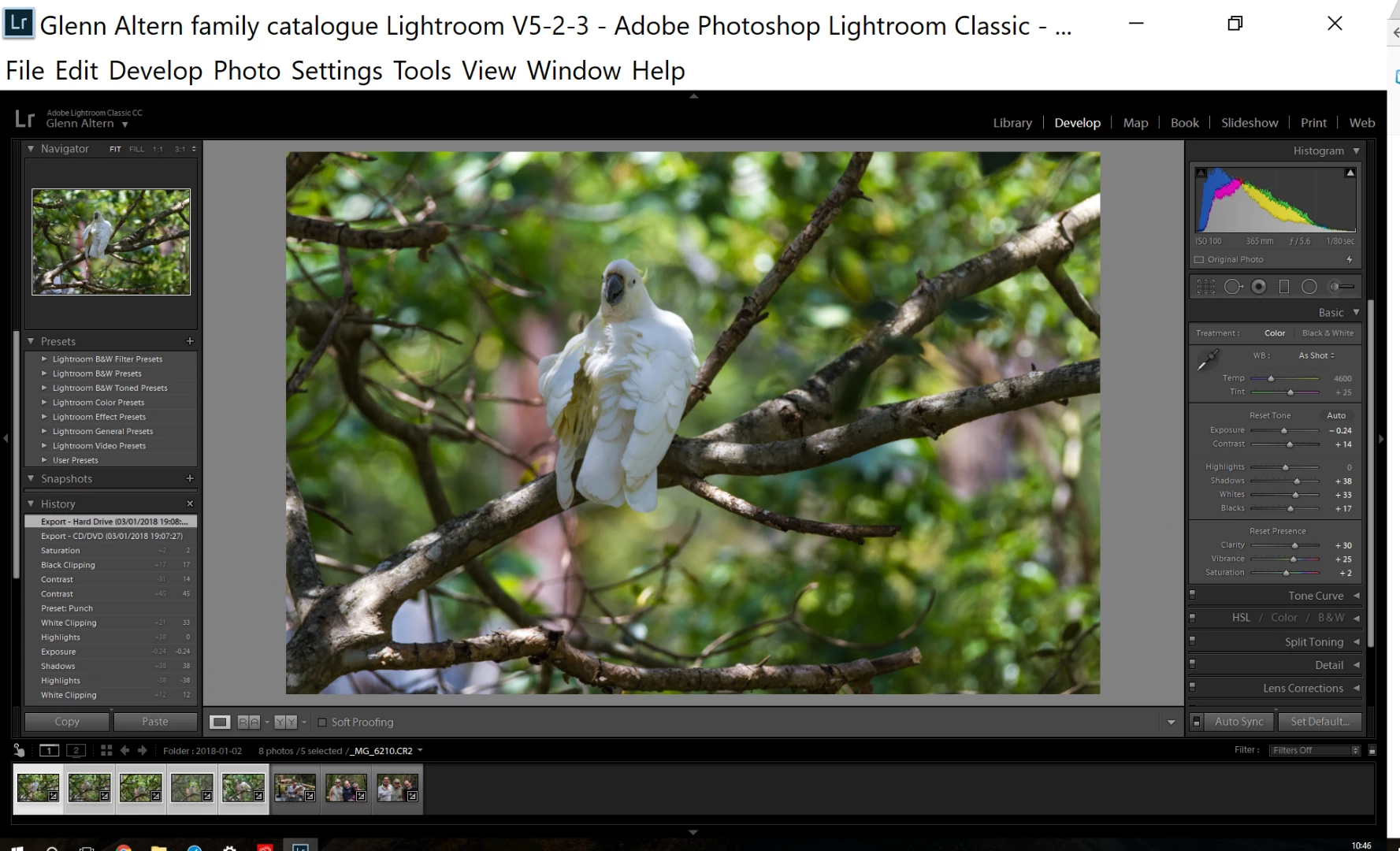
I realise that font scaling needs to be adjusted between monitors of different resolutions. This is not a general problem, but one limited to specific parts of the lightroom UI - Photoshop is fine, and as the screenshot shows, the rest of the Lightroom UI is fine too.

I can't show the menus, but the file menu items are of a similar size. However, dialogs accessed from menus such as export show a large header font, and correct detail font too.
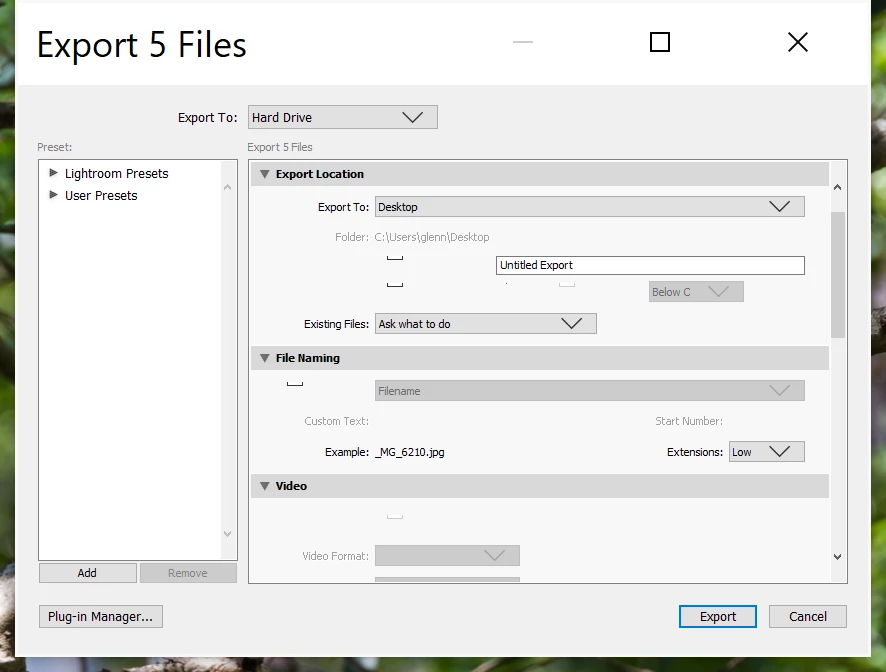
Any ideas ?
    Correct answer CherylVelez

    I was having this same problem. It was driving me nuts!  I finally found a fix. I have Windows 10 running Lightroom Classic CC. Here's how I fixed it.

    1. Browse to the Start Menu icon in Windows Explorer.  For me, it was here: C:\ProgramData\Microsoft\Windows\Start Menu\Programs
    2. Right click on the Lightroom Classic CC icon and select Properties.
    3. Click the Compatibility tab at the top
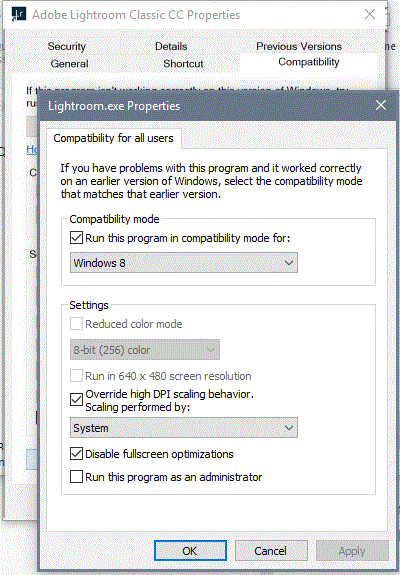
    4. Make the selections shown in the screenshot. Note, I chose to make these selections for all users. Making these selections directly on the compatibility tab will work the same. Use the all users option (bottom of the compatibility tab) if you have more then one user accessing the application on your computer.

    This is an application specific setting. If you have other applications with this same behavior, make these same selections on the properties of those applications.

    Hope this helps!

    8 replies

    Participant
    November 25, 2023
    1699700034651.jpg
    brianb44910418
    Participant
    October 21, 2020

    My laptop is connected to an external monitor and I was having the same issue. Parts of the preference menus were being cut-off and unreadable. I tried the recommend solution and it did not work. After wasting an hour I discovered the solution had to do with display settings. Settings-System-Display. I made the external monitor my main display. After restarting Lightroom, the issue was resolved.

    Participant
    February 2, 2021

    Same problem continues in 2020 on a Dell XPS. Note I didn't need to set to Win8 compatibility; just selected "System (Enhanced)" in the Change High DPI settings. Can't believe this still needs to be done.


    EDIT: Just saw that Dan Antonelli now suggests the same method. Step by step is here: https://danantonielli.com/app-scaling-on-high-dpi-displays-fix-2019/

    Participant
    December 8, 2018

    I've had this problem off and on with the scaling of Adobe programs.  Recently I upgraded to LR CC, after the horror of waiting for my catalogs upgraded, I had a HUGE menubar.  I have tried the various fixes with no luck.  I went back to an old fix and VIOLA!  Everything is good.  The fix?  Use a manifest file to link to the exe.  Google: manifest file for adobe Dan Antonielli Follow his steps.  Dont know the reason for the magic but it has fixed scaling problems with both programs.  I have tried to post the file here but it gets rejected.

    stevepbennett
    Participant
    May 13, 2019

    Thanks Mawg64. Your solution is the cleanest by far and worked for me.
    Please move to demigod status. 8^)
    For info, I had the issue whilst using a new Microsoft Surface Pro 6 - My second monitor is 1920x1080 resolution. All other apps I use resize the menu correctly. Lightroom 6 refused and the main menus were huge. Your fix nailed it for me. I now have a fully functioning "as I like it" Lightroom again.
    Many thanks

    CherylVelezCorrect answer
    Participant
    April 18, 2018

    I was having this same problem. It was driving me nuts!  I finally found a fix. I have Windows 10 running Lightroom Classic CC. Here's how I fixed it.

    1. Browse to the Start Menu icon in Windows Explorer.  For me, it was here: C:\ProgramData\Microsoft\Windows\Start Menu\Programs
    2. Right click on the Lightroom Classic CC icon and select Properties.
    3. Click the Compatibility tab at the top
    4. Make the selections shown in the screenshot. Note, I chose to make these selections for all users. Making these selections directly on the compatibility tab will work the same. Use the all users option (bottom of the compatibility tab) if you have more then one user accessing the application on your computer.

    This is an application specific setting. If you have other applications with this same behavior, make these same selections on the properties of those applications.

    Hope this helps!

    Participating Frequently
    May 27, 2025

    Perfect - thanks!

    Participating Frequently
    February 27, 2018

    It is possible that this is a graphic driver issue.

    I am a developer and responsible for an in house application that exhibited similar text scaling issues on certain Dell laptops used by colleagues. It did not occur on all laptops and in one case was solved by IT issuing the user a different laptop and I believe in another case it was resolved by IT updating the graphic drivers. No changes were needed to my application and it is now displaying correctly on all laptops.

    Participant
    February 22, 2018

    I am having the same issue after upgrading this week. I hope mine fixes itself as it makes some of the menus hard to use due to the shift in pixels. Does anyone know of a way to fix it? Tried lots of things to no avail.

    Inspiring
    February 27, 2018

    The problem has recurred for me !

    As far as I can tell, it is not related to the font size settings in Lightroom or the scaling settings in Windows, as neither has an effect. I think it is a bug in Lightroom, albeit an intermittent one, as no other application manifests this fault.

    I'll set about reporting it.

    Participant
    April 3, 2018

    I've also been having this exact same issue. It appears that displaying to monitors from my laptop has this zooming menu effect. If I unplug and relaunch Lightroom, it renders fine on my laptop screen. Hope there is a fix for monitors.

    Inspiring
    February 18, 2018

    Thanks to all respondents. Your assistance was much appreciated, and helped me understand things better.

    For some reason the Lightroom menu is the right size today ! I have set the font interface settings to small and then automatic, which has the same effect, but the menu had resized correctly before that.

    It's a bit mysterious. If the problem recurs I will follow a more structured set of steps to see the results of changing the key settings.

    Just Shoot Me
    Legend
    February 17, 2018

    This is an OS setting. Some one has been fooling around with the Display settings DPI or in the color and Appearance section with the Font size.

    This is from a Classic Win 7 system but similar settings are available in Win 10.

    Inspiring
    February 17, 2018

    Thanks for looking into this. However, I did state that the problem only manifests itself in the Lightroom title bar, and in no other applications and not anywhere else in Lightroom. If a windows setting is the cause, how can the problem be a localised ? A Photoshop image is shown below, and the same problem is not occurring. The same for Word, Excel etc.

    I believe the setting you are referring to is the Scale and layout, which can vary per monitor, and is 100% for the 1920 x 1080 monitors, and 300% for the 4K monitor.

    Just Shoot Me
    Legend
    February 17, 2018

    Then on the Interface tab of the LR Preferences