Participating Frequently
November 12, 2016
Answered

Lightroom smart object problem on relink

  • November 12, 2016
  • 3 replies
  • 2663 views

Sorry for the title, too complicated for a short description.

I believe I have found a problem when opening an image FROM Lightroom a Smart Object into Photoshop and then attempting to RELINK to that same image in Photoshop.  Let me give details.

Test Case 1: From LightRoom, Open BackYard_Orig.dng as Smart Object in Photoshop

ACR is not brought up...just Photoshop with image and canvas at correct size

In Photoshop, I click on the Smart Object layer and Relink To File selecting BackYard_Copy.dng and click OK.

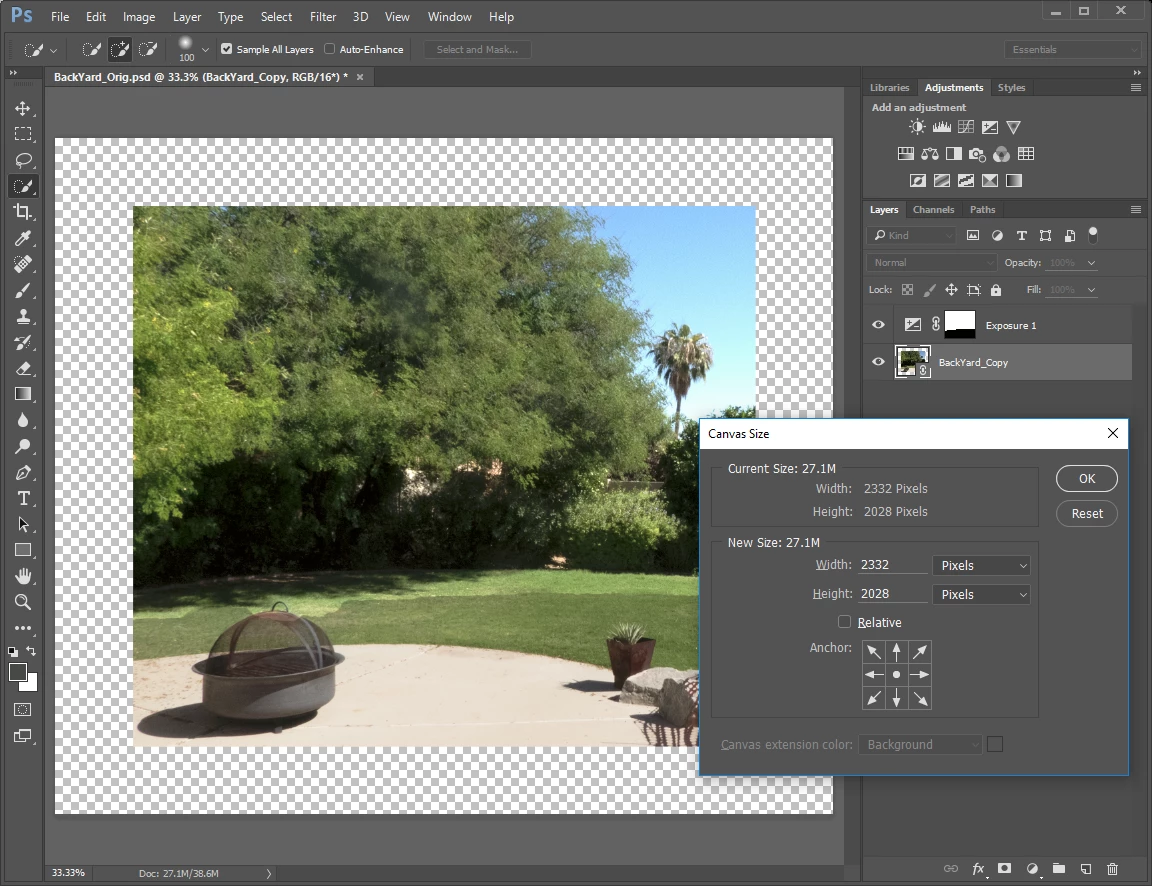
Result: The image is brought into Photoshop as a Smart Object but smaller than canvas with transparent pixels around image.

This same result occurs if I Relink To File selecting the exact same image BackYard_Orig.dng

Test Case 2: Open the BackYard_Orig.dng file using Photoshop

ACR asks me to open image and I do AS Smart Object

In Photoshop, I click on the Smart Object layer and Relink To File selecting BackYard_Copy.dng and click OK.

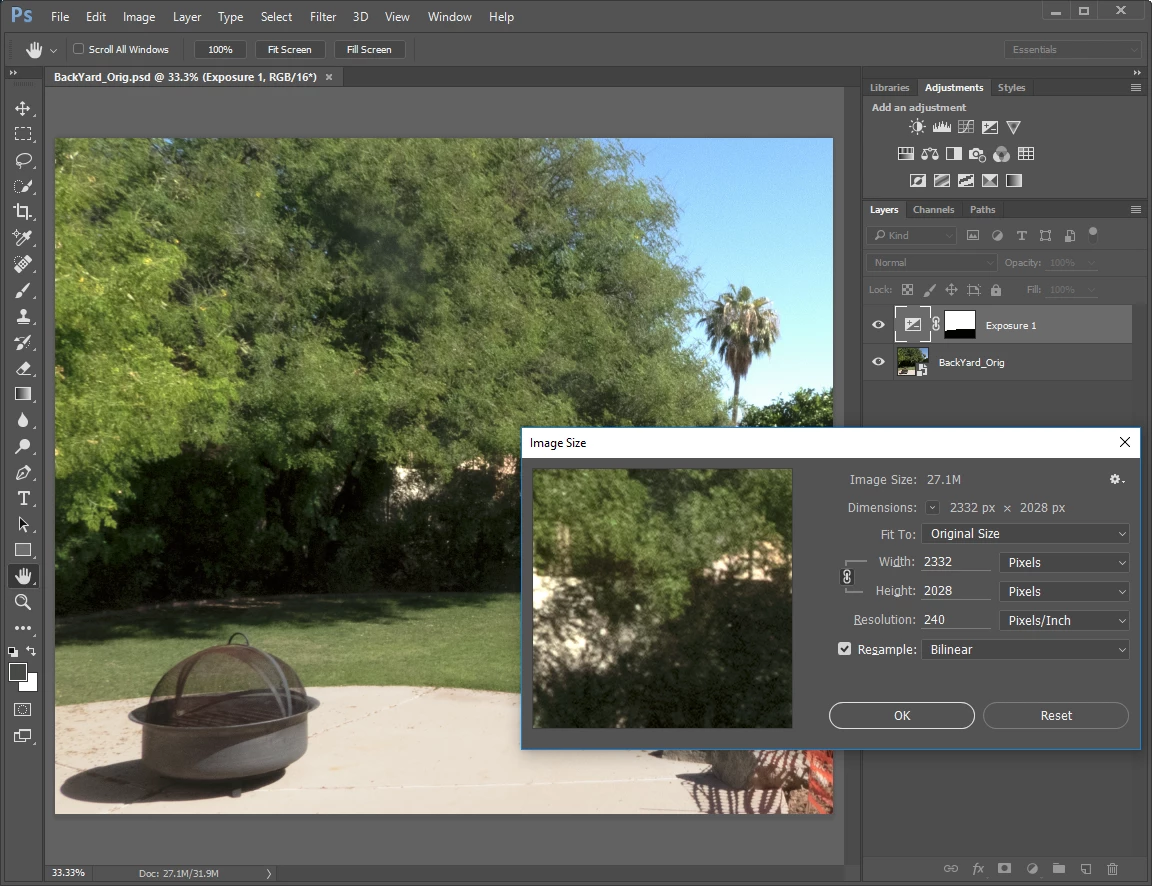
Result: The image is brought into Photoshop as a Smart Object filling the canvas correctly.

JJMack suggested that the Photoshop transform may have been set to something other than 100% but I verified that on Relink that both W and H transforms were 100%.

This is a MAJOR problem because I have masks that I made using adjustment layers and I really don't want to reedit the photos.  Am I doing something wrong or is they a disconnect between Photoshop and Lightroom in this case?  Any ideas would be greatly appreciated.

    This topic has been closed for replies.
    Correct answer richardplondon

    I now think I see what you are doing.

    In PS you can go back to "Edit Content" of the DNG file, it opens in ACR where you can make changes and those changes will be added to the PSD/TIFF opened in PS.


    Just to be 100% clear, this is an embedded set of Raw data which is presented with some current adjustments applied, as the preview bitmap, of a Smart Object layer living entirely inside the PS document (which can itself be a PSD or a layered TIF).

    The parametric  adjustments that were originally applied in Lightroom, were copied to become the initial adjustments of a Smart Object 'wrapper' around an embedded copy of your Raw data. Double-clicking on that layer inside PS opens an ACR window where these adjustments can be changed, but this is all happening internal to the PS document. The layer's preview bitmap is then updated to reflect these changes when you exit the ACR window. The overall document's compatibility preview bitmap is then updated to reflect this and any other updates made within Photoshop, when the containing PS document is Saved. And that updated appearance is then visible to LR etc.

    Doing it this way all your other PS layers, smart filters, transforms etc can remain in place, while you revisit your Raw conversion parameters - as distinct from going back to the Raw / DNG that is imported to LR, making equivalent changes there, and re-sending to PS as a new external edit - since doing that would make a completely fresh and separate PS document.

    But there is no live connection or dependence set up between the internal-to-PS ACR adjustments on this SO, and your LR Catalog adjustments; nor any metadata saved alongside any external Raw file - even if you re-link.

    The most obvious use case for linking the SO content to an external file, is as a necessary step in substituting a different external file. The "relink" dialog is even titled "Replace file" (which would embed a copy of that one instead of a copy of the first one).

    All your current ACR adjustments on the SO, including those performed by LR and those modified since, are obliterated. Even any Snapshots you may have made, are removed so you can't get back to them.

    However, you can now load in any Snapshots that were present on the metadata saved in the filesystem (inside the file in the case of a DNG). Doing that reverts the image to filling the layer - I can't work out why this shrinking of the image is seen. I replicate the OP's experience with that - win10, LR version 2015.7

    But this offers a way (admittedly rather roundabout) of copying Raw based adjustments that have been updated inside Lightroom subsequent to sending a copy to PS, into that copy inside its SO layer:

    1. edit Raw in LR with initial adjustments (thumbnail A)
    2. send to PS as SO - matching thumbnail A as it currently is (this is also reimported to LR as thumbnail B)
    3. do any added layers etc in PS
    4. perhaps make some ACR changes there too, onto the SO layer
    5. Save changes - this updates the appearance of thumbnail B
    6. make further adjustments in LR onto thumbnail A
    7. Save a snapshot from LR onto the Raw file, representing this new treatment
    8. In PS, substitute the content of the SO layer referring to this same Raw file - obliterating any ACR changes made while within PS
    9. Reload the snapshot that was just saved from LR, so that the SO also displays this new treatment of the Raw data - to once again match up with thumbnail A inside LR
    10. PS updates the SO preview bitmap accordingly
    11. Save PS document - this updates the whole file's preview bitmap, and that updates thumbnail B accordingly in LR, to represent a combination of your updated Raw adjustments and all your PS layers etc.

    RP

    3 replies

    mcmarkazAuthor
    Participating Frequently
    November 13, 2016

    Thank you ALL for this enlightening information.  I THOUGHT that the smart objects were linked to the files but as you taught me, they are not.  Photoshop is copying the image data.  In the end, I had been attempting to do some version of what Richard P described.  I'm going to need to rethink if I should be doing that or not.

    I'm glad that Richard P was able to verify the resize issue that I have been seeing.  I did verify all of the size and transform settings that John B suggested and that there was no cropping...everything is the same (it should be since I tested it by relinking to the exact same file - just renamed).  Do any of you know how we could let Adobe know about the resizing (since I guess I may the only person on the planet to have tried this workflow and may not show up in their testing)?

    I have learned several key things from all of your responses and appreciate your time and patience on this.

    john beardsworth
    Adobe Expert
    November 14, 2016

    OK, I confirm similar results with no cropping. With my test, the relinked SO was exactly 20% smaller - so 4800 pixels wide instead of 6000. It looks like a bug but it may be deliberate - and yes, I don't think many people have tried this.

    john beardsworth
    Adobe Expert
    November 13, 2016

    When you do the relinking, do you see the Adobe Camera Raw dialog box? If so, I suspect that the output parameters are set to a size smaller than the canvas. At the bottom of the dialog box, click the dimensions and bit depth link and you should be able to change these settings.

    john beardsworth
    Adobe Expert
    November 13, 2016

    Another possibility is that the image  is cropped in Lr and its aspect ratio is no longer the same as the file, but those settings haven't been saved back to the image. In this case, re-linking makes PS try to fit the original into the canvas and leaves transparent space.

    By the way, those unfamiliar with this workflow should give it a try. With a "traditional" smart object raw file, a copy of it is embedded inside the PSD/TIF. So if you edit the raw file in Lightroom, you are updating this original and not the copy. But if you are using a linked smart object, you can save subsequent Lightroom edits back to the original and then automatically update the smart object inside Photoshop.

    John

    Just Shoot Me
    Brainiac
    November 13, 2016

    John I agree with you this may be a useful workflow. But what I don't do, normally, is rename files. About the only time I rename a file is when I do a final save to output to a print shop (for large prints) or for posting to my Smug Mug site or for sending in an email or for posting to forum sites.

    So I don't think I would need to change the name of a RAW file, DNG or any other type, and then Re-Link it in a PS document that the RAW file was opened as a SO.

    Thank you for your reply.

    Just Shoot Me
    Brainiac
    November 12, 2016

    I'm not that familiar with bring in RAW file into PS as smart objects but why are you then Relinking this image to a copy.

    mcmarkazAuthor
    Participating Frequently
    November 13, 2016

    Just in case anyone thought the image I am relinking to was a bit different.  This also happens if you relink to the exact same image.  The case where I found this issue is when I renamed a file and needed to relink.

    Theresa J
    Adobe Expert
    November 13, 2016

    I'm not sure why you are re linking the embedded smart object to the original dng either. Have you used this workflow successfully with past versions of Lightroom? Can you explain why this workflow is important to you? I frequently open my raw images as smart objects in Photoshop, but I understand them to be embedded copies of the original file. This makes sense for me. I usually work this way when I want to edit different areas of the image independ of each other while still working with raw data. PS gives me way better control for some types of selective editing then LR does. I can't think of a reason I would want the raw data in Photoshop linked back to the original.