


Known Participant
January 3, 2023
Question

Menu and context text size in LrC too large - Dual monitor

  • January 3, 2023
  • 1 reply
  • 2404 views

System:

Windows 11

LrC 12.1

Monitor 1: 17'' (3840x2160) scaled at 200% in Windows Display settings

Monitor 2: 27'' (2560x1440) scaled at 100% in Windows Display settings - this is the monitor I use for LrC 

LrC settings: Preferences>Interfase>Font Size: Automatic (changing this did not affect the problem)


Problem:

  • The top text (catalogue name etc), menus (File, Edit, Library, etc) and all pull down menus display far too large on Monitor 2 (see screenshots, side by side )
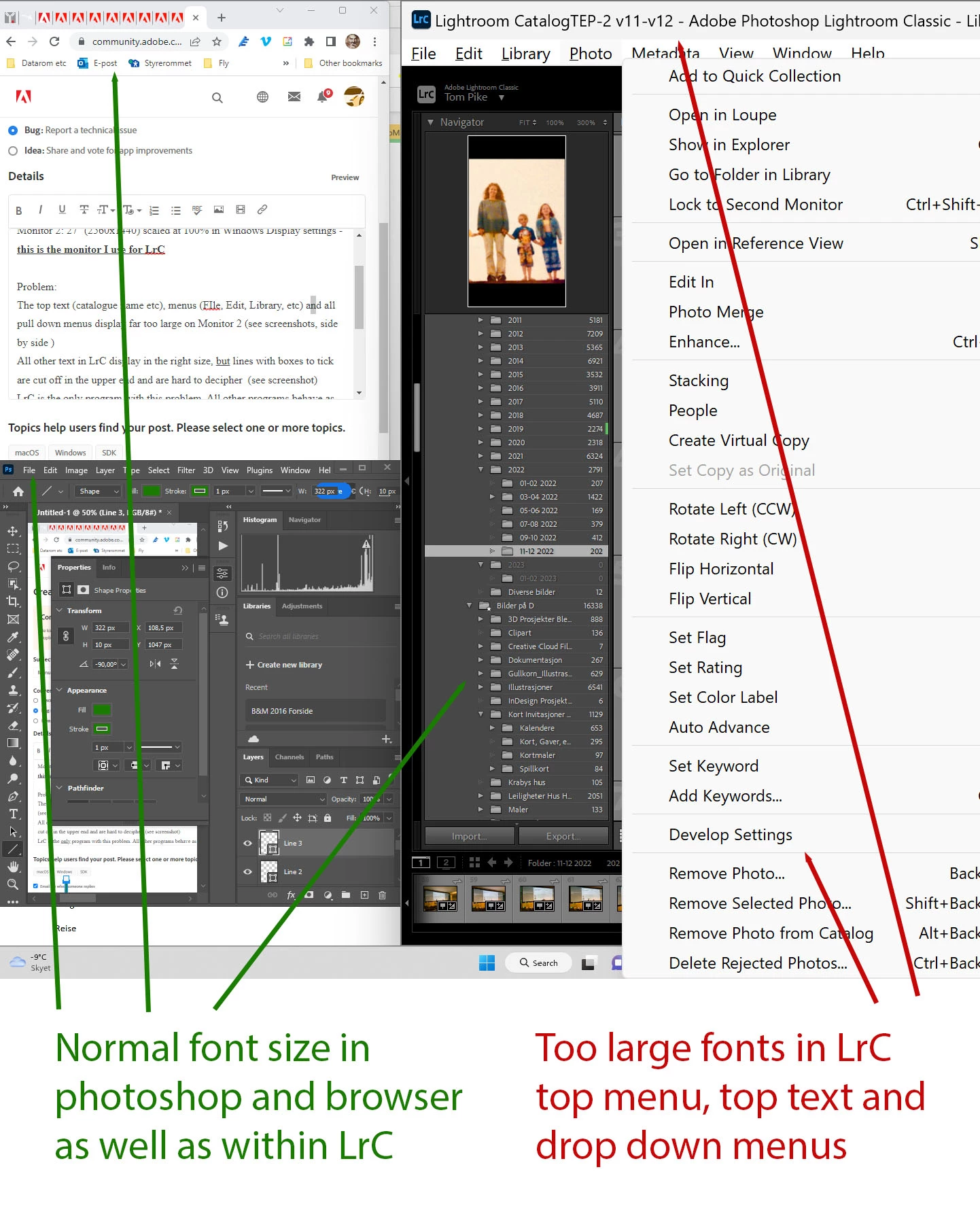
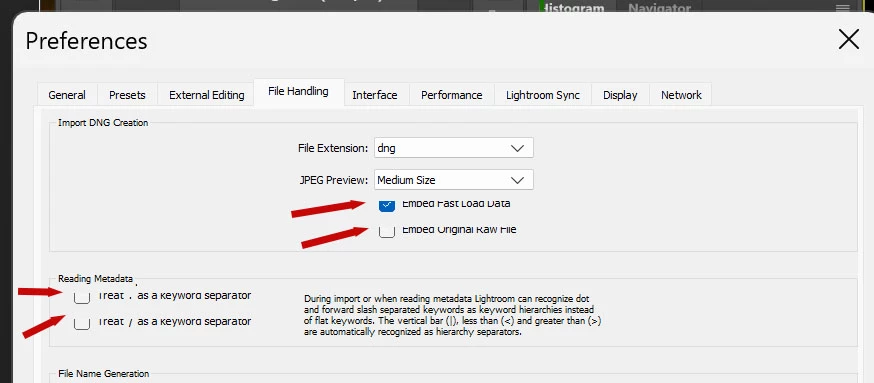
  • Text in the Preference settings are the right size, but lines with check boxes are cropped in the upper end and are hard to decipher  (see screenshot)
  • When i drag LrC to monitor 1 (higher resolution, but smaller screen) then the top menu text has the right size but all the rest of the text becomes to small to read.
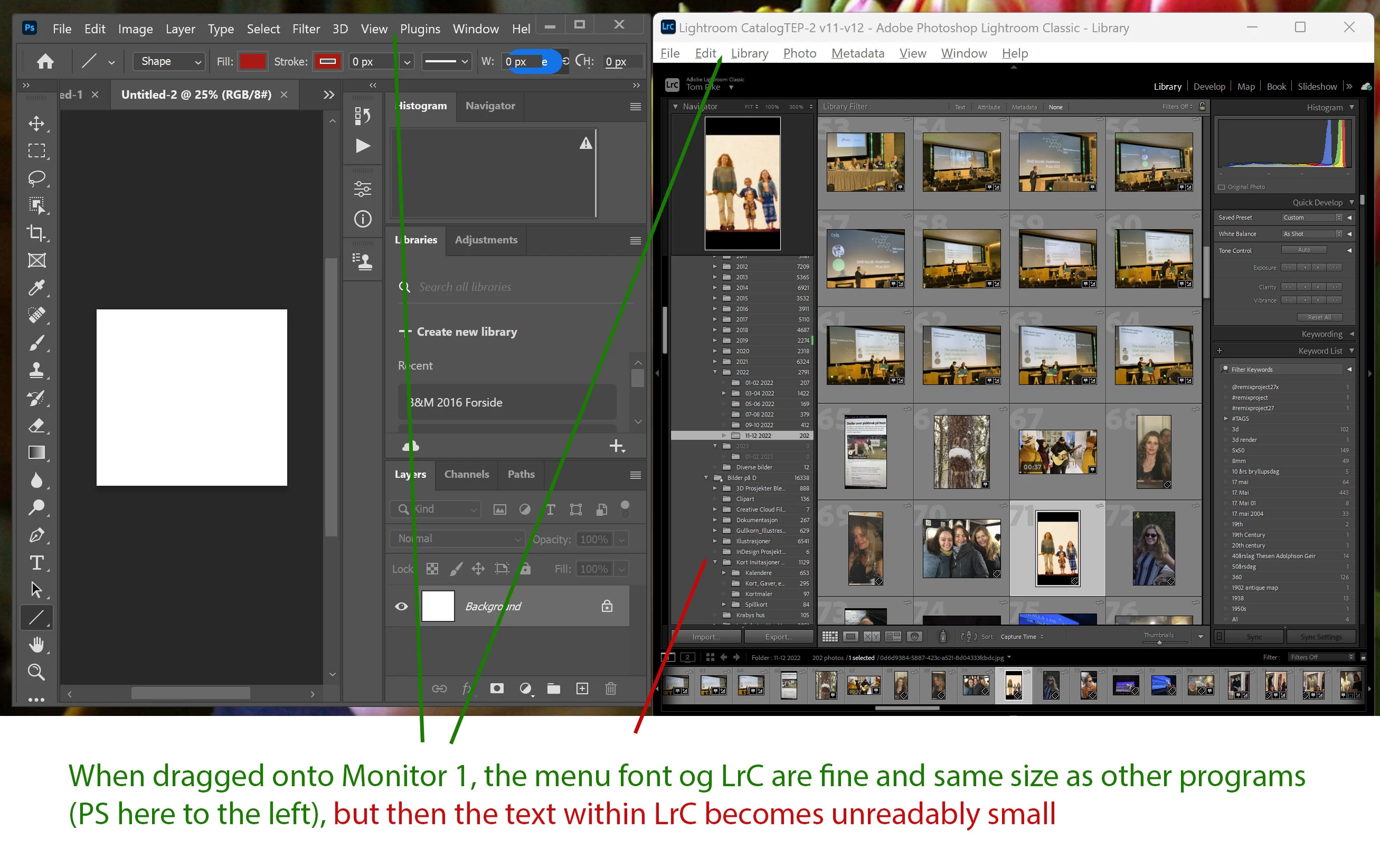
  • All other text in LrC display in the right size, 


I hope this can be fixed.  LrC is the only program with this problem. All other programs behave as expected, including Photoshop Premiere Pro, Microsoft programs and other.


1 reply

johnrellis
Legend
January 3, 2023

The size of the menu-bar text is controlled by the setting of Windows Display Scaling, while all other text is controlled by Preferences > Interface > Font Size.


You say you're running LR on the second display, with 100% display scaling, while the first display has 200% scaling. Perhaps Windows or LR is getting confused about which display LR is on. (That it works with other apps could be because they make different calls to Windows; or it could be a LR bug.)


I suggest these troubleshooting steps:


1. Try setting the second display's scaling to 100% (so both are 100%).  Then restart the computer (just to make sure).  Does that make the size of LR's menu-bar text smaller?


2. Try resetting LR's preferences:
https://www.lightroomqueen.com/articles-page/how-do-i-reset-lightrooms-preferences/


LR sometimes soils its preferences file, and resetting it can fix all sorts of wonky behavior. That article explains how to restore the old preferences if resetting doesn't help.

Tom E PAuthor
Known Participant
January 4, 2023

Thank you John.  Your troubleshooting advice were good and narrowed down the understanding of the bug.

Firstly, resetting all LrC preferences was already tried to no effect.

But resetting Monitor 1 to 100% in the Windows>Display Settings so that both monitors are at 100% did the trick, in the sense that LrC now behaves as the other programs on both monitors. I.e. LrC now looks fine on Montor 2 which is where I use it. The cropping of the check box lines in LrC settings were also fixed.  Paradoxically this does not help me at all, since havin my 17'' (3840x2160) Monitor 1 scaled at 100% leaves this screen useless as all text on thet screen becomes far too small to work with.  So I have to reset Monitor 1 to 200%.  When I reset Monitor 1 to 200% with LrC open in Monitor 2 it stays fine.  However when I close the program and repoen it straight into Monitor 2 then the menu texts in LrC becomes too large again, even when the program is opened straight into Monitor 2 (which is at 100%) without having breen in Monitor 1 (200%) at all.  So the bug is that when LrC opens it reads the scaling set at the primary monitor 1 regrdless of which monitor it curretly resides in. It should look up the scaling of the monitor it is displayed in at any given time. This is a bug Adobe needs to fix.  Be aware, I now see that Liigtroom CC (I use this more seldom) has the excat same bug 

Participating Frequently
April 24, 2024

I agree it is a bug. LRC can't select the right font size when my laptop's scaling(225%) differs from my extended second display(100%). It becomes normal after I set both of the scaling as 100%. But PS has no this kind of problem. it can automatically adjust the font size wherever I drag the window to any screens.