


Inspiring
April 14, 2018
Answered

mobile downloads.lrdata

  • April 14, 2018
  • 2 replies
  • 20919 views

I have a huge problem with mobile download.lrdata. I have a SSD on my laptop, and a harddrive for all my photos. I use lightroom mobile and the problem accures because I have had original photos on my Ipad.

When syncing in LR classic mobile downloads.lrdata keep putting pictures on my SSD and there is not enough room for alle the photos. I have relocated the location i preferences, but syncing the mobile downloads still keeps landing on the SSD.

How do I resolve this issue, so I can sync my photos with my Ipad, but not getting the originals on the SSD and where do I find the photos downloading to mobile downloads.lrdata in the sky??

I have tryed to delete LR mobile on the Ipad and launch it again, but that didn't work either.

Best regards

Anne
This topic has been closed for replies.
Correct answer Jim Wilde

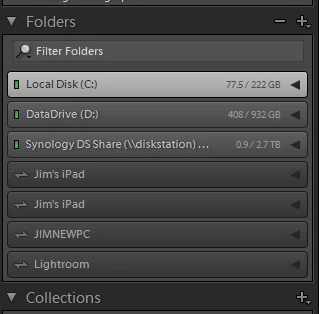
At the bottom of the Folders Panel, just above the Collections Panel, you should see an entry similar to the bottom 4 entries in my screenshot. Expand that entry and you should find an "Imported Folders" folder, which is actually a link to the Mobile Downloads folder. Click on that "Imported Photos" folder and all the images will appear in the Grid, from where you can select them and drag and drop them to a different drive (either all in one go or a selection at a time if you want to move them to separate folders).

2 replies

JohanElzenga
Community Expert
Community Expert
April 27, 2018

The 'mobile downloads.lrdata' file shows up as a 'device' in Lightroom. Like a separate disk. You can handle pictures in it in the same way as you can handle pictures anywhere else in Lightroom. So select all the pictures currently in that device in Lightroom, then drag & drop them into a normal folder on your hard disk in the Lightroom folder panel. That will move the pictures from the SSD to the hard disk.

Next, set the destination for new downloads in the preferences like Sahil Chawla described.

-- Johan W. Elzenga
Inspiring
April 27, 2018

Hi Johan

how do I find the "device" in LR on the computer?

Jim Wilde
Community Expert
Jim WildeCommunity ExpertCorrect answer
Community Expert
April 27, 2018

At the bottom of the Folders Panel, just above the Collections Panel, you should see an entry similar to the bottom 4 entries in my screenshot. Expand that entry and you should find an "Imported Folders" folder, which is actually a link to the Mobile Downloads folder. Click on that "Imported Photos" folder and all the images will appear in the Grid, from where you can select them and drag and drop them to a different drive (either all in one go or a selection at a time if you want to move them to separate folders).

Sahil.Chawla
Community Manager
Community Manager
April 19, 2018

Hi Anne,

Have you tried going into Lightroom's Preferences > Lightroom Sync and change the location by checking "Specify location for Lightroom CC ecosystem's images" ?

Regards,

Sahil

jonob50062202
Known Participant
June 12, 2018

I have this problem too. I have "store a copy of all originals" in CC and "specify location for Lightroom CC ecosystem's images" in Classic CC both unchecked.

To be clear; these are not 'mobile' images; they are files I'm trying to upload and archive through Classic CC. It's up to a gb now. I've trashed it. it keeps rebuilding and re populating itself. I don't want to download these files that I'm uploading.

This happens when I have both Classic CC and CC open. This really is a mess.

Also, it's trying to upload the Mobile Downloads.lrdata file but it has given an error message "File is too large" In other words, the software is trying to upload the files it downloaded that I'm already uploading. Confused?

Can anyone help? This is way too complicated.

JohanElzenga
Community Expert
Community Expert
June 12, 2018

You can’t “upload and archive” images in the cloud through Lightroom Classic. Lightroom Classic uploads only smart previews of the images. And the Mobile Downloads.lrdata file is the destination for downloaded images, that’s why it’s name is “Mobile Downloads”, not “Mobile Uploads”. I can’t say from your description what the problem is, but these are the facts.

By the way, “Mobile downloads.lrdata” is not really a file. It’s a so-called package, a folder that looks and behaves like a file. Lightroom won’t try to upload it because it’s not a file and because it’s not an image, so this error must come from somewhere else in Lightroom. Maybe you can post some screenshots of the errors?

-- Johan W. Elzenga