


Inspiring
April 14, 2018
Answered

mobile downloads.lrdata

  • April 14, 2018
  • 2 replies
  • 20919 views

I have a huge problem with mobile download.lrdata. I have a SSD on my laptop, and a harddrive for all my photos. I use lightroom mobile and the problem accures because I have had original photos on my Ipad.

When syncing in LR classic mobile downloads.lrdata keep putting pictures on my SSD and there is not enough room for alle the photos. I have relocated the location i preferences, but syncing the mobile downloads still keeps landing on the SSD.

How do I resolve this issue, so I can sync my photos with my Ipad, but not getting the originals on the SSD and where do I find the photos downloading to mobile downloads.lrdata in the sky??

I have tryed to delete LR mobile on the Ipad and launch it again, but that didn't work either.

Best regards

Anne
This topic has been closed for replies.
Correct answer Jim Wilde

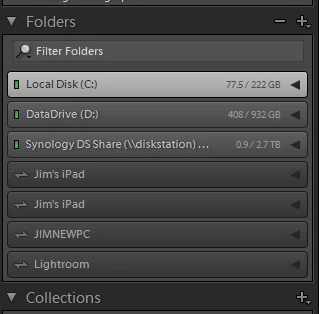
At the bottom of the Folders Panel, just above the Collections Panel, you should see an entry similar to the bottom 4 entries in my screenshot. Expand that entry and you should find an "Imported Folders" folder, which is actually a link to the Mobile Downloads folder. Click on that "Imported Photos" folder and all the images will appear in the Grid, from where you can select them and drag and drop them to a different drive (either all in one go or a selection at a time if you want to move them to separate folders).

2 replies

JohanElzenga
Community Expert
Community Expert
April 27, 2018

The 'mobile downloads.lrdata' file shows up as a 'device' in Lightroom. Like a separate disk. You can handle pictures in it in the same way as you can handle pictures anywhere else in Lightroom. So select all the pictures currently in that device in Lightroom, then drag & drop them into a normal folder on your hard disk in the Lightroom folder panel. That will move the pictures from the SSD to the hard disk.

Next, set the destination for new downloads in the preferences like Sahil Chawla described.

-- Johan W. Elzenga
Inspiring
April 27, 2018

Hi Johan

how do I find the "device" in LR on the computer?

Isabelle Henne
Participating Frequently
January 8, 2019

https://forums.adobe.com/people/Isabelle+Henne  wrote

Is it possible to somehow remove these disks "iPhone" and "iPad", because when you set up a download folder to your computer, those "virtual disks" are no longer needed.

Thank you for your help.

If you move all the images from these 'disks' to another folder, and then delete all the (now empty) folders of these 'disks' from the catalog, then the 'disks' will automatically disappear too.


Thank you very much for your help. I tried to delete the folders, but could not do it, although they were empty. What I did, was to move the "Mobile Downloads.lrdata" file outside the Lightroom folder and then move it back in (after having opened Lightroom once) and the two "disks" have disappeared. I hope that it will not create any syncing or other issues.

I find that the Adobe syncing philosophy in Lightroom Classic is catastrophic. Am I the only one to think that way?

Sahil.Chawla
Adobe Employee
Adobe Employee
April 19, 2018

Hi Anne,

Have you tried going into Lightroom's Preferences > Lightroom Sync and change the location by checking "Specify location for Lightroom CC ecosystem's images" ?

Regards,

Sahil

Inspiring
April 27, 2018

Yes, but it still puts the photos in the old folder, and not in the new one. I have tryed it several times