Inspiring
August 22, 2022
Answered

Moving filtered images to new location with same folder structure

  • August 22, 2022
  • 2 replies
  • 331 views

Today I have mixed my mobile photos from my "quality photos" in the same Lightroom catalogue. The photos are also sitting in the same folder - so one folder can containt both camera and mobile photos at the same time.

I am able to filter the mobile photos, and I want to move these filtered photos to another location - but preserving the folder structure.

This means e.g. to move the filtered mobile images from d:\pictures\2017\2017-02-18 to d:\mobile_pictures\2017\2017-02-18.

I do not want to export them, and I do not want to move each folder/image manually.

Any ideas?

This topic has been closed for replies.
Correct answer JohanElzenga
quote
quote

The only way to do this would be as follows:


1: Select all phone images and choose 'Metadata - Save metadata to files'

2: Move all the pictures to a temporary folder

3: Remove them from the catalog

4: Re-import the images and move them from the temp folder to the desired folder structure during import.


Because you saved metadata to files you will not lose keywords and edits, but you will lose some other things (edit history, flags, collection memberships).


By @JohanElzenga

Thanks - I guess that could work! In step 3 I guess you mean to remove the temp catalogue from LR (you write "them"?)  - but not from disk and then just reimport (step 4) that folder on disk using the ordinary Import (that will sort them again in the structure)?


By @Stein99


With 'them' I mean the images, but you can also remove the temp folder. That will remove the images and you don't need the temp folder anymore in Lightroom anyway.


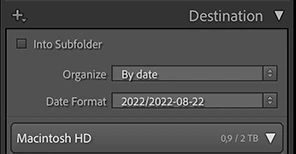
When you import them again (ordinary import indeed), then choose 'Move' at the top center of the import dialog. That allows you to define a destination folder in the right panel. The destination folder would be "D:/mobile_pictures", so you can either create that folder first (outside Lightroom) and select it in the import dialog, or select the drive D as destination and add the 'mobile_pictures' folder at 'Into Subfolder' (see below).  Finally you define the dated folder structure to go inside that folder under 'Organize' by date (see below again).


2 replies

GoldingD
Brainiac
August 22, 2022

In the Folders Panel, create the desired folder and sub folders.

Use the filter you applied to the desired images as to display only them.

Select all those photos and move them into the desired folder in the Folders panel.


JohanElzenga
Community Expert
August 22, 2022
quote

In the Folders Panel, create the desired folder and sub folders.

Use the filter you applied to the desired images as to display only them.

Select all those photos and move them into the desired folder in the Folders panel.


By @GoldingD


The OP said he doesn't want to do that for each folder. I can imagine that it would mean moving images to hundreds of different folders...


-- Johan W. Elzenga
JohanElzenga
Community Expert
August 22, 2022

The only way to do this would be as follows:


1: Select all phone images and choose 'Metadata - Save metadata to files'

2: Move all the pictures to a temporary folder

3: Remove them from the catalog

4: Re-import the images and move them from the temp folder to the desired folder structure during import.


Because you saved metadata to files you will not lose keywords and edits, but you will lose some other things (edit history, flags, collection memberships).


-- Johan W. Elzenga
Stein99Author
Inspiring
August 22, 2022

@JohanElzenga wrote:

The only way to do this would be as follows:


1: Select all phone images and choose 'Metadata - Save metadata to files'

2: Move all the pictures to a temporary folder

3: Remove them from the catalog

4: Re-import the images and move them from the temp folder to the desired folder structure during import.


Because you saved metadata to files you will not lose keywords and edits, but you will lose some other things (edit history, flags, collection memberships).


Thanks - I guess that could work! In step 3 I guess you mean to remove the temp catalogue from LR (you write "them"?)  - but not from disk and then just reimport (step 4) that folder on disk using the ordinary Import (that will sort them again in the structure)?

JohanElzenga
JohanElzengaCorrect answer
Community Expert
August 22, 2022
quote
quote

The only way to do this would be as follows:


1: Select all phone images and choose 'Metadata - Save metadata to files'

2: Move all the pictures to a temporary folder

3: Remove them from the catalog

4: Re-import the images and move them from the temp folder to the desired folder structure during import.


Because you saved metadata to files you will not lose keywords and edits, but you will lose some other things (edit history, flags, collection memberships).


By @JohanElzenga

Thanks - I guess that could work! In step 3 I guess you mean to remove the temp catalogue from LR (you write "them"?)  - but not from disk and then just reimport (step 4) that folder on disk using the ordinary Import (that will sort them again in the structure)?


By @Stein99


With 'them' I mean the images, but you can also remove the temp folder. That will remove the images and you don't need the temp folder anymore in Lightroom anyway.


When you import them again (ordinary import indeed), then choose 'Move' at the top center of the import dialog. That allows you to define a destination folder in the right panel. The destination folder would be "D:/mobile_pictures", so you can either create that folder first (outside Lightroom) and select it in the import dialog, or select the drive D as destination and add the 'mobile_pictures' folder at 'Into Subfolder' (see below).  Finally you define the dated folder structure to go inside that folder under 'Organize' by date (see below again).


-- Johan W. Elzenga