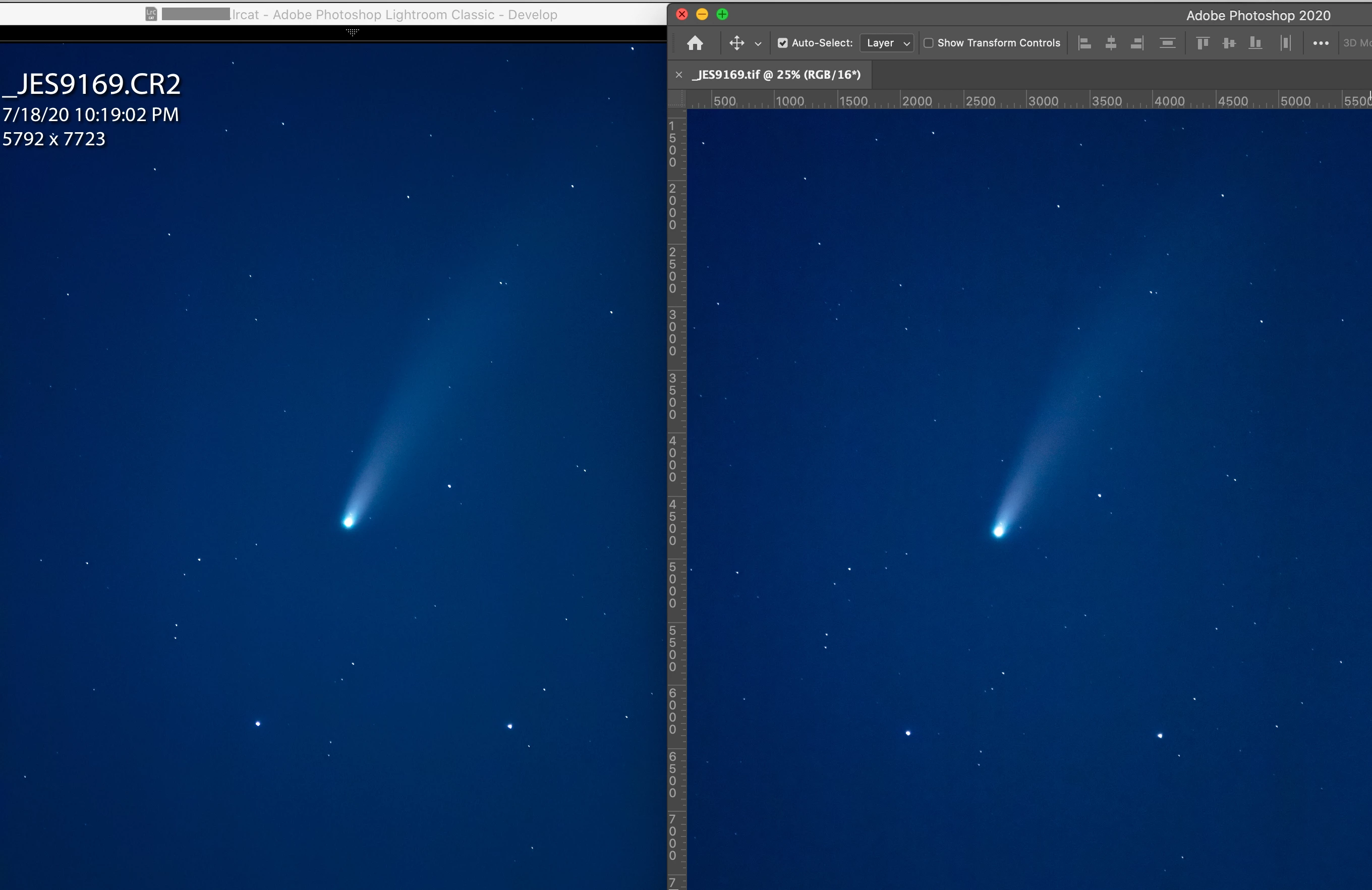
There is no way to influence the way Lightoom scales images, although you could try to disable the graphics processor (Preferences > Performance) and see if that makes a difference. But you seem to have a Retina screen (4k or more), so disabling the GPU would probably lead to performance problems.
Personally, I wouldn't worry about this. The important thing is to make sure that the image looks right at 1:1.
So do any editing that involves detail – noise, sharpness, chromatic aberration, moiré – at 1:1.
Also note that adding Clarity or Dehaze will accentuate noise, and requires you to examine the image at 1:1 again.
The general advice is to examine the image at 1:1, but if you have a Retina screen, using 2:1 might be better.
The reason is that the pixels are so small that most images tend to look sharp at 1:1 (although they might not be sharp), and noise will be less visible.
My desktop computer has a 24" 1920 x 1200 monitor, and it's easy to tell the difference between a sharp and a slightly unsharp image.
My laptop has a 13.9" 3000 x 2000 screen, so the pixels are tiny, and most images look sharp at 1:1.
Viewing at 2:1, I see roughly the same image on screen as with 1:1 with the desktop.
So I always use 2:1 on the laptop when examining noise and sharpening, and to assess general image quality.



 AdChoices