


Participant
June 16, 2025
Answered

P: How do I batch edit Denoise (June Update) (LrC 14.4 & LrD 8.4)

  • June 16, 2025
  • 48 replies
  • 51481 views

Lightroom Classic versjon: 14.4 
Operativsystem: Mac OS 15


As of this new version I am not able to denoise a batch of photos, only individual ones. Can't find any guidance as to how this can be fixed. Hope you can help me, thanks.
Correct answer Ian Lyons

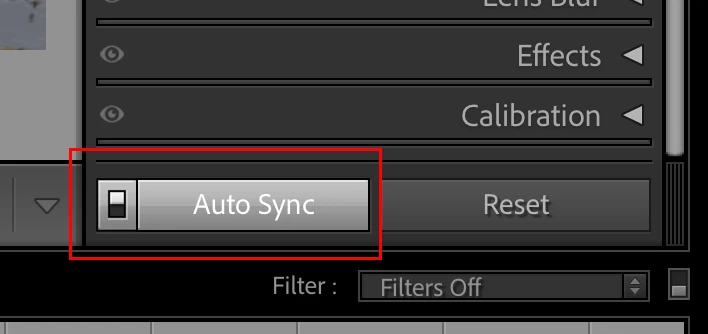
Select the images to be Denoised, enable Auto Sync, then click on the Denoise checkbox. You can use the slider below the Denoise checkbox to fine tune the amount of noise reduction applied to all or individual images in real time.


48 replies

Participant
June 20, 2025

Since the latest update, where denoise no longer creates a separate DNG file, I can no longer bulk denoise. I can only denoise one file at a time. Even if I select a collection of files then select denoise, only one files is enhanced... any thoughts welcome please!


Bob Somrak
Legend
June 20, 2025

Turn on AutoSync

M4 Pro Mac Mini. 48GB
Participant
June 21, 2025

Ah, thanks! I'll give that a try...

Participant
June 20, 2025

I use Lightroom on my PC.  This new update took away batch enhancing, something I use constantly to save time as I can choose a group of photos to enhance and walk away while it works, and then come back and finish my edits.  While I do like having the ability to do one at a time and the original picture autmatically disappears, it is going to waste a tremendous amount of time overall. I've gone back to the prior version for now.  Please fix this! 

kglad
Community Expert
Community Expert
June 20, 2025

in the future, to find the best place to post your message, use the list here, https://community.adobe.com/

p.s. i don't think the adobe website, and forums in particular, are easy to navigate, so don't spend a lot of time searching that forum list. do your best and we'll move the post (like this one has already been moved) if it helps you get responses.


<"moved from cc desktop ideas">
Participating Frequently
June 20, 2025

This update regarding the changes to the Denoise function is very frustrating!!! There was no need to change the way this feature was used it was operating flawlessly and as many have mentioned this has drastically added time to my workflow. The denoise preview was also a big help in determining whether a photo even needed to be denoised as you could zoom in and and test whether denoise would truly enhance the photo. Someone from Adobe please bring this issue up with the team because this new update with this feature change is horrible!!!!!

Participating Frequently
June 18, 2025

The problem with the Auto-Sync method is that you run the risk of syncing adjustments you didn't want to sync. And you might only see it later in the exported files. Or when a client complaints in a mail afterwards. All this often happens in the heat of the moment, under pressure. It is very possible. And a really time consuming to fix.


This risk was completely non-existing in the previous method. You could only apply AI Denoise to the selected photos. And now I'm reading you can't continue your work while the AI NR is being applied? That makes no sense at all. I'm a photographer, I'm working another photo job while LR is doing its thing.


All this seems to prioritize "let's make it more like photoshop" and not "let's give the professionals what they need in the field or when under a deadline". Shame, again.

Participating Frequently
June 19, 2025

I have the same problem, the only solution i found is to comeback to the previous version of lightroom

Legend
June 19, 2025
quote

I have the same problem, the only solution i found is to comeback to the previous version of lightroom


By @Saados


There are many a solutions that don't require an earlier version of LrC. The solution is explained early in this thread: https://community.adobe.com/t5/lightroom-classic-discussions/p-how-do-i-batch-edit-denoise-after-the-june-2025-update/m-p/15374288#M406636

Słowik inspiruje
Inspiring
June 17, 2025

Hot to batch process denoise images in Lightroom 14.4?

Participant
June 18, 2025

It appears this ability went away in the new update

Participant
June 18, 2025
Yes, indeed. I called Adobe and they are looking into it. They are
supposed to call me back in a few hours.

Anne
suutsch
Known Participant
June 17, 2025

Hi,

I kind of like the idea, not to have two images / files when using the enhance feature. But: with the new update I really miss the possibility to use enhance in the batch mode for different images at once. So please re-introduce the "batch-mode" for enhance.

Rikk Flohr_Photography
Community Manager
Community Manager
June 17, 2025

In Lightroom Classic, there are 5 ways Batch editing can be realized.


  1.  Auto-sync
  2.  Sync
  3.  Copy/Paste
  4.  Presets
  5.  Previous


    In Lightroom Desktop, your 2 options are:


    1.  Copy/Paste
    2.  Preset


    Lightroom Desktop does not have Sync, Auto-Sync, or Previous. 


For more information, please refer to this video by @brianmatiash, in which he demonstrates these options and provides additional context. 


Rikk Flohr: Adobe Photography Org
suutsch
Known Participant
June 17, 2025

Hi @Rikk Flohr: Photography  

Thank you for your reply, but: where do I find the auto sync feature in Lightroom (not classic)? I posted the question in the Lightroom section here but it was pushed into this thread. 

Noel Orridge
Community Manager
Community Manager
June 16, 2025

Hi @abjamne, I'm Sorry to hear about your issue, we're here to help.


Could you please share more details about the issue you're experiencing? For example:

  • Are you seeing any error messages or just a blank screen?
  • Does Lightroom freeze, crash, or fail to start a specific process?
  • Does the progress bar appear and then get stuck?
  • What camera are the RAW files from?
  • Are the files in RAW format (like .ARW, .CR3, .NEF), or are they in another format such as DNG, TIFF, or JPEG?


You can try these steps out in the meantime for a quick fix and see if they make any difference:


1) Try turning off your GPU. You can refer to this Helpx article for steps and further information: Troubleshoot GPU issues | Lightroom Classic


2) Reset Lightroom preferences: Corrupted preferences can sometimes cause unexpected behavior. To reset them, hold Option + Shift while launching Lightroom Classic.


Let us know how it goes! 

Cheers!

Noel
Participating Frequently
June 20, 2025

This issue is with the new update, the Denoise function is very difficult to work with!!!! Please revert back!!! There were no issues with this feature; it performed amazingly, and now it is horrible to use with multiple photos

Participant
July 26, 2025

AGREED! I am TEARING my hair out right now. This is a MAJOR change and it's HORRIBLE. Adobe has destroyed batch denoise. I cannot do ANYTHING with this garbage. I edit pictures for my job and I'm about to throw my computer across the room. 

Ian Lyons
Community Expert
Ian LyonsCommunity ExpertCorrect answer
Community Expert
June 16, 2025

Select the images to be Denoised, enable Auto Sync, then click on the Denoise checkbox. You can use the slider below the Denoise checkbox to fine tune the amount of noise reduction applied to all or individual images in real time.


Participating Frequently
June 29, 2025

Well the copy paste works but I have to click the AI on each image (even though it says all it only does 1 at a time) and this takes way way more then the old enhance where I can select a bunch of images go do something and come back in 2 hours and all done. This is deal breaker. I have no SYNC box on desk. I hope they find fix fast or I need another brand of editor. 


Legend
June 29, 2025

@Bob_Balmes5007 


In LrC, you must have Auto Sync switched on to Paste to all photos in the selection. You can also apply Denoise directly to all photos in the selection so long as you have Auto Sync switched on.


In LrD you must use "Paste to Entire Selection".