


Participant
November 5, 2021
Answered

P: Local Adjustment (Masking) Sliders are affecting entire image

  • November 5, 2021
  • 37 replies
  • 51359 views

Hello, i can't seem to make the new masking tool to work correct.

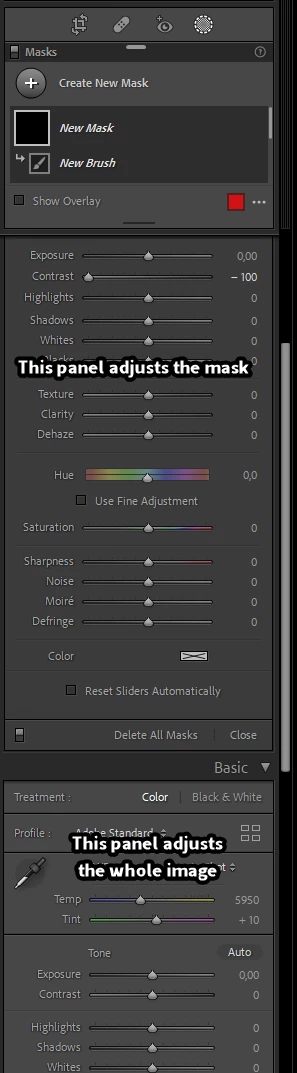
When i make an adjusment, by brush, auto select or any other tool the mask shows up in my image, red by default, and when i make a change in the Basic-panel, the adjustments will be applied over the whole image and not just the masked part.
Is this a bug or am i doing something nog correct?
Help please... 🙂

 

Correct answer Per Berntsen

Sounds like you are using the Basic panel (adjusts the whole image) instead of the local adjustments panel.

Scroll up to see it.


37 replies

Participant
December 11, 2024

Yay!!  after much frustration you solved my problem!


I also was using the wrong slider panel

Participant
September 1, 2024

I get that when you use a mask you can't edit in the basic panel, but does that mean that you can't do HSL adjustments for example? I find the editing options in the mask panel to be very limited.

Does anyone have any suggestions?

Community Expert
September 1, 2024

There are more adjustment possibilities available in the mask panel than may be first obvious, but that will require looking beyond the exact same name or nature of adjustment that is presented globally. In any case masked adjustments can bring different selectivity than global ones will, and that is selectivity not only of which part of the photo, but also of tone and hue range(s).


Thus, for global editing a special HSL tool is needed to target a darkening and dulling of the orange hues (say). But masking can go and seek out those same orange hues, in which case all that is needed as an adjustment onto those, will be some darkening and some dulling to achieve a similar end result - except, this can be further restricted to chosen parts of the image rather than globally.


Thus, a bit of lateral thinking sometimes needed - or naive exploration! I think of this as a mindset of: what can we do with it; not, what can it do for us!

Rob_Cullen
Community Expert
Community Expert
September 2, 2024

@Olivia29959646rbmi  As explained by @richardplondon  Luminance, Hue , and Saturation, are all available with a selection (Mask) made.

They just look different to the one HSL panel for Global adjustments.


Note that the HUE sliders in Masking can completely change a color eg. Red > Blue. This is something the HSL panel cannot do as HSL-Hue only shifts the existing hue tone slightly to adjacent colors. ie. you cannot change Red > Blue  in HSL panel. 

So color in masking is more powerful than global HSL.


Regards. My System: Windows-11, Lightroom-Classic 15.1.1, Photoshop 27.3.1, ACR 18.1.1, Lightroom 9.0, Lr-iOS 10.4.0, Bridge 16.0.2 .
Participant
June 22, 2023

I am having the same issue. I can no longer access the mask BASIC sliders. The global BASIC features are available. 

1. I recently allowed an update.
2. I was using ADAPTIVE SKY presets including copying and inverting these masks.
3. This was working for me earlier, but now I am not able to apply BASIC adjustments within a mask.
4. I do not have the "triangle" to toggle BASIC toolbox as pointed out in previous posts.

Help, please.


dj_paige
Legend
June 22, 2023

Show us a screen capture of what you do see. Please use the "Insert Photos" icon to include your screen capture in your reply.

Participant
March 1, 2023

masking tool to work correct.


When i make an adjusment, by brush, auto select or any other tool the mask shows up in my image, red by default, and when i make a change in the Basic-panel, the adjustments will be applied over the whole image and not just the masked part.

Is this a bug or am i doing something nog correct?

Help please... 🙂

dj_paige
Legend
March 1, 2023

This has been answered earlier in the thread. Just scroll up.

Participant
October 26, 2022

I'm having the same issue with the overlay mask NOT automatically disappearing after an adjustment ( it will toggle off/on if I use the "O" shortcut ) ... I am using the EFFECTS panel and not the BASIC panel 


Participant
June 21, 2022

Yep happened to a lot of us..Its a simple fix..1 button..see image below...it's just collapsed..click triangle..VOILA!!!

Participating Frequently
June 11, 2022

SELECT SUBJECT CORRECTLY SELECTS SKY OR SUBJECT BUT CHANGING SLIDERS ARE OF THE ENTIRE IMAGE. WHAT DID I CLICK THAT CAUSED THIS OR IS IT A GLITCH?

jtillinghast71@17413941 

Rob_Cullen
Community Expert
Community Expert
June 11, 2022

Read the Correct Answer from Rikk Flohr!

Then read the whole thread.


Regards. My System: Windows-11, Lightroom-Classic 15.1.1, Photoshop 27.3.1, ACR 18.1.1, Lightroom 9.0, Lr-iOS 10.4.0, Bridge 16.0.2 .
Bobby Stevens
Participating Frequently
June 18, 2022

I am using the correct panel and still haveing the same problem as the OP. I'm wondering if it's because a duplicated and inerted mask is sitll corrected to the original somehow. It seems like a mask seletion issue to me and I don't get it.


Rob_Cullen
Community Expert
Community Expert
May 20, 2022

Those pesky 'Disclosure triangles'!!

Actually there are two you might see when doing local adjustments with the masking panel-

One for the "Effect"  sliders panel, and one for the specific Brush Settings (size, feather).

Collapsing the 'Effect' panel makes users very prone to adjusting the 'Basic' panel in error.

Collapsing the 'Brush' panel converts it to an 'Amount' slider that acts  to change all and any of  the 'Effect' slider adjustments that have been made. (ie. 'Amount' will collectively change intensity of a Brush stroke - including eg. Exposure + Contrast + Clarity + Saturation. + + + ...etc.)


Regards. My System: Windows-11, Lightroom-Classic 15.1.1, Photoshop 27.3.1, ACR 18.1.1, Lightroom 9.0, Lr-iOS 10.4.0, Bridge 16.0.2 .
beauh36409411
Participant
May 19, 2022

After I select subject in Lightroom Classic any adjustments I try to do affect the whole image vs the selection.  I have all of the current updates downloaded. I have included  A screen shot of the selection I made using the tool with the Green overlay and then I have added a screen shot after I made an adjustment. You will notice with the second screenshot that all of the adjustmenst i made affected the whole image versus the selection.

Jim Wilde
Community Expert
Community Expert
May 19, 2022

The sliders you are moving are the Basic Panel sliders, which do indeed affect the whole image. But you need to be using the Masking sliders, which you currently are not seeing because you have them collapsed and thus hidden from view. At the right-hand side of the "Effects" line at the top of the Select Subject panel you will see a left-facing arrow, click on that and it will change to a downward pointing arrow and all the Masking Panel sliders will be revealed. Use those to adjust only the masked area.

Participant
April 4, 2022

LR Classic 11.2 used on Mac M1 Pro.  All versions of software and operating systems are all current.  Recently lost all masking functions in LRC.  Selections can be made wither auto or manual, but any adjustments are only applied globally, not just to the selection.  Also missing is the "Done" button in the lower right corner.  Many restart sequences tried without result.  Thoughts??


Rob_Cullen
Community Expert
Community Expert
April 4, 2022

See the forum thread at-

https://community.adobe.com/t5/lightroom-classic-discussions/p-local-adjustment-masking-sliders-are-affecting-entire-image/m-p/12502412

1) Global adjustments- means you are using the 'Basic' panel adjustments. Scroll up the panels and Check the Disclosure triangles in the Brush panel to reveal all the sliders if necessary..

2) Done button may be hidden if the Tool bar is not visible. Keyboard [T] to toggle visible.


Regards. My System: Windows-11, Lightroom-Classic 15.1.1, Photoshop 27.3.1, ACR 18.1.1, Lightroom 9.0, Lr-iOS 10.4.0, Bridge 16.0.2 .
Participant
April 4, 2022
YES!
Both suggestions were right on!!
Back in business!!
Will blame "fat thumbs"!!;)
Thanks!!