


Sameer K
Community Manager
Community Manager
January 10, 2022
Answered

🔎 Quick Tips: How to give Full Disk Access to Lightroom Classic on macOS

  • January 10, 2022
  • 74 replies
  • 280351 views


How to provide Full Disk Access on macOS


Since macOS 10.14 (Mojave), Apple introduced a new privacy structure to help ensure that all applications obtain user consent before accessing documents, downloads, desktop, iCloud Drive, and network volumes. This has been reinforced in newer versions of macOS. This change prevents unauthorized access to user files and folders.


When Full Disk access & Accessibility permissions are needed, users may be asked to or be required to change the setting in System Preferences > Security & Privacy > Privacy for Lightroom Classic manually.   

While for the File & Folders access, the user is prompted to allow or deny when needed. 


Why provide full disk access to Lightroom Classic?

Insufficient or broken permissions may restrict Lightroom Classic from functioning correctly and break your workflows. All tasks that require access to the computer's storage importing/exporting images, cross-app workflows, reading/writing metadata,  and more, behave unexpectedly. It may also lead to missing images, performance issues, unexpected sync issues, and random app crash on launch or while working on a file. 


Watch this video for the steps:



Quick steps to enable full disk access and grant permissions to Lightroom Classic

 Follow these steps to prevent the permissions issues from occurring: 


❶  Go to System Preferences > Security & Privacy > Privacy > Click the Lock icon > Authorize via password > Unlock the lock to allow changes to system settings. 
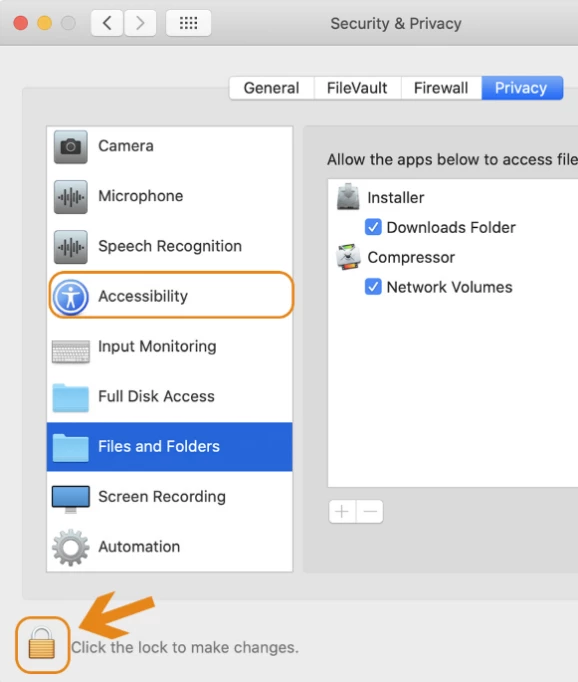


  Add Lightroom Classic by clicking on the (+) button & navigate to the Applications folder on macOS.
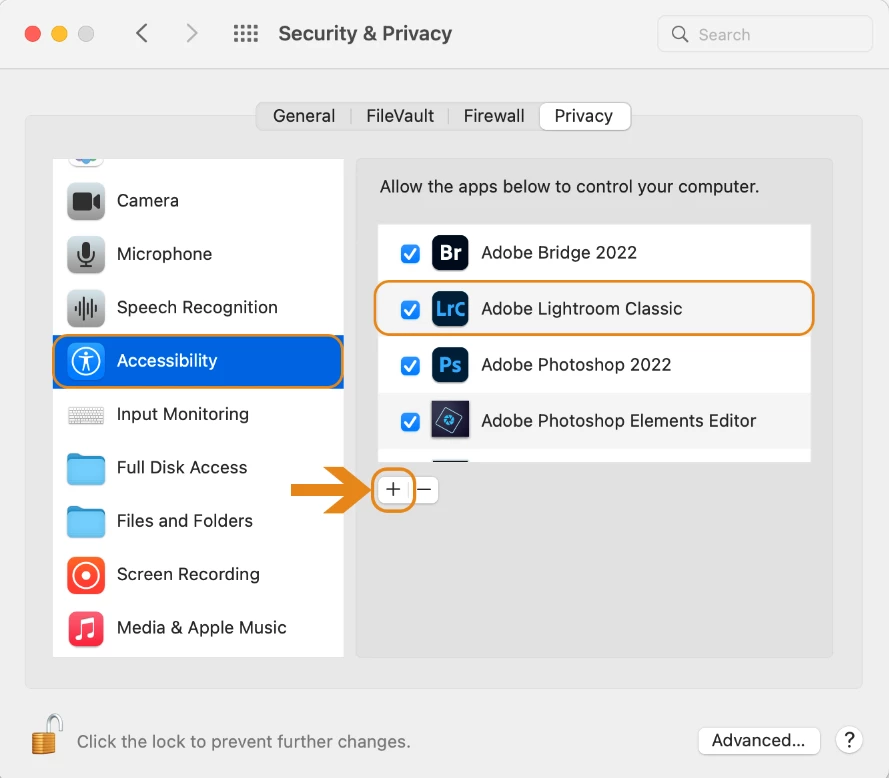


  Go to Full Disk Access and add Lightroom Classic by clicking on the (+) button & navigate to the Applications folder on macOS.
Note: Adding Lightroom Classic under Full Disk Access overrides Files and Folders settings. 
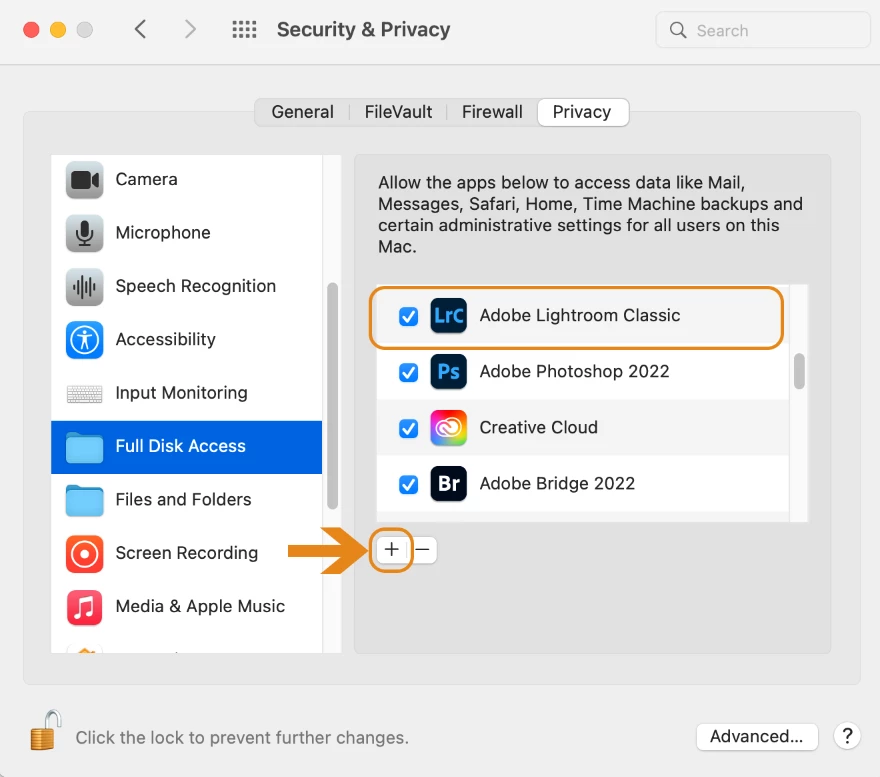


  Click the Lock icon to save the changes. Restart your computer to see the applied changes. 


Stay tuned for more tips to come.


Related links:

Lightroom Classic system requirements 

Quick Tips: Optimize LrC preferences for better performance 

Basic troubleshooting steps to fix issues in Lightroom Classic 


74 replies

Participating Frequently
June 15, 2022

Hi And Help!.


When I try to edit a photo in the Develop moudle I get the message 'This file could not be found.'


I can see my photos in the Library.  There's no (!) by them so Lightroom CAN find them. When I ctrl+click a thumbnail Lightroom shows me where the original is and I can edit it in a third party app.


Yet I can't edit any of the images in Lightroom Classic which is a big problem.


I did have a Loupedeck plug in active but I've disabled that. 


Any suggestions gratefully recieved.  I attach a couple of grabs showing the problem message and the fact that Lightroom can find the files even when it says it can't.


DdeGannes
Community Expert
Community Expert
June 15, 2022
Regards, Denis: iMac 27” mid-2015, macOS 11.7.10 Big Sur; 2TB SSD, 24 GB Ram, GPU 2 GB; LrC 12.5,; Lr 6.5, PS 24.7,; ACR 15.5,; (also Laptop Win 11, ver 24H2, LrC 15.0.1, PS 27.0; ) Camera Oly OM-D E-M1.
Participating Frequently
June 15, 2022

Thanks for that handy tip. It didn't redolve the issue but it's a good one to know.


I've created a new catalog and done a test import. I can edit these photos fine. However it'd be great to get the old catalog working as there's thousands of photos and edits in that one.


Participant
June 7, 2022

I'm looking for a solution to an problem I haven't seen before. I also haven't seen it answered anywhere else. I cannot export a file because , well 'File could not be found'.


Normally I'd go to the 'locate' icon and sort this issue out but this icon isn't appearing and I don't know of any other way to prompt it. This is the case for every shot in the folder.


The ARW files are still in position, where they should be, but I don't know how to relink or regain the ability to render, export or upload images.


I'm using Lightroom Classic 11.3.1 release on MacOS Monterrey 12.4


Does anyone have any suggestions? 


Thanks in advance.

JohanElzenga
Community Expert
Community Expert
June 7, 2022

Make sure you have given Lightroom Classic full disk access permissions. See the first post on this page.


-- Johan W. Elzenga
Participant
June 6, 2022

Hi,

Thanks for the quick help, unfortunately did not work.
On another Apple device with the same software version everything works.

Participant
June 5, 2022

Hello,

I cannot import the jpg stored on the sdcard neither from direct camera connection nor from sdcard reader.

"No files found" statement displayed whereas the sdcard is full as you can see in the screenshot attached.

I'm working with :

- MacOs Catalina Version 10.15.7

- LrC version 11.3.1 

The camera setup is :

- Image Quality : Fine

- Image size M 3:2

- Film simulation : PRO Neg Std

Many thanks for your support

Participant
June 4, 2022

Hello, 

I was hoping someone could shed some light on something please.  I've tried searching similar posts but couldn't find the answer.  LR classic on my iMac has stopped backing up the catalogue. It tries to do it, but the progress bar just goes side to side and isn't actually doing anything.  It says " Backing up "Lightroom Catalog-v-11" but does nothing. I've sat here for over 30 mins waiting. It used to back up no problem to my iMac, but I recently set it to back up on an external SSD and I also changed my RAM from Apple to unofficial RAM at the same time. Not sure if either of these things are causing the problem, or whether it's coincidence it stopped backing up after I changed things.


Many thanks in advance. 🙂 

Claire

johnrellis
Legend
June 4, 2022

"It used to back up no problem to my iMac, but I recently set it to back up on an external SSD"


Something changed in Mac OS 12.3.1, and many people are finding they need to grant LR Full Disk Access. See:
https://community.adobe.com/t5/lightroom-classic-discussions/quick-tips-how-to-give-full-disk-access-to-lightroom-classic-on-macos/m-p/12913413


Let us know whether that fixes the problem.

Participant
June 5, 2022

That seems to have done the trick! Thank you, much appreciated 🙂

SeeSaw_Agency
Participant
May 30, 2022

Hi there, I have an issue that appearing again and again lately.

The photos are not avilable only on the Develop Moudle. 


I'm using OS Monterey 

Sameer K
Community Manager
Sameer KCommunity ManagerAuthor
Community Manager
May 30, 2022

Hi there,


Thanks for reaching out. We are sorry for the trouble with Lightroom Classic. We are here to help.

Could you please confirm the version of Lightroom Classic from Help > About Lightroom Classic & the version of the macOS?

As it started to happen recently, have you updated Lightroom Classic or the macOS on your computer in recent weeks?


Since macOS 12.3.1, Apple has spiked the authorization required by apps. You can also ensure Lightroom Classic has correct and complete permissions on the macOS by following the steps I have shared in this article: Quick Tips: How to give Full Disk Access to Lightroom Classic on macOS


Let us know if this works,

Thanks!

Sameer K

Participant
May 30, 2022

Après la dernière màj,

impossible d'accéder à mon catalogue, message affiché Le catalogue Lightroom ne peut pas
être utilisé, car le dossier parent "I
Volumes/PH.PRIVEES/Lightroom"
n'autorise pas la création de fichiers.

Impossible d'afficher les sources et d'importer dans un nouveau catalogue

AxelMatt
Community Expert
Community Expert
May 30, 2022
My System: Intel i7-8700K - 64GB RAM - NVidia Geforce RTX 3060 - Windows 11 Pro 25H2 -- LR-Classic 15 - Photoshop 27 - Nik Collection 8 - PureRAW 5 - Topaz Photo
Participant
May 27, 2022

I am having an issue with LrC no longer recognizing an external HD that I have been working off of for years. I was editing files yesterday and today LrC states "file cannot be found" when in the develpoment module. I first noticed the problem when trying to import a new project from today and when I went to "import", the drop down menue for my main working HD in the import module showed nothing. I use Chronosync to manage my backups and nothing appears to be wrong with the drives itself and was successfuly backed up this evening. I can only assume its a problem with Lightroom. Ive included some screen shots below. Apprecaite any help.


Cam

Participant
May 27, 2022

Disregard. I was able to resolve the issue by going into my system preferences > security and privacy and then making sure Lightroom was present and check marked under "full disk access". I am still unsure how the problem occured but this fixed the issue.

JohanElzenga
Community Expert
Community Expert
May 27, 2022

The problem occurred because you updated MacOS to Monterey 12.3.1 or higher. Apple has tightened security since 12.3.1.


-- Johan W. Elzenga
Participant
May 21, 2022

Having upgraded to a new M1 Max MacBook Pro, running Monterey, using Lightroom Classic 11.3.1, everytime I put an SD card into the machine to import RAW files into Lightroom, I cannot see the preview files. It just says "Preview unavailable for this file". I know perfectly well that Lightroom supports these Nikon RAW files. This is the same for different camera models, so seems to be Mac/Lightroom related. Once imported the files are fine. It's also very slow to pick up the files when initially selecting the card: it initially shows "No photos found", before deciding some seconds later, that actually there are files there, but refuses to show the previews, however long I wait. Any ideas?

[moved to discussions - Mod.]

johnrellis
Legend
May 22, 2022

Something changed in Mac OS 12.3.1, and many people are finding they need to grant LR Full Disk Access. See https://www.lightroomqueen.com/disk-permissions-monterey-classic/

Participant
May 22, 2022

Initially after changing the disk access, it no longer said "Preview not available" but didn't actually show the previews. After a 2nd reboot though, it works as normal! Brilliant! Thanks so much.

Randy Hufford
Community Expert
Community Expert
May 19, 2022

Thank You. I will link this to lots of threads!