




Add text watermarks to images using Lightroom desktop
We are proud to introduce the option to add text Watermarks to images in Lightroom desktop. This feature already exists in Lightroom Classic, but now it has been added to Lightroom desktop as of version 3.3.
Photographers choose to watermark their images for multiple reasons. It is primarily done to ensure that the images shared with clients or social media are not used or printed without permission. Watermarks can also be used for advertising.
Steps to add watermarks:
Follow the steps below to create a watermark. (The watermark settings sync across the mobile platforms)
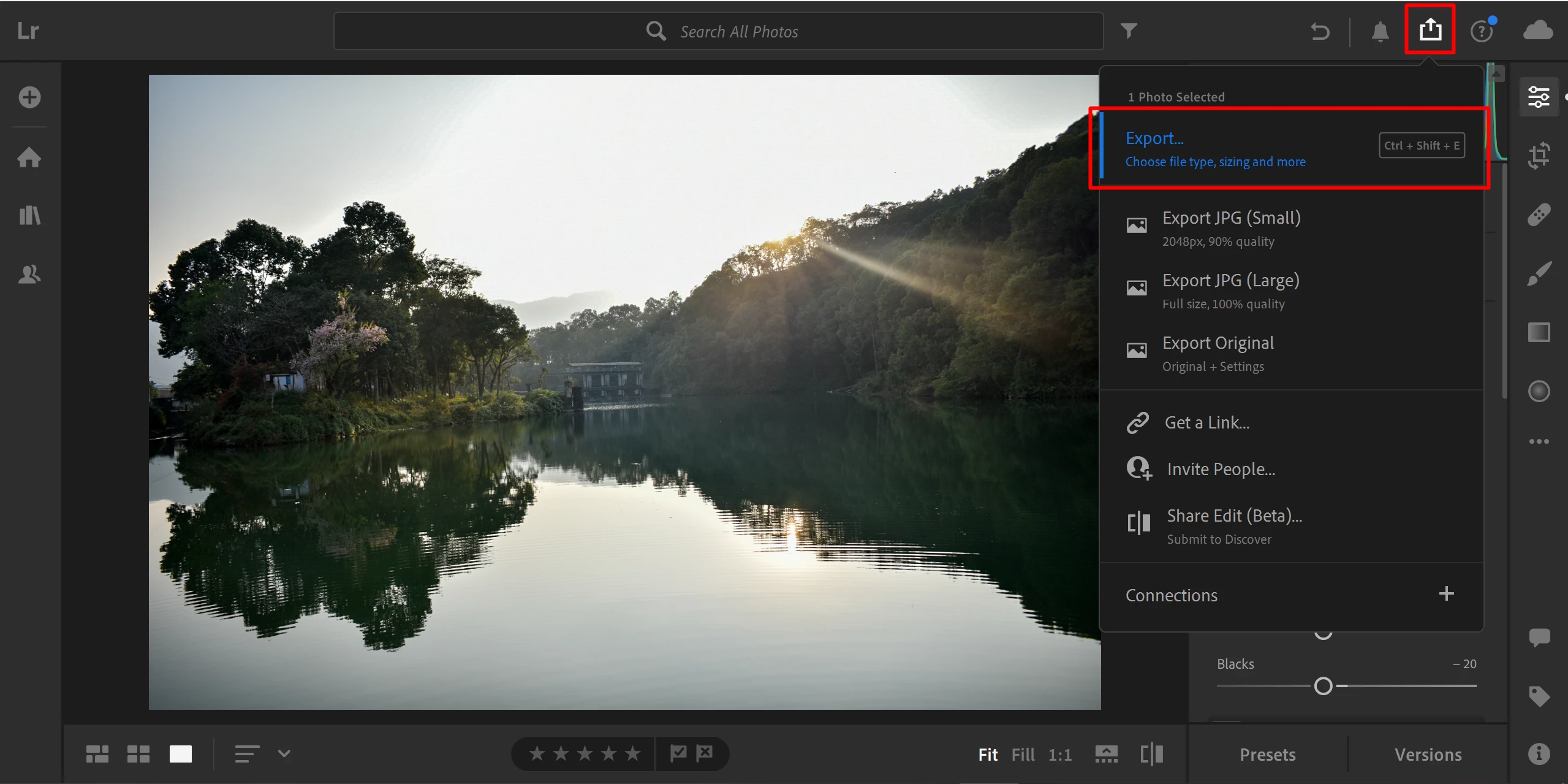
❶ Get started
- Select one or more photos
- Click the Share icon in the upper-right corner
- Select Export.
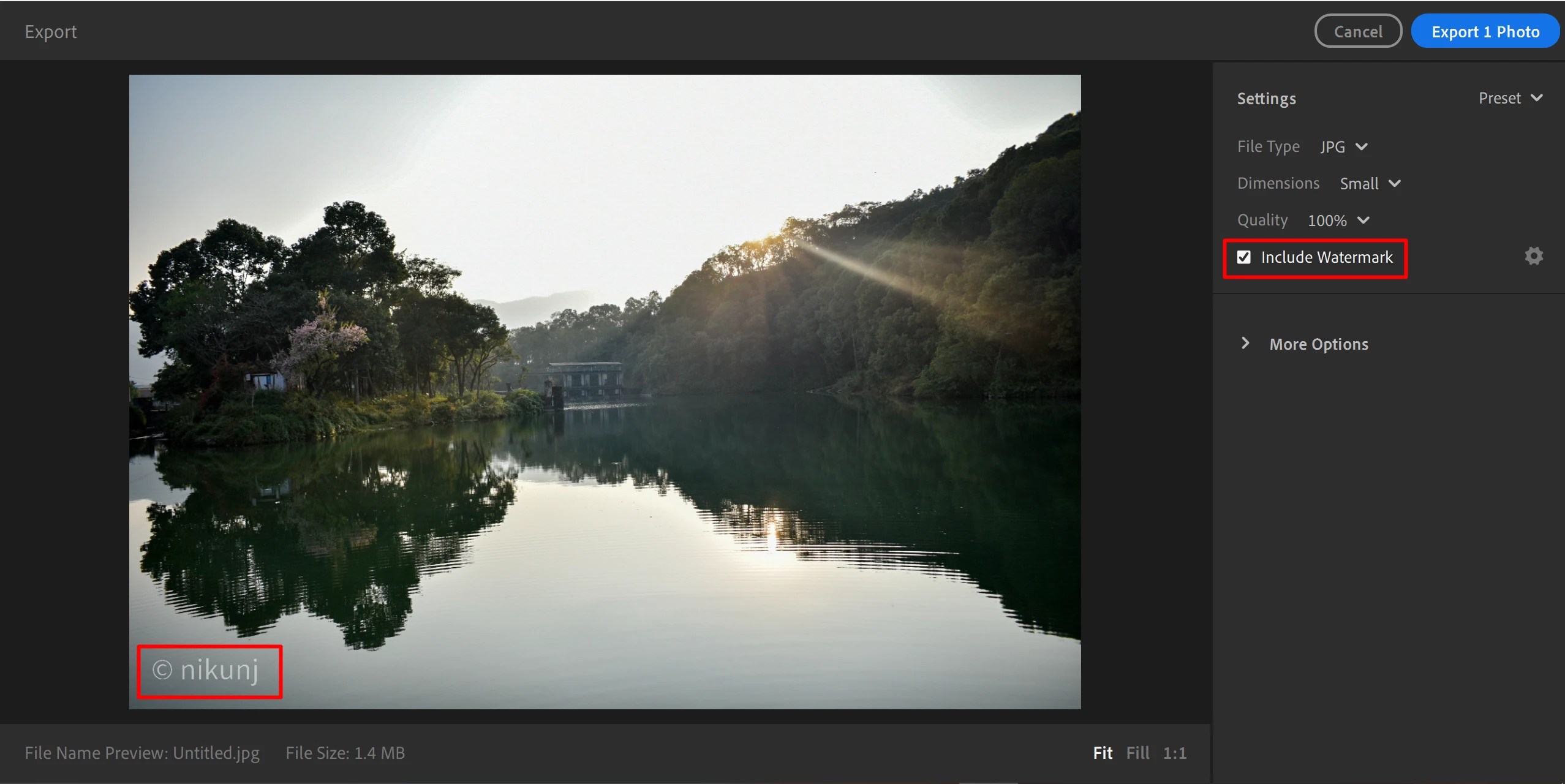
❷ Enable watermark
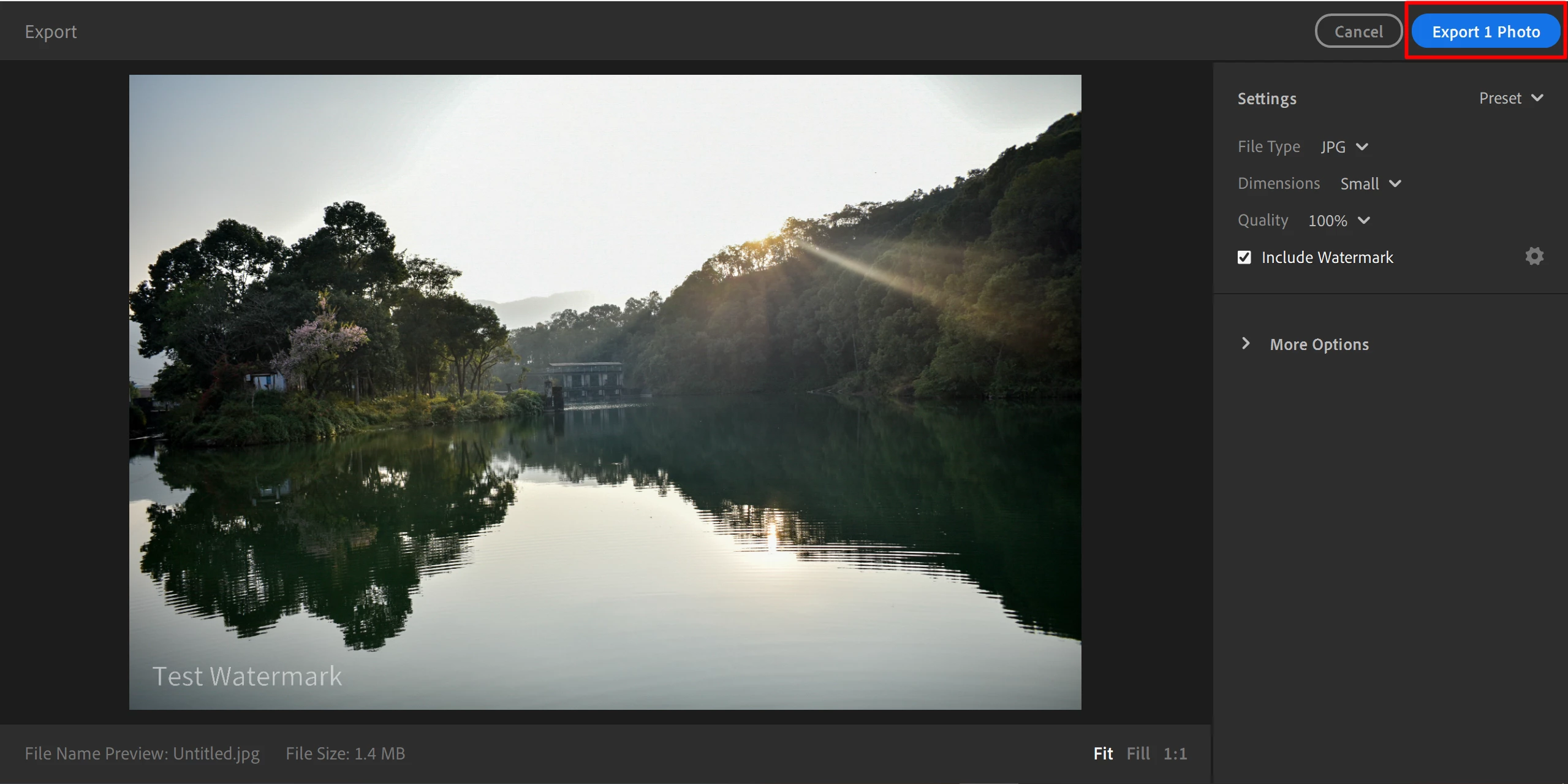
- On the Export panel, select Include Watermark.
- A default watermark of your name is added to your image automatically.
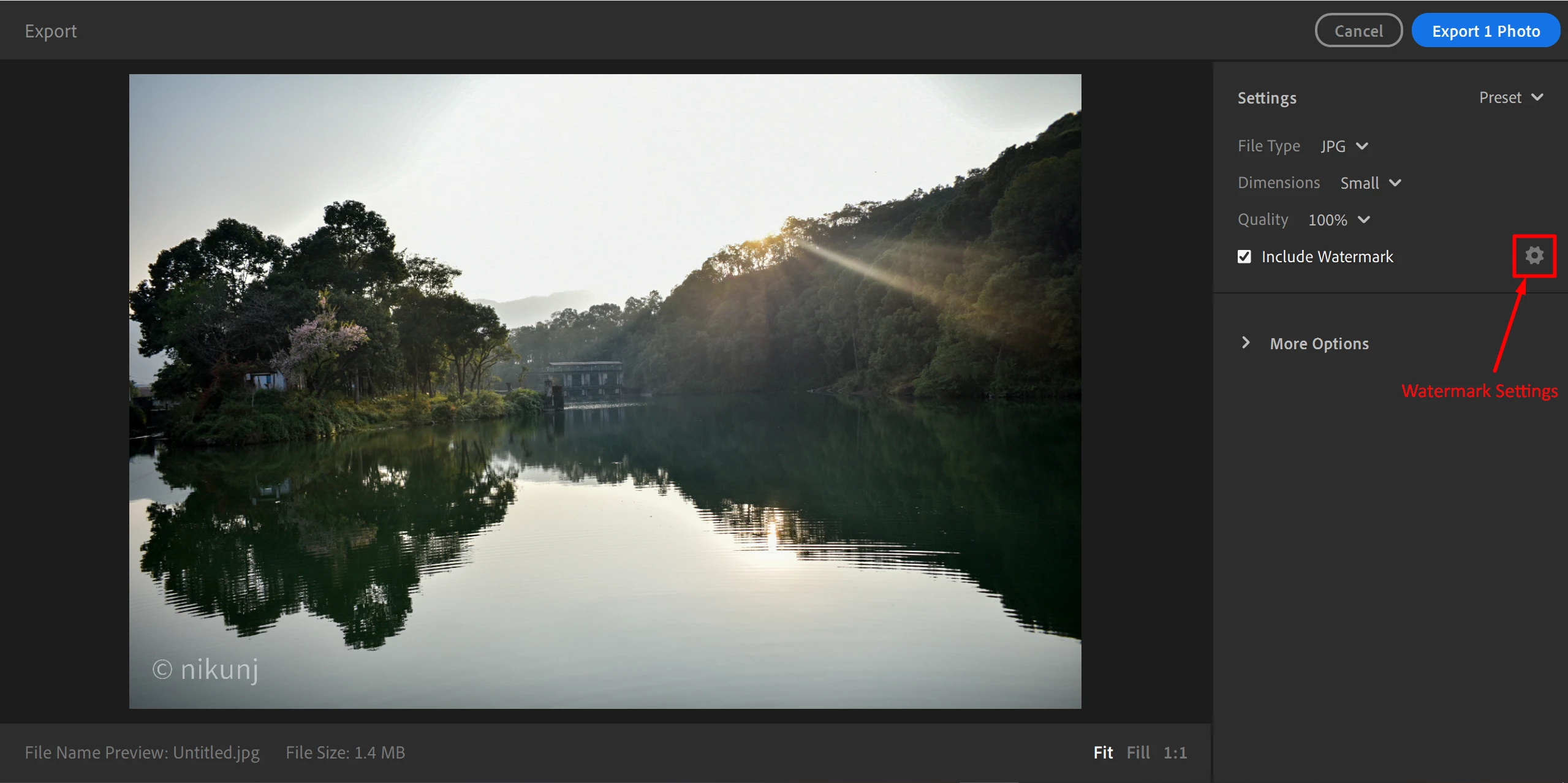
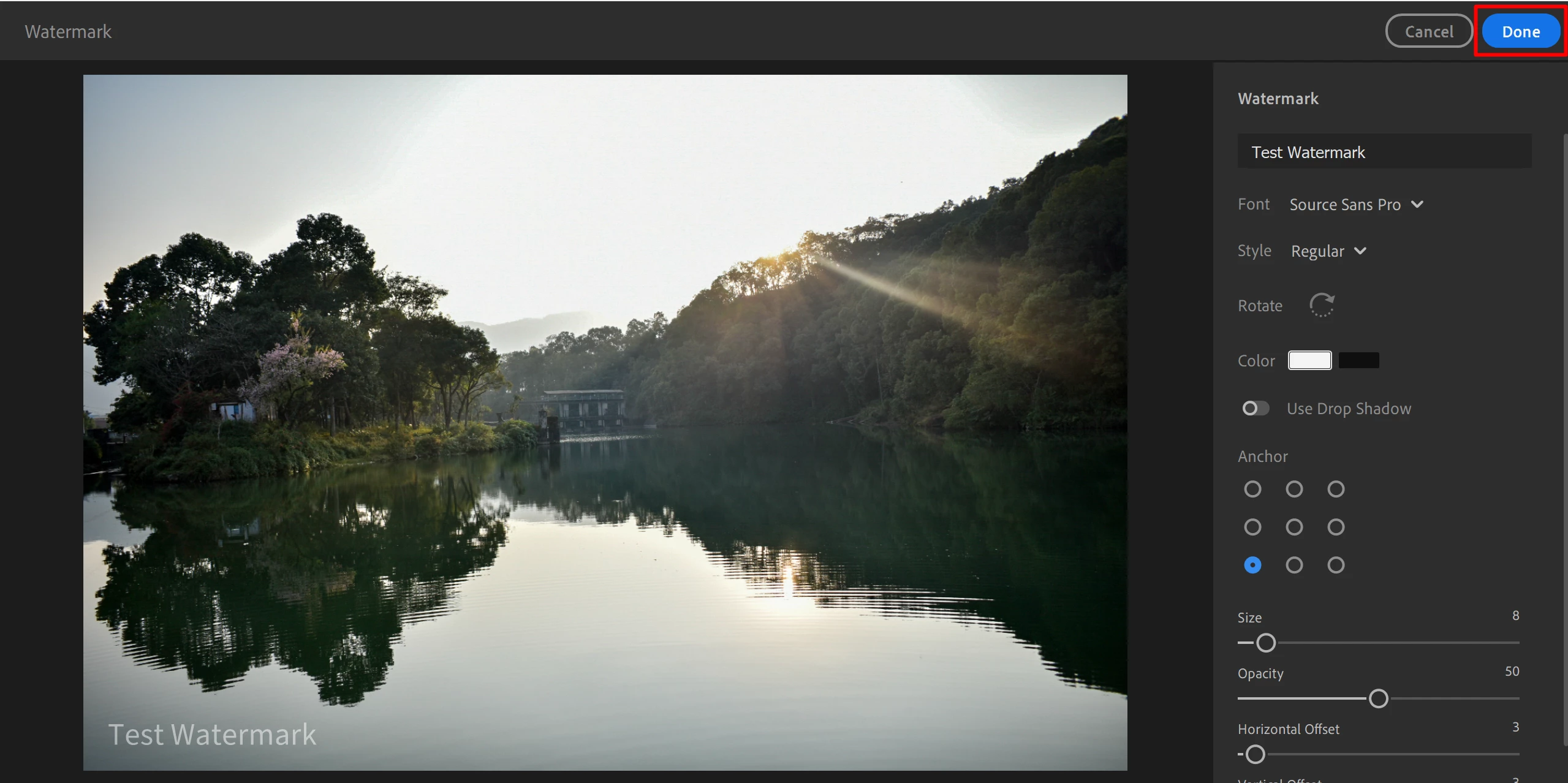
❸ Change watermark settings
- You can edit the watermark settings such as font, style, color, anchor point, size, and other options by clicking the Settings icon (gear icon) next to Include Watermark.
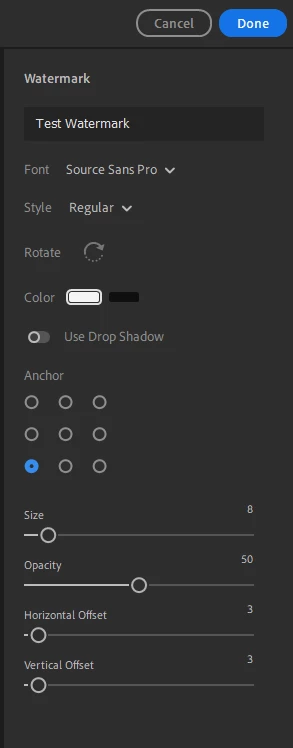
❹ Customize your watermark
- Enter the text you wish to be displayed as the watermark.
- Select the Font you want to use from the drop-down list.
- Note: The watermark will revert to the default font when viewed on your mobile device if your mobile device does not have the font you select.
- Select the Style from options such as Regular, Bold, Italic, or Bold Italic.
- You can Rotate the watermark from horizontal to vertical if required.
- Select between black and white for the text Color.
- You can add a Drop Shadow to your watermark if you want.
- Choose where you want to Anchor the watermark on your photo.
- Click one of the anchor points to see the preview.
- You can change the font Size of the watermark using the Size slider.
- Drag the Opacity slider to the right to increase the watermark opacity and to the left to decrease the opacity. You can also add a numerical value to get the opacity you need.
- You can add Vertical or Horizontal Offset by dragging the sliders or add a numerical value to precisely position your watermark horizontally.
❺ Export the image
- Once you have finalized the Watermark click on Done.
- Click on the Export button once you are happy with the rest of the export settings.
Related links:
https://helpx.adobe.com/lightroom-cc/using/whats-new/2020-3.html#watermark
 AdChoices