


Participant
September 2, 2021
Answered

Import Error "Some photos were not added" / unable to copy file

  • September 2, 2021
  • 9 replies
  • 19515 views

Hi there! I recently transitioned from a Macbook Pro 2019 to a Macbook Air running MacOS Big Sur. I save my catalog to an external drive and set the same destination folder on my new Macbook Air, but now am getting the error when importing from an external drive to LR 4.4 that "some photos were not added":
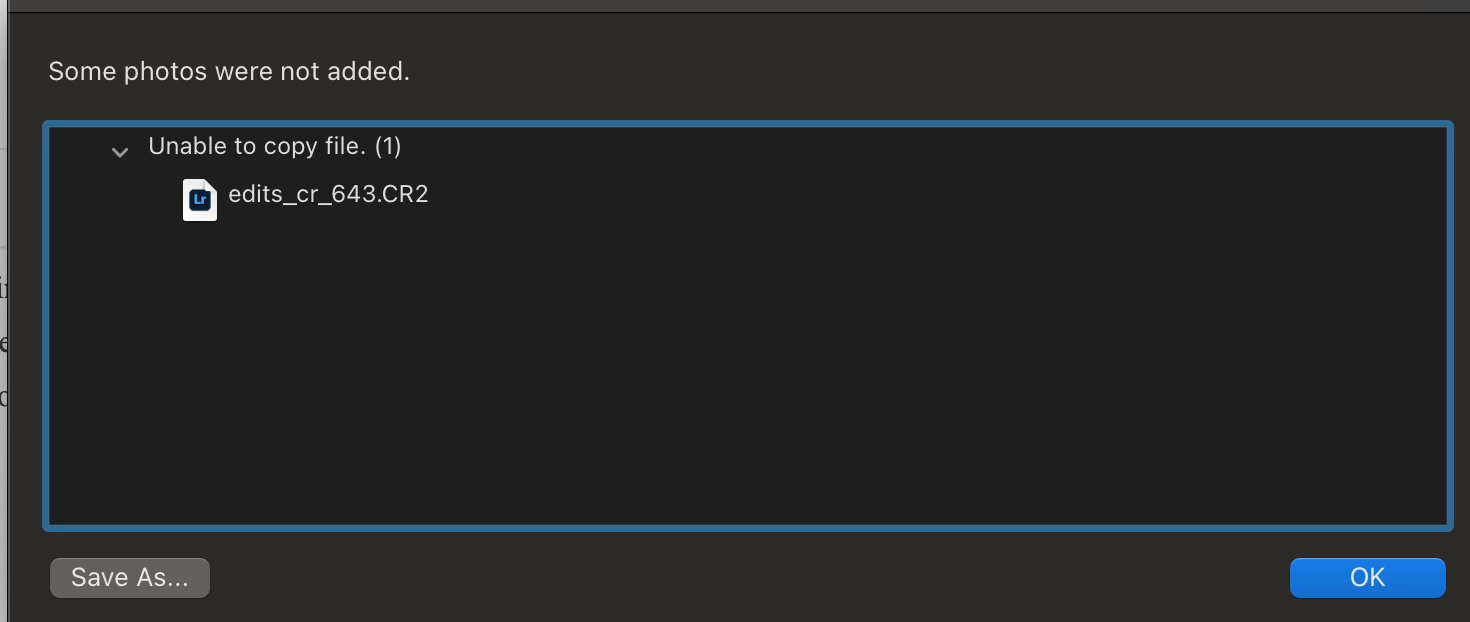
 

All files are .CR2 RAW files that were copied from my SD card to my external hard drive. This error also occurs when I save to my desktop or a local folder. I no longer have access to my previous MacBook pro and am worried that there was locally stored information I may have neglected to copy over that could be impacting this (though I did copy all adobe files onto my external drive). Any ideas or suggestions are much appreciated!

Correct answer Niesha Arya

For Mac 10.14 and above Please close Lightroom

Open system preferences and Go to: Security and privacy >privacy >full disk access>unlock it. Unlock button is on bottom left once it is unlocked click the + sign and browse to Lightroom and add it and check Lightroom.
Do the same under accessibility tab. 
Then try to import the photos again.


9 replies

Participant
March 11, 2023

I'm having the same issue. I did all troubleshooting tips i can find. Still can't get it to work. I was able to successfully add photos from a different folder from the same external hard drive. Can't get these particuar photos to add to lightroom.


Participating Frequently
March 12, 2023

I think I just fixed the issue for my situation.  I noticed that my name was not under the sharing and permissions file info section of my external drive; it just said system, wheel, and everyone.  Therefore, I added my name and updated the permissons to read and write, and now it's working!  I guess I thought system meant my username.  

Community Expert
March 12, 2023

Indeed that is a common issue with preformatted drives. I wrote about that above:

quote

Also the permissions on the main level (do a get info on the drive itself) are sometimes set wrong for drives straight from the factory which you fix automatically by reformatting and changing the partition map but you can manually fix. If you do a get info and you don't see read and write for yourself and for the staff group that indicates a problem with permissions and you want to change it and apply to enclosed items (in the little ellipsis icon).  


It doesn't really matter whether you change the group designation from wheel to staff but the owner is essential as is applying these permissions to all enclosed items. Setting it to staff should enable access to all administrator users. This is one of the reasons I recommend everybody (including windows users) to reformat drives as they come from the factory before using it.

Participating Frequently
March 8, 2023

Hello.  Wanted to share my expereince with this issue after being on the phone with Adobe for an hour monday and 45 minutes today--screen sharing and all.  I was told the issue is with my external drive needing to have permissions to read and write files.  As they come, most of them are read only and you have to call the manufacturer to change this.  Such red tape.  Don't really want to go back to Photoshop for editing, but this is making me lose my mind.  

Community Expert
March 8, 2023

No need to call any manufacturer. You simply need to always reformat external drives when you are on a Mac. This is because most drives come formatted as NTFS which Macs cannot write to but can read. Simply reformat them as APFS (for SSDs) or HFS extended (for spinning drives) and you will be golden. Just a few clicks in Disk Utility. If you want to use a drive between both Macs and PCs, reformat as exFAT.

Participating Frequently
March 8, 2023

Thanks for the response. I have a Glyph drive which comes pre-formatted for Mac. It's so strange because I've never experienced this issue before. 

Participating Frequently
March 7, 2023

I've been losing my mind over this same issue. I was on the phone with Adobe for over an hour today trying to troubleshoot. Even after granting my computer full access to LR under privacy and settings(Mac), the issue persists. Tried downgraded to previous version of software too, but no luck! Seems like such a simple task--all I want to do is organize my recently imported photos!!!

Participant
March 12, 2023

im having the same issue. Did you find a fix?

Participating Frequently
March 12, 2023

Not yet unfortunately.  I posted my initial question here: https://community.adobe.com/t5/lightroom-classic-discussions/annoying-error-when-trying-to-move-recently-imported-files-to-a-folder/m-p/13643106#M314044   Some people suggest reformatting the drive after transferring your photos, docs, etc. to another safe place.  Some say it could be a permissions issue with my external drive, but I don't think that's the case either.  Hopefully Adobe fixes this soon. 

Niesha Arya
Adobe Employee
Niesha AryaCorrect answer
Adobe Employee
May 12, 2022

For Mac 10.14 and above Please close Lightroom

Open system preferences and Go to: Security and privacy >privacy >full disk access>unlock it. Unlock button is on bottom left once it is unlocked click the + sign and browse to Lightroom and add it and check Lightroom.
Do the same under accessibility tab. 
Then try to import the photos again.


Participant
November 10, 2022

This did not work for me. Lightroom has full disk access, still daying duplicates. Tried renaming, still saying duplicates. Have there been any other solutions? 

Participant
January 4, 2022

If u'r image file is JPG. U can change the file extension from JPG to PNG (use photoshop), then re-add that PNG (new file) to LR. The kind of extension can be the issue, that's work to me. Good luck 🙂

Participant
November 16, 2021

Having the same issue, shot a wedding recently and can only import 6 out of about 200 photos. Running latest Adobe Lightroom on windows 10 with all jpg files.


Participant
November 28, 2021

Me too... 6 at a time. I'm going to rip my hair out! 

Participant
December 11, 2021

Did you find a workaround - I'm having the same issue. Very frustrating.

Participant
October 29, 2021

Do you have a fix for this for Windows?  I'm running into the same problem.  Trying to add photos to Lightroom CC from a folder on my desktop, and it will import 6 out of 100, then stop and say some  photos were not added just like the above screen shot.  

I delete and close light room, reopen and then it won't add any.  Delete and close, and it's back to only adding one or two.

Community Expert
January 4, 2022

On windows, there is a bug if you installed the app from the microsoft store that causes this exact behavior. The fix is to uninstall Lightroom Desktop and install from the creative cloud app instead. This is only a subset of the causes for this issue though and only applies to windows. Main cause is insufficient permissions to access external drives or removable media (if that is the source of the images or if Lightroom Desktop/Cloudy is set to store a copy of all images there).

Participant
March 17, 2022

I am doing this right now and I pray it works as I have lost 6 hours to this issue today 

JohanElzenga
Community Expert
Community Expert
September 2, 2021

I am a bit puzzled by some of the things you say. You say you use Lightroom 4.4, so that should be Lightroom desktop, not Lightroom Classic. Yet you claim that you saved your catalog to an external drive. Lightroom desktop doesn't have a catalog but a library, but you cannot save that to an external drive. The library will always be saved in your Pictures folder on your internal hard disk. You can change the location of the copies that Lightroom saves, however. Is that what you did? In that case make sure that Lightroom has permissions to access every location, like Victoria says.


-- Johan W. Elzenga
Victoria Bampton LR Queen
Community Expert
Community Expert
September 2, 2021

Does it happen for all imports? If so, go to System Preferences > Security & Privacy > select Files & Folders on the left, then on the right, make sure everything under the Lightroom app is checked.


If that's not it, it could be a permissions issue on the external drive.

Victoria - The Lightroom Queen