


jjc97158674
Known Participant
April 28, 2023
Answered

LR Mobile export to Camera Roll (Photos - IOS) Colors are washed..

  • April 28, 2023
  • 1 reply
  • 9400 views

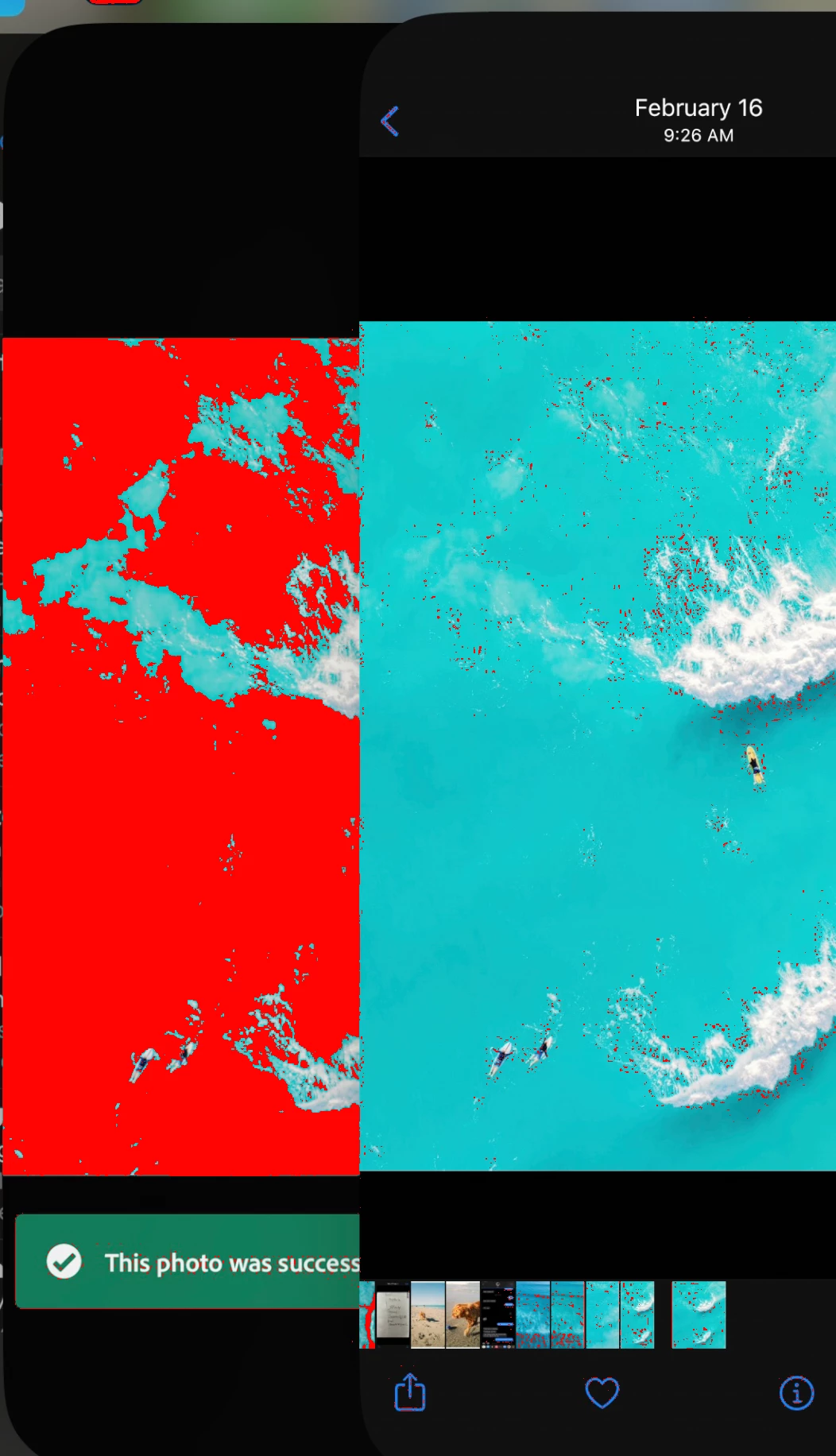
This is becoming super frustrating and continues to drive me to the brink of madness. Attached is the photo i'm editing in LR Mobile on the left (which has the correct color and contrast, detail etc) and when i save it to my Iphone 13 Pro you can see the color is chalky, washed, and loss of contrast; on the right. This is one unacceptable and infuriating, to spend all this money on equipment and software just to get an inaccurate photo is mind boggling. I have also turned off my 'HRD' settings in my Photos app so this is the direct comparison. Any help is super appreciated!!!
Correct answer Jao vdL

The reason this is happening is that you are selecting a too narrow colorspace for the color of the sea in that image. You are probably chosing sRGB and that jade color is not possible in sRGB. So simply make sure you export to display P3 instead (the colorspace your iPhone's display is in).

Here is the proof. Soft proofing your screenshot to sRGB in Classic. You can see the left (your Lightroom app) is way out of sRGB gamut (red areas). That color simply cannot be displayed in sRGB. Right is not clipped because the export already clipped it to sRGB and dulled the colors as a result. You can set the options on how to export using the tiny little buttons on the right hand side of of the share button, then choose "More options"->Color Space

1 reply

Jao vdLCommunity ExpertCorrect answer
Community Expert
April 28, 2023

The reason this is happening is that you are selecting a too narrow colorspace for the color of the sea in that image. You are probably chosing sRGB and that jade color is not possible in sRGB. So simply make sure you export to display P3 instead (the colorspace your iPhone's display is in).

Here is the proof. Soft proofing your screenshot to sRGB in Classic. You can see the left (your Lightroom app) is way out of sRGB gamut (red areas). That color simply cannot be displayed in sRGB. Right is not clipped because the export already clipped it to sRGB and dulled the colors as a result. You can set the options on how to export using the tiny little buttons on the right hand side of of the share button, then choose "More options"->Color Space

Rick.Williams
Known Participant
April 29, 2023

I really wish Adobe would offer more guidence, or ever default to P3. I bet a lot of users are affected by this and don't even realize it.

Community Expert
March 28, 2025

Hi Jao, 

Thanks for the response and I have now exported my raw image to jpg using display p3 color space resulting again a less saturated image. Am I doing anything wrong in the export process. I do understand that there is no possibility to reproduce the exact colors in the photo but if we could bring the color close to what we see in the LR editing then it would be good. Attached image is for reference. Is there any alternate solutions we have to remediate the issue?


What are you using to view the file? If the viewer is correctly color managed, you should not see any difference between Lightroom and the export especially if you are using P3 color space. Also, make sure you don't have HDR enabled in the Lightroom app when you are editing and not when you export. Not every (i.e. basically none) app understands HDR exports.