Participant
February 12, 2023
Answered

P: Downloader incorrectly states there is not enough space

  • February 12, 2023
  • 10 replies
  • 16854 views

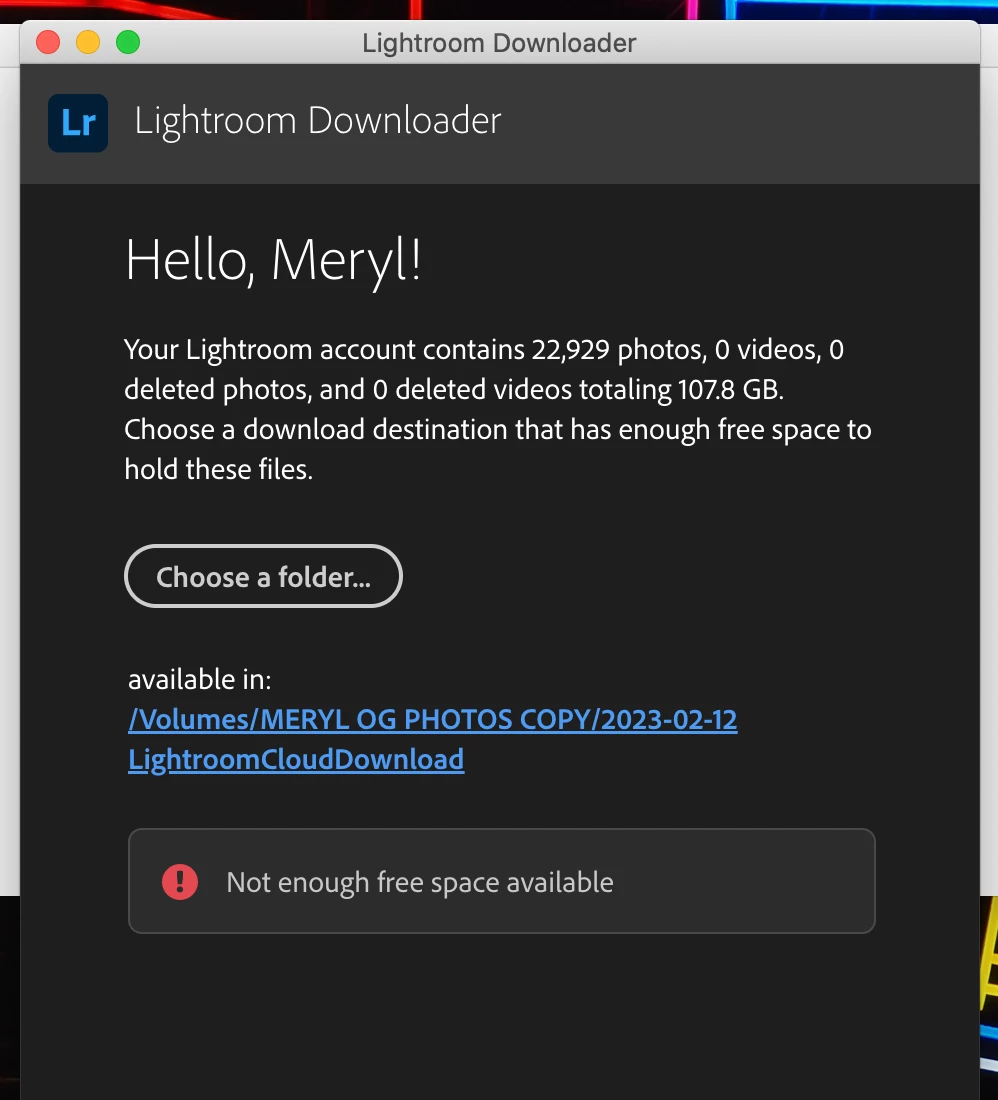
I want to download everything stored in my adobe lightroom cloud (about 107gb) to an external drive. Lightroom Downloader is the tool for that so I installed it. When I selected the destination folder it gives me an error that says "not enough space" despite the external drive having more than 2tb available. I have also tried saving to my Mac HD which I have 500gb available, and get the same error.


I am on a macbook pro running 10.15.7

Why is this happening despite me having ample space???

here is a screenshot of the issue

Correct answer practical_individual1052

I was very encouraged to read that others are having exactly the same issue.  I was very very very encouraged to read about the suggested workaround (from Zhe3071965392i1).  However, when I checked on my PC, WMIC is already installed - is there anything else that can be done to overcome the error code "not enough free space available" (as per Meryl28376672bogq)?  It's nice not to be alone with a problem but even nicer to find a solution!!

Thanks in advance!


Just in case this helps anyone else, this is what (in the end) worked for me:

In my set-up I was trying to download 663 GB to an external network drive with 2TB of free space.  The local C drive had only 177 GB available.   Thanks to the insight of an IT engineer, it turns out that Lightroom Downloader has to first download to the TEMP folder location - usually on the C drive - and hence can't function if there is insufficient space at this temp location.  The solution was to create a new temp location on the external hard drive.  After creating this location it is necessary to change the environment variables - these are the steps involved:

  1.  The software uses a temp folder before downloading to the destination hard drive – so there needs to be sufficient space in the temp folder as well as in the destination folderUsually, the temp folder is located on the C drive.
  2.  If the C drive has insufficient space for the temp folder, a new location (on the hard drive with sufficient space) can be set up.  To do this:
  3.  If necessary, use PowerShell to create a new folder (eg externalharddrive\temp). 
  4.       Using command prompt:
  5. Cmd
  6. Net use M: \\harddrive\Temp
  7.  This allocates a drive letter eg M:\.
  8. Then, navigate through:  
  9.     System properties 
  10.       Environment variables 
  11.       System variables 
  12.       Variable name Temp 
  13.       Variable value (in this example) M:\
  14. Lightroom downloader should then recognise sufficient space for the temp folder as well as for the storage location.
  15. Afterwards, remember to change the environment variables back by choosing:
  16.       System properties 
  17.       environment variables 
  18.       system variables 
  19.       variable name Temp 
  20.       variable value  %SystemRoot%\TEMP


Hope this helps!

10 replies

Participating Frequently
October 24, 2024

I am having the same problem on Windows. I tried both internal and exteranal hard drivers. Both have enough available space. Could anyone instruct me how I can debug the problem?

OldMacITGuy
Participant
March 19, 2024

Had this same problem on an iMac with OS X Catalina 10.15.7., same error as displayed here, plus a repeatedly crashing process once attempting to download (report below in case it's any help). Files in cloud: 62.5GB Free space: 383GB.


Note I tried enabling Full Disk Access for Adobe Downloader, but that didn't seem to affect the problem.


Installed on another iMac with Monterey 12.7.4 and it appears to be downloading OK. Free space: 808GB.


So OS version does appear related.


Would be nice if Adobe could fix this.


Process:               Adobe Lightroom Downloader [87318]
Path:                  /Applications/Adobe Lightroom Downloader.app/Contents/MacOS/Adobe Lightroom Downloader
Identifier:            Adobe Lightroom Downloader
Version:               1.0.5-20220504.116-64f8d2b (1.0.5-20220504.116-64f8d2b)
Code Type:             X86-64 (Native)
Parent Process:        Adobe Lightroom Downloader [87284]
Responsible:           Adobe Lightroom Downloader [87284]
User ID:               502

Date/Time:             2024-03-19 11:53:57.430 -0700
OS Version:            Mac OS X 10.15.7 (19H2026)
Report Version:        12
Anonymous UUID:        3F6B4F27-6190-48A3-A14F-471D3000E85A


Time Awake Since Boot: 3800000 seconds

System Integrity Protection: enabled

Crashed Thread:        0  Dispatch queue: com.apple.main-thread

Exception Type:        EXC_BAD_ACCESS (SIGSEGV)
Exception Codes:       KERN_INVALID_ADDRESS at 0x0000000000000020
Exception Note:        EXC_CORPSE_NOTIFY

Termination Signal:    Segmentation fault: 11
Termination Reason:    Namespace SIGNAL, Code 0xb
Terminating Process:   exc handler [87318]

VM Regions Near 0x20:
--> 
    __TEXT                 000000010ef28000-000000010ef2a000 [    8K] r-x/r-x SM=COW  /Applications/Adobe Lightroom Downloader.app/Contents/MacOS/Adobe Lightroom Downloader


Participant
November 15, 2023

I have the same issue on my windows 11, anyone know what to do? I have 700gb free space on my drive, and around 100gb of photos/videos I want to download, so not correct.

Participant
March 4, 2024

I have the same issue on my Mac with Sonona 14.4. I have plenty of free space, that shouldn't be the problem. Is there a solution available?

Participant
October 25, 2023

I've been having the same problem for a few months now. 

I'm getting the "not enough space" message on my macbook 13" mid 2012.
I've tried my internal ssd, my secondary internal hd and an external hd.

(yes with plenty of space!)


Some context;

When I switched from a personal to a business account, all the existing photos dissapeared. 
Nothing seems to solve the problem and I'm not able to acces my photo's in any way.
Not via the web app, not via my personal account.

They seem to be floating on a cloud somewhere.
The missing 63GB of photos do however show up in the Lightroom Downloader app but here I get the:
"not enough space" message.


I'm reaching out here as a last resort because the support has been anything but helpfull.
I've been in contact three times now with adobe and they have solved nothing. 
I have the feeling they are not willing to solve the problem and instead let you waste 2+ hours each time trying to signin and out and in and out again untill you give up. 


Like someone mentioned above: 

Please fix the app, 

Or provide a zip option, 

Or a cloud access, 

...?


I sincerely hope this gets solved so I can finally start to use my expensive software.

Participant
July 25, 2023

Same problem here. Cannot download even though my main drive and destination drive have 2 tb space. Any actual solutions to this problem yet? Maybe Adobe could let you choose the files one by one that you want to download? Or have a zip alternative available? Or just fix the detection problem in the app? Should I ask Chat GPT instead?

Participant
July 25, 2023

Ok solved, downloading from the web version of the program. A bit more work but works!

Participant
September 1, 2023

I've basically gave up and downloaded each folder using the option "original + edits" which gives you the same thing, but takes longer. 

Participant
May 16, 2023

I am forced to download my Lightroom photos from the cloud because they will close my account in 30 days.

The files in the LR-cloud in total use 11,7GB in the cloud. The downloader app says, that my target-folder to download the files is not big enough. But it is, with 2 TG it should work. Can someone help?  

kglad
Community Expert
Community Expert
May 16, 2023

what downloader app?

Participant
May 16, 2023

The app is called "Lightroom Downloader".

I'm using version 1.0.5 on Mac with macOS Catalina 10.15.7

Participating Frequently
February 16, 2023

Hi,


I have the problem that the Adobe Ligthroom downloader allways says, that there is not enough space on the disc, even if ther is enough space.

I tried it on several external discs, but nothing functioned.

Is there a solution for this problem?


THank you!

Rikk Flohr_Photography
Community Manager
Community Manager
February 16, 2023

@Christoph5FBF  What is your Windows OS Version?

Rikk Flohr: Adobe Photography Org
Participating Frequently
February 16, 2023
Windows 10 Home 22H2
Rikk Flohr_Photography
Community Manager
Community Manager
February 13, 2023

The likely issue is that you are hitting an old bug that manifested under Catalina. The solution is to update to a later version of your OS where this issue is fixed.  Are you able to update your OS?

Rikk Flohr: Adobe Photography Org
Participant
February 13, 2023

No I am not able to update. Is there an older version of the downloader that I can install?

Rikk Flohr_Photography
Community Manager
Community Manager
February 13, 2023

Unfortunately, there is no other version of the Downloader available.

It is possible for the downloads to be created by us manually and emailed to you as a series of zip files. It is a very slow process however. 

Rikk Flohr: Adobe Photography Org
Participant
February 13, 2023

So I just realized that currently I pay for 100gb of adobe cloud. And I am using 107gb, meaning I've been getting error messages saying the cloud is full and I need to upgrade my plan. I am wondering if this may be contributing to the issue? Either way though I should be able to remove the things that are in the cloud (because I don't want to upgrade). I didn't even want all these items there anyway, photos on my phone were automatically synced with creative cloud when I downloaded the Lightroom iOS app. Very frustrating....


Sean McCormack
Community Expert
Community Expert
February 13, 2023

This might be a long shot, but how much space is on the internal drive? I know your final destination is the external drive, but perhaps Lightroom makes a temporary copy to the internal drive first? Yes, this is speculation, but I have a vague recollection of something about this. It may also be completely wrong. 

Sean McCormack. Author of 'Essential Development 3'. Magazine Writer. Former Official Fuji X-Photographer.
Participant
February 13, 2023

internal Mac HD has over 500gb of space. so that's not it. I tried saving it there too (in addition to the external) and got the same error.