

New Participant
October 9, 2021
Answered

Saving different crop settings with versions

  • October 9, 2021
  • 1 reply
  • 722 views

Is there a way to include crop settings when creating a new version in Lightroom mobile? I would like to have multiple versions, each with different crops.

This topic has been closed for replies.
Correct answer JohanElzenga

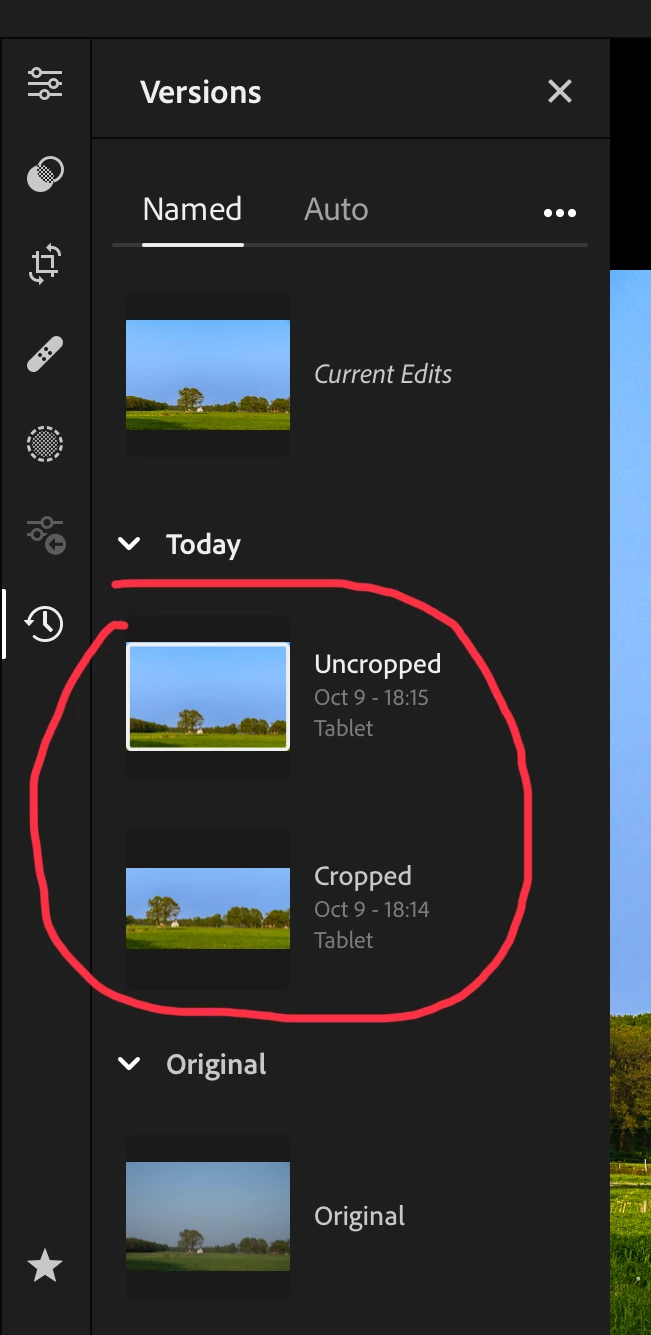
That is already possible. Save your current settings as a new version. Make a new crop, then save this as a new version too.
1 reply

JohanElzenga
JohanElzengaCorrect answer
Community Expert
October 9, 2021

That is already possible. Save your current settings as a new version. Make a new crop, then save this as a new version too.

-- Johan W. Elzenga
Lindsay Makes Videos
Known Participant
January 11, 2023

Hi there! Would you also be so kind as to share a screen grab of how to "Save your current settings as a new version." Thank you!

Jim Wilde
Community Expert
January 11, 2023

Which platform: iOS, iPadOS, Android, Desktop?


The principle is the same on all of them, but of course there are small UI differences. The basic process is as follows:


1. Edit the image to the point where you want to create a named version (auto versions are being saved all the time).

2. In the edit panel, click/tap on the "Versions" button/icon. For the desktop app it's at the bottom of the edit panel, for iOS and Android the Versions icon is along the bottom of the screen among all the other Edit tool icons, for iPadOS the versions icon is the bottom icon of the edit tools down the side of the screen (looks like clock hands inside an almost complete circle).

3. The Versions panel will appear, make sure the "Named" tab is selected, not the "Auto" tab, then click/tap on the "Create Version" button.

4. Enter the name, and you're done.