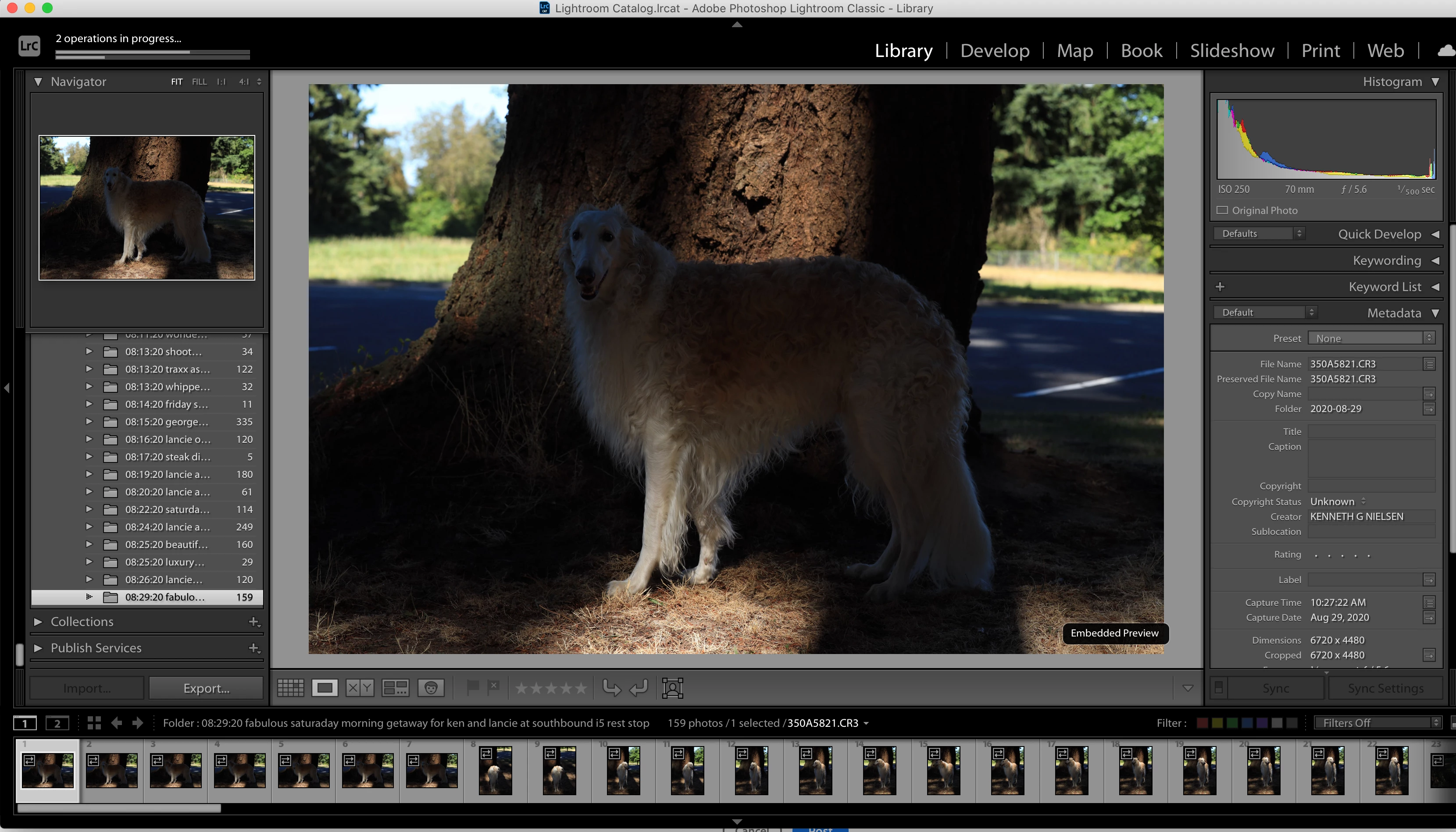
When you import in Lightroom Classic, there are several stages to the process. How long they take and what they do depends on the selections you make for the previews in the import panel as already mentioned. There are 4 main choices on import. Minimal, "embedded & sidecar", Standard, and 1:1. There is also a choice to generate smart previews. By far the fastest thing is to selected "embedded & sidecar" and to leave smart previews unchecked. What happens in that case is that the files will get copied from the card and after that, Lightroom will read the previews embedded in the raw files that have been generated by the camera and those will be available right away. If you select anything else, a second stage will happen that can take a very long time depending on whether you do minimal, standard or 1:1 where Lightroom will read the actual raw data and generate new previews using the default settings. This is a much slower process than reading the embedded previews and while it is doing this, it will simply show the embedded preview (which is why you see the badge) and only after a while show you its own interpretation. Note that previews are used everywhere in Lightroom except in Develop where you get to see the actual raw data. All other modules use previews. So if you want to cull images a s quick as possible, "embedded and sidecar" is the way to go. If you want to see the images as Lightroom will eventually interpret them and have lots of time to wait before doing something else, select standard (the default) or 1:1.
One major tip to give people is in preferences->presets is to select "camera settings" for the master raw defaults. This will make Lightroom by default develop the images very close to the in-camera jpeg engine. In that case, the embedded preview will actually be very close to the default Lightroom rendering and that offers by far the best compromise speedwise and result wise.
Finally, smart previews are only needed when you need to edit your images off-line. For example, when you put your images on an external drive that is not always available when you want to edit. In all other situations, smart previews offer no benefit and only take up lots of disk space.




 AdChoices