


Known Participant
October 26, 2023
Answered

Dual monitor bugged in Sonoma

  • October 26, 2023
  • 21 replies
  • 4391 views

I've did a test upgrade with Sonoma (14.1) and I have issues (tested with PS 2024 and 2023) while setting up windows in 2nd monitor:
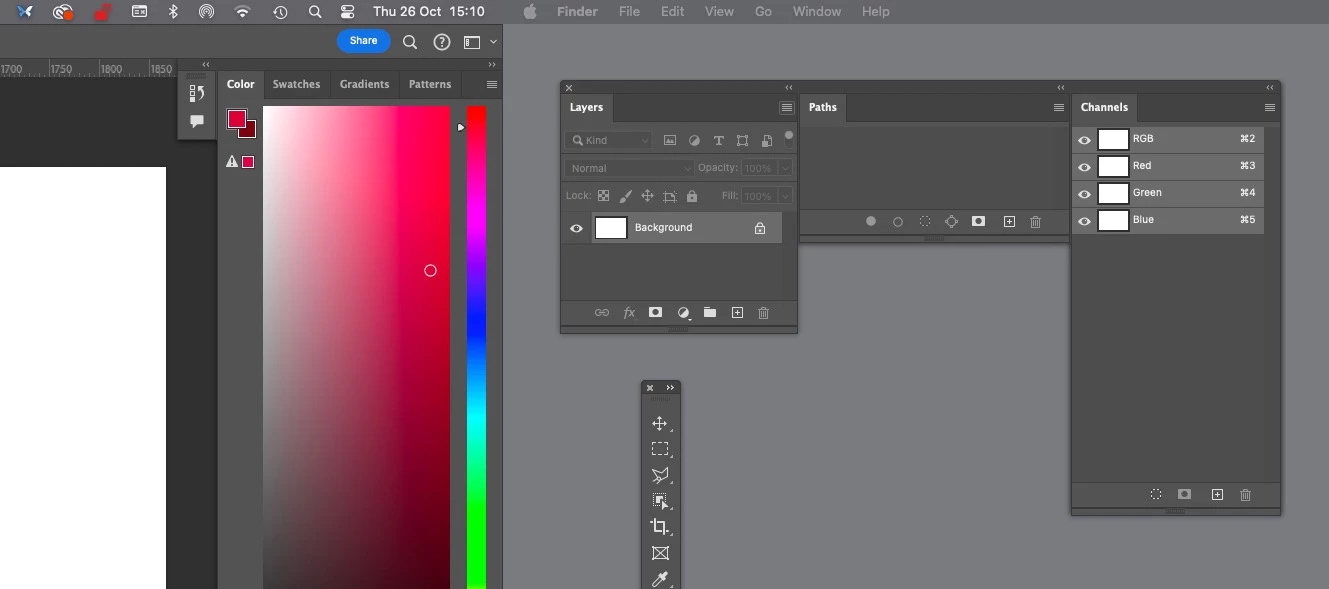
 

 I can drag panels to 2nd monitor but as soon as I dock them to each other they stop responding and cant use (or move) them because any click on them exits PS and reverts to Finder. I did have a few saved workspaces that work but most didnt, unfortunately cant screen record both monitors at same time, but here is what it looks on my extended monitor with photoshop panels (using ALT-TAB to switch back to PS after it auto-exits):


https://www.youtube.com/watch?v=ps2kPwc0t_Y


I've tried disable and enable "displays have separate spaces" with no distinguishable results, also changed "click wallpaper to reveal desktop" to "only in stage manager" , and also didnt work.


EDIT: BTW in 2023 cant even move toolbar without first enabling "aplication frame":


https://www.youtube.com/watch?v=s5565wfqVwM


This topic has been closed for replies.
Correct answer silk-m

This bug has been fixed in macOS Sonoma 14.1.1.

21 replies

silk-m
Community Expert
Community Expert
November 2, 2023

From the screenshot it looks like you haven't separated all the palette columns.

--Susumu Iwasaki
darrenj92080900
Participating Frequently
November 2, 2023

So far Sonoma has been pretty stable and fast but once that update to 14.1 it caused this issue. If it wasn't such a pain to revert back to the previous version I would do it. I wished Apple would implement a way to choose downgrading the system simplier just like when you hold a key down and you're able to boot up choosing that version. Would make everyone's lives a bit easier when situations like this occur.

darrenj92080900
Participating Frequently
November 2, 2023

I was really hoping this would have solved the issue because I was using the function of clicking on the wallpaper to reveal desktop but the strangest thing is, in my screenshot I am able to click on any of the palettes left of the yellow box. Once I click on those palettes within the yellow, it goes away and reveals the desktop.


roberts33286217
Inspiring
November 2, 2023

This may be part of the problem https://www.drbuho.com/how-to/fix-mac-app-windows-hiding-on-clicking-desktop. I have turned off reveal desktop and follwed the advice of @miguelc79956264 

Known Participant
November 2, 2023

I'm allways very worried of new MacOS versions compatibilities, been here before with past issues with Mac/Adobe bugs in new Mac versions, why I allways keep a TimeMachine backup at hand,and only even tried because there was a 14.1 update, having said that I didnt find a reason to go back as at least for me It's working and its perfectably usable if you use the workaround already mentioned in this thread: move the panels but don't dock them, you can use the "magnetic" dock but avoid the one where a blue line shows, save as a separate work space until a proper fix comes.


This works:


This has issues:

Its a subtle diference.But its workable.

roberts33286217
Inspiring
November 2, 2023

I'm having the same problem with Illustrator (yet to try Indesign and Photoshop), M2 mac mini, Illustrator 28. I wish I had not upgraded to Sonoma. Selecting application frame has not fixed the issue for me. I have had to revert to working on a single screen, on initial test this appears to be a bit more reliable. I hope Apple/Adobe get this fixed quick, this is currently not a useable system. Following this thread hoping for a fix very soon.

darrenj92080900
Participating Frequently
November 1, 2023

I have separated the panels which worked for a short period of time. After separating them, I'm noticing that the top part of the palettes you can select anything but after about 2 inches down from the palette, you can click on anything within the palletes. I can move them, but when I drag the palettes to the main display, the cursor changes to a different tool and then I can select anything within the palette. I move the palette back to the second or third monitor and it goes back to not being able to select the top 2 inches of the palette.

All of these issues are through Photoshop. I'm not able to replicate this issue with Illustrator or Indesign. The one other thing that I tried is change my workspace to Essentials. This gathers all palettes to the main screen off to the right. I can click on all of the palettes just fine, no issues. It's not in full screen mode, no application frame. Once you pull the palettes out into their separate palettes it has the issue.


I sure hope the dev team is looking into this issue or work with Apple on this problem.

silk-m
Community Expert
Community Expert
October 30, 2023

The second monitor's panel must be separate, whether or not the main monitor uses an application frame.
Please refer to this thread to separate the rows of panels.

https://community.adobe.com/t5/photoshop-ecosystem-bugs/macos-14-1-photoshop-2024-v25-0-0-toolbar-bug/idc-p/14195780#M94643

This is an Apple or Adobe bug, but until it is fixed, please use this method for now.

--Susumu Iwasaki
darrenj92080900
Participating Frequently
October 30, 2023

Having the same issues. I can't click towards the top of my palettes on the second monitor. Immediately goes to Finder. Very frustrating! I know it's the Max OS Sonoma update because I didn't update my home computer and everything works normal. I have tried changing resolutions on the second monitor, turning on the application frame and still nothing.

Participant
October 28, 2023

Same issue here. Dual monitors. Photoshop 24.72, 25.0. MacOs Sonoma.


Clicking on some tools activates the desktop.


As a fix, you can enable Application Frame. That seems to resolve the issue but not ideal for my workflow.