



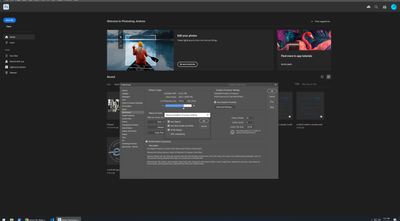
I have been having this annoying problem for several weeks now. None of the solutions on the internet work at all. If this is your first time reading about this problem, these are the solutions I've seen so far (none of them is a real solution, each one causes other problems):
- Uncheck "Use graphics processor" in the performance tab in configuration. Result: It disables the rotating canvas features for Wacom tablets after a couple of minutes or just instantly.
- Check "Deactivate native canvas" and/or "Older GPU Mode (pre 2016)" in technology previews tab. Result: It becomes absurdly lagged, it is useless to work, just moving the canvas makes it go at 1fps.
I also have all my drivers updated (GPU, Windows, Wacom), PS updated, and with priority for the GPU. Is there any real solution for this? I have an RTX 3080 8 GB. This should not happen.
Hi @David286748043kl2 Go to Photoshop Preferences/Technology Preview and check “Disable Native Canvas”. Then check “Use Older GPU Mode (2016)”. Quit and relaunch PS.
Andrew Sender • Adobe Employee, Jun 01, 2023Jun 01, 2023
Hi Everyone,
I reported the issue to engineering. In the meantime, you can workaround the issue by disabling Preferences -> Performance -> (GPU) Advanced Settings ... -> GPU Compositing.
/t5/photoshop-ecosystem-bugs/p-white-squares-boxes-appear/idc-p/14695154#M114125Jun 21, 2024
Jun 21, 2024
Copy link to clipboard
Copied
The issue of graphical white boxes appearing when using the brush tool in an artboards document could be caused by several factors. Here are a few potential solutions to try:
1. **Update Your Software:** Ensure that your graphic design software is updated to the latest version, as updates often include bug fixes.
2. **Check GPU Settings:** Sometimes, the GPU (Graphics Processing Unit) settings can cause display issues. Try turning off the GPU performance option in your software’s preferences.
3. **Reset Preferences:** Resetting your software preferences to default can resolve unexpected behavior caused by corrupted settings files.
4. **Check for Conflicting Plugins:** Disable any third-party plugins or extensions to see if they might be causing the issue.
5. **Adjust Document Settings:** Make sure that your artboard and brush settings are properly configured. Sometimes, issues can arise from incompatible settings or incorrect file setups.
6. **Reinstall the Software:** If the issue persists, consider reinstalling the software to ensure all files are intact and properly configured.
If none of these solutions work, it might be helpful to check the software’s support forums or contact their customer support for further assistance.
Perhaps the setting "Older GPU Mode (pre 2016)" should be renamed, it seems like it mostly is required on new GPUs?
I have the same problem with white boxes, with a 4070 Ti Super with updated drivers - it doesn't get much "Newer GPU" than that. But I suppose 40x0 Nvidia GPUs are fairly obscure. 😛
Kinda annoying to have to disable the modern compositing features on a widely used GPU that is usually the most compatible brand.
If you put a layer of noise at the top of your document and make it very low opacity and do all your with underneath this it should work. This seems to be the only workable solution for me so far....
Could you please post screenshots taken at View > 100% with the pertinent Panels (Toolbar, Layers, Options Bar, …) visible?
Does turning off »Use Graphics Processor« in the Performance Preferences (Photoshop > Preferences > Performance > Graphic Processor Settings) and restarting Photoshop have any bearing on the issue?
I just got a new computer with AMD Ryzen 9 7900X, 32GB DDR6, GeForce RTX 4060 Ti 8GB GDDR6X, isn't it enough to avoid these white squares in Photoshop ? Don't tell me I have to check Older GPU ??
I don't know if the same problem is currently appearing on MacOS, I can't work properly in Adobe Photoshop. The option about enable the old gpu settings simply does not work, i've updated my nvidia rxt gpu driver to the latest version and the problem has not fixed!
/t5/photoshop-ecosystem-bugs/p-white-squares-boxes-appear/idc-p/14923876#M114056Oct 17, 2024
Oct 17, 2024
Copy link to clipboard
Copied
Hi, we're sorry about the trouble! Looking at the system info you've shared, your GPU drivers are over 3 months old. Please update the GPU drivers to the latest version from the manufacturer's website and let us know if that makes a difference.
/t5/photoshop-ecosystem-bugs/p-white-squares-boxes-appear/idc-p/14927274#M113923Oct 18, 2024
Oct 18, 2024
Copy link to clipboard
Copied
My usual fix for this is ONLY disable GPU Compositing under Prefs > Performance > Graphics Processor > Advanced. Get this all the time with Artboards on Windows OS. I don't see any adverse performance effects as a result.
/t5/photoshop-ecosystem-bugs/p-white-squares-boxes-appear/idc-p/14984095#M114806Nov 15, 2024
Nov 15, 2024
Copy link to clipboard
Copied
Just today too i wanted to use art boxes, a feature ive long neglected because the mentioned unavoidable graphics bugs and yes it is indeed still an issue for me. lowering the performance settings helps but then of course you have a very jarring and rough experience
ive basically downloaded software to make up for the usual lack of artboards, which is a pain and no true substitute. why adobe insists on boiling the ocean and draining the drinking water with ‘AI’ when this issue has persisted for so many of its VERY long paying customers i think we can guess is the result of something rhyming with corporate sneed