Participant
May 13, 2021
Answered

P: Photoshop 22.4 - Missing Save as formats from the menu

  • May 13, 2021
  • 107 replies
  • 448800 views

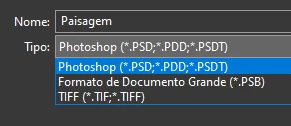
I just updated to the mentioned version and the formats dropdown list only shows 3 formats: Photoshop (*.PSD;*.PDD;*.PSDT), *.PSB and TIFF (*.TIF;*.TIFF).

This topic has been closed for replies.
Correct answer Noelle Shamroukh

Hi All,


We appreciate your feedback on the recent “Save a Copy” change. To address your concerns, we have created two new options in Photoshop 22.4.2 that will enable both revert to the legacy “Save As” workflow and/or omit the addended “copy” when saving as a copy. These options can be found in the File Saving Options section under Preferences > File Handling.


To quickly summarize, you will now have the option to revert to the legacy “Save As” workflow (from before recent changes) on both macOS and Windows. Enabling this preference will make both the “Save As” and “Save a Copy” commands operate within the same “Save As” dialog box with all its previous options, including the “as a copy” checkbox. The only difference between the two commands will be whether the checkbox is automatically selected (when using “Save a Copy”). Additionally, you will now have the option to not append copy when saving a copy. On macOS, if you enable the legacy workflow, the option to not append copy will be forced ‘on’ due to the changes made in macOS 10.15 and later. On Windows, the two preferences will operate independently.


We hope these preference options will help ease some of the frustration you encountered using the new “Save a Copy” command.


Please note, reverting to the legacy “Save As” workflow may increase the risk of overwriting file names and lost work. A new dialog will pop-up warning customers of this risk when selecting either one of these preferences on macOS. On Windows, the legacy “Save As” operates in a manner that is safe, so a warning dialog will only pop-up when selecting the option to not append copy to the file name.


For more details on each preference and how they differ by platform, please see our updated new feature summary page.


Thanks, 

Noelle

107 replies

SoftTaco
Participant
July 26, 2021

1) the system was already ask me "replace" the file and I agree and really want to replace the old file. However, it will make a new file with the name "copy", and what I have to do is delete "copy" manually everytime (also delete the old file that I want to replace).

2) If you want to save "jpg", you have to choose "Save a copy"; same situation, you have to delete "copy" on file name everytime.


Now I install previous version, at least I solve the "2" problem.

Lukas Engqvist
Community Expert
Community Expert
July 26, 2021

What OS are you using? Are you saving to a synced folder (OneDrive, iCloud or similar)?

SoftTaco
Participant
July 27, 2021

OS 11.2.23. Someone share the solution, just go to preference and change setting on file handling. Thank you.

Participant
July 26, 2021

When saving as the PNG option does not come out and I only get these options


Bojan Živković11378569
Community Expert
Community Expert
July 26, 2021

Which option you are using? IN recent versions you should use Save a copy or Export As to save in PNG file format. Of course you can use and legacy Save for Web option.

Participant
June 20, 2021

For som,e reason I lost the ability to save as jpeg like I have been doing for the past 20 years.


John Waller
Community Expert
Community Expert
June 20, 2021

Make sure you are running the current version 22.4.2.


Then in Preferences > File Handling, check the box Enable legacy "Save As".

Participant
June 20, 2021

Wow... Well that was simple!!! Thanks so much John. All fixed. Much appreciate your time and help. 

Noelle ShamroukhCorrect answer
Adobe Employee
June 8, 2021

Hi All,


We appreciate your feedback on the recent “Save a Copy” change. To address your concerns, we have created two new options in Photoshop 22.4.2 that will enable both revert to the legacy “Save As” workflow and/or omit the addended “copy” when saving as a copy. These options can be found in the File Saving Options section under Preferences > File Handling.


To quickly summarize, you will now have the option to revert to the legacy “Save As” workflow (from before recent changes) on both macOS and Windows. Enabling this preference will make both the “Save As” and “Save a Copy” commands operate within the same “Save As” dialog box with all its previous options, including the “as a copy” checkbox. The only difference between the two commands will be whether the checkbox is automatically selected (when using “Save a Copy”). Additionally, you will now have the option to not append copy when saving a copy. On macOS, if you enable the legacy workflow, the option to not append copy will be forced ‘on’ due to the changes made in macOS 10.15 and later. On Windows, the two preferences will operate independently.


We hope these preference options will help ease some of the frustration you encountered using the new “Save a Copy” command.


Please note, reverting to the legacy “Save As” workflow may increase the risk of overwriting file names and lost work. A new dialog will pop-up warning customers of this risk when selecting either one of these preferences on macOS. On Windows, the legacy “Save As” operates in a manner that is safe, so a warning dialog will only pop-up when selecting the option to not append copy to the file name.


For more details on each preference and how they differ by platform, please see our updated new feature summary page.


Thanks, 

Noelle

Community Expert
June 8, 2021

Yay

Participant
June 4, 2021

the new version of photoshop2021 has updated the way to save the file in jpg extension. where the process now needs to be saved as a copy, and for those who work with many files at the same time it needs to be renamed all the time.
instead of improving the process you guys got worse, the old version is better and much more functional. think about it and correct it please


{Thread title edited by moderator}

nikunj.m
Community Manager
Community Manager
June 4, 2021

Hi,


We're sorry about the trouble due to the changes in the Save As workflow is Photoshop 2021. Please check out the conversation about this change here: https://feedback.photoshop.com/conversations/photoshop/photoshop-224-save-as-formats-have-disappeared/60a034d6e077c600a462ba23


You can also share your feedback & suggestions regarding this change, directly with our product team by posting it on this thread.


Regards,

Nikunj

Participating Frequently
June 3, 2021

All of a sudden Photoshop cc 22.4.1 saves all my jpegs as a copy. I can't just save it as jpeg. 

Yes i flattened the image and yes I save at 8bit. I have done nothing different from what I've done in the past. This seems to be a bug.

PLEASE Adobe give me an answer to this frustrating issue.  

working on a Mid 2015 Macbook pro OS 10.14.6 

nikunj.m
Community Manager
Community Manager
June 3, 2021

Hi,


We're sorry about the trouble with Photoshop while trying to save Jpegs. With the latest version, the Save as work flow has changed & now the formats that preserve your file structure (layers) appear under Save As while the formats that do not preserve the file structure appear under the new open "Save a copy". For more details, you can check: https://helpx.adobe.com/photoshop/using/whats-new/2021-4.html#save-a-copy


You can also check: https://feedback.photoshop.com/conversations/photoshop/photoshop-224-save-as-formats-have-disappeared/60a034d6e077c600a462ba23


Regards,

Nikunj

Inspiring
June 1, 2021

This just reinforces my decision to stay with PS 2020 and Mojave for the forseeable future. I can only hope that Apple will rethink their security decisions like they have in the past for the betterment of 3rd party developers and users.

Participant
June 1, 2021

Don't care who messed up the save, the new method sucks badly, it needs to be put back as it was.

JJMack
Community Expert
Community Expert
June 1, 2021

I agree that it is bad that Adobe changed every Photoshop Users work flow.  The change itself is not bad.   The  Change add some additional steps you need to do replace old Jpeg files.  However, the Change  only brakes some actions that could be batched from being able to be batched for the some action's Save As step become interactive and the users must use Save As button Save a Copy to save the file. 


The change added  "Save as Copy" which  is  prior  photoshop version "Save As" however it may add " copy" to the file name. The Actions can be edited and updated so they can once again be batched.   The Change does not brake Photoshop 2021 like the Line tool change  broke 22.0. 


Adobe has not finished the development of Photoshop 2021. Adobe has posted issues they have yet to address in  Photoshop 2021 because on changes being made by Apple  and Microsoft  to system graphics support. 

https://helpx.adobe.com/photoshop/kb/known-issues.html 


Adobe is still working on changing Photoshop GPU support supporting Apple's Metal and Microsoft's Direct X

JJMack
Participant
June 1, 2021

We use a PDF to RIP workflow for everything we do. We save as 'Photoshop PDF' with Photoshop editing ability turned on. This change is awful, it slows us down and creates risk of overwriting the wrong file much higher.

Participating Frequently
May 31, 2021

Sono mesi che esiste un problema ENORME sul salvataggio dei file che si vuole SOVRASCRIVERE. Photoshop ti chiede se vuoi sostituire, gli dai ok e poi senza motivo aggiunge COPIA al nome dei file. Lo volete risolvere?? MI state creando una marea di problemi, di allungamento dei tempi e rischi di errore! 

davescm
Community Expert
Community Expert
May 28, 2021

Thinking about this problem, I'm surprised they didn't solve it with the Apple method, which is pop up a dialog to confirm the user is okay with an overwrite to a file. Or better yet a checkbox saying "user is well aware of the program making a change to the filename, and will accept all concequences of change from now on" 


I can see some value in that.

You can raise feature requests at the link below , where they will be seen by Adobe staff.
https://feedback.photoshop.com/photoshop_family


Dave