


- Inicio
- Photoshop ecosystem
- Hilos de conversación
- Re: Photoshop CC 22.2 isn't deleting cropped pixel...
- Re: Photoshop CC 22.2 isn't deleting cropped pixel...

Copiar vínculo al Portapapeles
Copiado
Not sure when this started, but I think it's fairly recent: Even with the "Delete Cropped Pixels" box checked, Photoshop does *not* delete the unwanted pixels.
This causes a noticeable slowdown in my work doing photo enhancements. I often scan multiple photos at a time in high resolution then crop them into individual files. With PS now *not* deleting the pixels upon cropping, every adjustment I apply is applied to the size of the original large scan, not to the smaller single-photo file like I want. PSD file sizes are much larger, too, of course.
Is there somehow to get PS to revert to the correct action to delete everything but what's inside the Crop tool bounds when "Delete Cropped Pixels" is selected?


 1 respuesta correcta


First try resetting the Crop Tool by right-clicking on its icon in the Options Bar
Using the Brush Tool as an example.

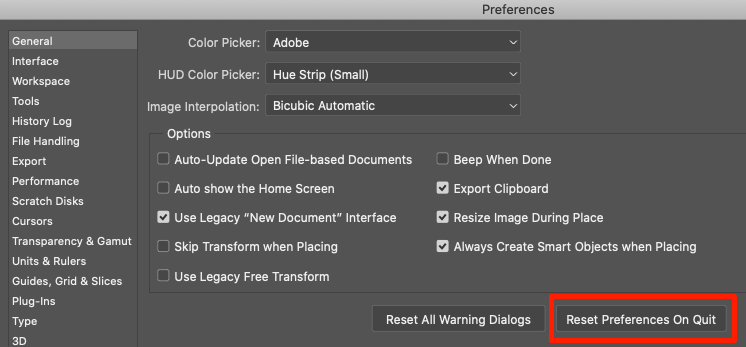
If that fails, Reset Preferences:


Examinar y buscar tutoriales y artículos relacionados
 22
réplicas
22
22
réplicas
22

Copiar vínculo al Portapapeles
Copiado
First try resetting the Crop Tool by right-clicking on its icon in the Options Bar
Using the Brush Tool as an example.
If that fails, Reset Preferences:
Copiar vínculo al Portapapeles
Copiado
That seems to have done the trick. After resetting Tools & Preferences, Photoshop is worrking as expected. Thanks!

Copiar vínculo al Portapapeles
Copiado
Absolutely horrible advice... didn't work and now I have to completely re-do all my settings I had before and have no idea how. Definitely don't suggest doing what this post says.

Copiar vínculo al Portapapeles
Copiado
It is advisable to save relevant customized Presets (Actions, Brushes, Styles, …) in their respective formats (atn, abr, asl, …) and back them up regularly.

Copiar vínculo al Portapapeles
Copiado
I don't know why it's working this way on your computer. It's fine here. Two things to try:
- Prefs > General > Reset Preferences on Quit (after backing up customization)
or - Use the Rectangle Marquee tool "M" > drag a rectangle (or set options in the options bar to a specific size or ratio) >
then go to Image > Crop
~ Jane
Copiar vínculo al Portapapeles
Copiado
Are there Smart Objects involved?
Could you please post screenshots with the pertinent Panels (Toolbar, Layers, Options Bar, …) visible?

Copiar vínculo al Portapapeles
Copiado
Doesn't work on smart objects, fyi!
Copiar vínculo al Portapapeles
Copiado
omg thank you!!! i went mad trying to crop. Thank you so much!!! here are some screenshots for anyone who needs it
look in layers for the smart object icon.
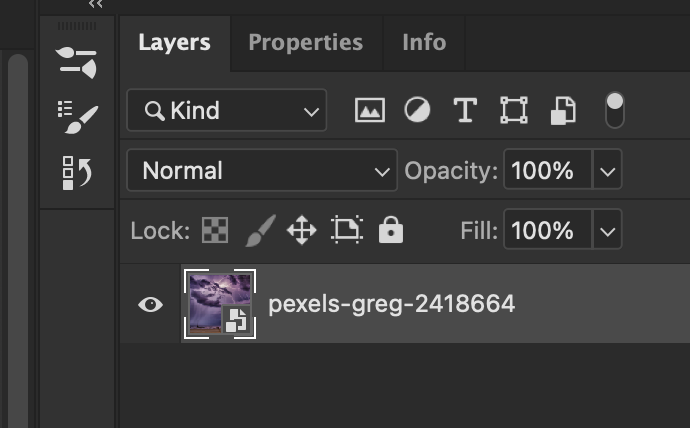

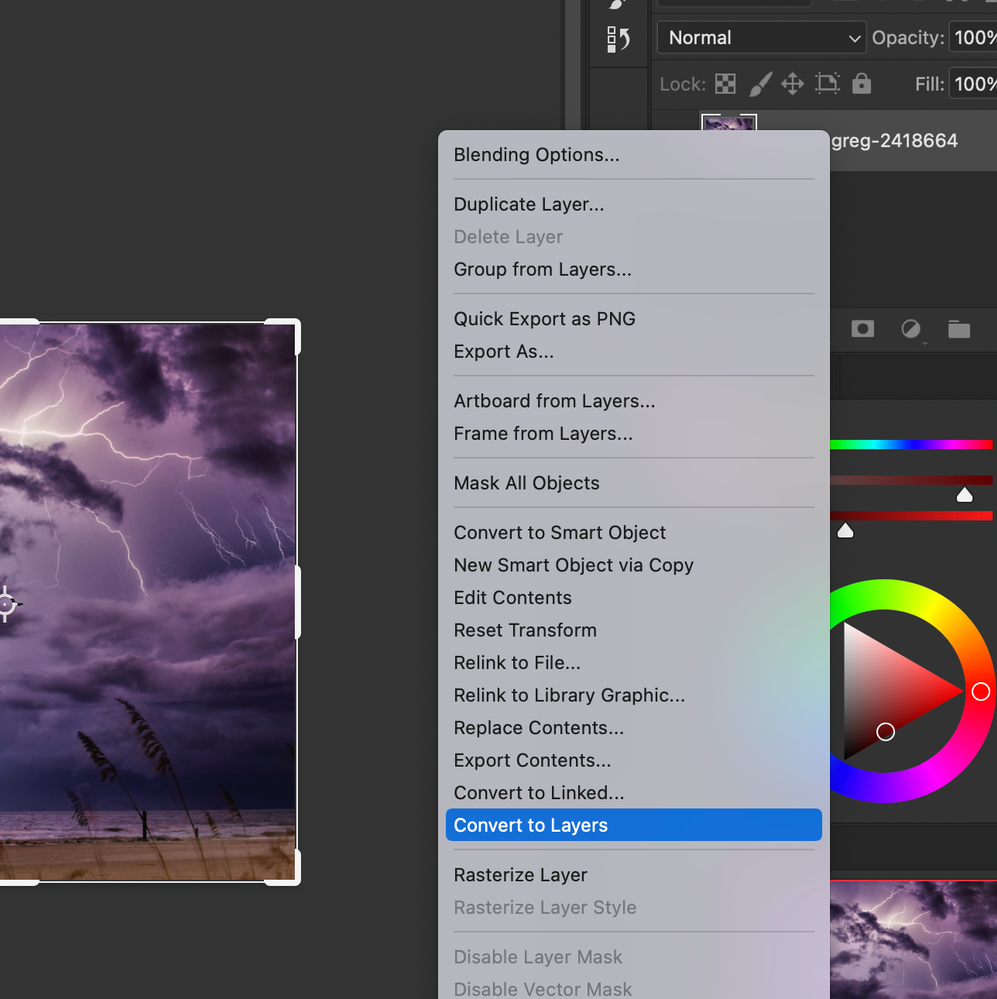

please note smart objects wont crop pixels outside the crop area , even when you have that option turned on!!!

Copiar vínculo al Portapapeles
Copiado
I just had the same issue.
In my case I imported a picture to an existing document using
the frame tool and resized it larger
The crop tool would not delete the cropped pixels but worked perfectly in all other situations.
Hope this helps
Copiar vínculo al Portapapeles
Copiado
Could you please post screenshots with the pertinent Panels (Toolbar, Layers, Options Bar, …) visible?
What are the Crop Tool’s settings?
Is the imported image a Smart Object?
Copiar vínculo al Portapapeles
Copiado
All I did was not use the frame tool to place a layer on an existing document if it exceeds the boundary of your existing image.

Instead I open the other picture in photoshop and move (V) it to my document as I always did before the frame tool was introduced.
If your crop tool works on a single image but not on your document this fixed it for me. The image was not a smart object.
Copiar vínculo al Portapapeles
Copiado
So is the issue resolved?
Copiar vínculo al Portapapeles
Copiado
Yes

Copiar vínculo al Portapapeles
Copiado
Thank you - I just discovered this myself!

Copiar vínculo al Portapapeles
Copiado
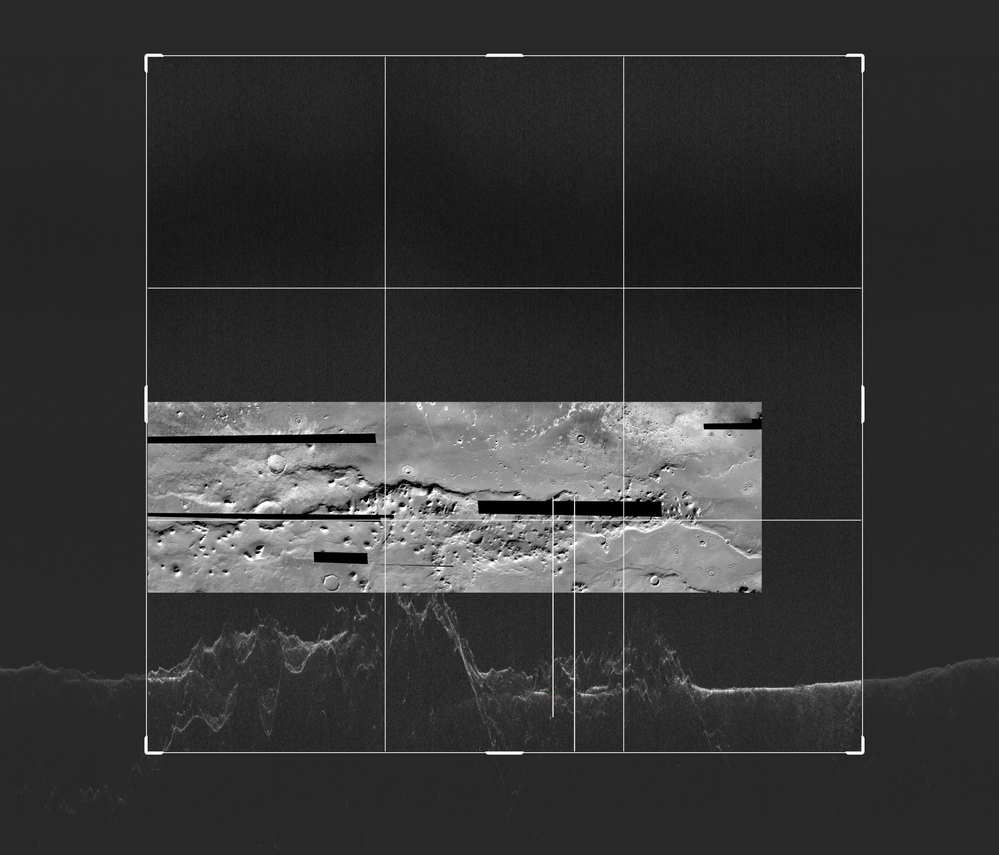
I have the same issue. After cropping and saving, when I reopen the document it still has the supposedly deleted files. I need crop because my original files are hundreds of Mb, and I don't want to carry that around in .psd files.
I've tried the "solution" of resetting the Crop tool by right-clicking on its icon in the Options Bar.I also tried "reset preferences on quit". The supposedly cropped and deleted pixels remain.
Mac 13.6, Photoshop 22.5.3.
Copiar vínculo al Portapapeles
Copiado
In the options bar for the Crop tool, is "Delete Cropped Pixels" checked or unchecked?
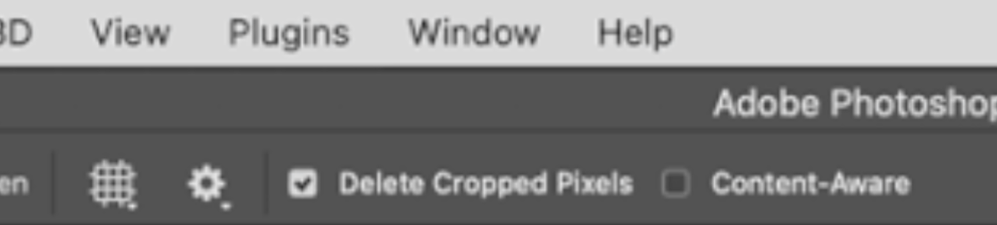
Jane
Copiar vínculo al Portapapeles
Copiado
checked
Copiar vínculo al Portapapeles
Copiado
Do you have Art Boards or Smart Objects? We can't see your entire screen, including the Layers panel.
Jane
Copiar vínculo al Portapapeles
Copiado

Copiar vínculo al Portapapeles
Copiado
Came across this today and for me, it was a JPEG i had brought into a composite. I had to rasterize the layer first before it was able to delete unwanted pixels
Copiar vínculo al Portapapeles
Copiado
Your Statement hints at the actual problem (as already indicated by @jane-e ) – Smart Objects.
In the future please please post meaningful screenshots with the pertinent Panels (Toolbar, Layers, Options Bar, …) visible?
Copiar vínculo al Portapapeles
Copiado
Doesn't work on Smart Objects/Layers, so rasterize the layer first!


Encuentra más inspiración, eventos y recursos en la nueva comunidad de Adobe
Explorar ahora
 AdChoices
