

New Participant
July 23, 2021
Question

Re: Photoshop Script for Multiple Mockups
  • July 23, 2021
  • 3 replies
  • 2404 views

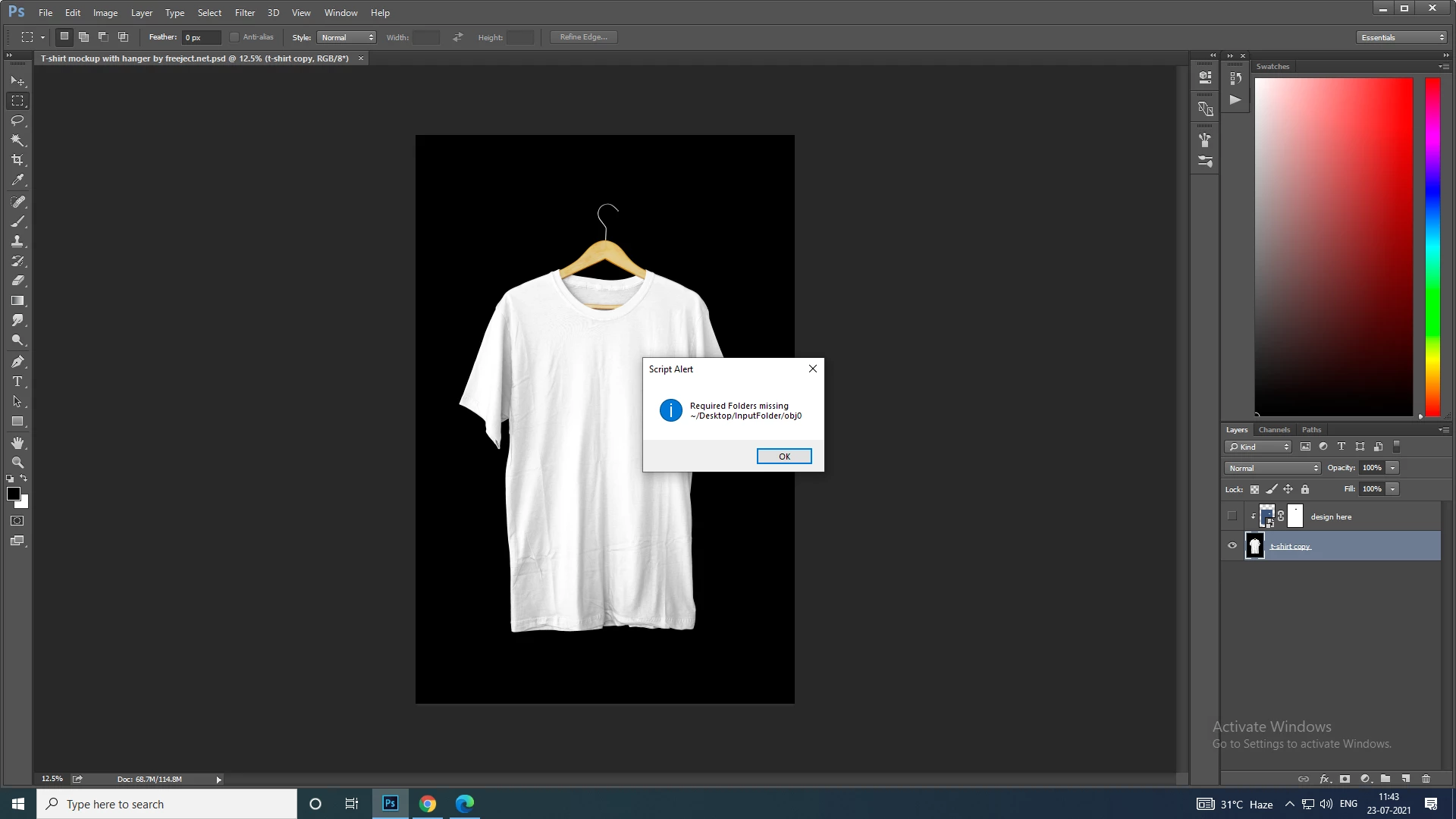
Batch Mockup Template Error Required obj0

how to solve this problem

    This topic has been closed for replies.

    3 replies

    JJMack
    Adobe Expert
    July 24, 2021

    It look like you are using my Batch mockup templates populated scripts and have not used the help button to read how to use the script.  The message is stating your  replace object folders are not setup.   In the replacement object folder there needs  to be a  folders for each Smart object layers replacement objects.  obj0, obj1, ... objN.  You should read the help. Help 


    Simple Mockup Templates

    Four Rules

    1. Simple Mockup Templates Only the Smart Object Layer on the top of the Template layers stack will be updated then a Jpeg file saved.
    2. Only Photoshop Objects are support in the top smart objects layers. That is they can not be Object File that are not supported by Photoshop like Camera RAW Files or Illustrator file like .ai, .svg.
      I suggest these objects should be PSD or PSB the Photoshop creates. Avoid using PNG objects in Mockup template use replace content to replace .png objects with a .psd which has your png's content.
    3. The first None Smart Object Layer near the top of the layer stack Marks the end of Smart Object Layers the will be updated. Lower Smart Object Layers only update if they share top layers objects.
    4. The Replacement Image Collection need to be in sub folders named obj0, obj1, obj2, .... objN. Each folder must contains the same number of replacement Image files.


    Four Scripts

    1. BatchReplaceOneObject.jsx - Only the top Layer in the Layer Stack will be updated it must be a Smart Object Layer replacement images do not have to in a folder names obj0.
    2. BatchUpdateSmartObject.jsx - All top Smart Object layers in the Layers Stack will be updated.
      Replacement Images must be in sub-folders in some folder the sub-folder names must be obj(n) where n is (0,1,2...,v). Folder obj0 for top layer object replacement, obj1 next layer down etc.
    3. BatchMockupTemplates.jsx - Used to populate multiple Mockup Template that need to be populated with the same replacement image objects.
      Scripts "BatchReplaceOneObject.jsx" and "BatchUpdateSmartObject.jsx" are no longer required.
      All top Smart Object layers in the Layers Stack will be updated.
      Replacement Images must be in sub-folders in some folder the sub-folder names must be obj(n) where n is (0,1,2...,v). Folder obj0 for top layer object replacement, obj1 next layer down etc.
    4. PopulateAlbumPageMockups.jsx - Used to populate a collection of Photo Page Mockup templates for a Picture Album. This script is like the "BatchMockupTemplates.jsx" script However, just one set of replacement images is repopulated per mockup template. Each mockup template is for a pages in a table top Album.

    Scripts Edit Options

    1. Edit Smart Objects - Replacement images will be sized to fill the layers Smart Object size. However, if the replacement image has a different aspect ratio than the object the fit will be a centred crop.
    2. Rotate for best fit - This Edit option can optionally rotate images orientation for a better fit. Helpful for picture package when replacement images files may be mixture of Landscape and Portrait images.
    3. Fit Image - Edit resizes replacement images to fill the smart object canvas size this can crop content like Logo replacements. Fit Image will not crop, however the smart object canvas will not be fully covered.
    4. Save PSD File - The updated Mockup will be saved as a Jpeg file use this option to save a layered version as well if you want to be able to edit the populated mockup.

    These scripts default operation will use Photoshop feature Replace Content to update the Mockup Smart Object Layers replacement image must be preprocessed so they will have the correct Aspect Ratio, Size and Print Resolution. If you do not prepropcess Image files Replace Content operation may not be what you. So I added an Edit options. If a script's Edit Smart Object option is checked the script will Edit the Smart Object Layer's Object instead of using Replace Content. This will take a much more time them the default operation Replace Content. Still image should has as aspect like the objects in the template. Portraits into landscape and landscape into Portrait objects loose too much image content the resulting composition will not be acceptable.

    MockUp Templates should not have object that are PNG files if you may want to use the Edit Smart Object options replace any you have with the PNG saved as a PSD file. Png save performances is poor Png objects will slow down the Edit option.

    JJMack
    Kukurykus
    Brainiac
    July 23, 2021

    What script you use? Also why you created this: batch mockup template script problems?

    New Participant
    July 23, 2021

    Batch Mockup Template Error Required obj0

    how to solve this problem

    Bojan Živković11378569
    Adobe Expert
    July 23, 2021

    It seems you are missing something like folder with specific name on Desktop. Can you give us more light like which script you are using and perhaps what are settings applied in script dialogue?