


Participant
August 4, 2021

P: Color Distortion When Opening Images saved from Facebook in Photoshop 26.5

  • August 4, 2021
  • 75 replies
  • 28422 views

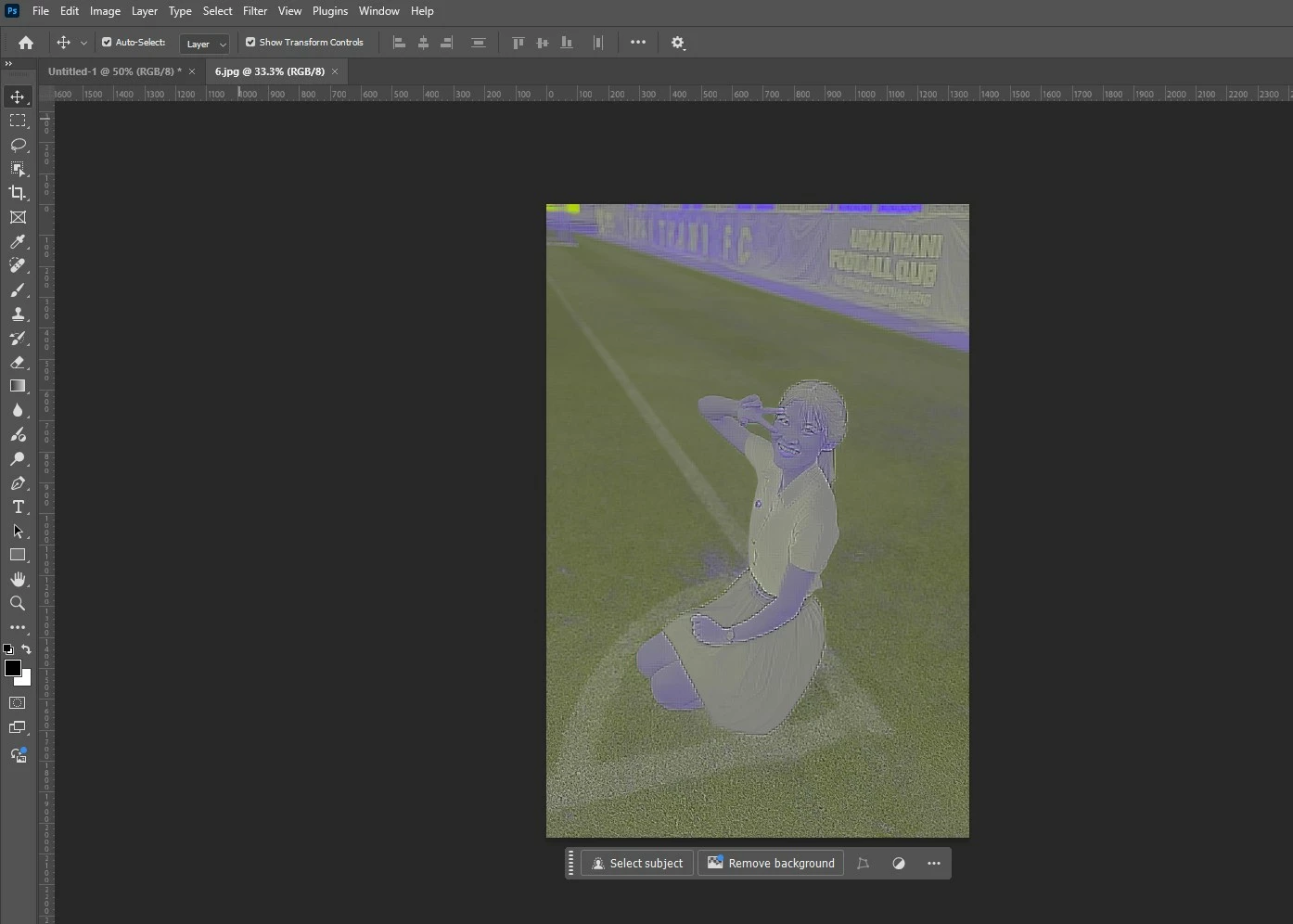
After updating to the latest version of Photoshop, we encountered an issue where images saved from Facebook from the previous year display color distortions when opened in the program. However, images saved recently from Facebook open without any issues and display correctly.


75 replies

Participant
April 23, 2025

I genuinely feel like they just update the apps for the sole purpose of justifying the subscription model.  I'm probably gonna start sailing the high seas if this keeps up.

Stephen Marsh
Community Expert
Community Expert
April 23, 2025

@J453 


Although not the same exact issue, the following topic has a different error with a JPEG that Engineering may wish to be notified of:


https://community.adobe.com/t5/photoshop-ecosystem-discussions/facebook-picture-import-crashes/td-p/15282180

Participant
April 22, 2025

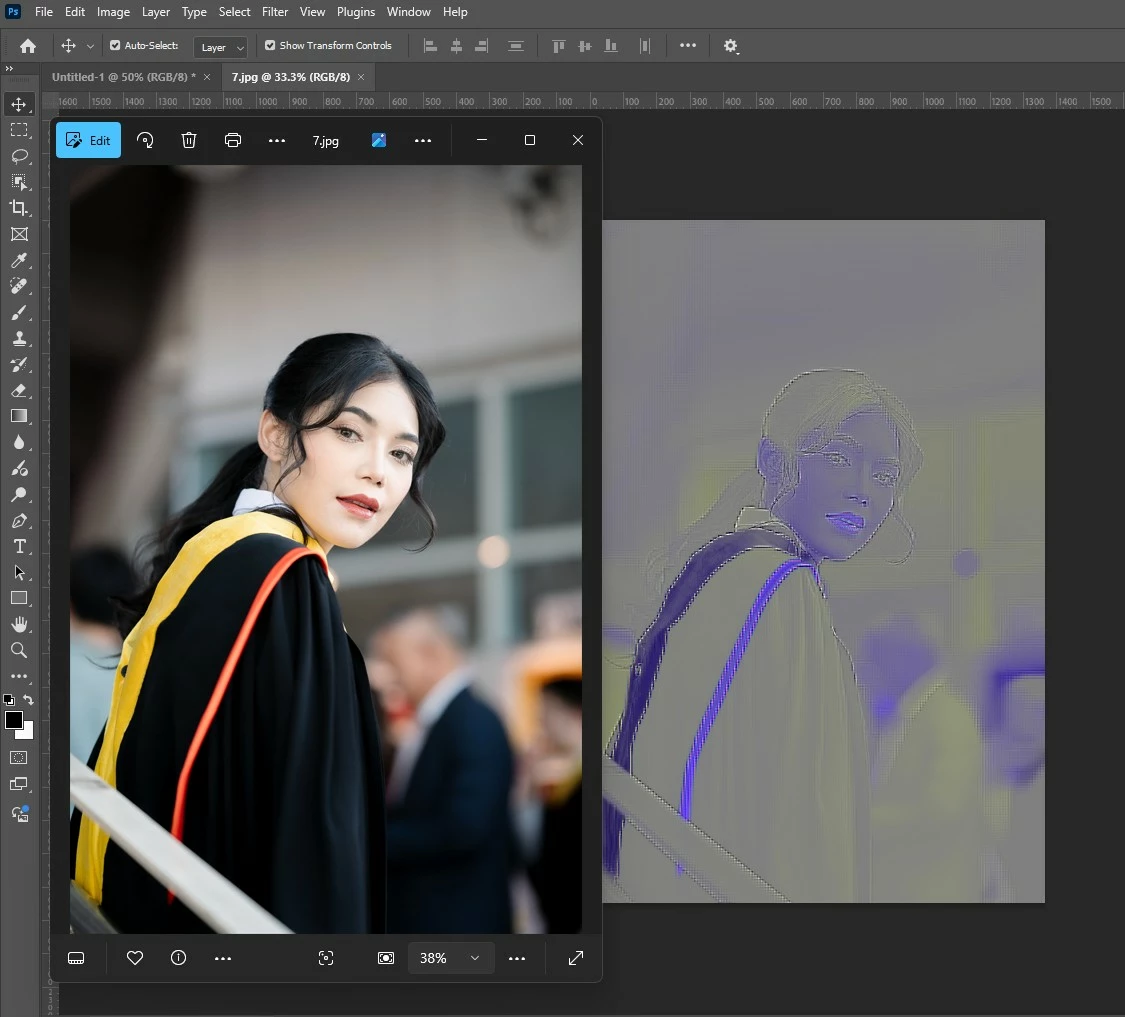
Pictures importet from facebook looking like inversed and pixelated but is just rend out 

After convertet at Paint are OK.

original and screenshot in pohotoshop. 

Tarun Saini
Community Manager
Community Manager
April 22, 2025

Hi 

@optimistic_skill_av

,


Thanks for reaching out! Could you please let us know the name of the Adobe app you're using to help you further?


Regards,

Tarun

Participant
April 22, 2025

It's a Photoshop 26.5 - latest for now. On windows 11 pro

Participant
April 22, 2025

Same exact thing happening to me with PS 2025 on a fairly new and completely updated Mac Mini.

Anshul_Saini
Community Manager
Community Manager
April 23, 2025

Hi @Carl237604068he1,


Thanks for the update and sharing the screenshots!


In addition to what Stephen said, it would be helpful for us to investigate this rendering issue further. Could you please do the following:

  • Attach the original image file (which appears distorted in Photoshop).

  • Share your system’s GPU details

  • Go to Photoshop > Help > System Info, copy the entire content, paste it into a text editor (like Notepad or TextEdit), and attach the file here.

  • Try temporarily turning off GPU acceleration in Photoshop (go to Preferences > Performance and uncheck Use Graphics Processor). Let us know if that changes how the image renders.

This information will help us determine whether the issue is a GPU rendering issue, a JPEG decoding bug, or something else.


Appreciate your help!


Best,

Anshul Saini

Known Participant
April 18, 2025

That's okay, feel free to moderate however you find fit, just as I'll air my grievances as an All Apps Suite paying customer and being forced to make almost monthly visits to the Adobe Community whenever I update an app and something breaks.

EdenTaylor
Participating Frequently
April 17, 2025

I’m experiencing a persistent issue with image rendering in Photoshop 26.5 on macOS Sequoia 15.4.1, using an M1 Max MacBook Pro (top spec, 2021). Whenever I import images—whether JPEG or PNG—they appear distorted in Photoshop: washed out colors, horizontal banding, and a noticeable shift in tones. The original files are totally fine and display perfectly in Preview and other apps.

Here’s what I’ve tried so far:

  • Fully uninstalled and reinstalled Photoshop (including removing preferences)

  • Disabled "Use Graphics Processor" in Preferences

  • Disabled OpenCL and any Metal rendering (when available)

  • Ran Photoshop in Rosetta mode (issue still persists)

  • Updated to the latest macOS (15.4.1 Sequoia)

  • Tested with multiple image formats and brand-new documents

  • Verified it's not template- or file-specific

  • Reset color settings to sRGB IEC61966-2.1

The issue has been ongoing for a few weeks and affects all images regardless of source. It also existed in the previous Photoshop version I had installed before updating to 26.5.

I’m currently installing Photoshop Beta to see if the issue is resolved there, but this feels like a deeper rendering bug specific to M1/M2 systems or the Sequoia update.

Would love any input or a timeline on a fix—this is seriously impacting my workflow.

Thanks!

Community Manager
April 17, 2025

Hi @EdenTaylor! Welcome to the community!

I'm sorry to hear about the issues you're having with Photoshop. If the problem persists even after disabling "use graphics processor," it likely isn't related to your graphics card. Do you have any third-party plug-ins or fonts installed? Sometimes, outdated or incompatible ones can cause various issues.

Could you also share your System Info with us? You can find it in Photoshop under Help > System Info. Just copy the info to a text file and attach it to your response, or share it through Google Drive, WeTransfer, or another file-sharing platform.

Thanks a lot! 😊

Alek

*(If you mention me with an @, like @Aleke, I’ll get a notification and can respond faster.)*
EdenTaylor
Participating Frequently
April 17, 2025

HI @Aleke

Thank you for the reply. I was able to fix this issue by installing and using Photoshop Beta and disabling use Graphics Processor, but it did not work in regular Photoshop. 


No third-party plug-ins or fonts installed. 

Here is my system info, attached. 

Known Participant
April 17, 2025

@CMass, no it's not "so curious", it's "so frustrating". This is why people pirate your products and forfeit updating. Adobe products are unreliable as professional tools due to updates almost consistently breaking things.


This shouldn't be happening with stable Photoshop versions. I just discovered this issue when saving a few Facebook images from my clients' FB page and at first thought it was either a RAM, GPU or disk issue. But no, it's good old Photoshop f*cking up after another update.


Do tell the team about the curious, cute, ha-ha issue. It reads the data as uRGB and causes massive artefacting and misplaced color. All of us paying for the All Apps Suite sure are idiots..


CMass
Community Manager
Community Manager
April 17, 2025

Hey @5449385, 


Totally hear you—this kind of thing is frustrating, especially when you're just trying to get work done and an update throws a wrench in it. A bug has already been filed with the team. I've also added more context to the bug based on your experience with artifacting and color. Please follow this thread for updates. In the meantime, if the issue wasn’t present in the previous version of Photoshop, I recommend rolling back to that version for now: https://adobe.ly/3YCdiGW


Please also remember that it's okay to express your frustrations and that we appreciate constructive feedback; however, we will enforce the Community Guidelines.

^CM

Participating Frequently
April 16, 2025

My system: Mac Ventura 13.7.1 / Photoshop Beta 26.6.0

Colleagues system: Windows 10 / Photoshop 26.5.0


My colleague and I over the last week or so have found that some Jpegs given to us to work with are opening with a strange purple, liney hue. We're both experiencing the issue with the same files, but don't know what it is that's causing it or how to remedy it. This is probably the 4th Jpeg image this week we've had this issue with, so it's not limited to this file.


I found an identical thread here from 2021.


It doesn't happen with all images, and the affected images look normal in the file picker thumbnails.


I tried the top solution in the old thread, changing the Camera Raw settings so it auto loads it, but that gives me an error, so I reverted those settings. 


Currently, we're screenshotting previews of the images as low res placeholders but need to fix this to finish the projects properly.

Sameer K
Community Manager
Community Manager
April 16, 2025

Hey, @DhallNash. Welcome to the Photoshop Community. I'll need more info to help you figure this out. 


What is the source of these images? The team is investigating a recent behavior with images downloaded from the internet, such as Facebook: https://adobe.ly/3Epfbju


Additionally, I've also seen a few reports with a similar distortion pattern with horizontal lines reported here:

https://community.adobe.com/t5/photoshop-ecosystem-discussions/opening-old-amp-new-jpegs-distort-in-photoshop/m-p/15153939#M853521


https://adobe.ly/4jF4wjP


Could you share a few sample images that appear as corrupted with me via direct message? Upload a few sample images to any cloud file-sharing service & share a public link with me. 


Thanks!
Sameer K

(Type '@' and type my name to mention me when you reply)

TheBeatnikHimself
Known Participant
April 9, 2025

When opening images in Photoshop from Lightroom useing the AdobeRGB color space the images noticeably change in shadow areas where the blacks become washed out and lose detail. This issue also occurs when switching between the Develop and Library modules in Lightroom when the HDR option is disabled in library. Disabling GPU acceleration in Lightroom's performance settings results in poor quality across the board. Enabling the HDR in Library option helps maintain consistency in Lightroom, but the black details still wash out after exporting to Photoshop when using the AdobeRGB color space.


The only time my images look correct is in the Develop module with GPU enabled or in the Library with HDR turned on; this does not carry over to Photoshop or during exports in AdobeRGB, even with GPU enabled for exports.


My monitor is calibrated using hardware calibration tools, and I’ve ensured that I have the proper monitor profile selected before opening LR or PS and the color profiles match in both programs. I've tried various monitor calibration profiles to rule out corrupted ICC files..

I'm using a Mac M2 Studio, OS 15.4, Lightroom version 14.2, and Photoshop version 26.5.


EDIT: As May 29th 2025 I have spent 2 months working with the Adobe representatives and engineers. Countless hours have gone into this issue on my end, but no solution or public statement has been provided form the people at Adobe.


TheBeatnikHimself
Known Participant
April 11, 2025

Just got this response from Adobe.

While not everything is flushed out yet we are getting there.

The issue is 100% with adobe and these people on this forum saying is just a Mac issue are spreading misinformation.


Thank you for providing such a detailed breakdown, it really helps clarify the issue. From what you've described, you're encountering a complex combination of:

  1. Color space and ICC profile inconsistencies
  2. GPU rendering issues specific to Adobe apps on M-series Macs
  3. Export discrepancies between Develop and Library modules in Lightroom
  4. Cross-platform viewing issues (Preview vs. Adobe apps)
  5. Potential HDR/sRGB export workarounds

Here’s a comprehensive breakdown of what’s likely happening and some steps you can take to isolate and address the problem:

  1. Exporting with AdobeRGB + .TIFF causing a washed-out look: AdobeRGB has a wider gamut than sRGB. When these files are viewed in apps that are not color-managed (like Apple’s Preview or Finder thumbnails), they can appear washed out. However, since this happens even inside Lightroom and Photoshop, it points to a rendering issue rather than just display incompatibility.

  2. GPU acceleration affects rendering in the Develop module: Lightroom’s Develop module uses the GPU and a different rendering engine than the Library module. That’s why your images might look more contrasty or vibrant in Develop but appear duller in Library or Photoshop.

  3. Discrepancies with soft proofing: This discrepancy should not happen when using soft proofing with the same ICC profiles, yet it is. This could be due to:

    • A mismatch between how Adobe apps are utilizing the Apple Silicon GPU
    • Potential bugs or inconsistencies in how color spaces are handled between modules
  4. Exporting in sRGB with HDR enabled works: That’s a significant clue. HDR export forces Adobe to handle tone mapping and rendering differently. It’s possible the tone mapping for AdobeRGB exports isn’t being processed correctly, especially when GPU is enabled.

  5. BenQ says it's not their fault (and likely isn't): Since this happens even after changing monitors and the reimported files still look degraded on your original Mac, the issue is more likely internal to Adobe’s rendering pipeline, not your display or its calibration.”

D Fosse
Community Expert
Community Expert
April 12, 2025

@TheBeatnikHimself 

Here is a raw file in Lightroom Classic, opened directly into Photoshop with "Edit In".


As you can see, they display absolutely identically.


The small inserted histograms are taken from the image part of the screenshots. Screenshots don't lie. If something displays lighter or darker, it's because lighter or darker numbers are sent to screen. And those are the numbers recorded in the screenshot.

Per Berntsen
Community Expert
Community Expert
April 2, 2025

@Chanitpon370485241xu8 

@Brandilio_VA 


Please post sample jgps here so we can examine them.

Participant
April 2, 2025

It's just images from Facebook that are causing issues.  Do you want us to just repost images downloaded from Facebook?  You can just grab any image uploaded to Adobe's facebook recently and see it for yourself, if you're curious.  For example, this image that promotes turbo-actress Awkwafina.  If you download it and try to bring it into an up-to-date version of Photoshop, it'll do the purple-ish green-ish distortion.

As far as I can see, it's exclusively happening with Facebook images.

Per Berntsen
Community Expert
Community Expert
April 2, 2025

The image displays correctly in Photoshop 26.4.1, and reports the embedded profile to be Adobe RGB.

It also looks fine in Lightroom Classic 14.2.

After updating to PS 26.5, the image displays as you describe, and the embedded profile is now reported as uRGB, which apparently is a variant of sRGB created by Meta.

Converting to sRGB or Adobe RGB does not fix it. I have no idea what's going on here.

@CMass Can you pass this on to the Photoshop team please?
