New Participant
October 22, 2018
Answered

Displaying the current image dimensions

  • October 22, 2018
  • 2 replies
  • 1584 views

Is there a way to display (constantly while editing) the current image's dimensions (preferably in pixels)?  I know I can use the resize dialog but I'm looking for a persistent display of the image's dimensions while editing (status bar, document tab, etc.) without having to open the resize dialog.  I want to be able to do successive crops on an image and see the size after each crop without having to open the resize dialog.

Thanks!
This topic has been closed for replies.
Correct answer Medha_Sharma

Hello,

To view the image's dimensions constantly, please follow these steps.

1. Press Ctrl/Cmd + K to open preferences

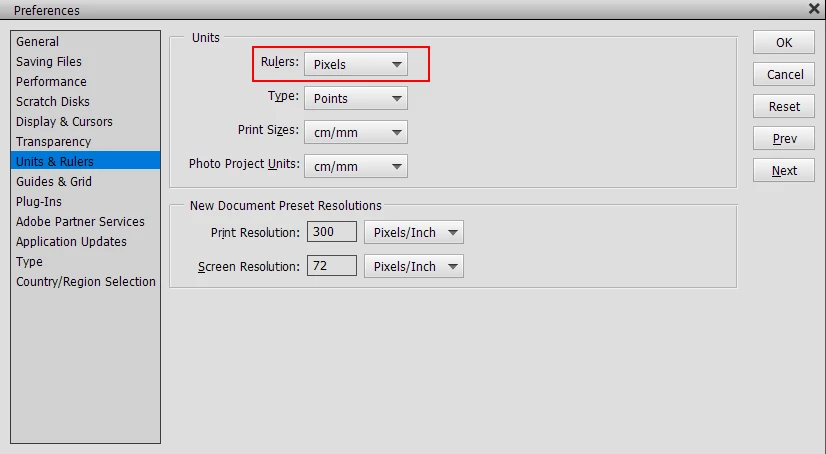
2. Select the Units & Rulers option

3. In the Rulers dropdown, choose 'Pixels' and click on 'OK'

4. Switch to Expert tab

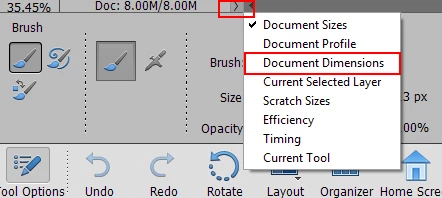
5. In the Status Bar, click on the '>' icon as shown in the screenshot and then choose 'Document Dimensions'

Now you should be able to see the document dimensions (in pixels) in the Status Bar itself.

Thanks,

Medha

2 replies

Jeff Arola
Braniac
October 22, 2018

Two ways i know of:

1. At the bottom left of the document window

    Status Bar

or

2. In the Info panel set by the Info panel options

    (Window>Info)

vinnie_mAuthor
New Participant
October 22, 2018

Thanks!  These suggestions worked!

JaySprout
Inspiring
May 18, 2020

Always happy to help!

Thanks,

Medha


Neither of these options are available in Illustrator 2020. I'd like to have dimensions back in the Status Bar -- how do I do that? Why was that option removed?

Medha_Sharma
Adobe Employee
Medha_SharmaCorrect answer
Adobe Employee
October 22, 2018

Hello,

To view the image's dimensions constantly, please follow these steps.

1. Press Ctrl/Cmd + K to open preferences

2. Select the Units & Rulers option

3. In the Rulers dropdown, choose 'Pixels' and click on 'OK'

4. Switch to Expert tab

5. In the Status Bar, click on the '>' icon as shown in the screenshot and then choose 'Document Dimensions'

Now you should be able to see the document dimensions (in pixels) in the Status Bar itself.

Thanks,

Medha