


September 19, 2019
Answered

Help achieving “stacking” in Elements 2019

  • September 19, 2019
  • 2 replies
  • 905 views

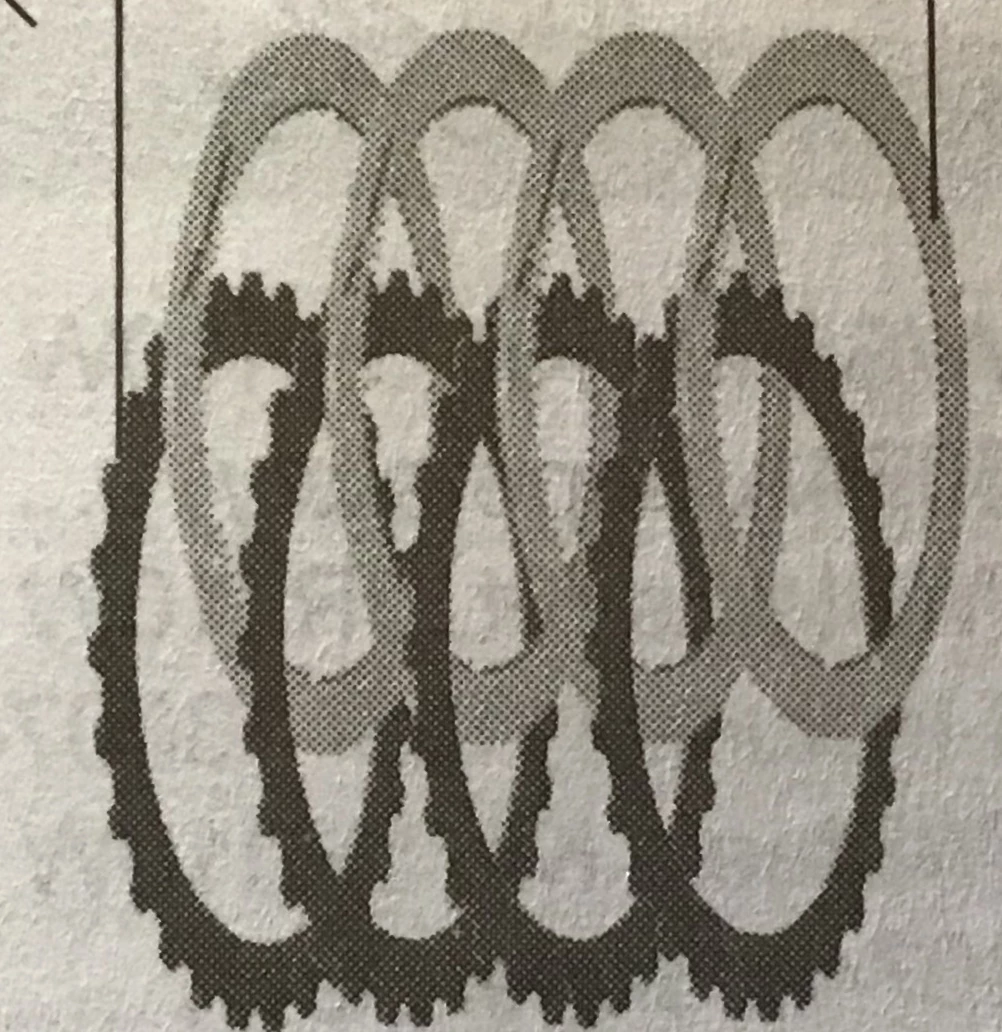
I am new to photo editing and photoshop in general. I was tasked with creating a paper catalog using photos of transmission parts. I am trying to “stack” or “layer” a photo on top of itself. How do I achieve this in Elements 2019? Thanks in advance.
    This topic has been closed for replies.
    Correct answer hatstead

    You would open a file with a suitable background. This would be your "canvas." In the Layers palette it will show up as Background Layer.

    Next, make a selection of  part #1, and copy/paste it to the background. It will come in on a separete layer.

    Repeat for part #2.

    Activate the move tool to position parts 1&2.

    Repeat for parts #3, 4, etc.

    2 replies

    hatstead
    hatsteadCorrect answer
    Inspiring
    September 19, 2019

    You would open a file with a suitable background. This would be your "canvas." In the Layers palette it will show up as Background Layer.

    Next, make a selection of  part #1, and copy/paste it to the background. It will come in on a separete layer.

    Repeat for part #2.

    Activate the move tool to position parts 1&2.

    Repeat for parts #3, 4, etc.

    September 19, 2019

    Moving to the Photoshop Elements forum from Photoshop