garycd
Known Participant
July 27, 2021
Answered

How do I create a custom color swatch ".aco" file?

  • July 27, 2021
  • 4 replies
  • 8321 views

I want to create a custom ".aco" file in my color swatch library, and the only way I can figure out how to do that is take the "Photo Filter Colors" file (it has the fewest number of existing swatches), create a set of new colors from a photograph with the eye dropper and the bucket, delete all of the original ones, and then save the new set ... which seems way too complicated.  Is there a standard process for creating a new collection?  
This topic has been closed for replies.
Correct answer Jeff Arola

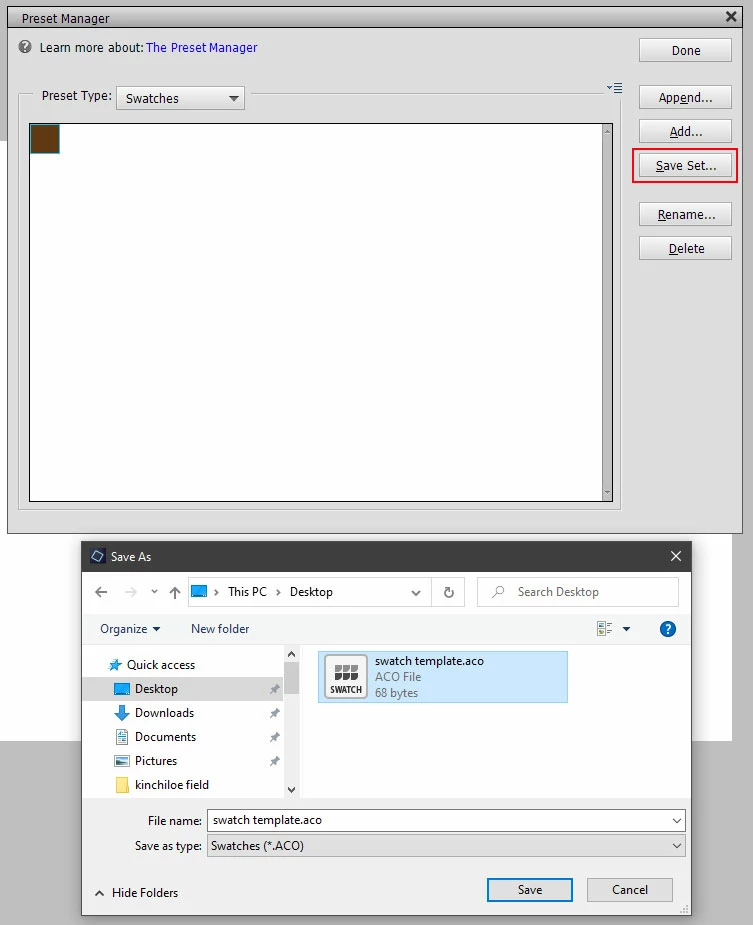
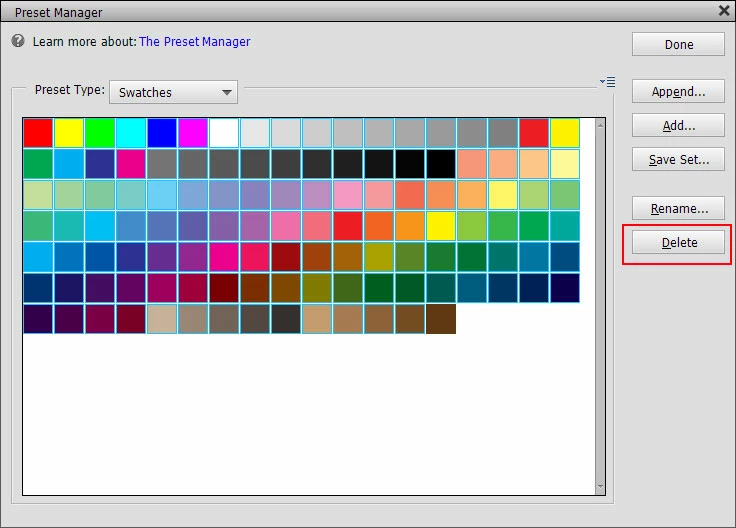
In the Expert mode you can go to Edit>Preset Manager>Swatches, click the first swatch then shift click on the next to last swatch and click Delete. Then click on the remaining swatch and save out the swatch as your blank swatch file that you load any time you want to make a color swatch library. (there has to be at least one swatch in a library or you can't save it)


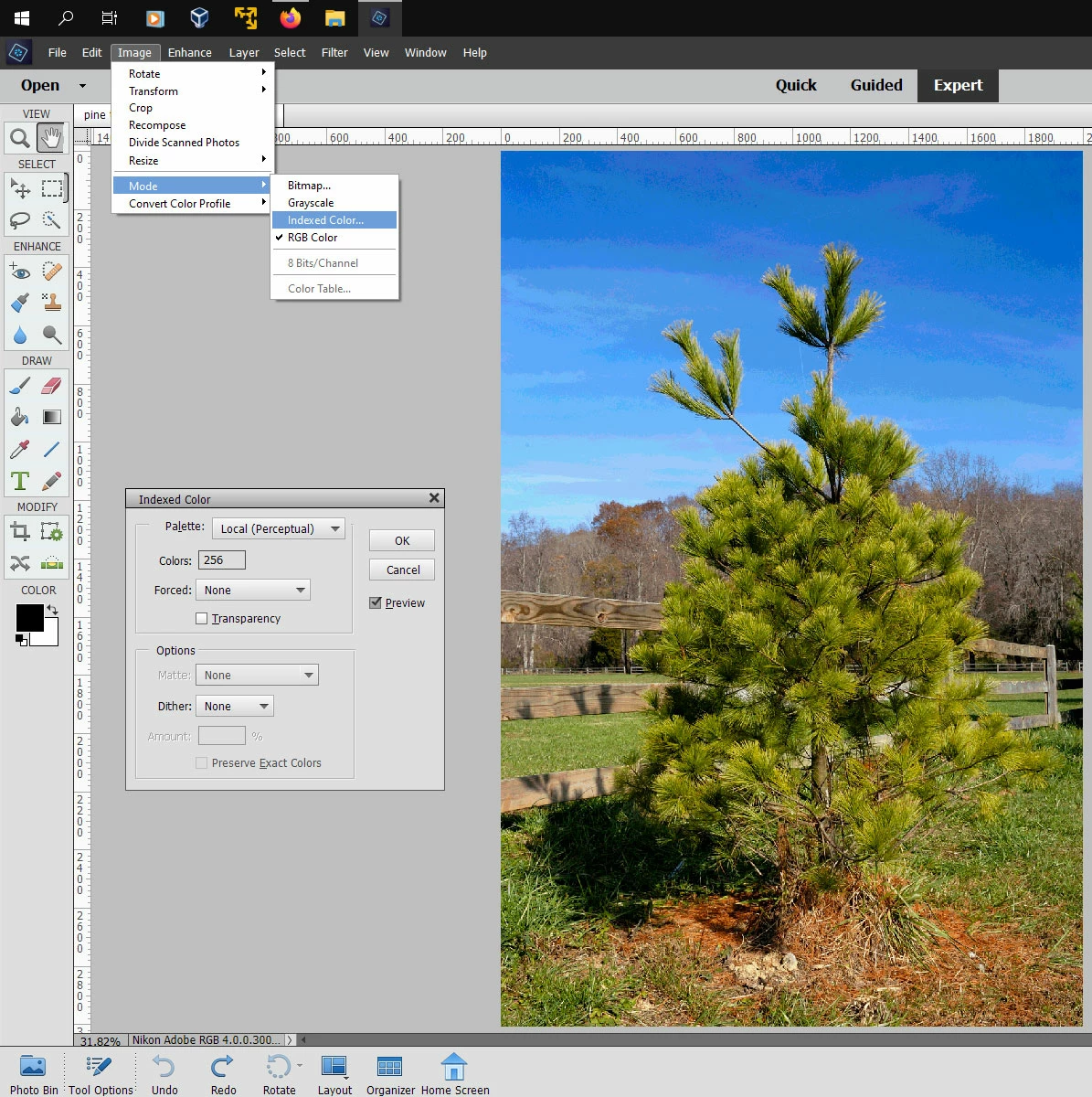
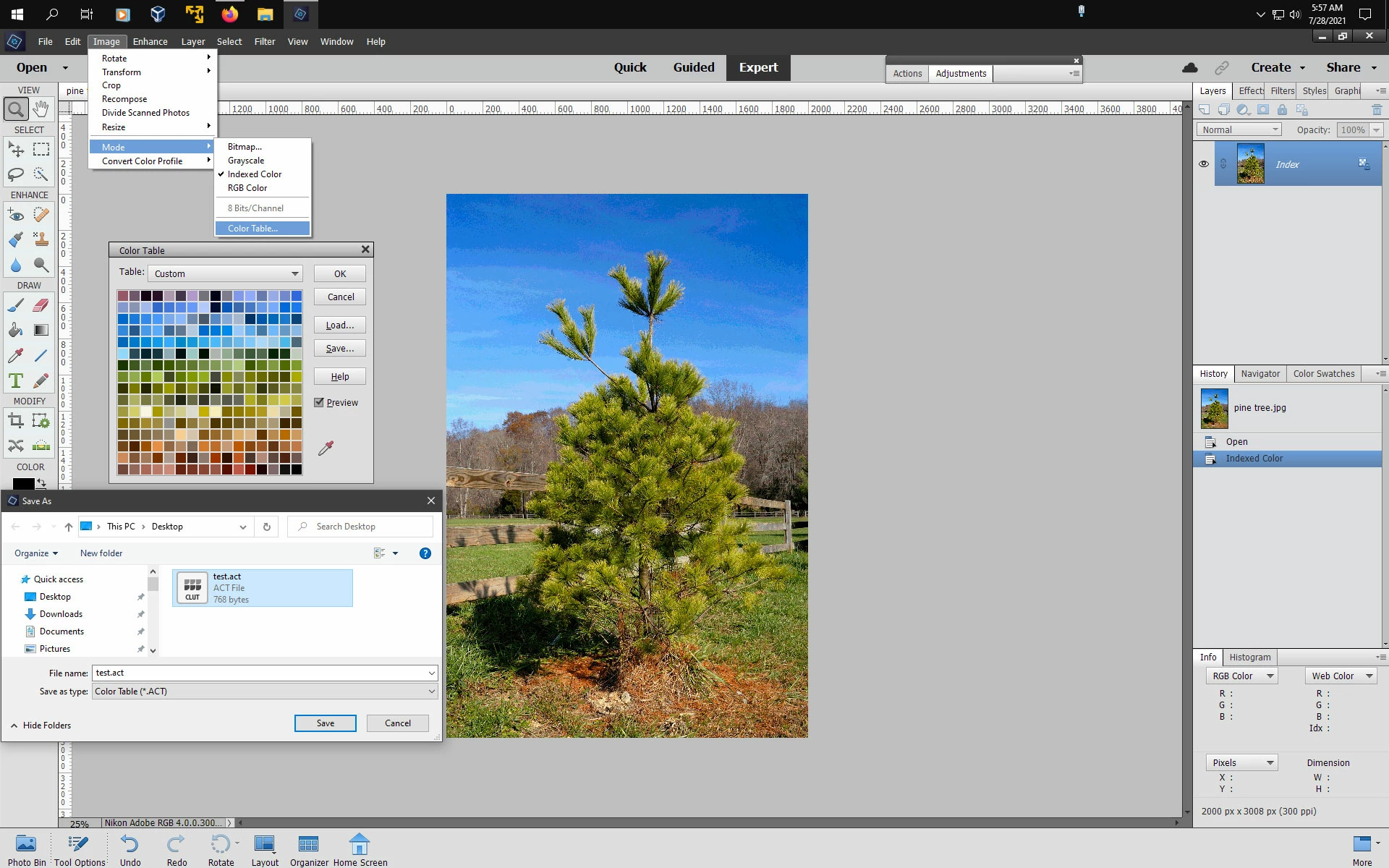
You could also convert your image to Indexed Color Mode (Image>Mode>Indexed Color) to get a variety of colors from your image. Then go to Image>Mode>Color Table and save out the file as an act (color table) then load the act file into your swatches panel.


4 replies

Jeff Arola
Community Expert
Community Expert
August 5, 2021

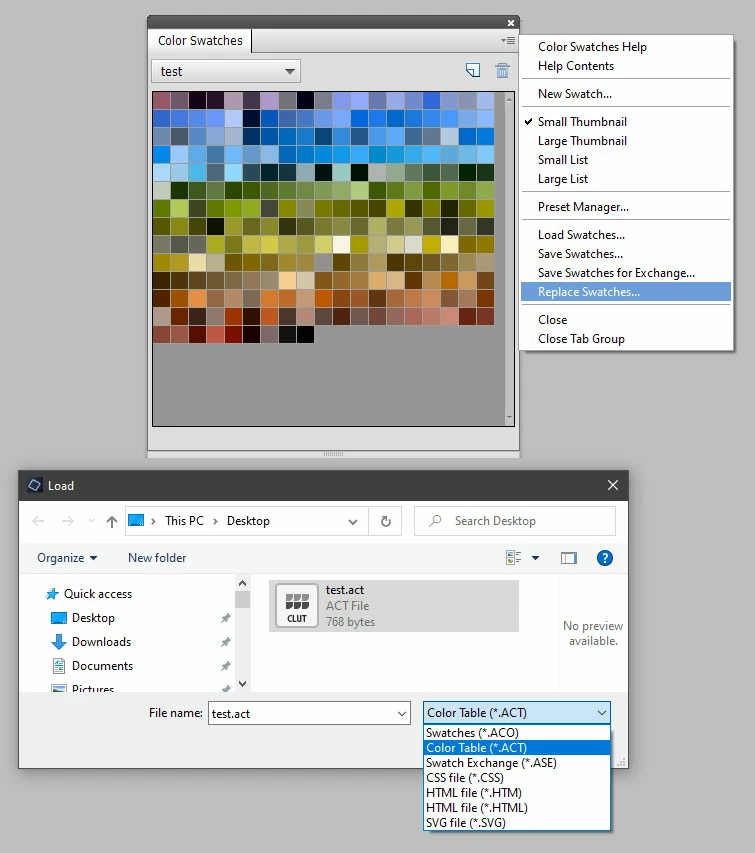
You should be able to open .act files from the Swatches panel


Then you can save the Swatches as a .aco file.


Jeff Arola
Community Expert
Jeff ArolaCommunity ExpertCorrect answer
Community Expert
July 28, 2021

In the Expert mode you can go to Edit>Preset Manager>Swatches, click the first swatch then shift click on the next to last swatch and click Delete. Then click on the remaining swatch and save out the swatch as your blank swatch file that you load any time you want to make a color swatch library. (there has to be at least one swatch in a library or you can't save it)


You could also convert your image to Indexed Color Mode (Image>Mode>Indexed Color) to get a variety of colors from your image. Then go to Image>Mode>Color Table and save out the file as an act (color table) then load the act file into your swatches panel.


Walter_H
Legend
March 5, 2022

Hi Jeff,


Your excellent description about how to create "custom" color swatch panels has been a BIG help to me.


I have a question about the two screens in the last screenshot panel that you attached. I can not find any help or documentation for the "Replace Swatches..." command that you've highlighted in the swatch panel menu. Can you explain the purpose of that command and how it's used?


Thanks!


--Walter in Davie, FL
Jeff Arola
Community Expert
Community Expert
March 10, 2022

Replace Swatches replaces the existing swatches that are loaded in the Color Swatches panel, whereas Load Swatches appends (adds) to the existing swatches.

Greg_S.
Community Expert
Community Expert
July 27, 2021
Glenn 8675309
Legend
July 27, 2021

I've downloaded random aco swatches and used those as "sacrifical" aco files....


garycd
garycdAuthor
Known Participant
July 28, 2021

Where did you find "random aco swatches" for downloading?  When I search the internet, I just get instructions about the swatches panel.

Gary

Walter_H
Legend
July 28, 2021

Hi Gary,


Search for "photoshop color swatches download" and you'll find several sites that have free color swatch files to download. Many of them will be *.ASE (Swatch Exchange) files but they can still be used by PSE if you copy them to your Presets\Color Swatches folder.


--Walter in Davie, FL