Hi Alan,
This is pretty easy to do. I had the same exact challenge several months ago. I use PSE 2022, but the same "File > Place" command that I used should also be in your PSE 11. This will work for either Horizontal or Vertical positioning. My example is Vertical positioning. Here are the steps I used to do this.
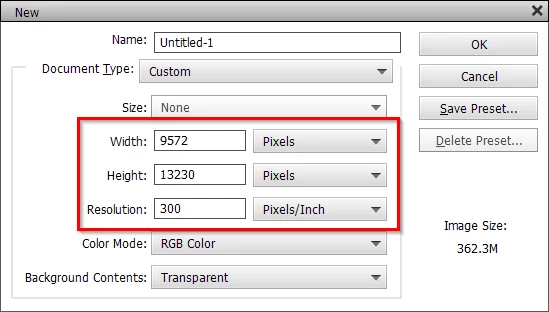
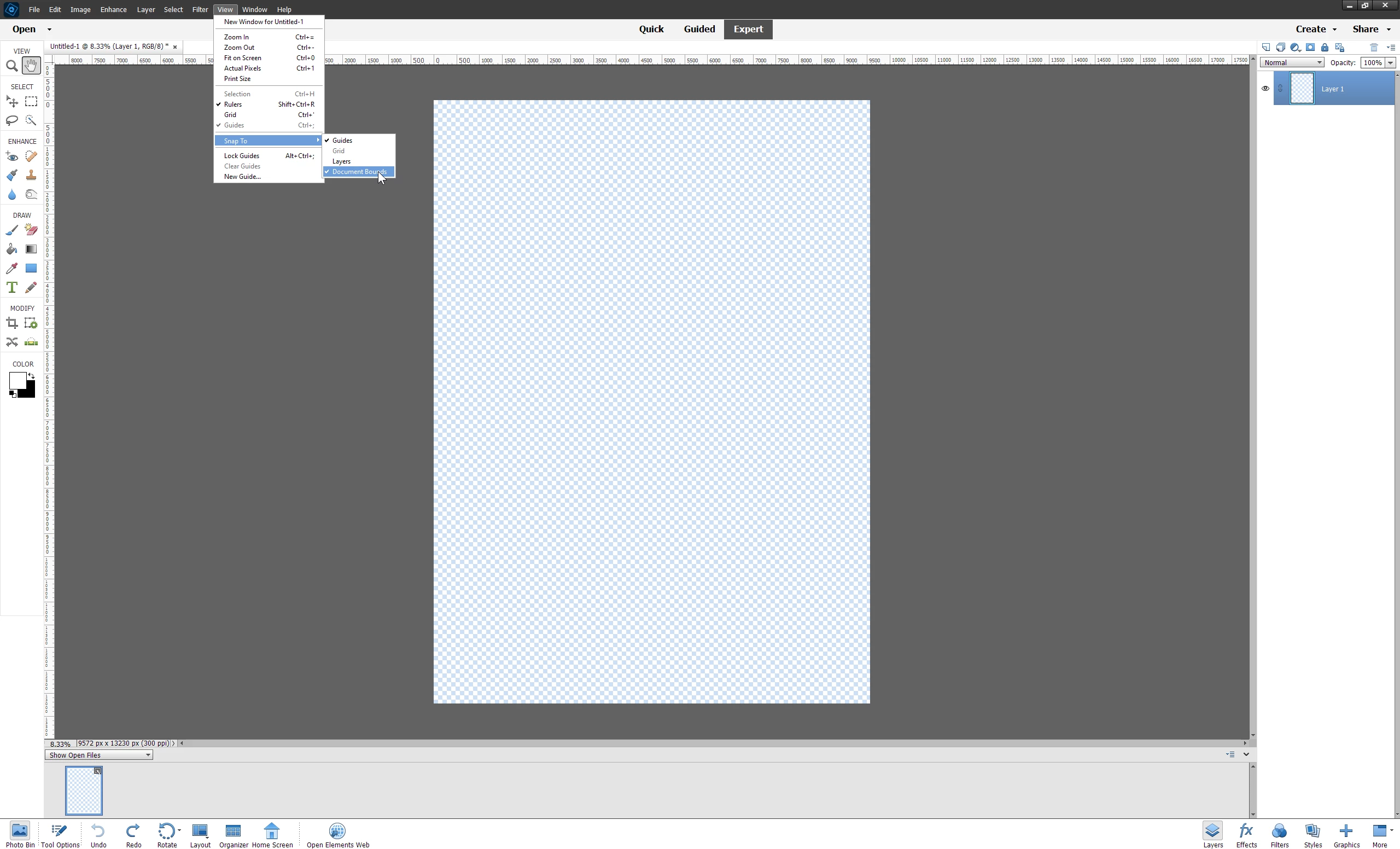
1. Open a new blank file (File > New) that is large enough to contain your two map images. Set the resolution the same as the map images. In the View menu, set Snap To > Document Bounds ON (checked).
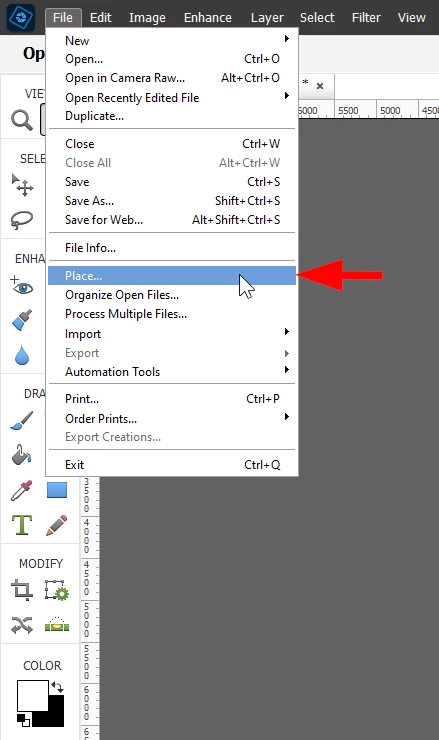
2. Use the File > Place command to open the first map image. The File > Place command will drop your image in the center of your blank file, so drag the map image to the correct position. It will snap to the edges of your blank file.
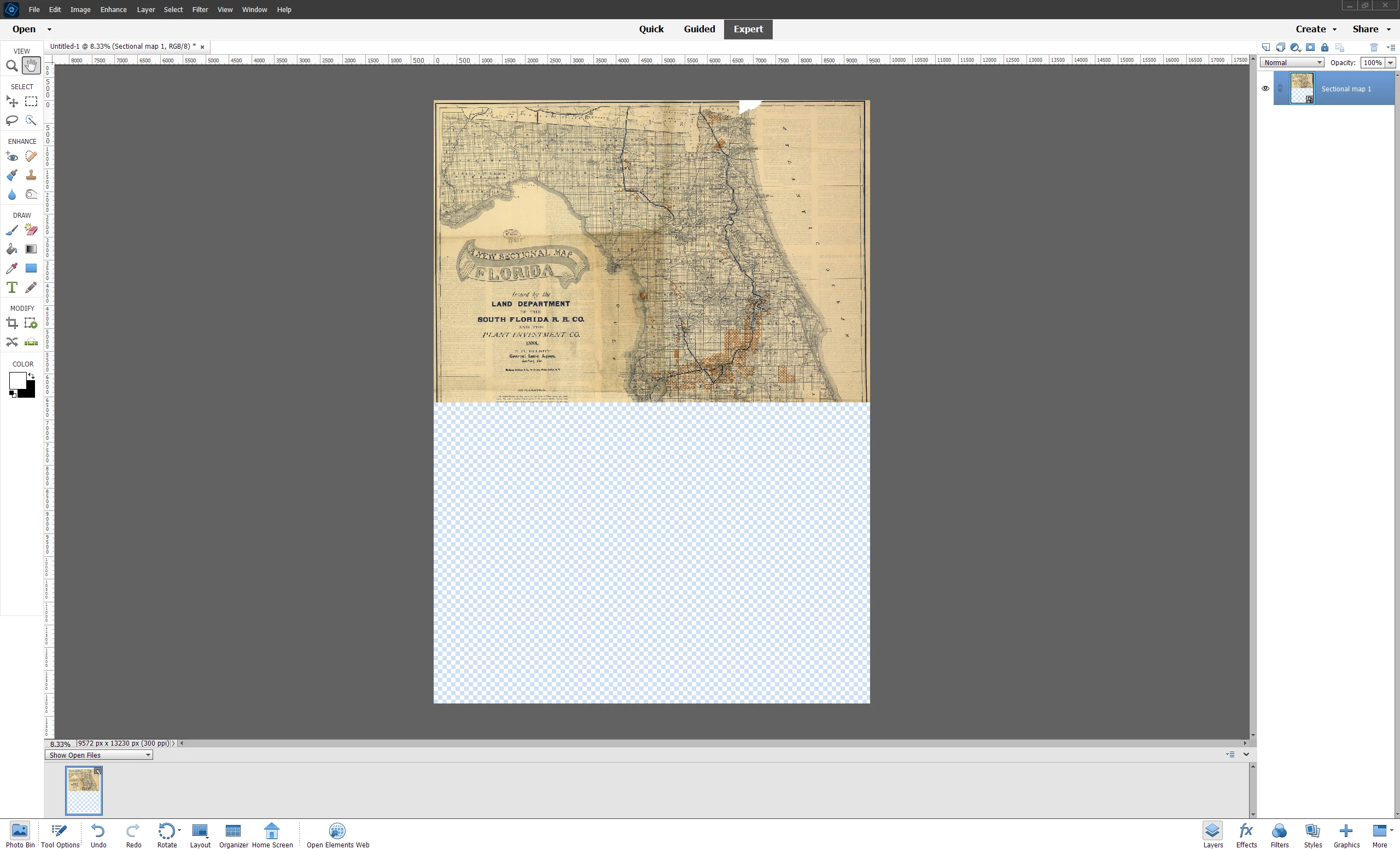
3. Use the File Place command again to open the second map image and drag it to the correct position. If you've set Snap To Document Bounds ON the second map will snap to the edge of the first map.
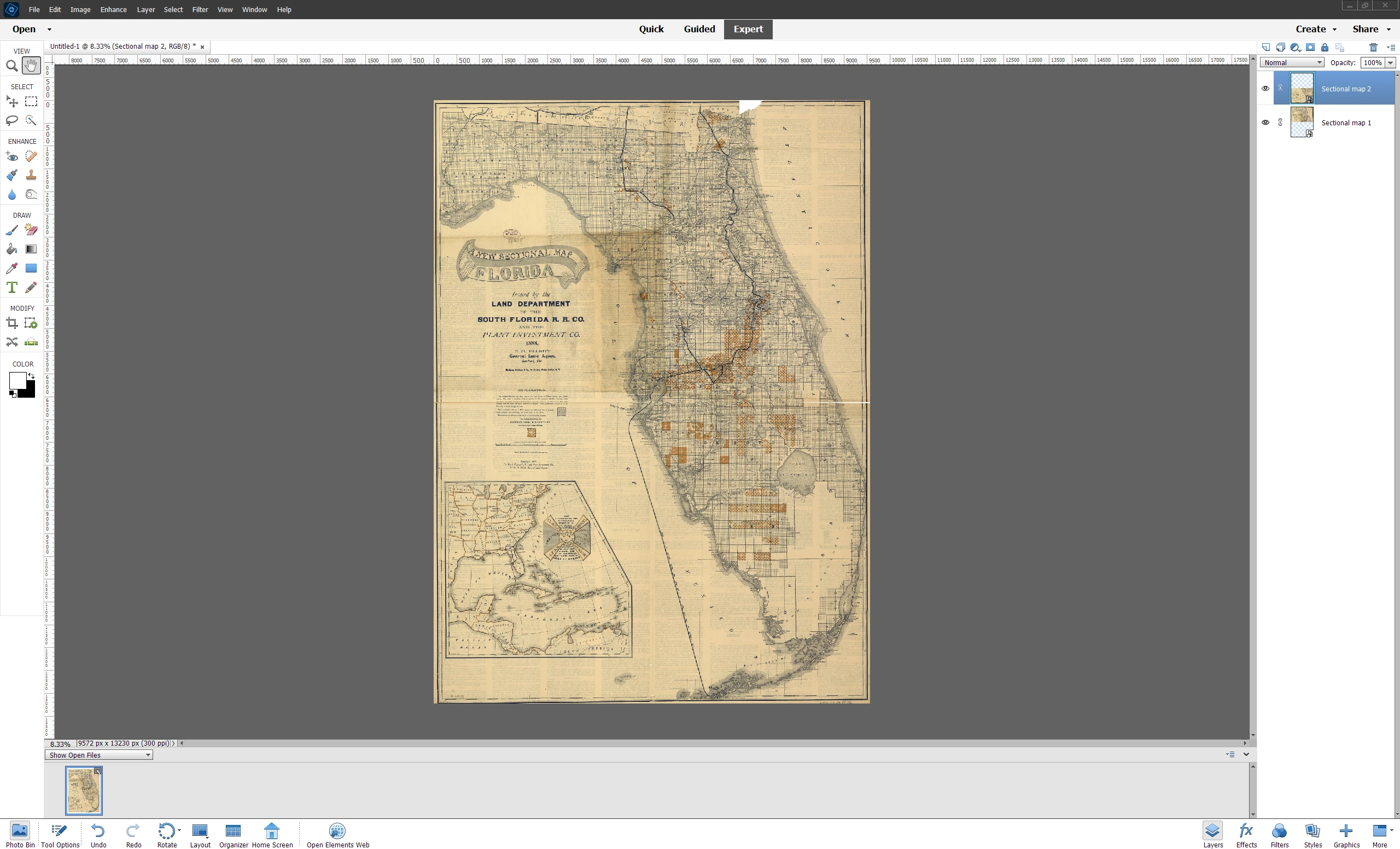
If you need to fine tune the position of either of the map images, turn OFF Snap To Document Bounds before you try dragging the images.
I hope this helps!



 AdChoices