


Participating Frequently
August 12, 2021
Answered

Photoshop Elements 9 strange cursor only when using certain tools

  • August 12, 2021
  • 3 replies
  • 965 views

Hi,

I just moved an installation of Elements 9 (Yes I know it's old) to a new computer and the user is reporting that her cursor appears as Three Horizontal Lines when using a majority of the tools, not all.  Have any of you noticed this before or have any guesses as to why it's happening?  
This topic has been closed for replies.
Correct answer Jeff Arola

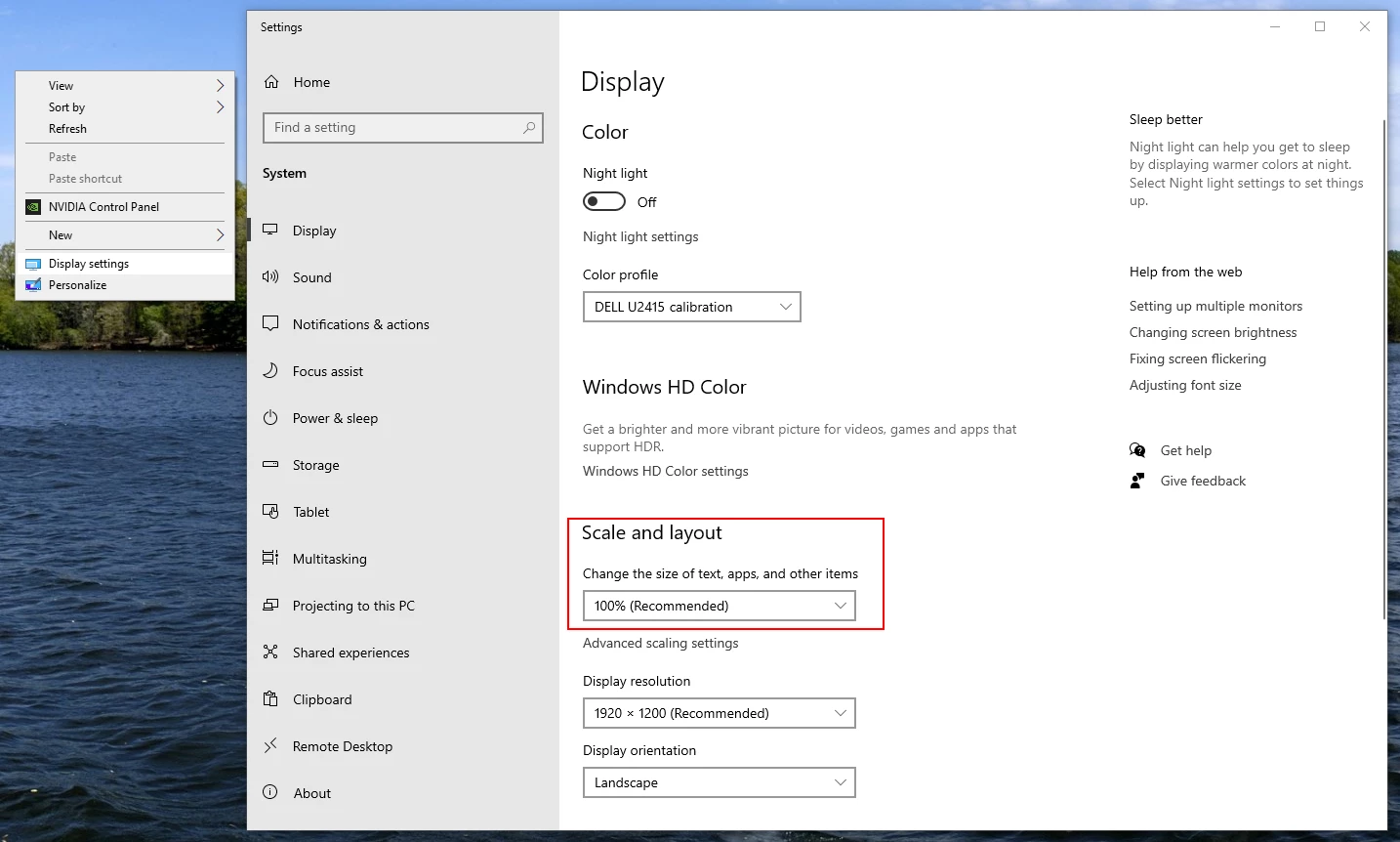
Right click on your desktop, click Display settings and under Scale & Layout set the Text size apps and other items to 100%. Then restart windows and check photoshop elements 9.


3 replies

Jeff Arola
Community Expert
Community Expert
August 12, 2021

What version of windows are you using?


That's usually caused by the windows system scaling as described in this adobe kb

(even though it says cs4, it also applies to pse 9 which is based on the cs4 codebase)


https://helpx.adobe.com/photoshop/kb/three-cursors-display-photoshop-bridge.html


https://community.adobe.com/t5/photoshop-ecosystem/three-cursors-appearing-in-selection-tool-of-photoshop-11-on-windows-10/td-p/7842556

Participating Frequently
August 19, 2021

We are usign windows 10 Enterprise.  I'm not sure of the version but, it's the latest.  


We tried those links and no luck.

Jeff Arola
Community Expert
Jeff ArolaCommunity ExpertCorrect answer
Community Expert
August 19, 2021

Right click on your desktop, click Display settings and under Scale & Layout set the Text size apps and other items to 100%. Then restart windows and check photoshop elements 9.


hatstead
Inspiring
August 12, 2021

I would do 2 things:

1. Reset all tools to default  To do that, click on the little triangle on a tool's option bar, top left. Click & reset.

2. Go to Edit menu>preferences and have a look at Display and cursors. 

Participating Frequently
August 12, 2021

ok, tried it, no luck.  

hatstead
Inspiring
August 12, 2021

Can you get a screen shot of what you see and post it here? Perhaps use the plain brush tool, 300px size, mode - normal, opacity 100%, contrasting color vs.background.


jane-e
Community Expert
Community Expert
August 12, 2021

Hi @OHS Infotec 

Since your question is about Photoshop Elements, I have moved this from the Photoshop forum where you posted.

~ Jane

Participating Frequently
August 12, 2021

Thank you Jane.