New Participant
May 8, 2020
Answered

Resizing an image in mm using Photoshop Elements 2020

  • May 8, 2020
  • 2 replies
  • 4636 views

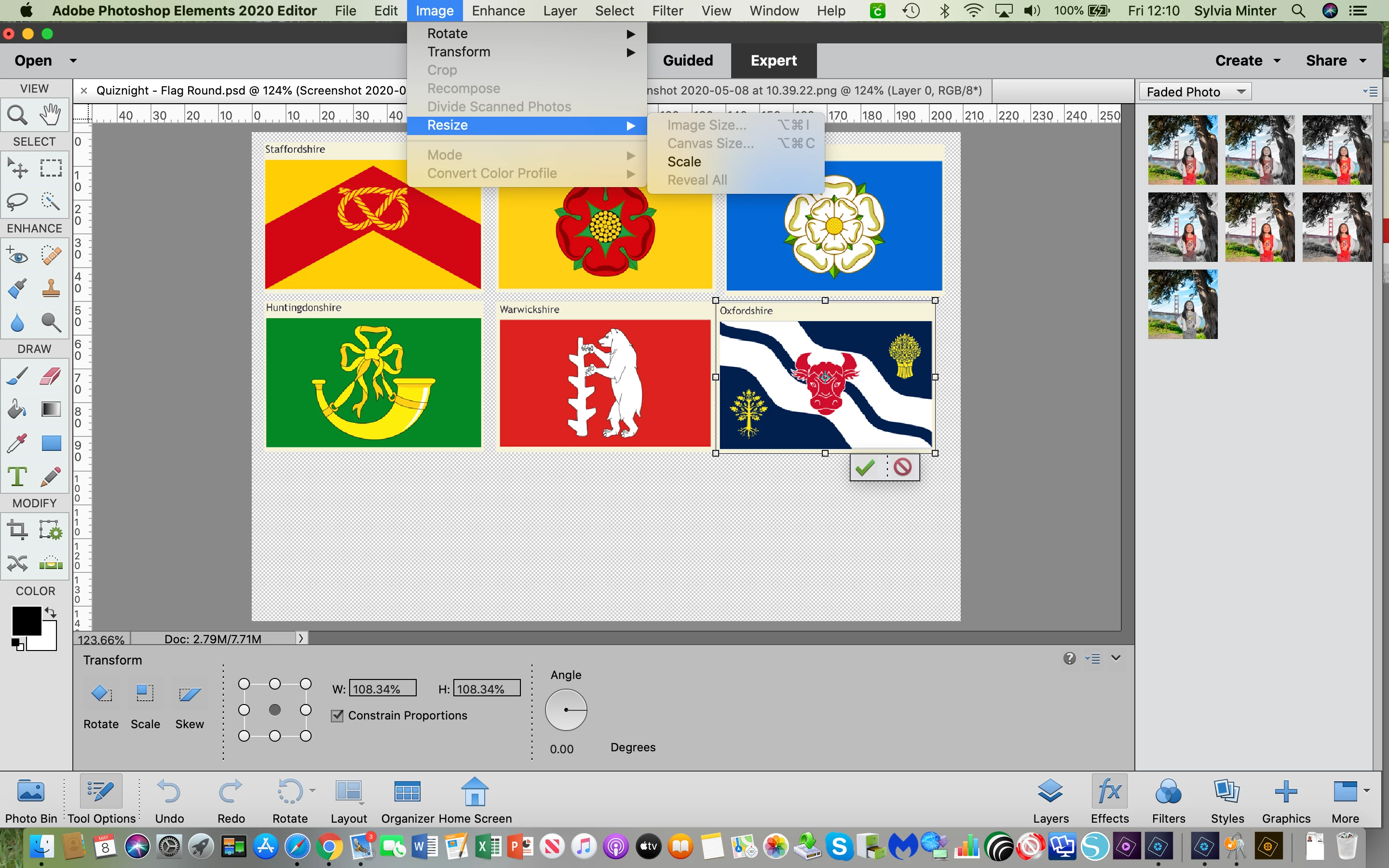
in photoshop elements 2020 when an image is selected and I go to the the tab Image, Resize, Image tools are greyed out, I would like to size a picture in mm, any advice on how I do that please, if I use the handles to resize it is so difficult to get an exact measurement.  Any help would be very much appreciated.
This topic has been closed for replies.
Correct answer Greg_S.

You do not have an image selected in your screenshot, you have a layer selected.  That is why the choices are greyed out in the menu.

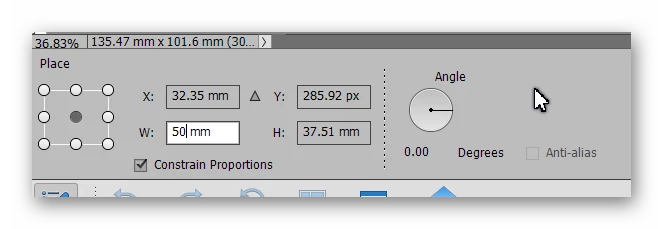
With a layer selected, you can adjust its size by using the free transform tool (Cmd+T for Mac?).  In the tool options bin, you can type in the exact size you want in mm.

Other options that you may want to use can be found in Edit>Preferences.  For example, you can change the Ruler measurements to mm in the Units and Rulers tab.

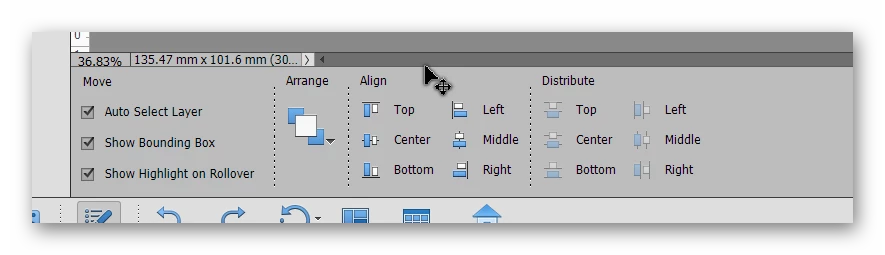
For your project, it looks like you could also make use of the Alignment tool option for the Move tool.  If you select multiple layers, e.g. the top three flags in your image, you can align them using one of the align buttons.

2 replies

Greg_S.
Greg_S.Correct answer
Community Expert
May 8, 2020

You do not have an image selected in your screenshot, you have a layer selected.  That is why the choices are greyed out in the menu.

With a layer selected, you can adjust its size by using the free transform tool (Cmd+T for Mac?).  In the tool options bin, you can type in the exact size you want in mm.

Other options that you may want to use can be found in Edit>Preferences.  For example, you can change the Ruler measurements to mm in the Units and Rulers tab.

For your project, it looks like you could also make use of the Alignment tool option for the Move tool.  If you select multiple layers, e.g. the top three flags in your image, you can align them using one of the align buttons.

New Participant
May 10, 2020

Thank you

hatstead
Inspiring
May 10, 2020

You're welcome. Glad to help.

hatstead
Inspiring
May 8, 2020

Activate the crop tool in the toolbox, and enter the dimensions. Enter the number and scale, e.g. 25mm x 10mm,

While you are at it, also enter a value for Resolution. For printing, it is desirable to have the resolution in the 240-300px/in range. For web work, 72px/in is ok.

New Participant
May 10, 2020

Thank you