


BeppieChick
Participant
June 20, 2022
Answered

Scanned text with grey background - barely see text - how to fix this

  • June 20, 2022
  • 2 replies
  • 2659 views

I have a lot of scanned documents - jpg files - they were scanned and sent to me so I don't have the original to scan properly - the original must have been coloured paper I am guessing - it came to me very grey with the text barely visible. How do I fix this - I'm not an expert with Layers (don't really utilise that much at all) and I use Photoshop Elements 2021.  I've tried looking for videos to show me but they mostly focus on removing background from a large picture in the scene - not text.
This topic has been closed for replies.
Correct answer Greg_S.

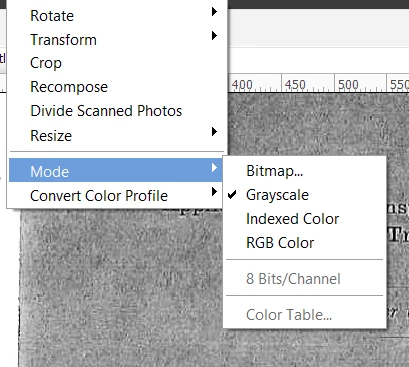
I forgot to mention that the files are in RGB color mode.  I suggest changing them to grayscale, using the Image>Mode>Grayscale option:


2 replies

Greg_S.
Community Expert
Community Expert
June 20, 2022

Glad it worked for you.  You got a terrific result.

Greg_S.
Community Expert
Community Expert
June 20, 2022

Here is one way:

Use the Levels tool (Ctrl+L) and play with the controls under the histogram.  You will need to move the sliders under the value bars in the histogram.  The one on the left controls the black point and the one on the right controls the white point.  These need to be pushed more to the center.  And you may also need to move the middle (gamma) slider.  Here is what I was able to achieve by moving the sliders very close together and to the left side of the histogram mountain.


You could clean this up further, but I'm assuming this serves your purpose.  If not, let us know.


Greg_S.
Community Expert
Greg_S.Community ExpertCorrect answer
Community Expert
June 20, 2022

I forgot to mention that the files are in RGB color mode.  I suggest changing them to grayscale, using the Image>Mode>Grayscale option: